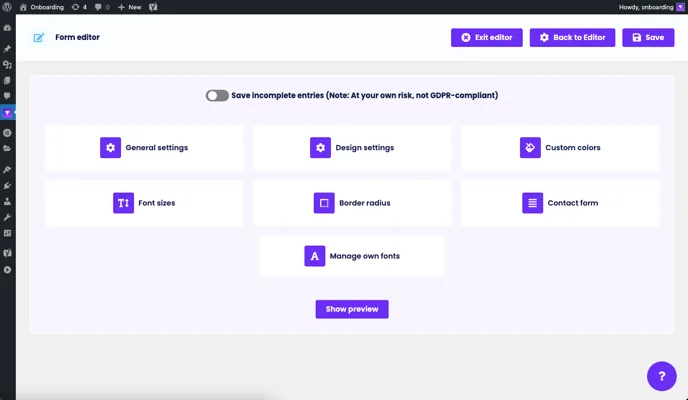
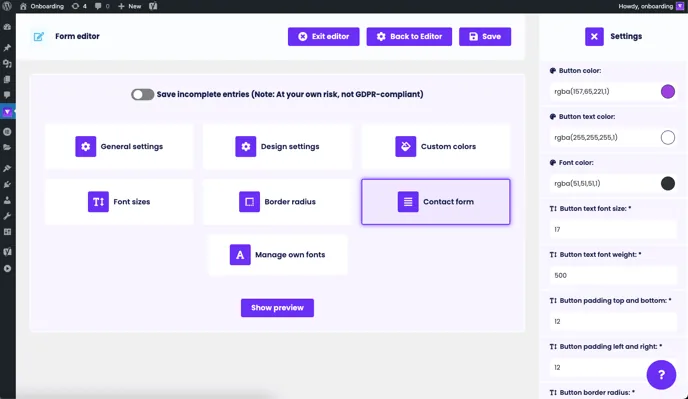
To view the settings of your form, click on the “Design & settings” button in the top right-hand corner of the form editor. The 7 categories are displayed as boxes and include General Settings, Design Settings, Custom Colors, Font Sizes, Border Radius, Custom Fonts and Contact Form. We will go into these settings in more detail below. To call up the preview, click on the button: “ Show preview”:
General settings
Under “General settings” you will find general, technical and visual setting options to adapt your form to your individual wishes and requirements:
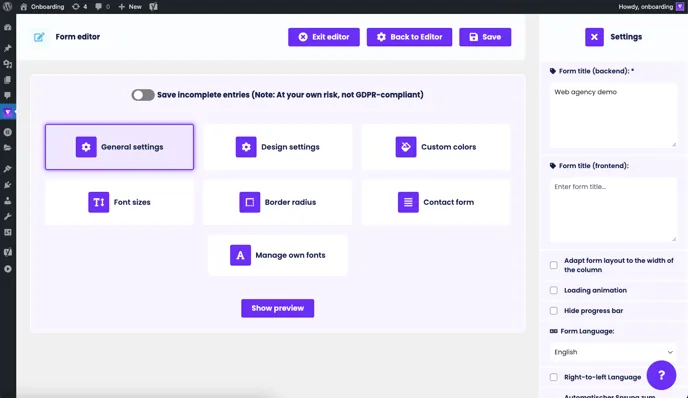
Here you have the option of giving your form a backend and frontend title.
The form title (backend) is purely for your orientation and is not visible to visitors.
The form title (frontend) is displayed directly above the form on your website and can be a call-to-action, for example.
Loading animation: If you want a short animation to be displayed for Funnelforms when the website loads, you can check this box. The animation cannot be changed and is deactivated by default.
FontAwesome: If you do not need the FontAwesome icon library, e.g. because you want to use your own icons or images or use our premium icons from the members area, you can deactivate this icon library. This will also save you some form loading time. However, FontAwesome is activated by default to give every user access to icons.
Automatic jump to form title (mobile): If this checkbox is activated, it will automatically jump to the title / question on mobile devices after selecting an answer to the next question. This can be particularly advantageous for the user if there are many possible answers and therefore long forms.
Show form sent success message: In this input field, you can customize your desired confirmation message to the user after successfully submitting the form. You can also select an image for this or use the default image. Of course, you also have the option of creating a redirect to a thank you page in the form builder.
Design settings
Funnelforms can be fully adapted to your CI and company colors. So that you can create your form as quickly as possible, there are some global setting options under “Design settings”. These are used so that you don't have to make any more in-depth individual design settings:
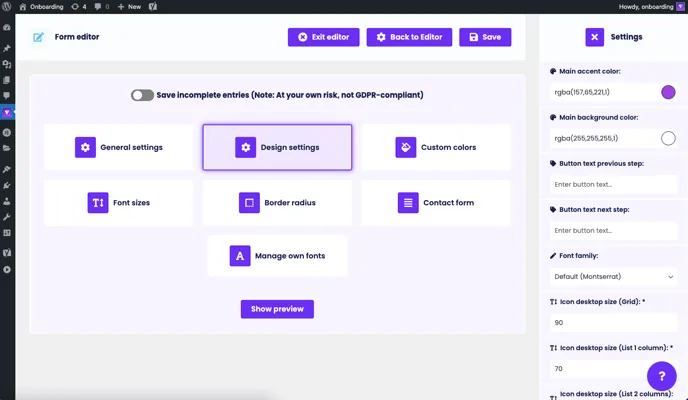
Here you can select the main accent color and the background color. Simply click on the color in the right sidebar and a color selector will open:
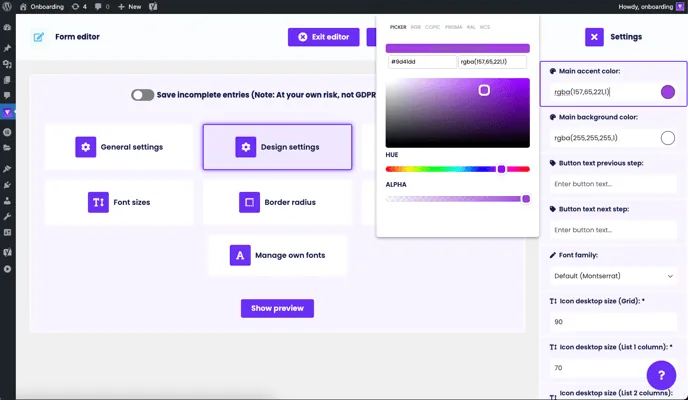
You can also determine the opacity of the color, for example, to make the background transparent, drag the lower slider (ALPHA) all the way to the left.
You also have the option of renaming the standard forward and back arrows as you wish, e.g. the classic “Back” and “Next”:
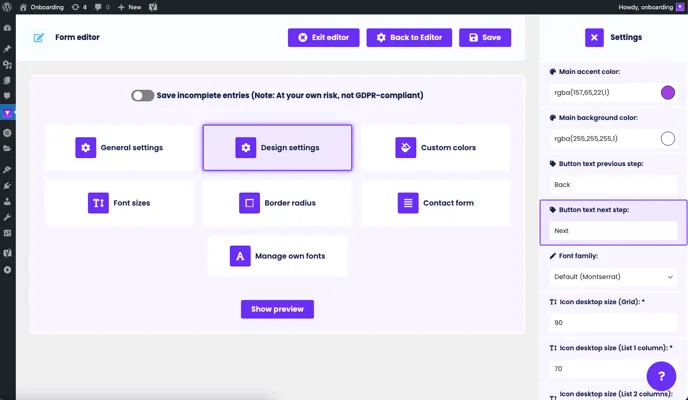
To adapt the form even better to your website design, various standard font families such as Serif or Sans-Serif can also be set. Funnelforms otherwise always uses the standard fonts of the theme used or fonts you have installed yourself.
Custom colors
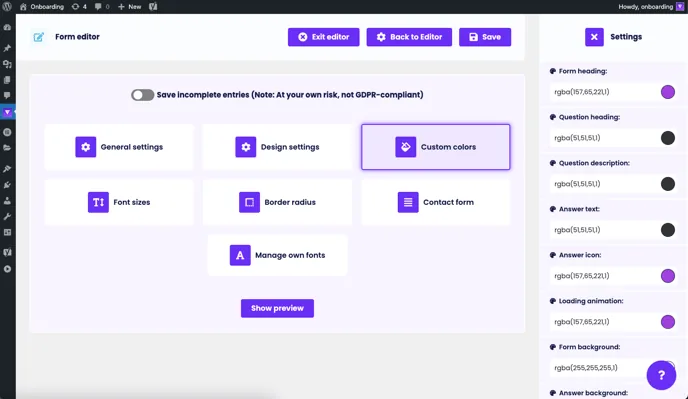
In order to make finer color adjustments to the entire form or individual question types, you have numerous setting options for each individual color in the form under the “Custom colors” button:
Font sizes
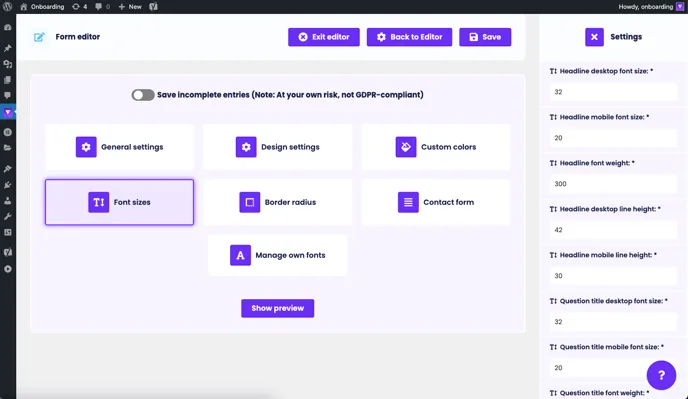
All different text sizes, text thicknesses, button labels and line heights for desktop and mobile can be set individually under “Font sizes”:
Border radius
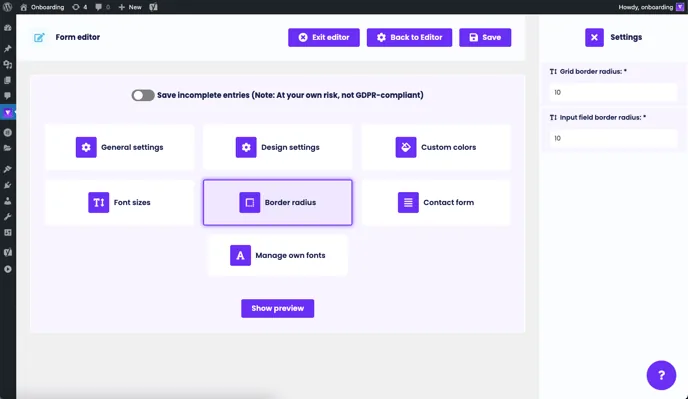
Under “Border radius” you have the option of setting the border radius of the answer boxes and the text questions to match your website, for example to make them more angular:
Contact form
Finally, there are the individual design settings for the contact form. Here you can also set the different colors, text sizes, text thicknesses, line heights and the send button:
To finish, click on the “Save” button in the top right-hand corner of the page. A message appears: “Save successful”. If errors occur or entries are missing, an error message will appear.