To be able to perform calculations in Funnelforms, a new calculation must first be created and configured. In this article you will learn how to create a calculation.
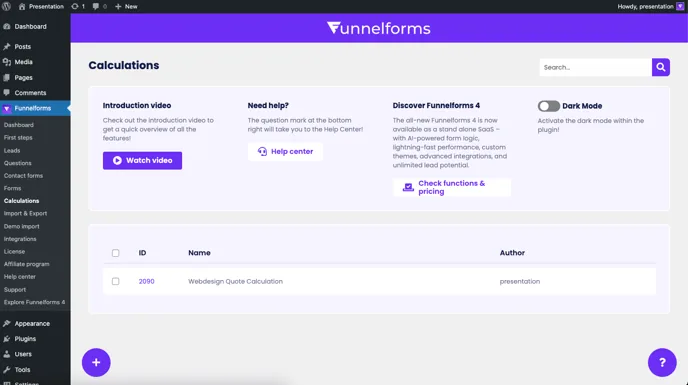
To create a new calculation, first navigate within the plugin to the menu item “Calculations”. In the overview, click on the + symbol at the bottom left to create a new calculation:
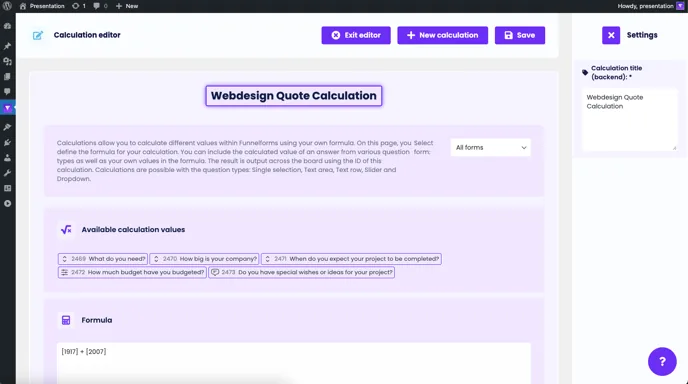
The calculation editor opens in which your calculation can be configured. First define a title for this calculation:
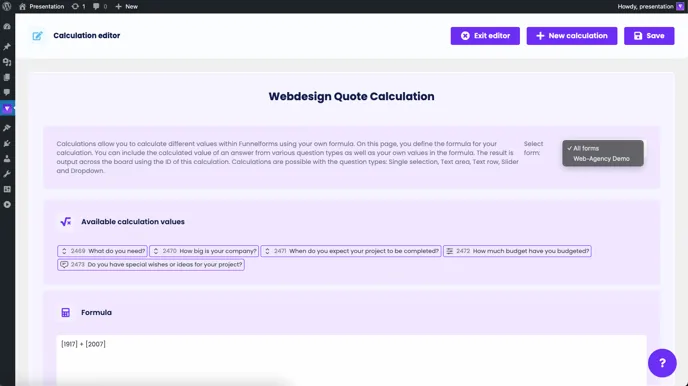
You then have the option of filtering by different forms in order to display the available calculation values of the respective forms more clearly:
You will now see all available calculation values for this form. Please note that calculations are only possible with the question types Simple selection, Text line, Text area, Slider and Dropdown and that only questions with these question types are available for the calculation.
Before the calculation values of the questions are displayed, it is necessary to enter the values for the answers in the question editor.
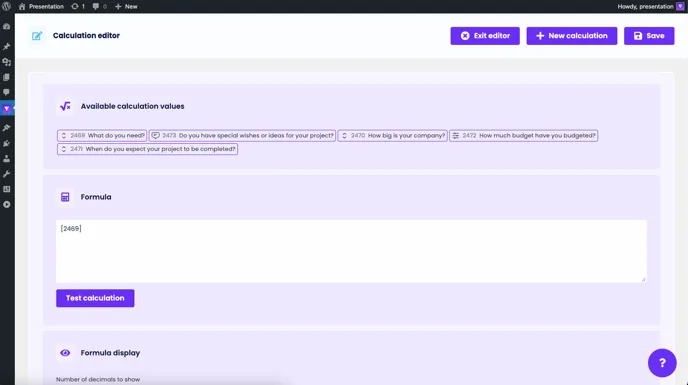
You can now start with the calculation formula to create your calculation. Simply click on the available calculation values and the individual question ID will be inserted into the formula:
The following operators are currently supported:
- Addition
- Subtraction
* Multiplication / Division ^ Exponentiation % Modulo
All common basic arithmetic operations such as addition, subtraction, multiplication and division are available within the formula, as well as calculations using brackets or percentages. Variable values can also be inserted in addition to the IDs. All arithmetic operations can be combined with each other as long as the calculation is correct and contains no errors. You have the option of checking your calculation after completion by clicking on the “Test calculation” button:
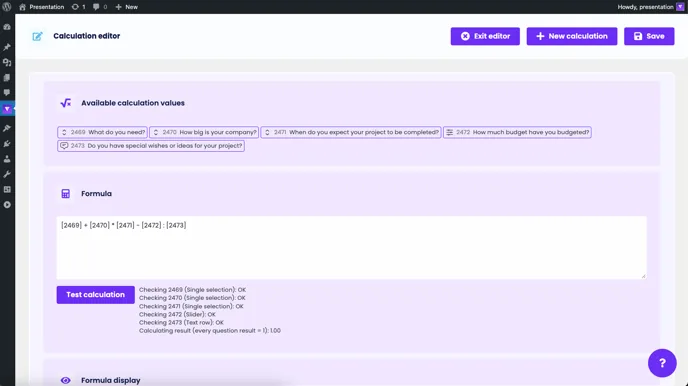
If your calculation still contains errors, the test will display the message “Formula not valid”. Check the formula again and adjust your calculation if necessary. Click on “Save” to finish.