To connect Funnelforms to helloHQ and transfer data to it, the first step is to set up the connection. To do this, first log in to helloHQ and click on the menu item “Admin” at the bottom left and then on “API Clients”, you should then find the following view:
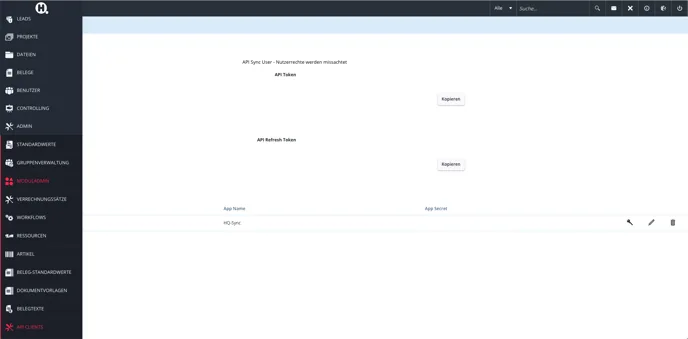
You will need the “API Token” and the “API Refresh Token” to set this up in Funnelforms.
Next, go to the “Integrations” menu item in Funnelforms. There you will find the interface to helloHQ.
Click on the helloHQ integration. You will now need the tokens provided by helloHQ. Enter the data in the corresponding field:
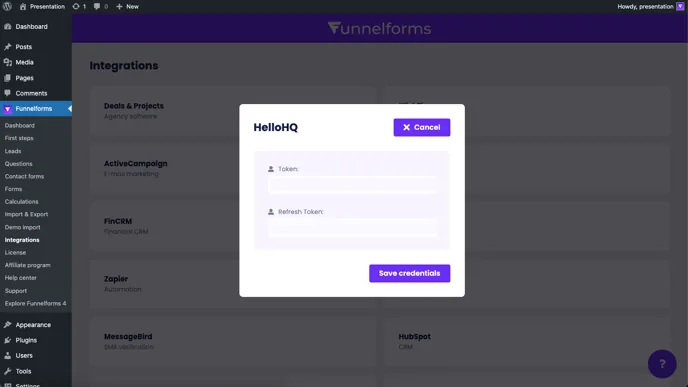
Click on “Save access data” to test and save the connection.
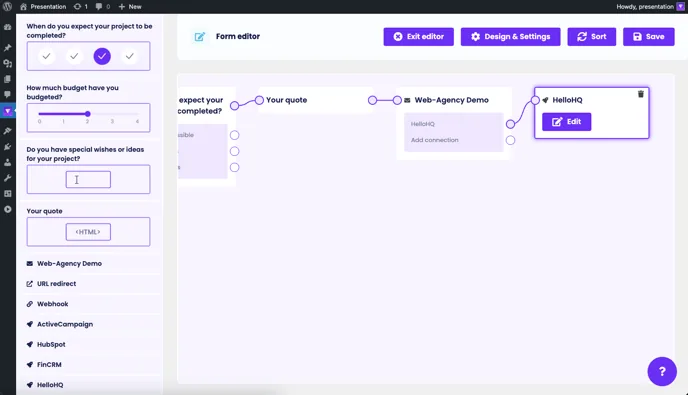
The integration then appears under the menu item “Forms” in the form editor at the bottom of the left-hand sidebar and can be configured and used using your specified IDs from the contact form. Finally, click on “Save” in the form editor:
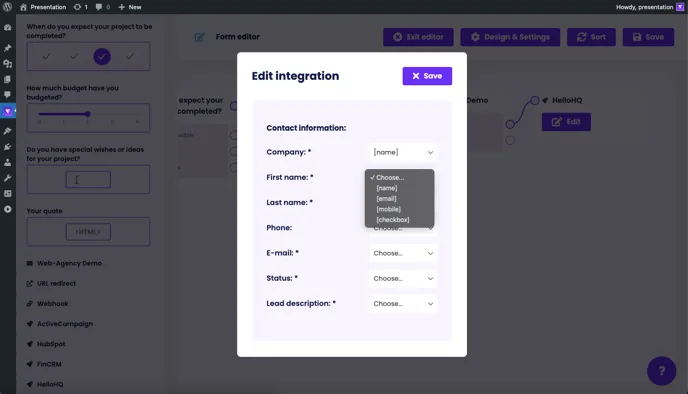
With this integration, a contact is created in helloHQ in the CRM as well as a new lead. The field: “Lead answers” stands for the individual field of the lead in which the answers from the form are transferred.