To connect Funnelforms to FinCRM and transfer data to it, you must first set up the connection. To do this, first log in to FinCRM and click on the “Settings” menu item at the bottom left:
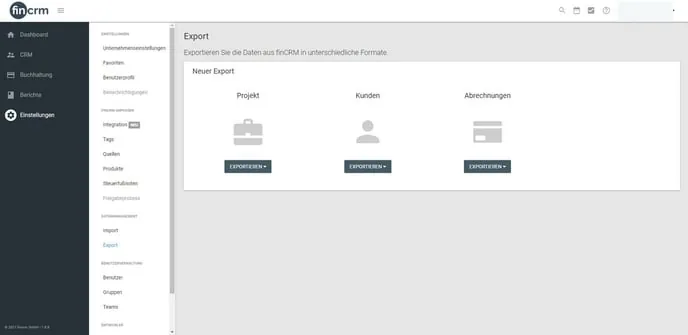
Then scroll to the bottom of the left-hand sidebar. Here, click on “Personal Access Tokens” under the Developer category:
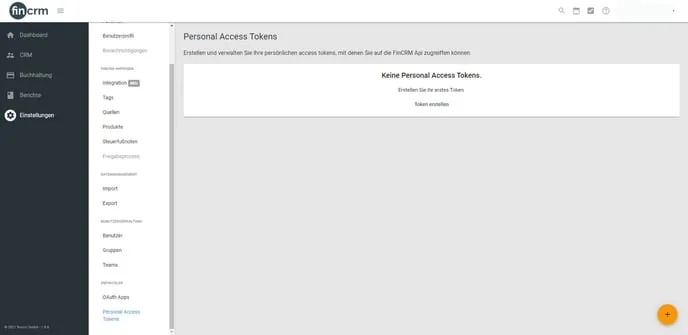
Now create a new token by clicking on the “Create token” button or via the yellow + symbol at the bottom right.
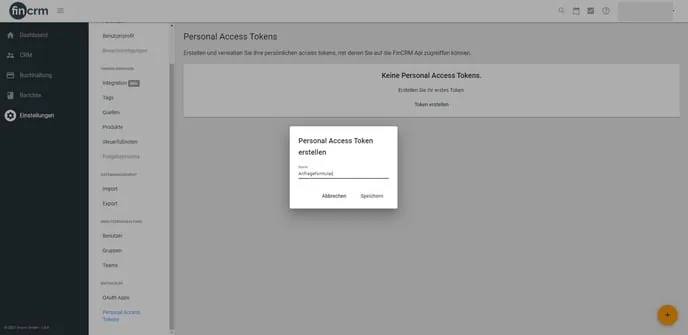
A window for naming the token will open. You can freely choose this name, e.g. Funnelforms. Then click on “Save”:
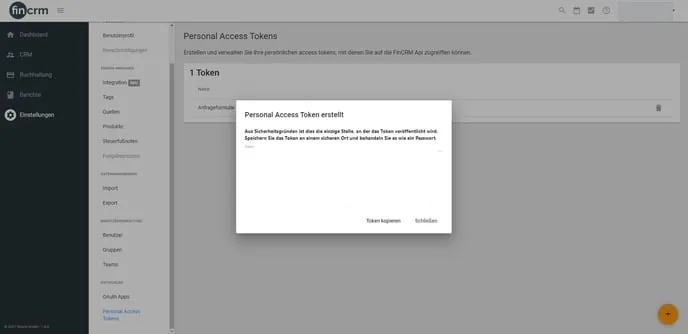
The token should now have been successfully created and will automatically appear in a new pop-up. Now copy this individual token for linking in Funnelforms:
Next, go to the “Integrations” menu item in Funnelforms. There you will find the interface to FinCRM.
Click on the FinCRM integration. You will now need the user ID provided by FinCRM (the first part of your FinCRM URL - see note) and the newly generated API token. Enter this data in the corresponding field:
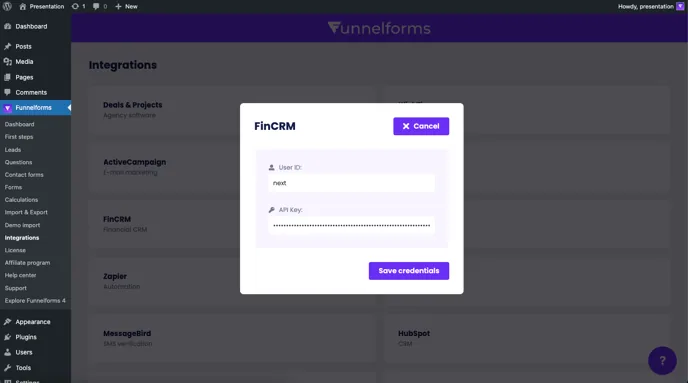
Note: Your user ID is the first part of your FinCRM URL and is assigned by FinCRM. In our example, the user ID is therefore “next”.

Click on “Save” to test and save the connection.
The integration then appears under the menu item “Forms” in the form builder in the bottom left-hand sidebar and can be configured and used using the IDs you have specified from the contact form. Finally, click on “Save” in the form builder:
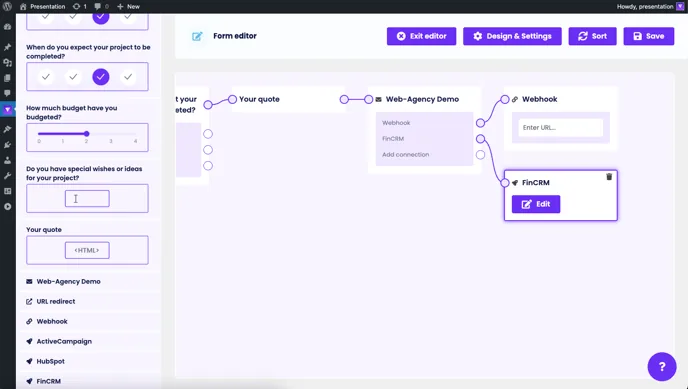
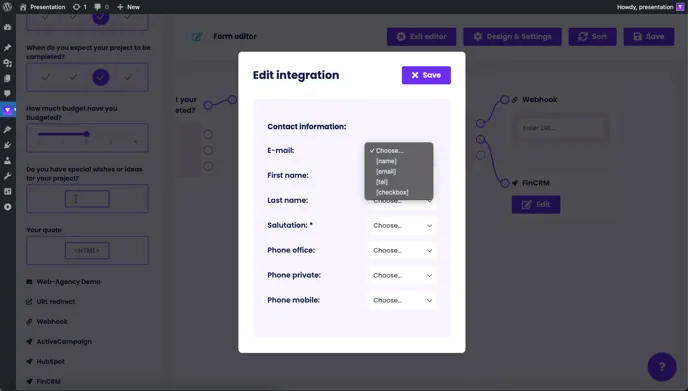
In FinCRM, a new contact is now created when a new form is submitted, to which the specified responses from Funnelforms are attached and assigned.
Note: An integration can only ever be inserted after a contact form due to the data transfer.