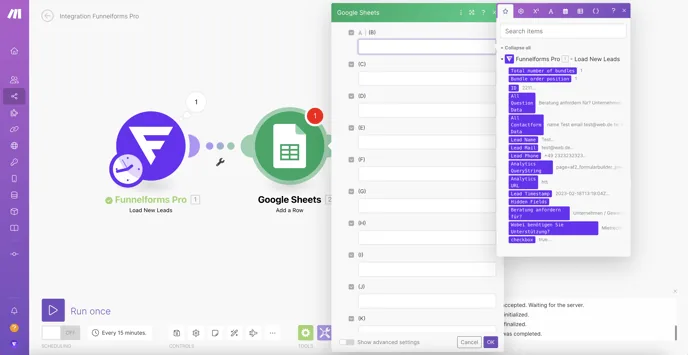
In this tutorial, we explain how to configure the Make integration for Funnelforms. The integration is configured directly in Make, so you won't find the Make integration in the left sidebar in the form editor like other integrations.
Make overview:
Log in to your Make account and create a new scenario. Select the “Funnelforms Pro” app. Various triggers are available to you, which differ as follows:
1. Watch new leads (recommended method): This is the instant trigger, this is executed immediately without any time delay via a webhook as soon as a new entry is received in the form.
2. Load new leads: Here one or more leads are retrieved by Make (so-called polling method). Depending on the Make settings, a query is made at least every 15 minutes. The time how often the scenario runs can be set in the lower right corner (currently "Every 15 minutes").
3. Make an API call: This is only relevant for expert users and executes an API call to the Funnelforms API.
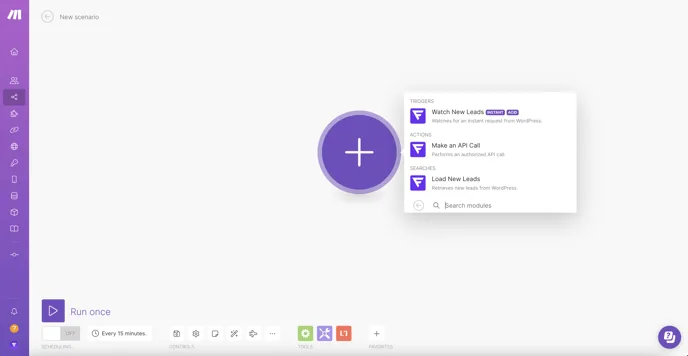
As the "Watch New Leads" and "Load New Leads" methods differ slightly from each other, we will go into each method separately from here on.
Watch New Leads - Step #1 - Connecting Funnelforms to Make:
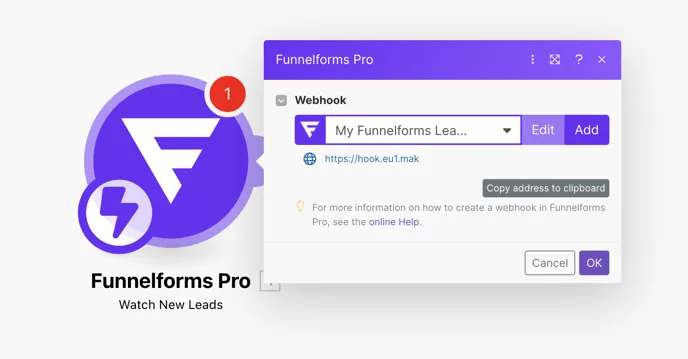
Select the "Watch New Leads" trigger. Funnelforms is then connected to Make via a webhook. Click on the "Add" button to create a new webhook.
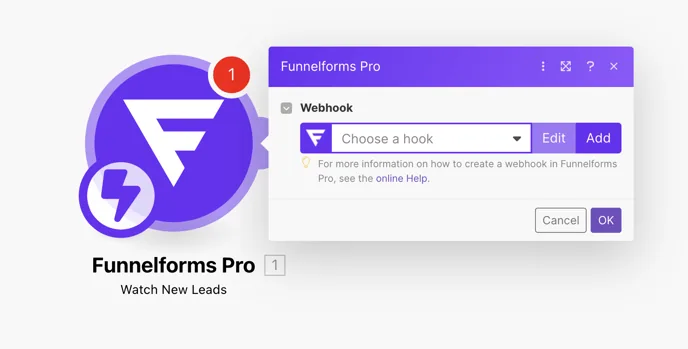
After clicking on “Add” another window opens, here you can give your webhook a name and then click on ‘Add’ again under “Connection” to establish the connection to your website.
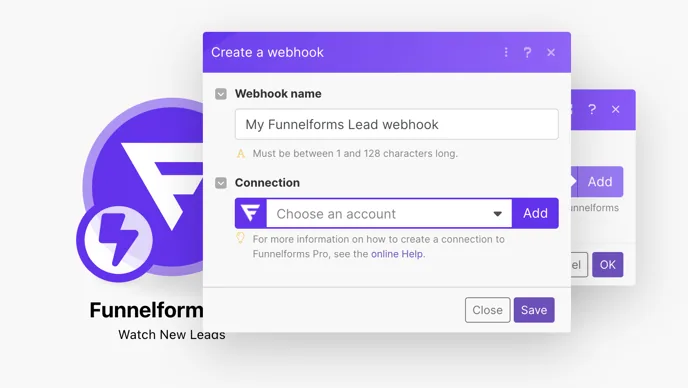
Give the connection a name, for example the domain of your website, to make it easier to assign the connection later.
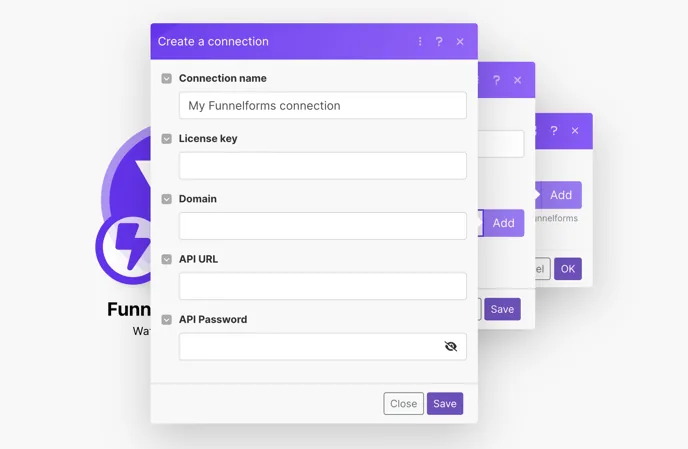
Enter the following data:
License key: You received this in the order confirmation email from DigiStore24 and can also be found in your WordPress installation under “License & App”.
Domain: Here you enter the domain on which the integration should be configured. (without www. or https://)
API URL: You can find this URL in WordPress under the menu item Integrations -> Make. Copy this into the corresponding field. The URL should have the following format:
https://domain.xxx/wp-json/af2/make/v1
API password: You can set this password yourself in WordPress under the menu item Integrations -> Make. Then enter the API password in the corresponding field.
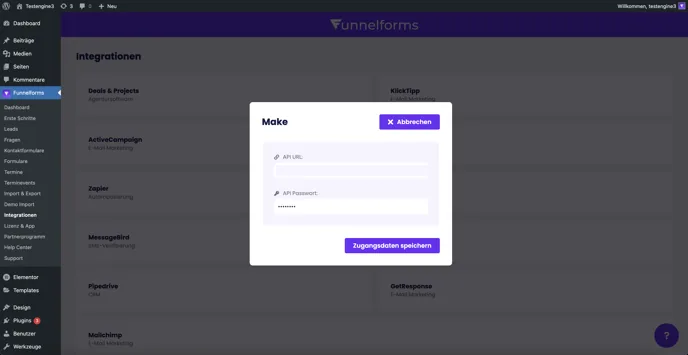
Then click on “Save”. The connection is checked and then saved under “Connections” in Make. After saving, you will receive a URL for the webhook from Make.
Watch New Leads - Step #2 - Integration of the webhook in Funnelforms:
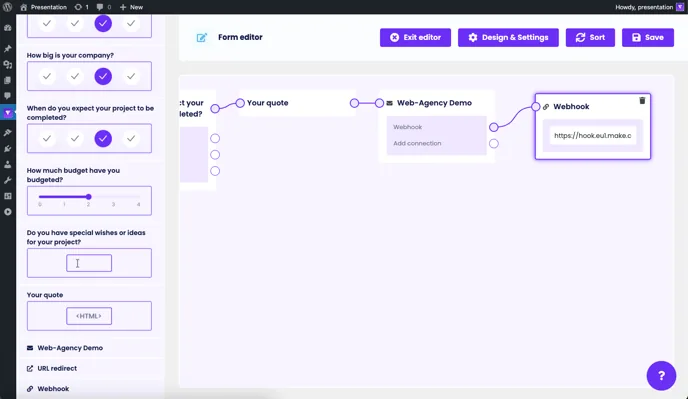
Copy the URL and paste it into the form you want to use for Make as a webhook behind the contact form and save the form.
Watch New Leads - Step #3 - Testing the connection:
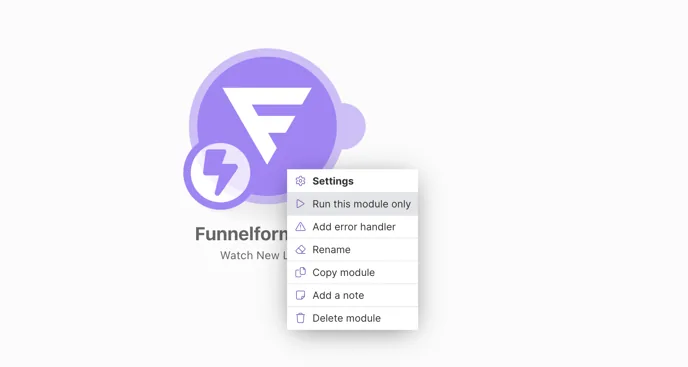
Go back to Make and right-click on the Funnelforms module. Then click on "Run this module only".
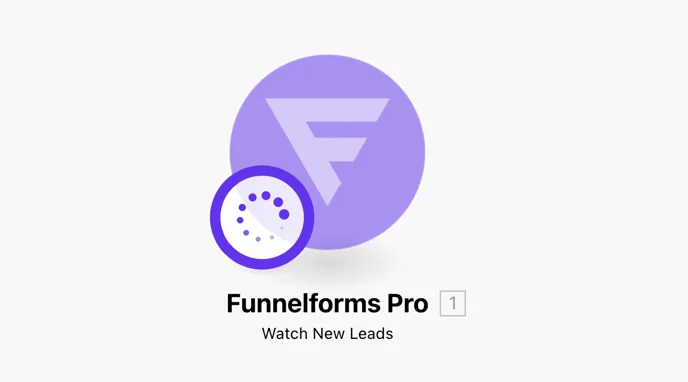
Make is now waiting for data from the webhook for further configuration of the integration
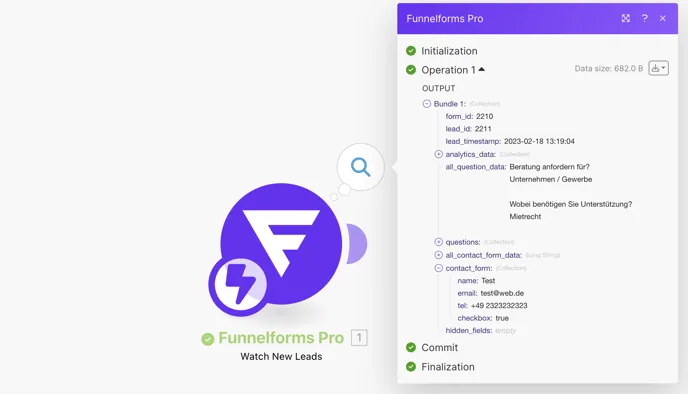
Now go back to your form and click through it via the preview or via a page and then send it. After the form has been submitted, the module should turn green in Make and the 1 at the top right should indicate that data has been received. Click on the 1 to display the received data.
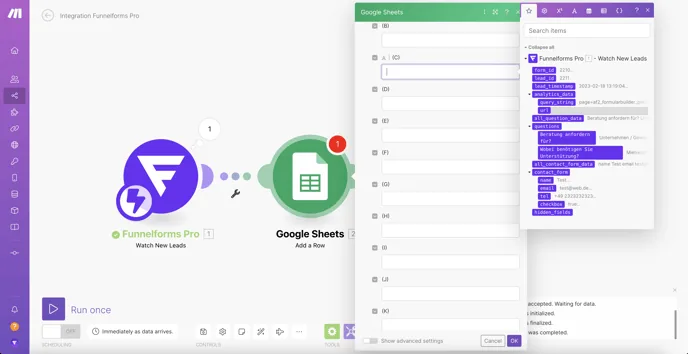
You can now add further modules and use the data to build your desired automations.
Load New Leads - Step #1 - Connecting Funnelforms to Make:
Select the "Load New Leads" trigger. Funnelforms is then connected to Make via a call method. Click on the "Add" button to create a new connection.
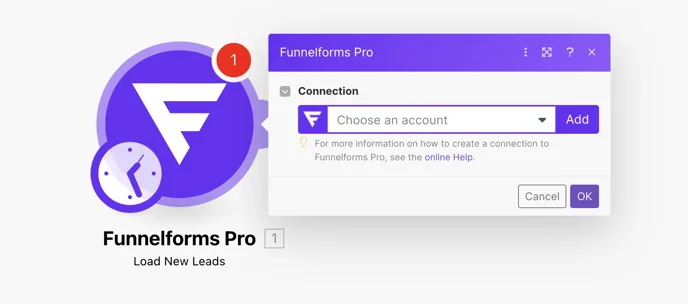
Give the connection a name, for example the domain of your website, to make it easier to assign the connection later.
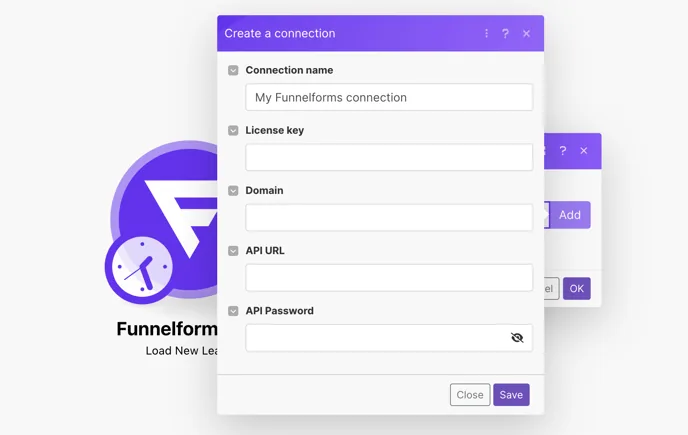
Enter the following data:
License key: You received this in the order confirmation email and can also be found in your WordPress installation under “License & App”.
Domain: Here you enter the domain on which the integration should be configured. (without www. or https://)
API URL: You can find this URL in WordPress under the menu item Integrations -> Make. Copy this into the corresponding field. The URL should have the following format:
https://domain.xxx/wp-json/af2/make/v1
API password: You can set this password yourself in WordPress under the menu item Integrations -> Make. Then enter the API password in the corresponding field.
Then click on “Save”. The connection is checked and then saved under “Connections” in Make.
Load New Leads - Step #2 - Configuring the connection in Make:
Unlike the "Watch New Leads" method, the "Load New Leads" method retrieves all leads from Funnelforms from a specific form. Configuration in Funnelforms is not required here. Select the form you want to use for Make.
The limit specifies the number of entries to be retrieved from the form in the time you have set for the scenario to be repeated.
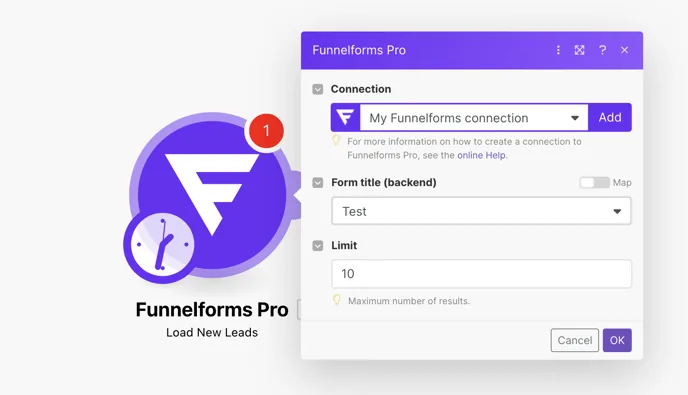
Click Ok to confirm the settings.
Load New Leads - Step #3 - Test the connection:
Right-click on the Funnelforms module. Then click on “Run this module only”.
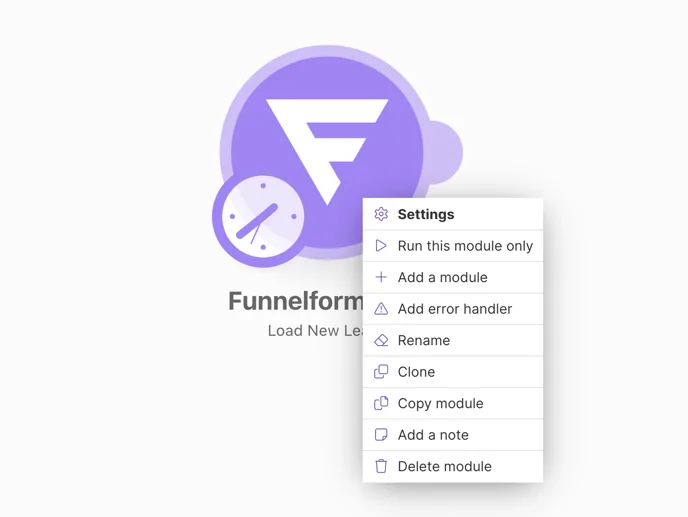
Now the entries from the form you selected are retrieved. The module should now turn green in Make and the 1 at the top right should indicate that data has been received. Click on the 1 to display the received data.
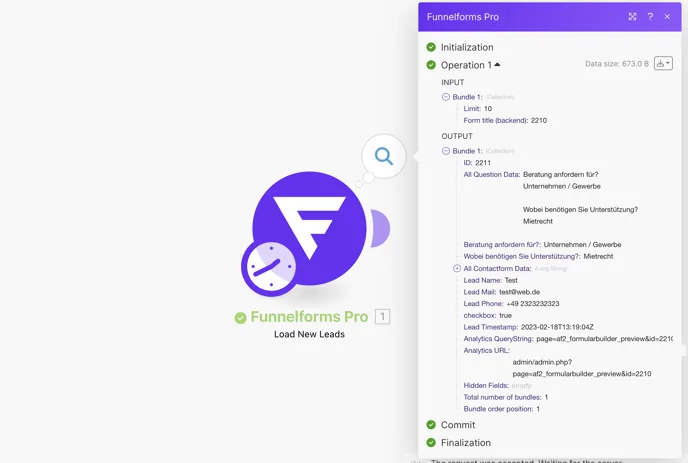
You can now add further modules and use the data to build your desired automations.