With the action "Slack or Teams message", every new entry appears as a message in a channel of your team. This helps when your sales or support team should react faster than a mail allows.
Requirements
- Funnelforms Pro. This feature is not included in Funnelforms Free. Free does not offer the action under Add an action and names Slack and Teams in the note with the Pro badge.
- You have the right to see entries. Without this right you can prepare the action; someone with the right publishes it.
- For Add connection you need the right to change the settings. Without it you see the note "Connections are added by someone who may change the settings."
- The web address of an incoming webhook (Slack) or of a webhook for a channel (Teams), which you create in Slack or Teams yourself.
Where to find it
Open the form in the editor in the Structure workspace, click the contact step and then the After sending tab on the right. Under Actions, choose Slack or Teams message in Add an action.
Features at a glance
- Service: Slack or Microsoft Teams.
- Connection: the stored webhook address of your channel, kept encrypted. With Test, Edit and Delete.
- Message: your own text with placeholders.
- Show the answers and Show the contact details.
- A button to the entry in the message.
- When and For entries from.
Step by step
- In Slack, create an incoming webhook for your channel, or in Teams a webhook through a workflow or a connector. Copy its address.
- Open the form in the editor, click the contact step and then the After sending tab on the right.
- Under Add an action, choose Slack or Teams message.
- Under Service, choose Slack or Microsoft Teams.
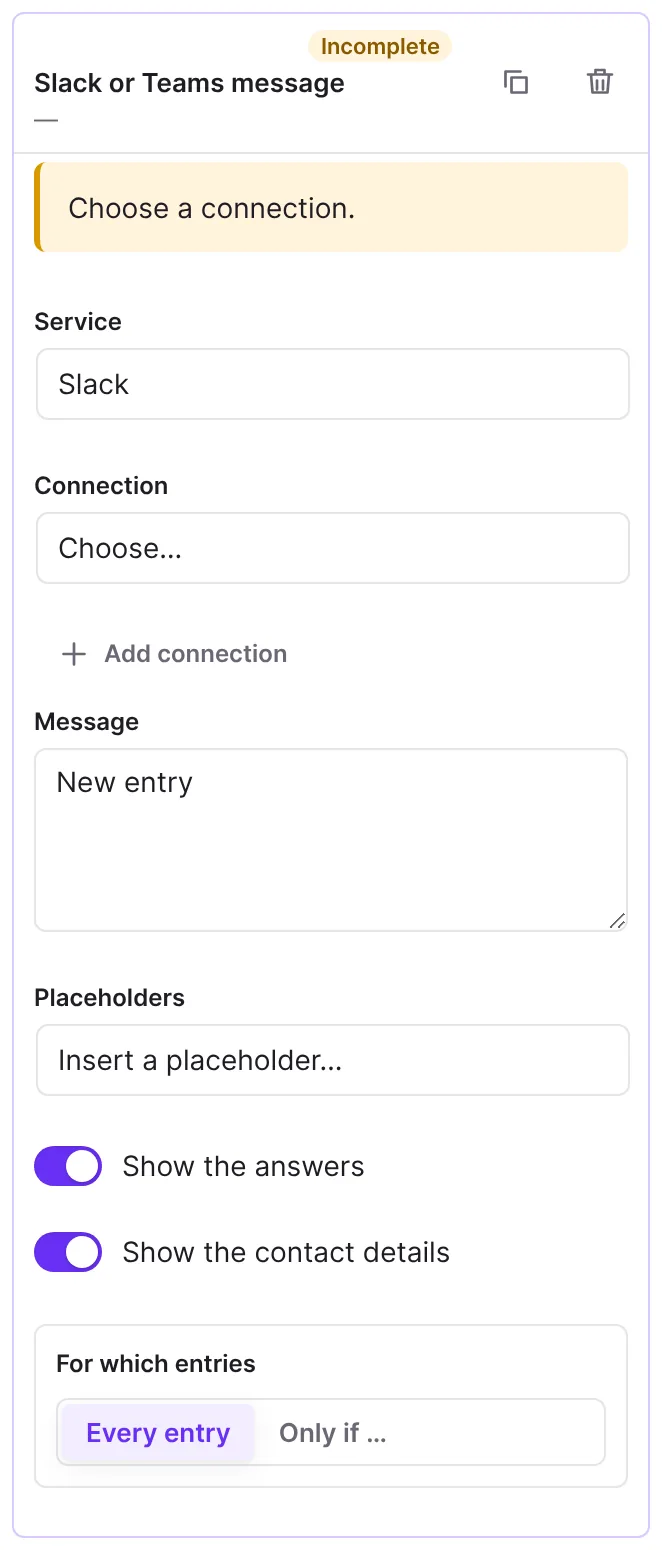
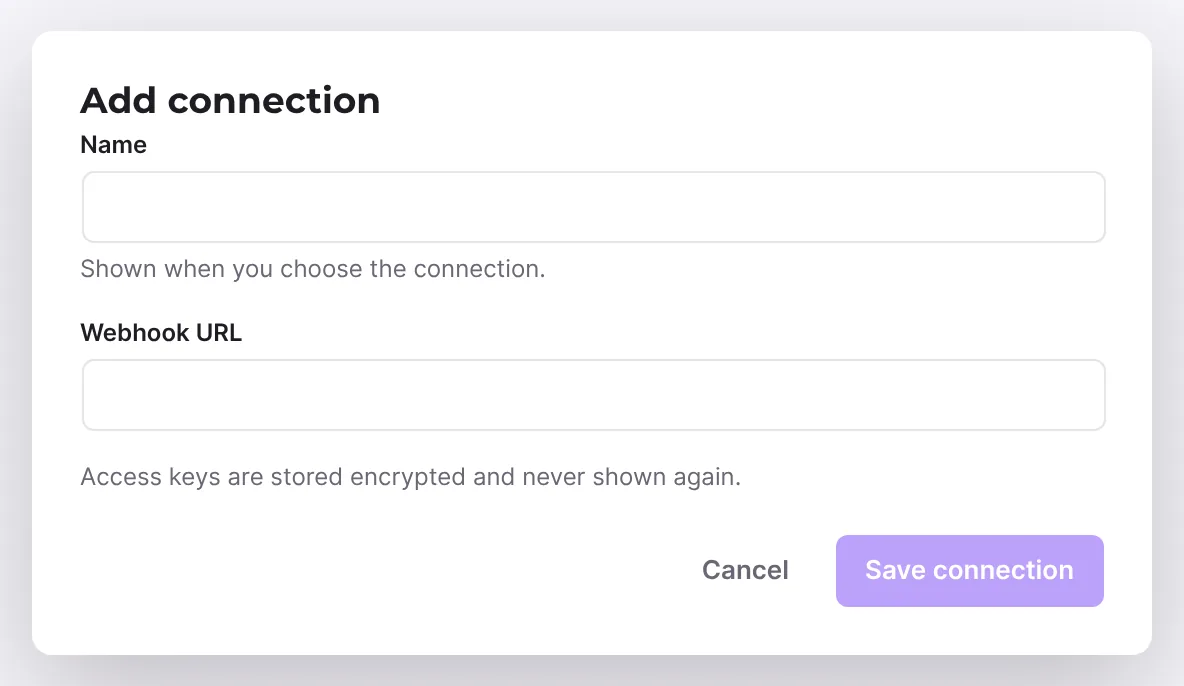
- Next to Connection, click Add connection.
- Enter a Name, for example the name of the channel. It appears later in the list.
- Paste the address into the Webhook URL field and click Save connection.
- Below the connection, click Test. Funnelforms sends a test message to the channel right away and reports "The test message was sent. Check that it arrived."
- Write the Message, for example "New request from
{{field:email}}". With Placeholders you insert fields. - Switch Show the answers and Show the contact details on or off.
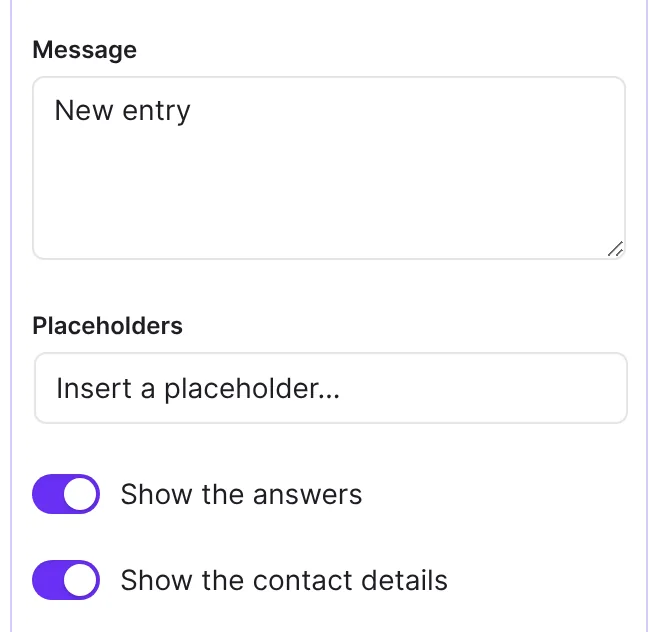
- Publish the form with Publish and send a test entry.
How it works
What does the message look like?
The message starts with the heading "New entry: name of the form" and contains your text. Depending on the settings, the answers and the contact details follow as a list. Consents, HTML fields and captcha fields never appear. At the end there is an Open entry button if the entry exists in the lead list of Funnelforms 3.
In Slack the message is built in block format, in Teams as an adaptive card. The characters &, < and > from answers are neutralised, so an answer cannot mention a channel or hide a link.
Which addresses are allowed?
For security, Funnelforms only accepts the addresses of the services themselves:
- Slack: addresses that start with
https://hooks.slack.com/services/. - Teams: addresses on
webhook.office.com,logic.azure.comorpowerplatform.com.
Funnelforms rejects other addresses, so a form cannot send entries to arbitrary destinations.
What happens on errors?
The message runs in the background like mails and webhooks. On a server error or a rate limit of the service, Funnelforms tries up to three times. If the service refused the message or the webhook no longer exists (answer 4xx), Funnelforms does not retry. You see the result in the entry under Sent to.
How do I test, change or delete a connection?
- Test sends the message "Test message from Funnelforms" with the text "New entries of … can arrive in this channel." and the name of your website. If it fails, it says "The message was not delivered (…)." with an error code.
- Edit opens Edit connection. You change the Name or enter a new Webhook URL; an empty field keeps the stored address.
- Delete asks first and names what stops working in the form. The connection is deleted for the whole site, also for other forms.
You only see these buttons with the right to change the settings. More in Add, test and delete connections for actions.
What happens with double opt-in?
If double opt-in is active, the message waits until the visitor has confirmed the address.
Best Practices
- Create a separate connection with a descriptive name for every channel.
- Switch on Show the contact details only if everybody in the channel may see the data.
- Keep the text short; the answers follow below.
Troubleshooting
| Problem | Cause | Solution |
|---|---|---|
| "Choose a connection." | No connection chosen. | Choose a connection or add one. |
| Test reports "The message was not delivered (…)." | The webhook of the channel was removed or the address is wrong. | Create a new webhook in Slack or Teams and enter its address with Edit. |
| An error appears when saving the connection | The address does not belong to the service. | Copy the address of the incoming webhook again. |
Delivery is "Failed" with code permanent:connection_missing | The connection was deleted or does not match the service. | Choose a valid connection under Connection. If the list shows "Deleted connection", add a new one. |
Code permanent:http_404 or similar | The webhook was removed or refused in Slack or Teams. | Create a new webhook and save a new connection. |
| The Open entry button is missing | The entry is not in the lead list of Funnelforms 3. | Open the entry under Funnelforms → Entries. |
Tips
- With Duplicate you copy the action for a second channel and choose another connection there.
- Do not share the webhook address; whoever has it can write to the channel. Funnelforms stores it encrypted and does not show it again.
FAQ
Can I serve several channels? Yes. Add the action several times, each with its own connection.
Does the form contain the webhook address? No. It sits encrypted as a connection on your website, not in the form.
Is there a test button? Yes. Test below the connection sends a test message to the channel right away. You check the text of your action with a test entry.