A connection stores the credentials for a service, such as the webhook address of a Slack channel or the token of your text message provider. Actions such as Slack or Teams message, Text message (SMS), WhatsApp message and Conversion (Meta, GA4, TikTok) send through a connection. You add it right in the action, check it with Test, change it with Edit and remove it with Delete.
Requirements
- Funnelforms Pro. This feature is not included in Funnelforms Free. Free offers no actions that need a connection and names them in the editor only in the note with the Pro badge.
- You have the right to change the settings. Administrators always have it. Without this right you see the note "Connections are added by someone who may change the settings."

- For the action itself you need the right to see entries.
- The credentials of the service, for example from your Twilio account or from the Meta events manager.
Where to find it
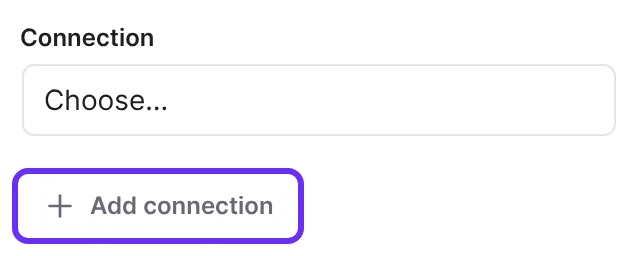
Open the form in the editor in the Structure workspace, click the contact step and then the After sending tab on the right. Open an action that needs a connection. Below the Connection field you find the buttons Test, Edit, Delete and Add connection.
Features at a glance
- Add connection: choose the service, give it a Name, enter the credentials.
- Test (Slack, Teams, SMS, WhatsApp): sends a test message right away.
- Edit: change the name or replace single credentials.
- Delete: removes the connection for the whole site and names first what stops working in the form.
- Access keys are stored encrypted and never shown again.
Step by step
Add a connection
- Open the action, for example Text message (SMS).
- Below Connection, click Add connection.
- Choose the provider under Service if the action knows several.
- Enter a Name. It appears later in the list, such as "Sales Slack".
- Enter the credentials. You may leave fields marked "(optional)" empty.
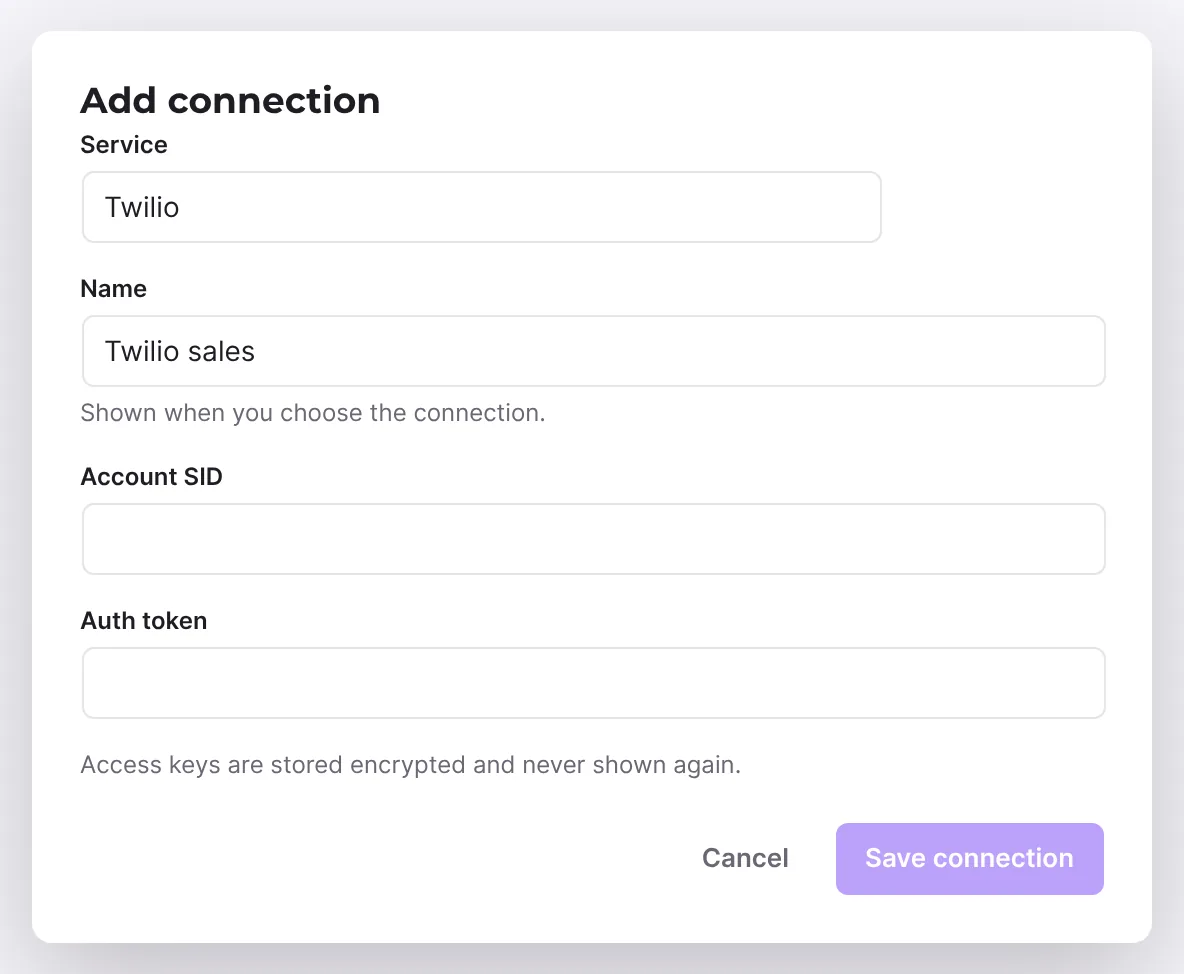
- Click Save connection. The new connection is chosen in the action right away.
Test a connection
- Choose the connection under Connection.
- Click Test.
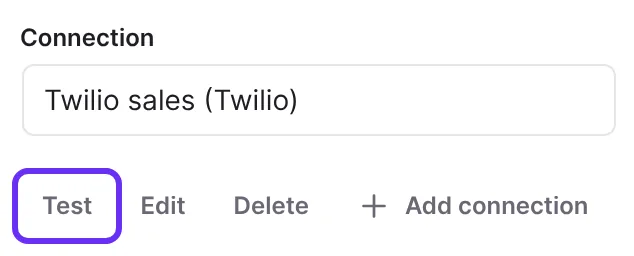
- For Slack and Teams the test message goes out right away. For SMS and WhatsApp a window opens: enter your own number in international format under Send to, for WhatsApp also Approved template and Language of the template, and click Send test.
- Read the message and check that the test arrived.
Edit a connection
- Choose the connection and click Edit.
- In the Edit connection window, change the Name or enter new credentials. Fields you leave empty keep their stored value.
- Click Save connection.
Delete a connection
- Choose the connection and click Delete.
- Read in the window what stops working in the form.
- Click Delete connection.
- Choose another connection for the affected actions.
How it works
Which credentials does each service need?
| Service | Fields |
|---|---|
| Slack, Microsoft Teams | Webhook URL |
| Twilio | Account SID, Auth token |
| Bird | Workspace ID, Channel ID, Access key |
| Phone number ID, Access token, WhatsApp Business account ID (for templates) (optional) | |
| Meta | Pixel ID, Access token |
| Google Analytics 4 | Measurement ID, API secret |
| TikTok | Pixel code, Access token |
For Slack and Teams, Funnelforms only accepts addresses of the services themselves. It refuses another address with "This is not an incoming webhook address of the service." You do not connect CRM, newsletter and spreadsheet tools here, but under Funnelforms → Integrations.
What does the test send?
- Slack and Teams: the message "Test message from Funnelforms" with the text "New entries of … can arrive in this channel." and the name of your website.
- SMS: "Test message from Funnelforms on …" with the name of your website. If you leave Sender empty, the test uses the name of the website.
- WhatsApp: the chosen approved template. The default is
hello_worldinen_US, which exists in every account.
If it works, it says "The test message was sent. Check that it arrived." Otherwise it says "The message was not delivered (…)." with an error code.
Which connections can I not test?
Conversions to Meta, GA4 and TikTok and payment providers have no Test button. Below the connection it then says "Try it with a test entry: payments with the test keys of the provider, conversions with the test event code of the platform." Send an entry of your own and check at the service that it arrives.
What happens when I delete a connection?
Funnelforms asks "Delete “name of the connection”?". If actions of this form use the connection, it says "Still in use in this form" and "These stop working: …". The connection is deleted for the whole site: other forms that use it stop sending through it too. The stored access keys are removed; this cannot be undone. Funnelforms records the deletion in its log.
What applies to connections from Funnelforms 3?
Connections the move brought from Funnelforms 3 keep working. They appear in the list under the name of the service. You can test and edit them, but not delete them here. If a connection from Funnelforms 3 no longer exists, the list shows "From Funnelforms 3".
Who sees the connections?
Connections belong to the whole website, not to the form. Only people who may change the settings can add, test, edit and delete them. The form itself only holds a reference to the connection, no credentials.
Best Practices
- Give descriptive names, such as by channel or team, so nobody picks the wrong connection.
- Test every new connection before you publish the form.
- Before deleting, check whether other forms still use the connection.
Troubleshooting
| Problem | Cause | Solution |
|---|---|---|
| "Fill in every field of the connection." | A required field is empty. | Fill in all fields without "(optional)". |
| "… does not have the expected format." | A key was copied wrongly, for example the WhatsApp account ID. | Copy the value again from the account of the service. |
| "The message was not delivered (…)." | Credentials, number or template are wrong. | Check the values with Edit and test again. |
| "Enter the number in international format, e.g. +49 170 1234567." | The number under Send to has no country code. | Enter the number with + and country code. |
| The list shows "Deleted connection" | The connection was deleted. | Choose another connection or add a new one. Without the right to change the settings, ask someone with the right to do it. |
| The Test, Edit and Delete buttons are missing | You lack the right to change the settings, or no connection is chosen. | Choose a connection or ask someone with the right. |
| Delete is missing for a connection | The connection comes from Funnelforms 3. | This is intended; it keeps working. |
Tips
- You can use one connection in several forms. If you change its credentials, this applies to all of them.
- If an access token expires at the provider, enter only the new token with Edit. The other fields stay.
- Your test entry shows under Sent to in the entry whether the real action went through.
FAQ
Can I see stored access keys again? No. They are stored encrypted and never shown again. When editing, the fields say "Unchanged".
Does a deleted connection only apply to this form? No. It is deleted for the whole website.
Can I add a connection without a form? For actions you add connections in the editor at the action. You add CRM, newsletter and spreadsheet connections under Funnelforms → Integrations (Pro only).