Funnelforms 5 comes as Funnelforms Free and as Funnelforms Pro. You install Free straight from the WordPress plugin directory and get its updates there as well. Pro is a plugin of its own that you upload as a ZIP file; its updates come from the Funnelforms update service. If you already use Funnelforms 3, you update the same way as before: Funnelforms copies your data into the new storage in the background and leaves your 3.x data unchanged.
Requirements
- WordPress 6.5 or newer (tested up to WordPress 7.1).
- PHP 8.1 or newer.
- A user account that may install and activate plugins, usually an administrator.
- For Funnelforms Free: nothing else. Free needs no license code and no Funnelforms account.
- For Funnelforms Pro: the ZIP file of Funnelforms Pro. A download of the ZIP file in the Funnelforms account does not exist yet. This feature is currently in progress.
- For updates of Funnelforms Pro: the website is connected with your Funnelforms account, and your plan is running.
- For the update from 3.x: the uploads folder of WordPress must be writable, because Funnelforms stores the restore point of your 3.x data there.
Where to find it
- Install Funnelforms Free: Plugins → Add New Plugin, search for "Funnelforms Free"
- Install Funnelforms Pro: Plugins → Add New Plugin → Upload Plugin
- Update: Dashboard → Updates or Plugins
- After installing: the setup assistant, then Funnelforms → Overview
- Report on the import of your 3.x data: Funnelforms → Migration (the menu item appears once an import has run)
Features at a glance
- Funnelforms Free: from the WordPress plugin directory, updates through the directory like any other plugin, no license code. Free does not connect to Funnelforms servers unless you turn on diagnostic data.
- Funnelforms Pro: as a ZIP file, updates from the Funnelforms update service as soon as the website is connected with your Funnelforms account. Every update is checked before it is installed.
- After installing, the setup assistant opens. It is mandatory and leads you to your first form.
- Update from 3.x: Funnelforms first saves a restore point of your 3.x data and then copies forms, entries and, in Pro, appointments and connections (e-mail, CRM, webhooks).
- Your 3.x data is only read, never changed. Shortcodes and pages stay as they are.
Step by step
Install Funnelforms Free
- Open Plugins → Add New Plugin.
- Search for "Funnelforms Free".
- Click Install Now next to Funnelforms Free, then Activate.
- As an administrator, open the dashboard, the plugin list or Funnelforms. The setup assistant opens.
- Follow the assistant until your first form is published.
Install Funnelforms Pro
- Open Plugins → Add New Plugin and click Upload Plugin.
- Choose the ZIP file of Funnelforms Pro and click Install Now.
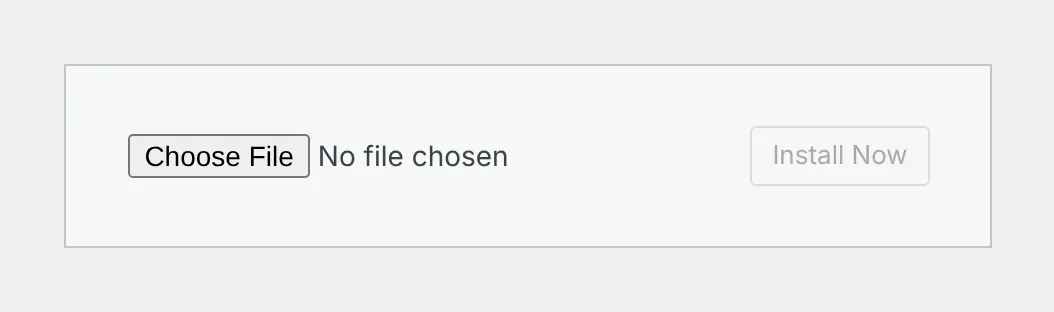
- Click Activate Plugin. If Funnelforms Free is active, Pro deactivates it.
- As an administrator, open the dashboard, the plugin list or Funnelforms and follow the setup assistant.
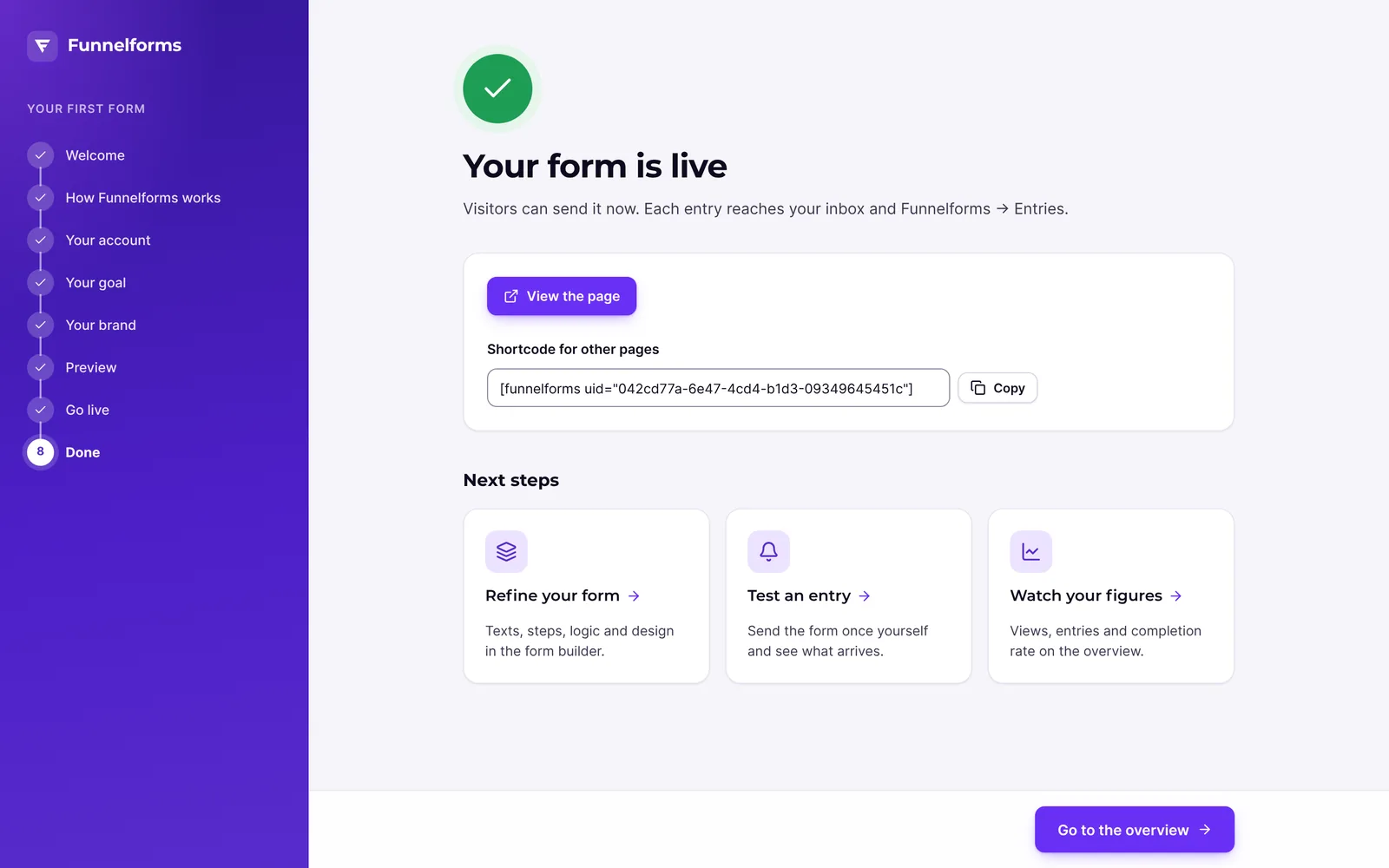
- Connect the website with your Funnelforms account under Funnelforms → Account so that it gets updates.
If you already use Funnelforms Free, you can skip the plugin page: open Funnelforms → Pro features, click Already bought Pro? Install it and upload the ZIP file in the step Upload it here. Then activate Pro with Activate Funnelforms Pro.
Update Funnelforms
- Open Dashboard → Updates.
- Click Check again.
- Tick Funnelforms Free or Funnelforms Pro and click Update Plugins.
- Then open Funnelforms. On the first visit after the update, Funnelforms adjusts the data tables if needed.
Update from 3.x
- Update Funnelforms as usual through WordPress, or upload the ZIP file of version 5.0.
- As an administrator, open the dashboard or Funnelforms. On the first visit after the update, Funnelforms creates the new data tables and starts the restore point.
- Go through the setup assistant: bring over your data, make your choice, compare your forms and go live.
- Check under Funnelforms → Migration how each form did.
How it works
How does Funnelforms Free get its updates?
Like every plugin from the WordPress plugin directory. WordPress shows new versions under Dashboard → Updates and in the plugin list. You need no license code and no Funnelforms account for this.
How does Funnelforms Pro get its updates?
From the Funnelforms update service. For this, the website must be connected with your Funnelforms account and your plan must be running. If the website is not connected, the plugin list shows "Connect this website with Funnelforms to get updates from your account." below Funnelforms Pro, with the link Connect now. Funnelforms Pro 5.0 no longer uses the update checker of Funnelforms 3. If your website had a license key in Funnelforms 3, it connects with it in the background by itself.
What happens to my data when I update from 3.x?
Funnelforms first saves a restore point of all 3.x data, checks it and stores it in the uploads folder. Only then does the import begin. It copies your data into the new storage. The credentials of your connections are stored encrypted. Your 3.x data is not changed. While forms still run with the technology of Funnelforms 3, Funnelforms updates the copy from 3.x every hour.
What happens to my forms on the website?
- In Funnelforms Pro: forms that pass every check run on Funnelforms 5. The others keep running with the technology of Funnelforms 3. The migration report under Funnelforms → Migration gives the reason for each form.
- In Funnelforms Free: Free no longer contains the technology of Funnelforms 3. Each form appears on your website again as soon as its copy is checked. Until then, visitors see nothing in its place, and people who may edit forms see a notice. If a form needs a look, Funnelforms names it on its pages and in the plugin list with the link Show the forms.
What happens to the menu of Funnelforms 3?
Pro only: the long menu of Funnelforms 3 shrinks to a single entry Funnelforms 3 below the new menu Funnelforms. The entry disappears once all forms run on Funnelforms 5 and you chose to hide it in the assistant. Under Settings → General you show it again with Show the old interface (Funnelforms 3) in the menu. The data is kept in any case.
What happens if my PHP version is too old?
If the website runs a PHP version below 8.1, the features of Funnelforms 5 do not start. Administrators see a notice such as "Funnelforms Pro 5 needs PHP 8.1 or newer. This website runs PHP …", in Free with "Funnelforms Free 5". In Pro, the features of Funnelforms 3 keep running until then.
Can I go back to Funnelforms 3?
In Pro, for your forms: under Funnelforms → Migration → Way back, one click puts all imported forms or a single form back on Funnelforms 3. The plugin files themselves cannot be rolled back to version 3.8 through Funnelforms. This feature is currently in progress. Funnelforms Free has no way back.
Best Practices
- Plan the update for a quiet time and keep the page of the assistant open until the step Bring over your data is done. The page drives the import forward, even where WP-Cron does not run.
- The restore point covers the data of Funnelforms 3. It does not replace a backup of your whole website.
- Connect a Pro website with your Funnelforms account right after installing it, so that it gets updates.
Troubleshooting
| Problem | Cause | Solution |
|---|---|---|
| "Funnelforms Pro 5 needs PHP 8.1 or newer. …" or "Funnelforms Free 5 needs PHP 8.1 or newer. …" | The website runs an older PHP version. | Ask your host to switch PHP to 8.1 or newer. |
| Funnelforms Pro shows no update | The website is not connected, or the plan is not running. | Check the status under Funnelforms → Account and click Check again under Dashboard → Updates. |
| "The restore point could not be written, so nothing goes live yet. …" | WordPress cannot write to its uploads folder. | Make the uploads folder writable and click Try again. |
| "The import is still running. …" | The import in the background is not finished. | Keep the page open. The assistant enables Continue once everything is copied. |
| In Free, a form is missing on the website | Its copy is not checked yet or needs a look. | Open Funnelforms → Migration. The reason is listed for each form. |
| Funnelforms Free cannot be activated | Funnelforms Pro is active and already contains everything from Free. | Use Funnelforms Pro. You do not need Free next to it. |
Tips
- You do not have to pick the right plugin now to switch later: Funnelforms Pro takes over the forms and entries of Free as they are.
- You can also start the import from the command line:
wp funnelforms migration run.wp funnelforms migration statusshows the state andwp funnelforms migration reportthe report. - Funnelforms Pro also works without a connection to your Funnelforms account. You need the connection for updates, support and the Pro services.
FAQ
Do I need a license code for Funnelforms Free? No. Free comes from the WordPress plugin directory and gets its updates there.
Does Funnelforms Pro get updates without a connection? No. Updates for Pro only come to a website connected with your Funnelforms account and a running plan. Your forms work without a connection too.
Does the update change my existing forms or entries? No. The 3.x data is only read. The new tables hold a copy.
Which PHP version do I need? PHP 8.1 or newer, together with WordPress 6.5 or newer. This applies to Free and Pro.
Which languages does Funnelforms 5 come in? Free and Pro are translated into 24 languages, with English as the source language: German (with "du" or "Sie", plus Austria and Switzerland), Spanish, French, Italian, Dutch, Polish, Portuguese (Brazil and Portugal), Danish, Swedish, Norwegian (Bokmål), Finnish, Czech, Romanian, Hungarian, Greek, Turkish, Russian, Japanese, Chinese (China), Korean, Vietnamese, Indonesian and Persian. The interface follows the language of your WordPress profile. For a region without its own translation, such as Mexico, Canada or Belgium, Funnelforms uses the translation of its language.