With the HubSpot integration, it is possible to transfer form entries directly to HubSpot. A contact with a linked deal is created in HubSpot. All responses from Funnelforms are transferred directly to the deal description in HubSpot.
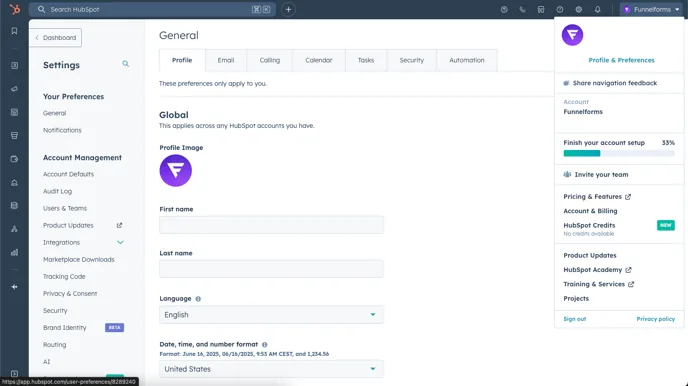
To connect Funnelforms to HubSpot and transfer data to it, the first step is to set up the connection. The connection runs via a so-called HubSpot Private App. To do this, first log in to HubSpot and click on your account and the “Profile & Preferences” link in the top right-hand corner:
Then click on the Integrations category in the left-hand sidebar and then on “Private apps”:
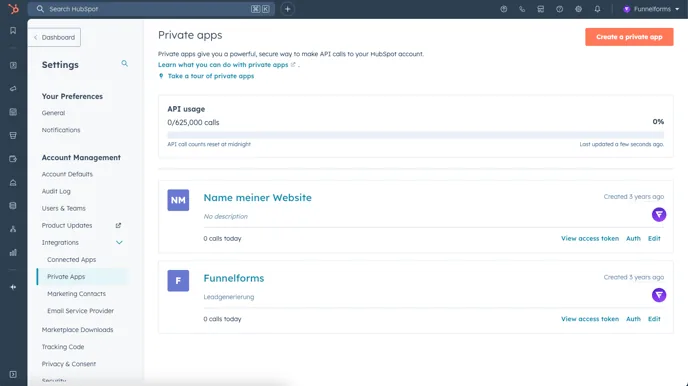
Note: You need super admin rights to access the private apps on your account.
Then click on the “Create a private app” button and you will be taken to the wizard for creating your private app.
Define a name for the private app (e.g. the name of your website), upload your company logo and enter a short description (e.g. Funnelforms).
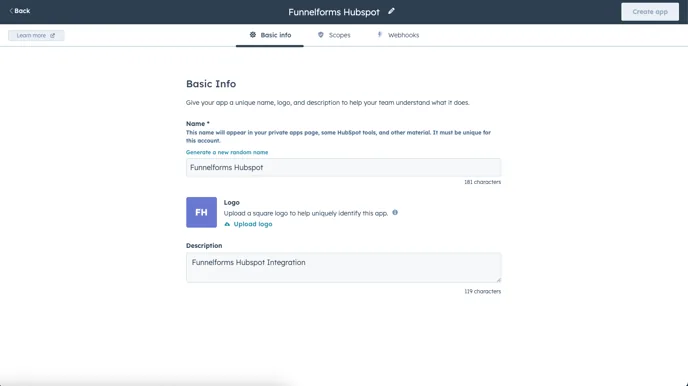
Then click on the “Scopes” tab in the top bar to set the rights for the private app.
Then select all elements from the CRM area with read and write permissions.
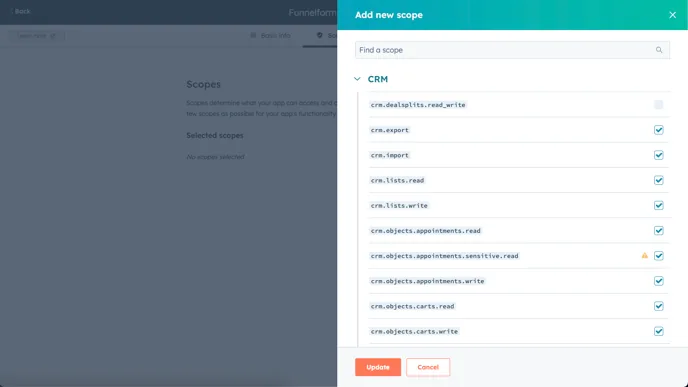
Then click on the “Update” button in the bottom left-hand corner of the window. Confirm the creation of the private app. You will then receive an access token from HubSpot.
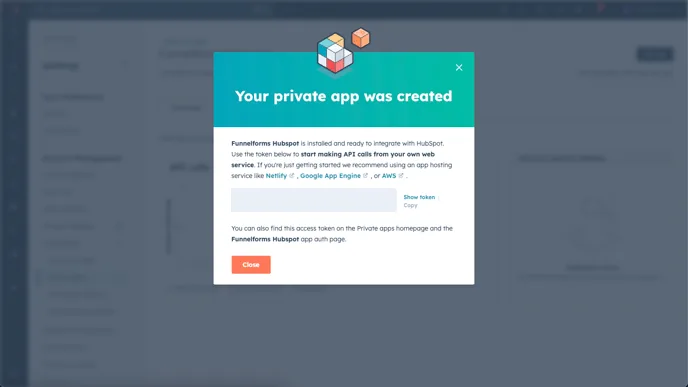
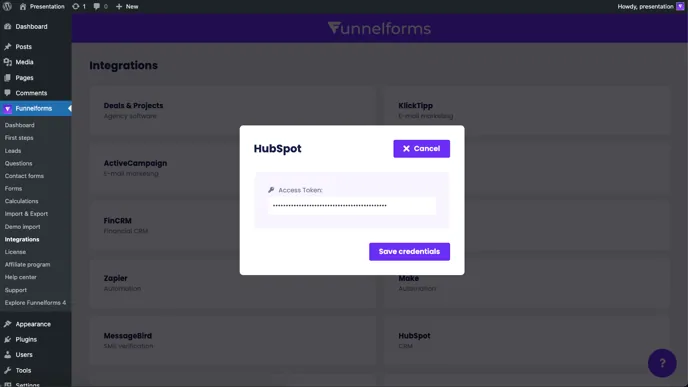
Copy your access token and paste it into Funnelforms under Integrations at HubSpot, then click on “Save”:
The integration will then appear under the “Forms” menu item in the form editor at the bottom of the left-hand sidebar and can be configured and used using your specified IDs from the contact form. You can also add deal details, for example to give the contact a deal name directly or add it to a pipeline. Finally, click on “Save” in the form editor:
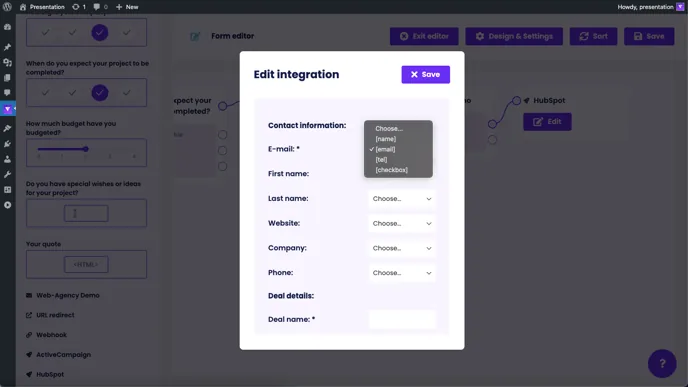
In HubSpot, when a new form submission is made, a new contact with a deal is created to which the specified responses from Funnelforms are attached and assigned.
Note: An integration can only ever be inserted after a contact form due to the data transfer.