Layout in the Style Editor: Customize Backgrounds, Borders, and Spacing
Three Style Editor tabs control the visual scaffolding of your form: Backgrounds, Borders and Elements. They reshape the rendered form layout and the preview reflects every change in real time.
Backgrounds
Inside the Backgrounds tab you first pick one of four types:
- Solid Color – a single-colour background fill.
- Gradient – a colour gradient built from two or more stops.
- Image – an image background sourced by URL or upload.
- Transparent – no background of its own (useful when the form is embedded into an existing page).
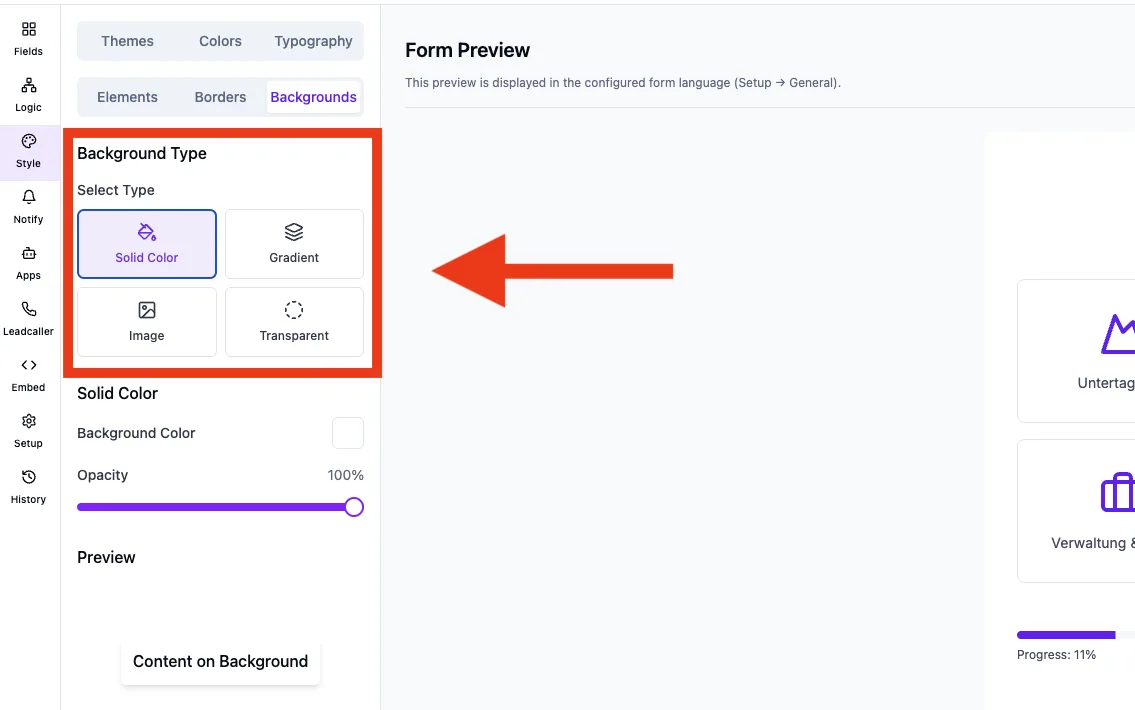
For Solid Color, clicking the colour swatch opens a picker with two tabs: Palette (the curated colour scales) and Custom (hex input). A separate opacity slider lets you control how transparent the colour appears.
For Gradient, eight preset gradients (e. g. Sunset, Purple Love, Deep Space, Royal, Ocean View) and eight directions (top, right, bottom, left plus the four diagonals) are available. Individual stops can be overridden.
For Image, choose between URL (an external image address) and Upload. Uploads accept JPEG, PNG, GIF and WEBP. On the free tier the per-file limit is 10 MB; paid plans allow up to 100 MB per file. Before any upload, the system checks your available storage quota – if the quota is exceeded, the upload deliberately fails until you free up files or upgrade your plan. The separate Overlay slider drops a semi-transparent colour layer on top of the image, for example to keep overlaid text legible.
Borders & shadow
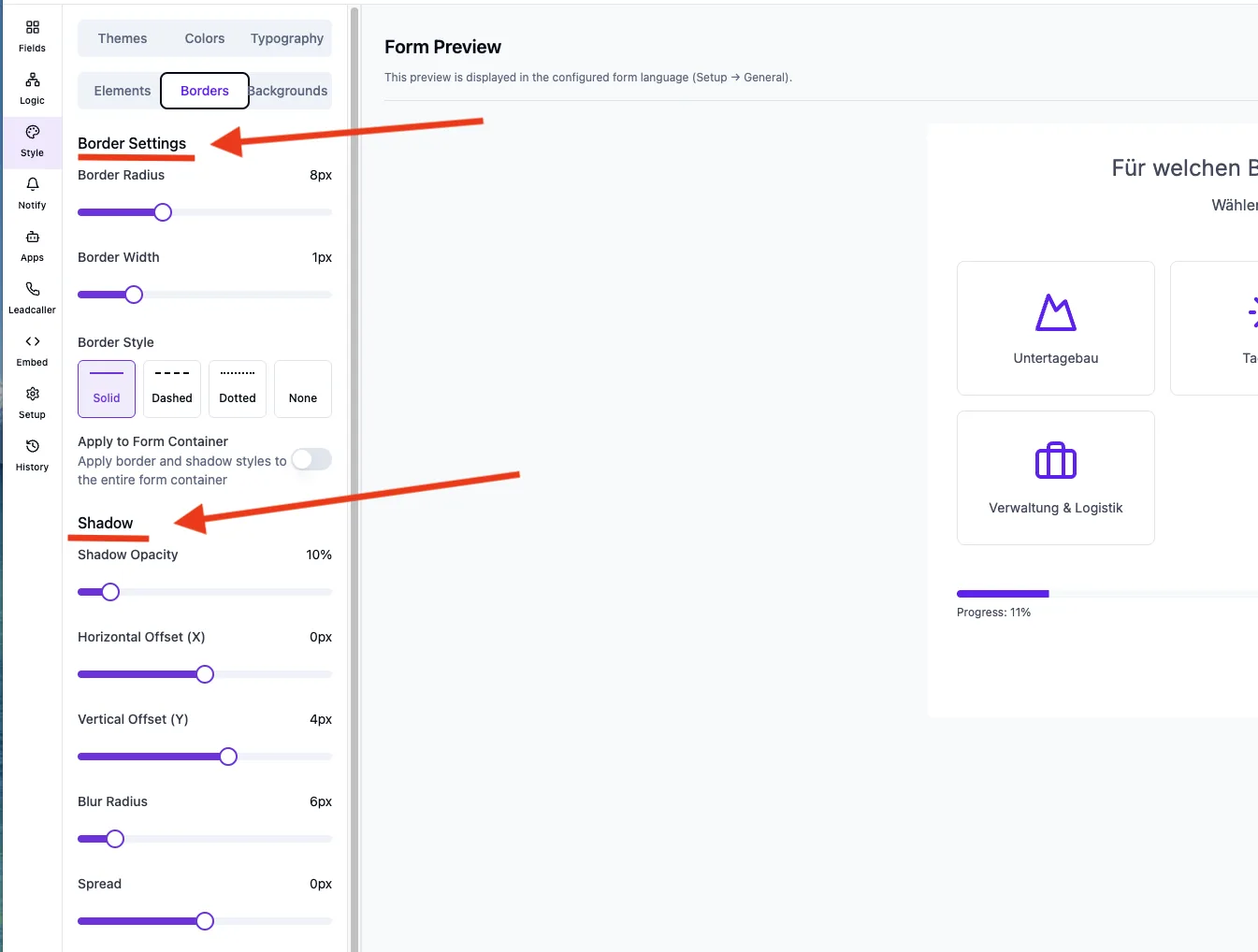
The Borders tab defines the form card look:
- Border Radius – 0 px to 25 px.
- Border Width – 0 px to 5 px.
- Border Style – Solid, Dashed, Dotted or None.
- Apply to Container – a switch that additionally applies the border settings to the outer container surface instead of individual elements only.
Below sits the Shadow block for the form card drop shadow:
- Shadow Opacity – 0 % to 100 %.
- Horizontal Offset – −20 px to +20 px.
- Vertical Offset – −20 px to +20 px.
- Blur Radius – 0 px to 50 px.
- Spread – −20 px to +20 px.
- Inset Shadow – switches the shadow to render inside the card instead of around it.
A dedicated Preview block beneath the sliders shows the combined border-and-shadow result right inside the editor so you can judge rings and depth without switching to the form preview.
Elements
The Elements tab controls padding, option spacing and icon sizes:
- Answer Spacing – 4 px to 32 px in 2-px steps. Drives the gap between answer options and ships with its own live preview of four sample tiles.
- Container Padding – 8 px to 64 px in 4-px steps. Drives the inner padding of the form card.
- Button Padding – 4 px to 32 px in 2-px steps. Drives the inner padding of the next/back buttons.
- Desktop Icon Size – 50 % to 200 % in 10 % steps. Scales icons inside single-selection questions on desktop.
- Mobile Icon Size – 50 % to 200 % in 10 % steps. A dedicated mobile value; if it is not set, the system falls back to the desktop value.
Display options
The same tab can hide individual UI elements:
- Hide Progress Bar – hides the progress bar above the question.
- Hide Percentage & Steps – hides the percentage and step indicator.
Animation
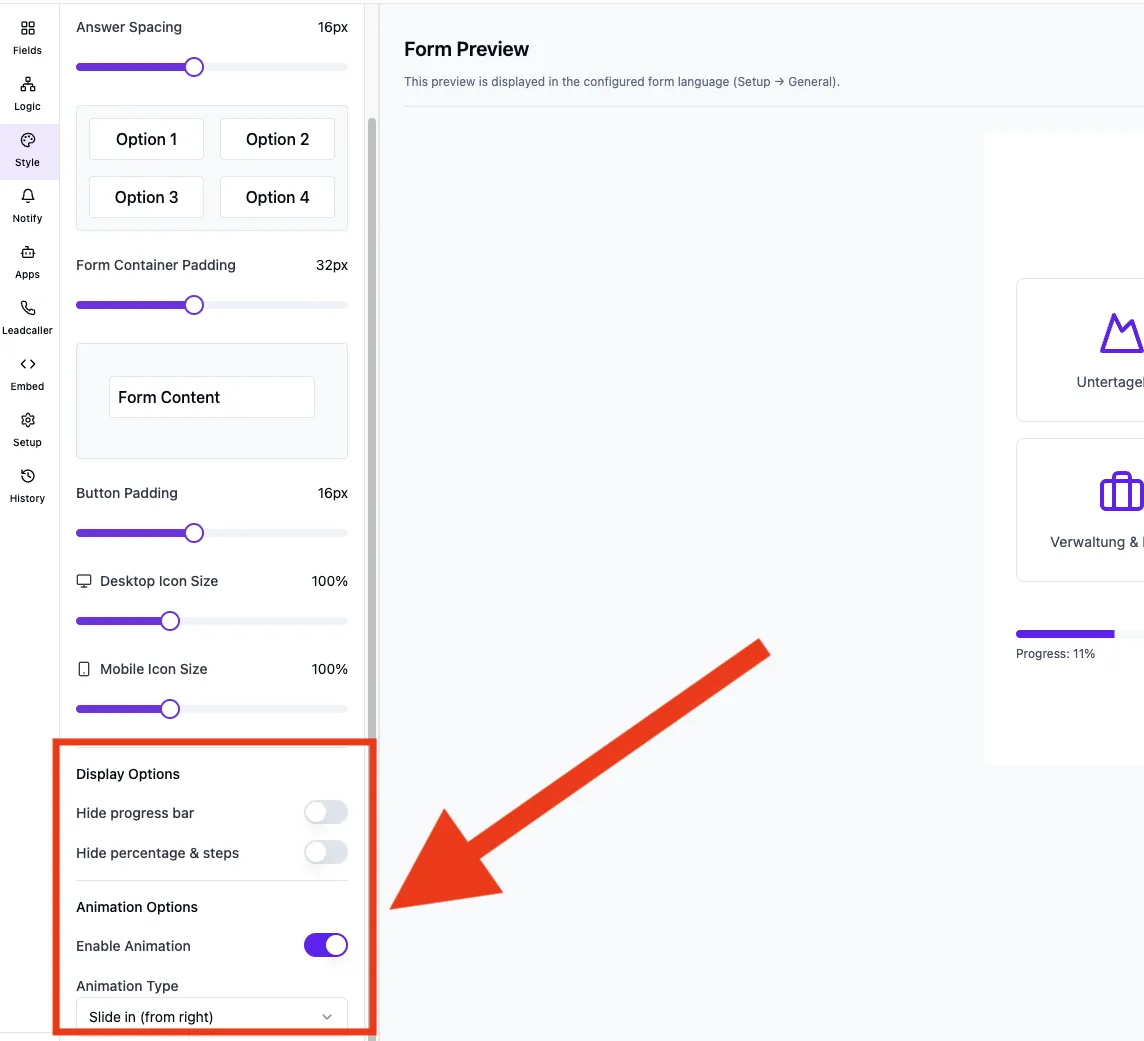
The Enable Animation switch toggles the transition animation between questions. When enabled, a dropdown exposes four variants: Fade, Fade Right, Back In Right and Slide Right. When disabled, the animation type is stored as none internally and questions change instantly.
Form header
The Form Header block adds an optional header above the questions. When enabled, the detail settings appear below it:
- Header Text – free text.
- Font Size – 16 px to 48 px in 2-px steps.
- Text Alignment – Left, Center or Right.
- Font Weight – Normal, Medium or Bold.
- Margin Bottom – 8 px to 64 px in 4-px steps.
What to keep in mind
- Background images are stored per user in your storage. Replacing an image automatically removes the previous file.
- When the form is embedded, the Transparent type is often the better pick because the surrounding page then supplies the background.
- Very strong shadows combined with a large spread can look clipped near the edges on mobile – use the preview to verify.