Typography in the Style Editor: Customize Fonts and Sizes
The Typography tab of the Style Editor controls which fonts your forms render with and how big those fonts appear on desktop and mobile separately. Every change is applied live in the preview and persisted on the next save.
Requirements
- A form in your Funnelforms account with write access.
- Uploading a custom font is only available on higher-tier plans. Free-tier accounts see this area in a locked state; Google Fonts remain available on all plans.
Font selection
The Fonts section exposes three independent font slots:
- Heading Font – applied to all question titles.
- Body Font – applied to description and body copy.
- Form Elements Font – applied to button labels and answer options.
Each slot opens a dropdown listing a curated selection of Google Fonts with a search bar at the top. The currently selected font is previewed in its own typeface inside the trigger so you can see what you are picking at a glance.
Uploading a custom font
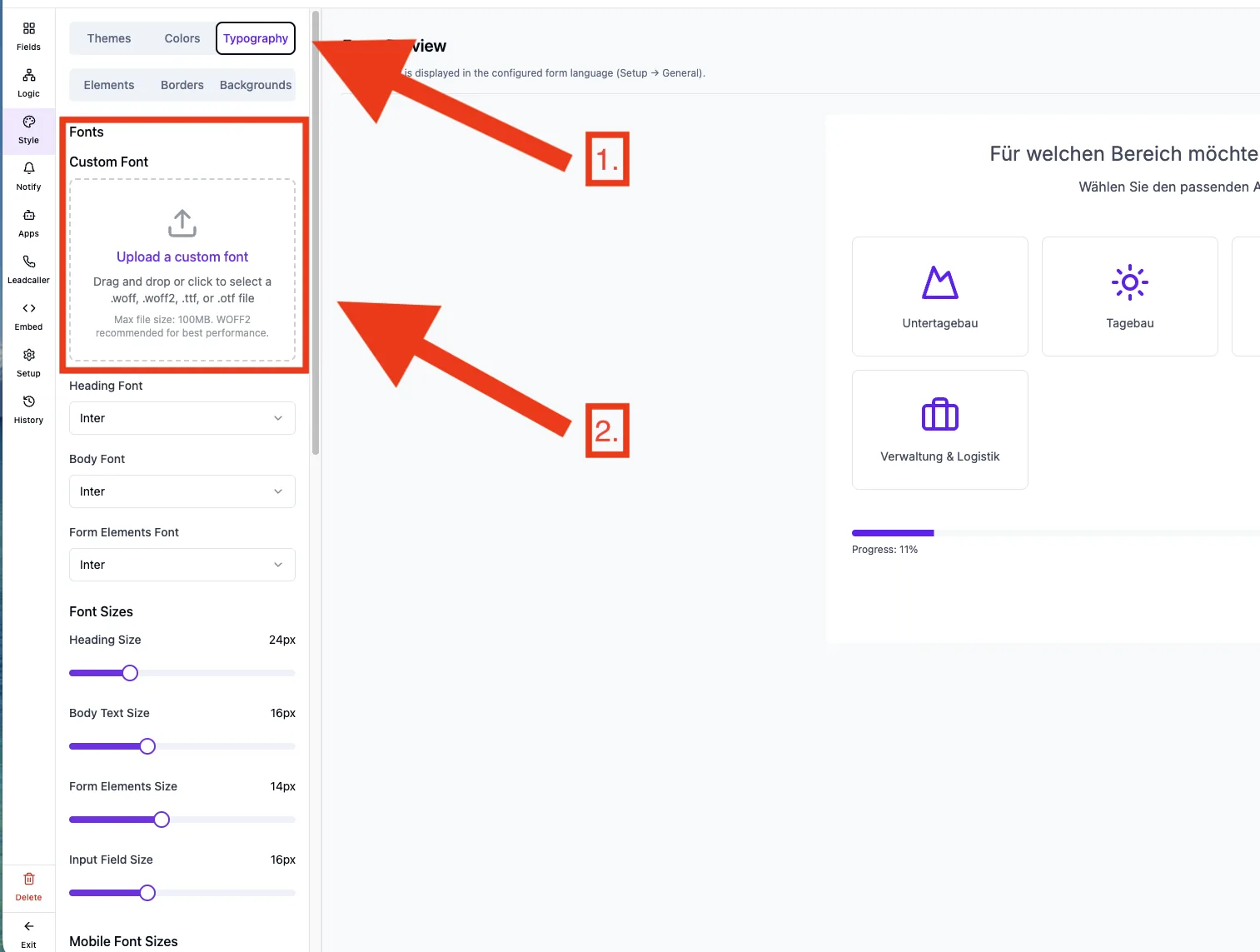
Above the three slots sits the Custom Font section. Once you upload a font file and enable it, that font appears at the very top of all three dropdowns – highlighted in green and labelled as your custom font. You can then assign it to Heading, Body or Form Elements just like any Google font. As long as your custom font is enabled and valid, it is loaded both inside the editor and on the live form.
Font sizes (desktop)
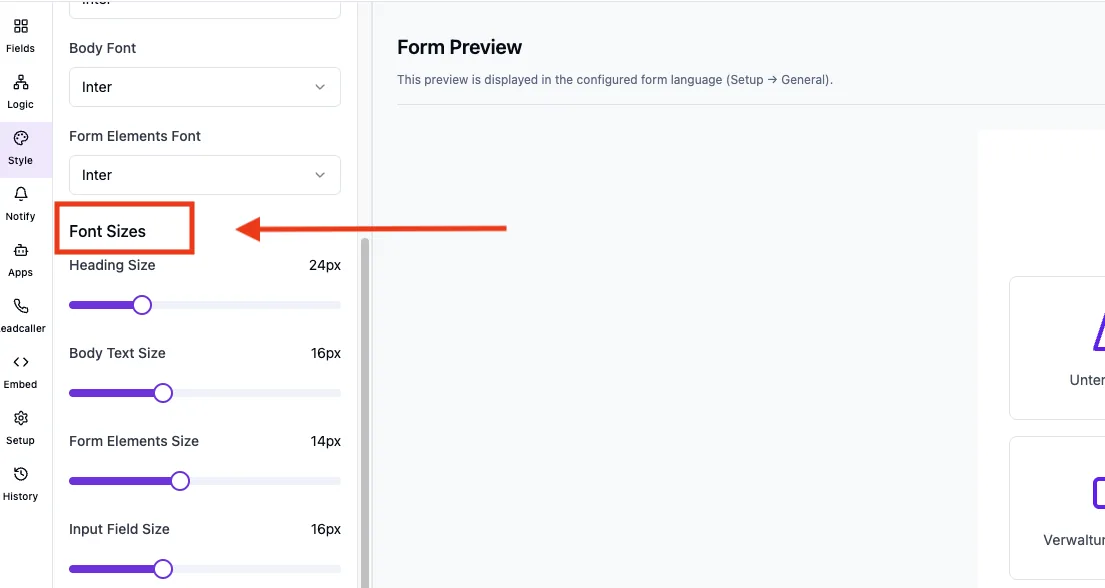
In the Font Sizes block you adjust the desktop sizes with sliders:
- Heading Size – 16 px to 48 px (1-px steps).
- Body Text Size – 12 px to 24 px.
- Form Elements Size – 10 px to 20 px.
- Input Field Size – 12 px to 24 px.
Font sizes (mobile)
Right below sits the Mobile Font Sizes block with dedicated sliders for mobile devices:
- Mobile Heading Size – 14 px to 40 px.
- Mobile Body Text Size – 10 px to 20 px.
- Mobile Form Elements Size – 8 px to 18 px.
- Mobile Input Field Size – 10 px to 20 px.
If you do not set a mobile value explicitly, the system uses roughly 85 % of the matching desktop value as the default. That keeps mobile legibility intact even without manual tweaks.
Text style
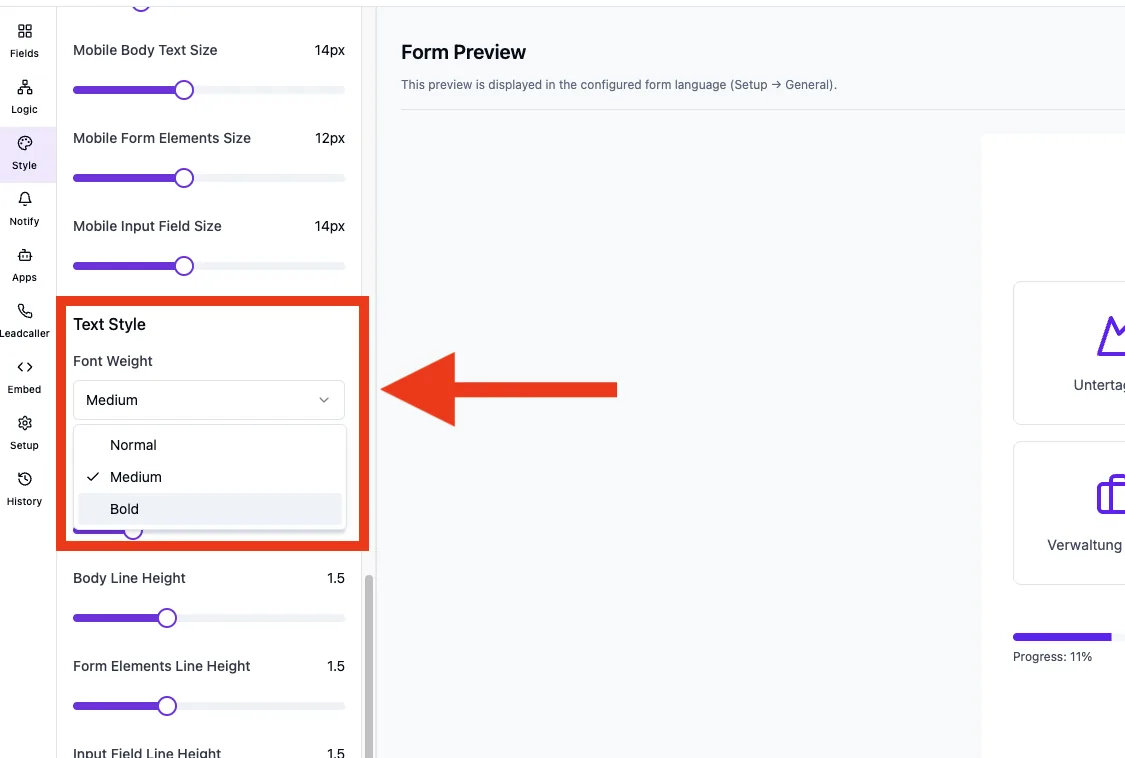
The Text Style block exposes a dropdown for the global Font Weight: Normal, Medium or Bold. The weight applies to the body copy and therefore to the rest of the form text.
Line heights (desktop & mobile)
The Desktop Line Heights and Mobile Line Heights blocks each carry four sliders for Heading, Body, Form Elements and Input Field. The range is 1.0 to 2.5 in 0.1 steps. When a mobile value is not set, the corresponding desktop value is used as a fallback.
What to keep in mind
- Combining a large Heading size with narrow viewports can produce wrapped headings on mobile. Use the mobile sliders to fine-tune this case.
- When you upload a custom font, make sure to provide a proper web font file (woff/woff2). Other formats may not load in every browser, in which case the form falls back to the system font.
- The Form Elements Font affects not only buttons but every clickable answer option as well.