Style Editor: Customize Your Form’s Visual Design
The style editor is the area inside the form editor where you define the visual appearance of a form – colours, fonts, spacing, borders and backgrounds. This article walks you through the layout of the interface, how the tabs work together, and what to watch out for when saving and switching between devices.
Requirements
- An existing form in your Funnelforms account.
- Write access to the form (owner or team member with editing rights).
- Custom fonts (uploading your own font files) are part of the paid plans and appear locked for free-tier accounts.
Where to find the style editor
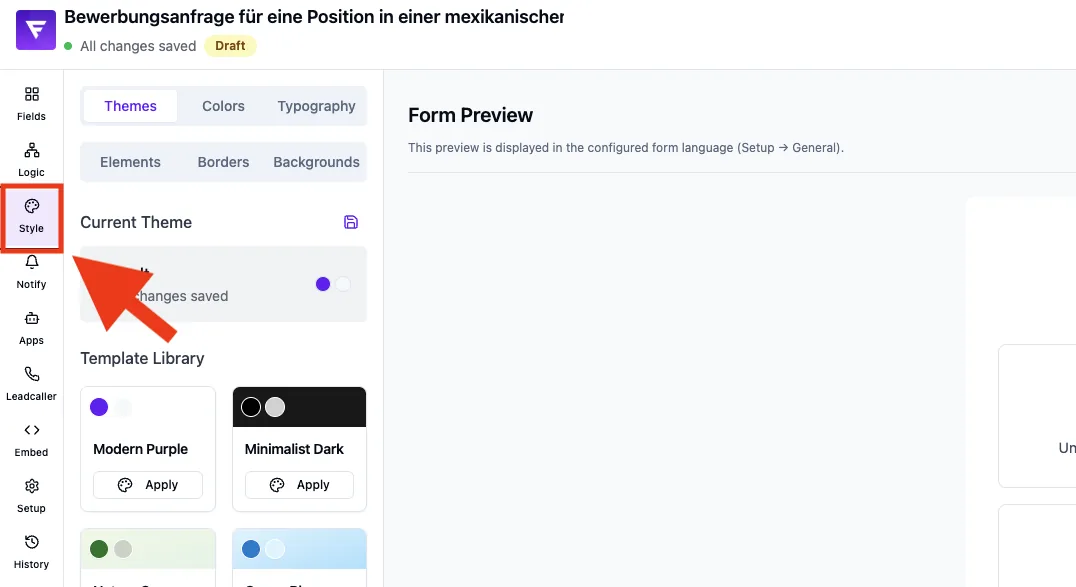
Open a form in the Funnelforms editor. UI path: Form editor → Style tab. The configuration panel sits on the left with six sub-tabs; the live preview of the form is on the right.
What it can do
- Six thematic tabs: themes, colours, typography, spacing, borders and backgrounds.
- Live preview reflecting every change immediately.
- Device toggle between desktop, tablet and mobile.
- Automatic saving of every change to the current form.
- Predefined system themes and reusable custom templates.
The six style tabs
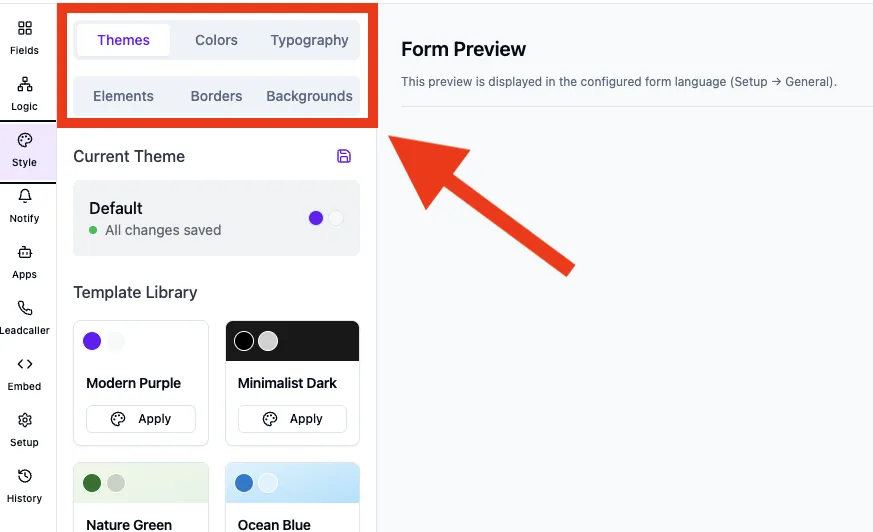
- Themes: Ready-made complete designs and your own saved templates. One click applies colours, fonts, spacing, borders and backgrounds in one go.
- Colors: Individual colours for primary, secondary, text, headings, accent, success/error/warning, borders, progress bar and buttons (next, back and submit buttons configurable separately).
- Typography: Fonts for headings, body text and form elements, plus font sizes, line height and font weight. Google Fonts are available directly; custom fonts can be uploaded.
- Elements: Spacing between questions, input fields and buttons, plus container padding.
- Borders: Border style, border width, corner radius and shadow for input fields, buttons and containers.
- Backgrounds: Background of the form container and the surrounding page (colour, gradient or image).
Step by step: first configuration
- Open your form and switch to the Style tab in the top tab menu.
- Start in the Themes tab and pick a matching system theme as your starting point.
- Fine-tune the primary and button colours under Colors to match your brand.
- Set fonts for headings and body text under Typography.
- Adjust spacing and corner radius under Elements and Borders to fit your look and feel.
- Check the live preview with the desktop, tablet and mobile device toggles.
How does saving work?
Every change is saved to the current form automatically after a short delay. There is no manual save button for style changes – when you close the form, the last saved state is kept.
What happens when you apply a template?
The selected theme or custom template replaces all current style values of the form. You can then override values in any tab without changing the template itself.
Best practices
- Start with a system theme and only adapt the colours to your brand – it saves time.
- Save a polished design as a custom template as soon as you have it – see the article „Using style templates".
- Before going live, check every form once in the mobile preview, since spacing and font sizes are most likely to break there.
- Keep your colour and font set small on purpose – two fonts and three or four colours are enough for a consistent look.
Common pitfalls
- Custom font upload shown as locked: uploading your own font files requires a matching paid plan. Free-tier accounts can still use the included Google Fonts.
- Auto-save appears to be missing: on a very unstable connection the save can fail – wait a moment after your last change before closing the browser so the auto-save can complete.
Tip: Style settings only affect the form that is currently open. Other forms in the same account stay unchanged.
FAQ
Do style changes take effect immediately?
Yes. As soon as auto-save succeeded, visitors see the new style on the live URL on their next visit.
Can I copy style settings between forms?
Yes, via custom templates – see the article „Using style templates". There is no direct „copy style" button between forms.
Can I paste raw CSS code?
No. The style editor works with structured values, not free CSS. If you need advanced tweaks, you can complement the form with custom styles in an embed environment.
Do style changes affect already submitted answers?
No. Answers are stored as raw data and are independent from the visual design.