Colors in the Style Editor: Match Your Form to Your Brand
The Colors tab in the style editor is the central lever to match a form to your brand – from primary and button colours to text, borders and shadows. This article shows which colours can be configured, how the colour picker works and how themes give you a quick start.
Requirements
- A form in your Funnelforms account.
- Write access to the form.
- The system template library requires a matching plan; the Colors tab itself is available on every plan.
Where to find the colour settings
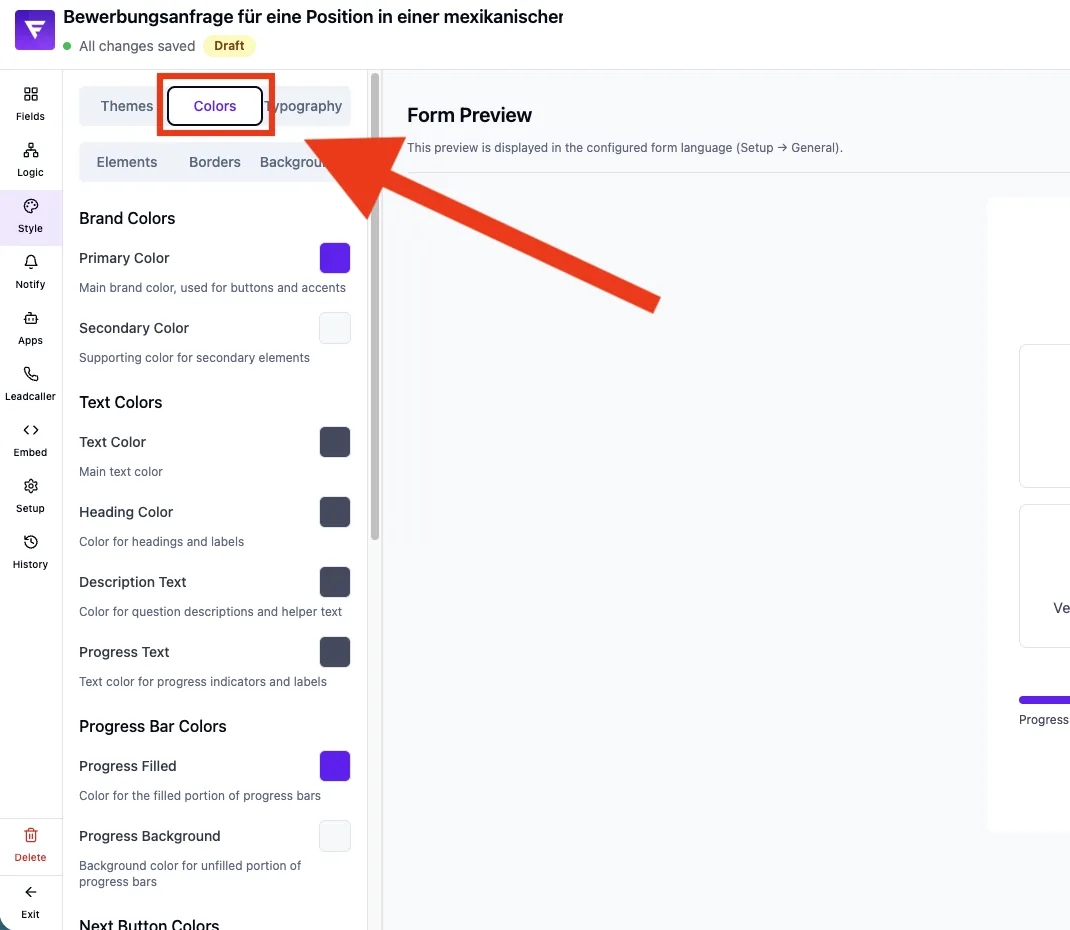
UI path: Form editor → Style tab → Colors tab. For full colour and style sets in one click, use the Themes tab.
What it can do
- Seven colour groups: brand colours, text colours, progress bar, next button, back button, selection questions, border & shadow.
- Colour picker with two tabs: palette (structured colour sets) and custom (free hex value).
- Brand palette around the Funnelforms accent colour #6A30F5.
- Structured palettes by hue: grays, reds, oranges, yellows, greens, teals, blues, indigos, purples, pinks.
- 10 predefined themes (see article „Using style templates").
Which colours can you configure?
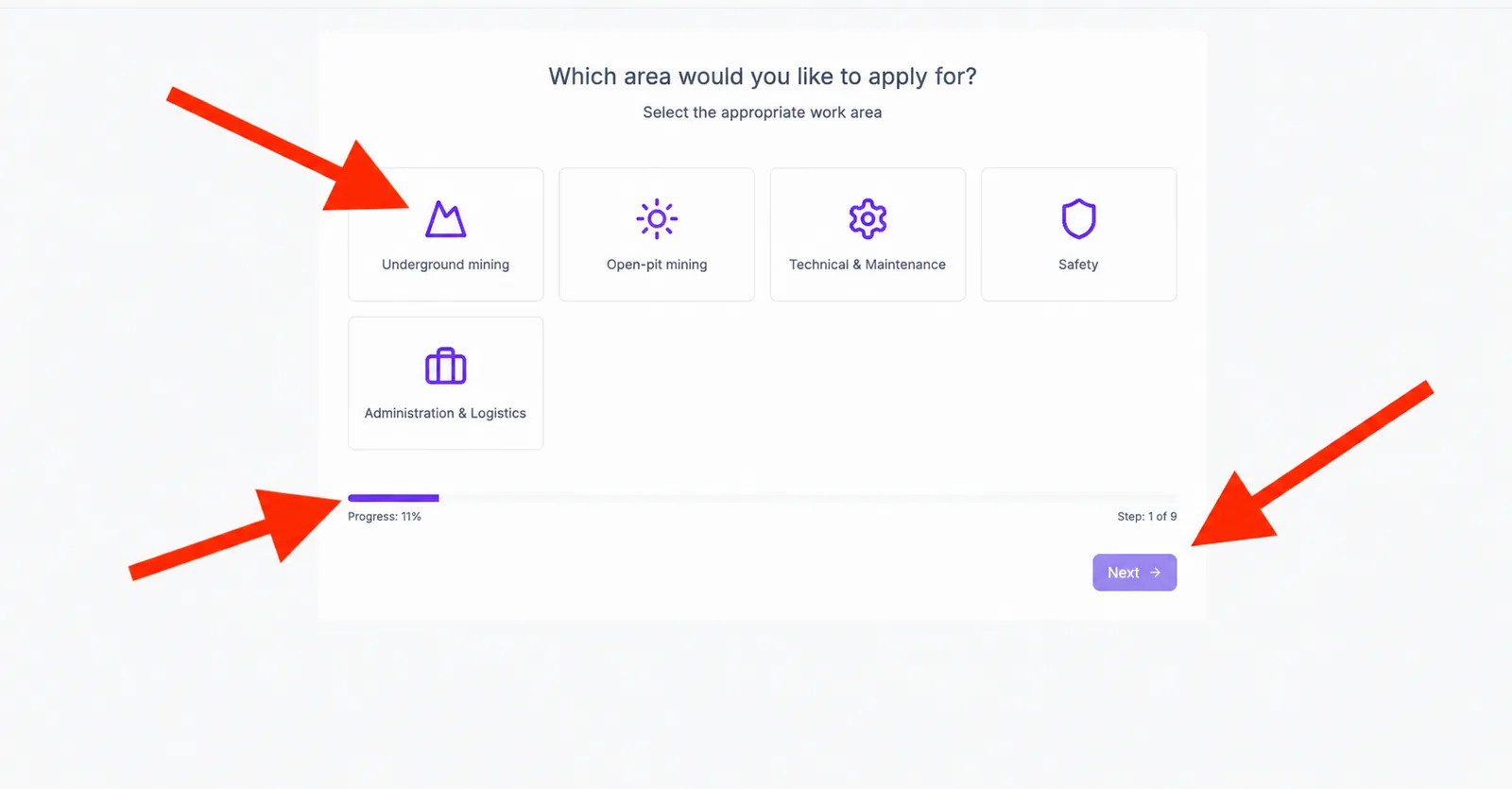
- Brand colours: primary and secondary.
- Text colours: body text, headings, description text, progress bar text.
- Progress bar: filled colour and background colour.
- Next button: background and text colour.
- Back button: background and text colour (configurable separately from the next button).
- Selection questions: icon colour and background colour (e.g. for radio/checkbox cards).
- Border & shadow: border colour and – if shadow is active – shadow colour.
Step by step: change a single colour
- Open your form and switch to Style → Colors.
- Click the coloured preview swatch next to the entry you want to change.
- Pick a preset in the palette tab or switch to custom for a free hex value (e.g.
#1A1A2E). - The live preview on the right reflects the change immediately.
- There is no save button – the change is auto-saved on the current form.
Step by step: theme as a quick start
- Switch to Style → Themes.
- Click a matching system theme – e.g. Modern Purple, Ocean Blue, Sunset Orange.
- The theme transfers colours, fonts, spacing, borders and backgrounds in one go.
- Fine-tune individual colours afterwards in the Colors tab.
How does the colour picker work?
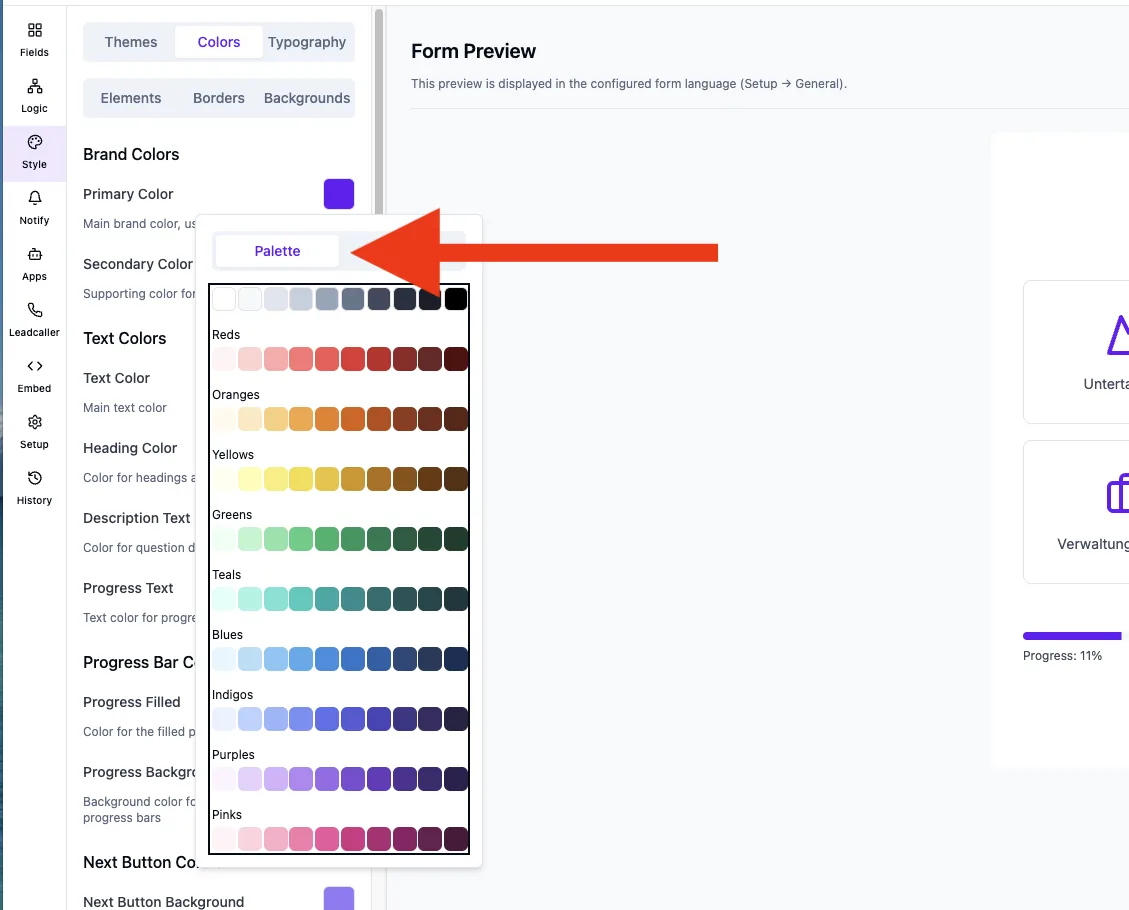
The picker opens as a popover and offers two tabs:
- Palette: quick access to brand colours, a 10-step grey scale and curated palettes per hue (each with ten brightness steps). One click applies the value.
- Custom: input field for any hex value. The input is applied live.
Best practices
- Use one or two strong accent colours with intent (e.g. for the next button) rather than colouring every component.
- Keep contrast between text and background within WCAG AA guidelines.
- Align primary colour, next-button background and progress bar fill to a consistent hue.
- Save a finished combination as a custom template – see article „Using style templates".
Common pitfalls
- Theme overrides your colours: applying a theme replaces all current colour values. Save earlier changes as a template first.
- Picker input seems ignored: in the custom tab the input must be a valid hex value (with or without „#"). Invalid values are ignored.
- Back button stays unchanged: next and back buttons are separate colour sets. To sync them, set both manually.
- Shadow colour has no effect: it only applies when the shadow is enabled under Borders.
Tip: The brand palette ships the official Funnelforms purple tones. For your own branding, use the custom tab with hex values from your design system.
FAQ
Do colour changes take effect on the live URL immediately?
Yes. As soon as auto-save succeeded, visitors see the new colours on their next visit.
Can I set colours per form separately?
Yes. Each colour configuration belongs to exactly one form. Other forms in the same account stay untouched.
What happens when I switch a theme?
The new theme overrides all current colour, font, spacing, border and background settings. Save previous tweaks as a custom template first.
Are there gradients for buttons?
Buttons in the Colors tab use solid colours. Gradients can be used under Backgrounds for the container or page background.