Style Templates: Save and Reuse Form Designs
Style templates are saved design configurations you can apply to any form. They save time, keep brand designs consistent and can be extended flexibly per account. This article explains the two template types, how to save, apply and delete them, and the most common pitfalls.
Requirements
- A form in your Funnelforms account.
- Write access to the form.
- The system template library is plan-restricted (feature
feature_template_library). Free-tier accounts see this area in a locked state; custom templates may also be limited depending on the plan.
Where to find templates
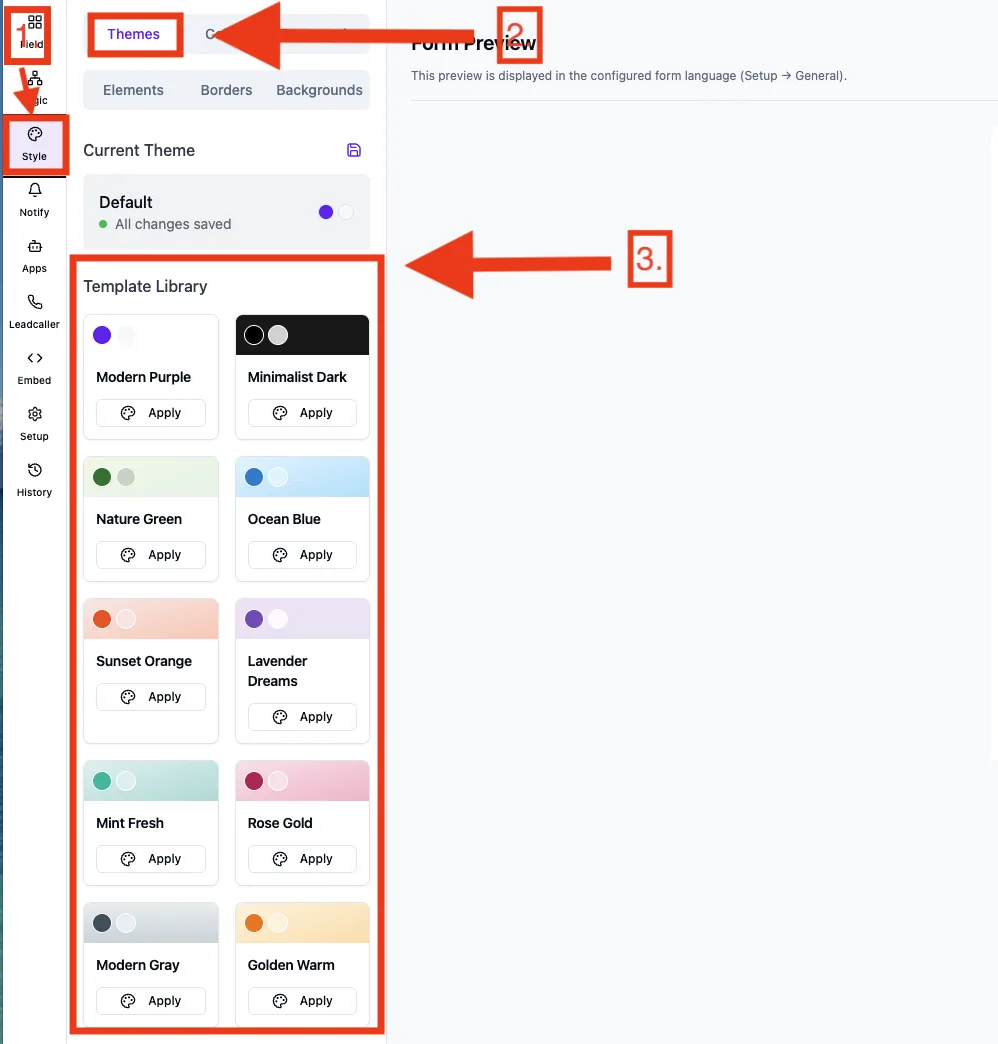
UI path: Form editor → Style tab → Themes tab. The tab shows two sections stacked: „Custom templates" on top (when present), „System templates" below.
What it can do
- 10 predefined system themes (e.g. Modern Purple, Ocean Blue, Sunset Orange, Lavender Dreams, Rose Gold).
- Save, apply and delete custom templates per account.
- One click transfers colours, fonts, spacing, borders and backgrounds in full.
- Saving a custom template under an existing name overwrites the previous one.
Step by step: apply a system theme
- Open your form and switch to Style → Themes.
- Scroll to the „System templates" section.
- Click the card or the Apply button. The form takes over the full settings immediately and the live preview updates.
An applied theme replaces previous colours, fonts, spacing and borders. You can then adjust individual values in the Colors, Typography, Elements, Borders and Backgrounds tabs.
Step by step: save a custom template
- Configure a form fully to your liking (colours, fonts, spacing, borders, backgrounds).
- In the Themes tab, click the Save icon (disk icon).
- Enter a name for the template and confirm with Save.
The template then sits in the „Custom templates" section and is available to all your forms in this account. Saving a template under a name that already exists overwrites the previous one.
Step by step: apply or delete a custom template
- Open another form and switch to Style → Themes.
- Click the desired custom template – all style values are taken over.
- To remove: click the trash icon on the template and confirm the dialog.
How are template and form connected?
A template is a one-time copy of the settings. If the template is edited later (i.e. saved again under the same name), the look of already-applied forms does not change automatically – form and template are decoupled once applied.
Best practices
- Create a central „Brand" template with your brand colours and fonts and use it as the starting point for every new form.
- Keep no more than three to five custom templates – more becomes unmanageable in practice.
- Save large style changes as a template before applying – that gives you a rollback point.
- Name templates descriptively („Brand Main", „Summer Landing Page 2026") rather than with version numbers.
Common pitfalls
- System templates are locked: requires a matching plan for
feature_template_library. - Template overwritten: same name = overwrite without separate confirmation. Pick unique names.
- Template not visible in another account: custom templates are tied to the account and are not shared.
- Deleting a template does not remove the form's design: already-applied templates stay intact on the respective forms – only the template entry itself is removed.
Note: System themes cannot be deleted or renamed – they are part of Funnelforms.
FAQ
Can I transfer templates between accounts?
No. Custom templates are tied to your account. For team setups, maintain templates in the main account.
How many custom templates can I create?
Technically there is no hard cap. On paid plans the number is effectively unlimited; on the free tier the feature can be restricted depending on the plan.
What happens to forms when I delete a template?
Nothing. Already-applied templates remain on the form – the template itself is only a source, not a live link.
Can I set a template as the default for new forms?
This feature is currently in progress. Right now every new form starts with the default theme.