Dark Mode: Use a Dark Editor Without Changing Your Form
Dark mode is a dark appearance of the Funnelforms editor interface. It is easier on the eyes in low-light environments and only changes how the editor looks for you – not the form delivered to your visitors. This article shows how to enable dark mode, how the form preview behaves and how to design a dark form yourself.
Requirements
- A signed-in Funnelforms account – no special plan is required for this feature.
- A modern browser. The choice is stored locally in the browser and applies per device and browser profile.
Where to find the dark mode toggle
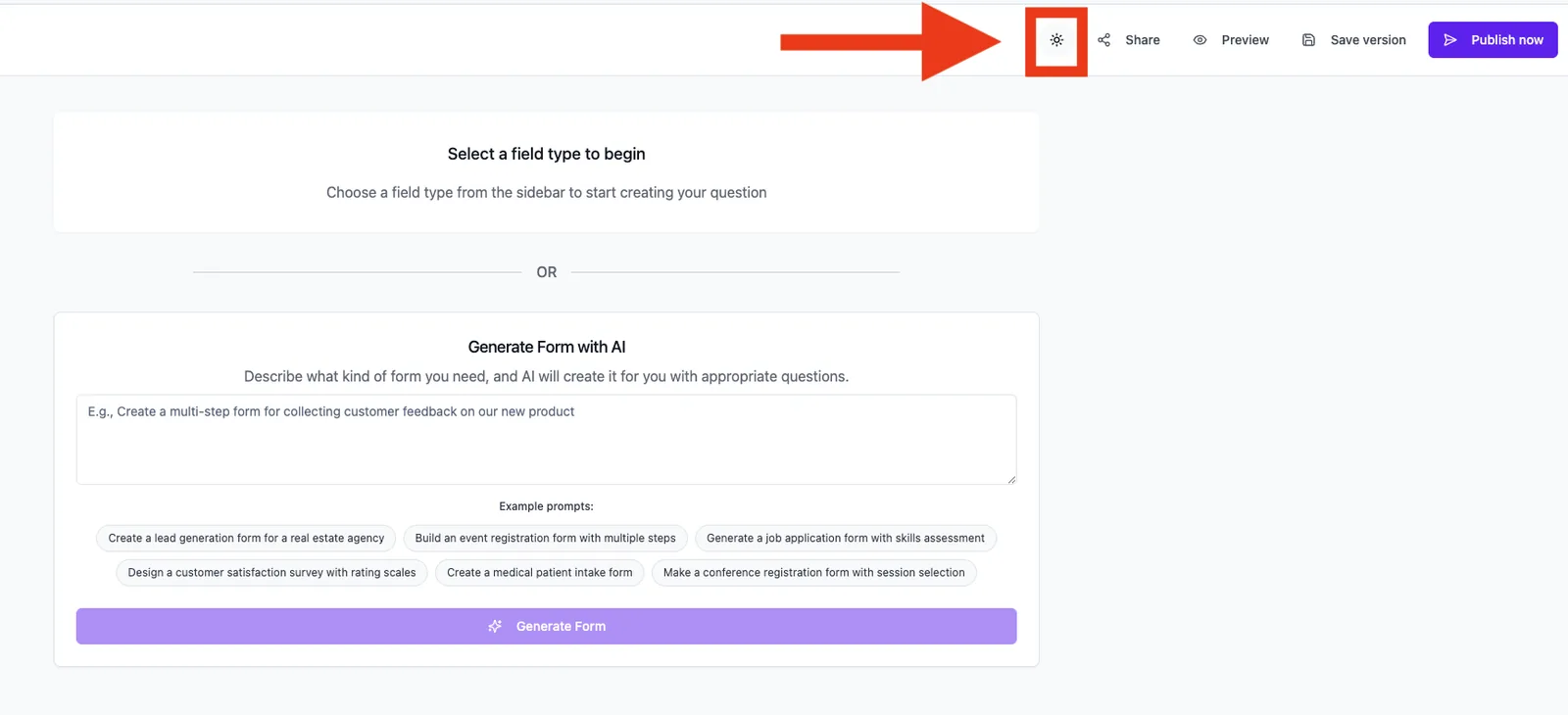
The toggle is a sun/moon icon in the top right of the navigation bar. You can find it in these places:
- Main area → header (sun/moon icon top right).
- Form editor → top toolbar – the same toggle is also available here.
- Admin area → sidebar (if you have admin rights).
What it can do
- Switch between light and dark editor theme in one click.
- Choice persists per browser – it stays active across sessions.
- Applies to every area of the app: dashboard, form editor, style editor, analytics, admin.
- Auth pages (login/sign-up) are intentionally locked to light.
Step by step: enabling dark mode
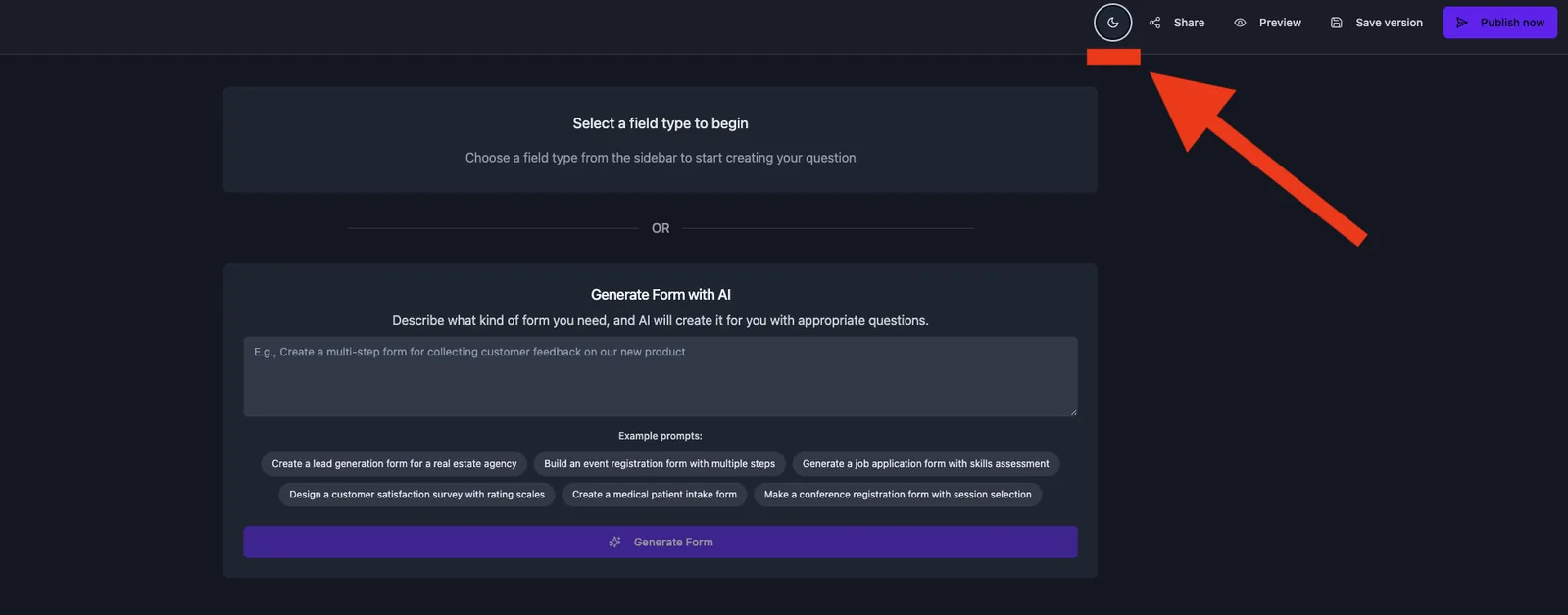
- Click the sun/moon icon in the top right of the header.
- With the light theme active, the interface switches to dark immediately.
- Another click switches back to light.
How does the form preview behave?
Inside the style editor and the form editor the right side shows a live preview of your form. This preview is intentionally decoupled from your editor theme: it always shows the form the way visitors will see it – with the colours you defined in the Colors and Backgrounds tabs.
In practice this means:
- When you enable dark mode, the frame around the preview turns dark (editor surface background, toolbars, device toggles).
- The form inside the preview card keeps its style settings: a light form stays light, a dark form stays dark.
- This way you can always verify how your form will look to visitors, even in dark mode.
Designing a dark form yourself
If you want your form to look dark for visitors, configure that in the style editor – not via editor dark mode:
- Open Style → Themes and pick the Minimalist Dark system theme as a starting point.
- Refine text, background and button colours in the Colors tab.
- Under Backgrounds, set the container and page background to dark values.
- Optionally save the result as a custom template to reuse it on more forms.
Best practices
- Cross-check a dark form once in the light editor theme – contrast issues are easier to spot that way.
- Keep text and background colours within common contrast guidelines (WCAG AA) so the form stays readable for visitors with visual impairments.
- Use the desktop, tablet and mobile device toggles to check the dark variant at every size.
Common pitfalls
- Dark mode does not affect the delivered form: by design. To show visitors a dark form, change the style settings.
- Dark mode resets to light: the setting is stored locally in the browser. Incognito windows or cleared browser data reset it.
- Auth pages stay light: login and sign-up are intentionally locked to the light theme and ignore your personal preference.
Note: The dark mode setting is per browser, not server-side per account. On a second device you can set the mode independently.
FAQ
Do my visitors see dark mode?
No. Dark mode only affects your editor view. What visitors see is fully determined by the form's style settings.
Does dark mode follow my operating system theme?
No. Funnelforms does not auto-apply the OS preference; the theme only changes when you click the sun/moon icon. The default for new accounts is the light theme.
Why does a light form look odd in dark-mode preview?
The dark editor frame contrasts strongly with the light form – that is intentional so you see the actual look of the form. For a realistic assessment, switch dark mode off briefly or use the device toggles.
Can I configure a form to always be delivered in dark?
Yes, via the style settings of that form (Themes, Colors, Backgrounds). There is no separate „visitor dark mode" switch – the look is fully derived from the style values.