Embed & Share: Embed Forms or Share Them by Link
The Embed & Share tab gives you every way to publish your form live on a website or share it via link. Funnelforms generates the right code snippet per variant, stores the settings per form and loads the form at runtime through a central script (/embed.js). You don't have to host anything yourself or write tracking logic.
The 4 embed variants at a glance
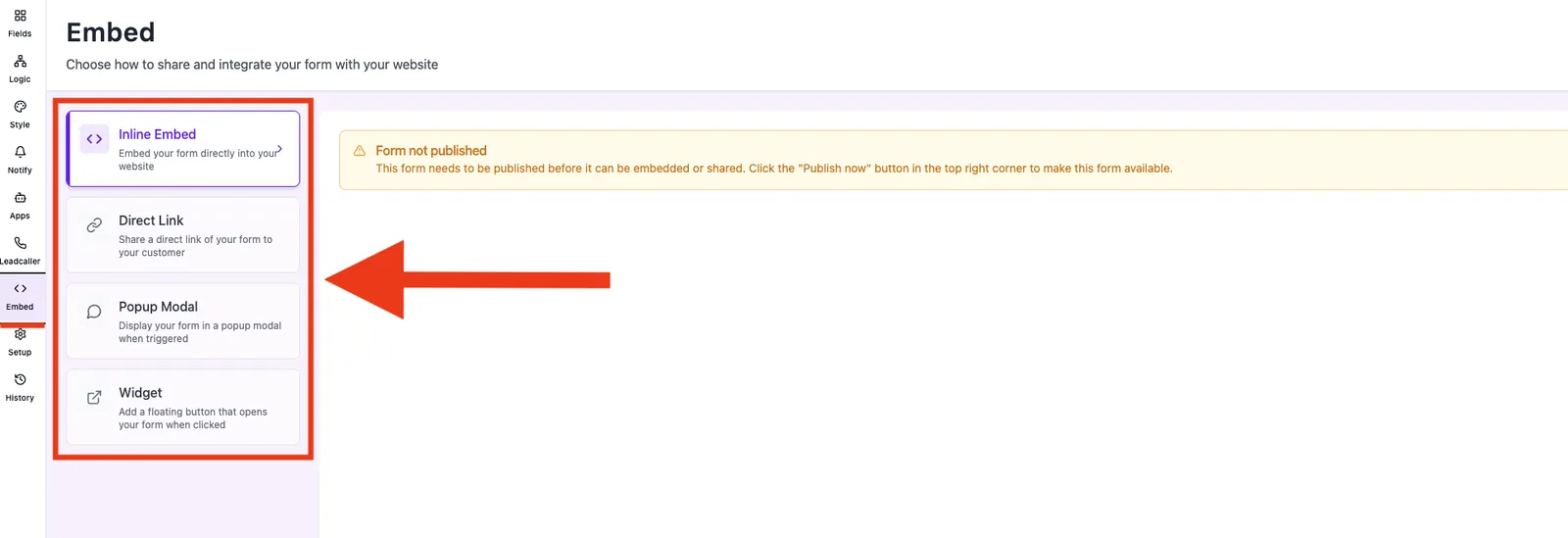
- Inline: The form is embedded directly into the page content like a block element. Ideal for landing pages, contact pages and blog articles. Supports auto-resize, custom width/height and multiple instances per page.
- Direct Link: Standalone URL in the format
your-domain.tld/l/<form-id-or-slug>. No embed required – perfect for email signatures, social bio links, QR codes or paid ads. Available on the free plan too. - Popup: Modal window that opens via auto-open (delay), button click or scroll depth. Great for newsletter capture, exit offers or contextual inquiries.
- Widget: Chat-bubble style in a screen corner (bottom-right, bottom-left, top-right, top-left). Optional caption text, four animations (slide, fade, bounce, none). Recommended for global conversion points across multiple pages.
Which variant fits when?
- Lead capture inside content: Inline – the visitor is already mentally engaged with the topic.
- First conversion without your own website: Direct Link – ready to use immediately, even on the Free plan.
- Campaigns with a clear trigger (exit, promo): Popup with auto-open or scroll trigger.
- Persistent touchpoint across the whole site: Widget in a corner.
You can combine variants – e.g. Inline on the landing page plus Widget globally in the footer. Every variant has its own settings that are saved per form.
Plan & feature availability
Embed variants are tied to your plan via feature flags:
- Free plan: A paywall hint is shown instead of the embed options. Only the Direct Link remains usable because it isn't embedded, just shared.
- Paid plans: Inline, Popup and Widget unlock depending on your plan tier. You can see which variant is included by looking directly at the editor tab; locked tabs display an upgrade hint.
Before embedding: 3 prerequisites
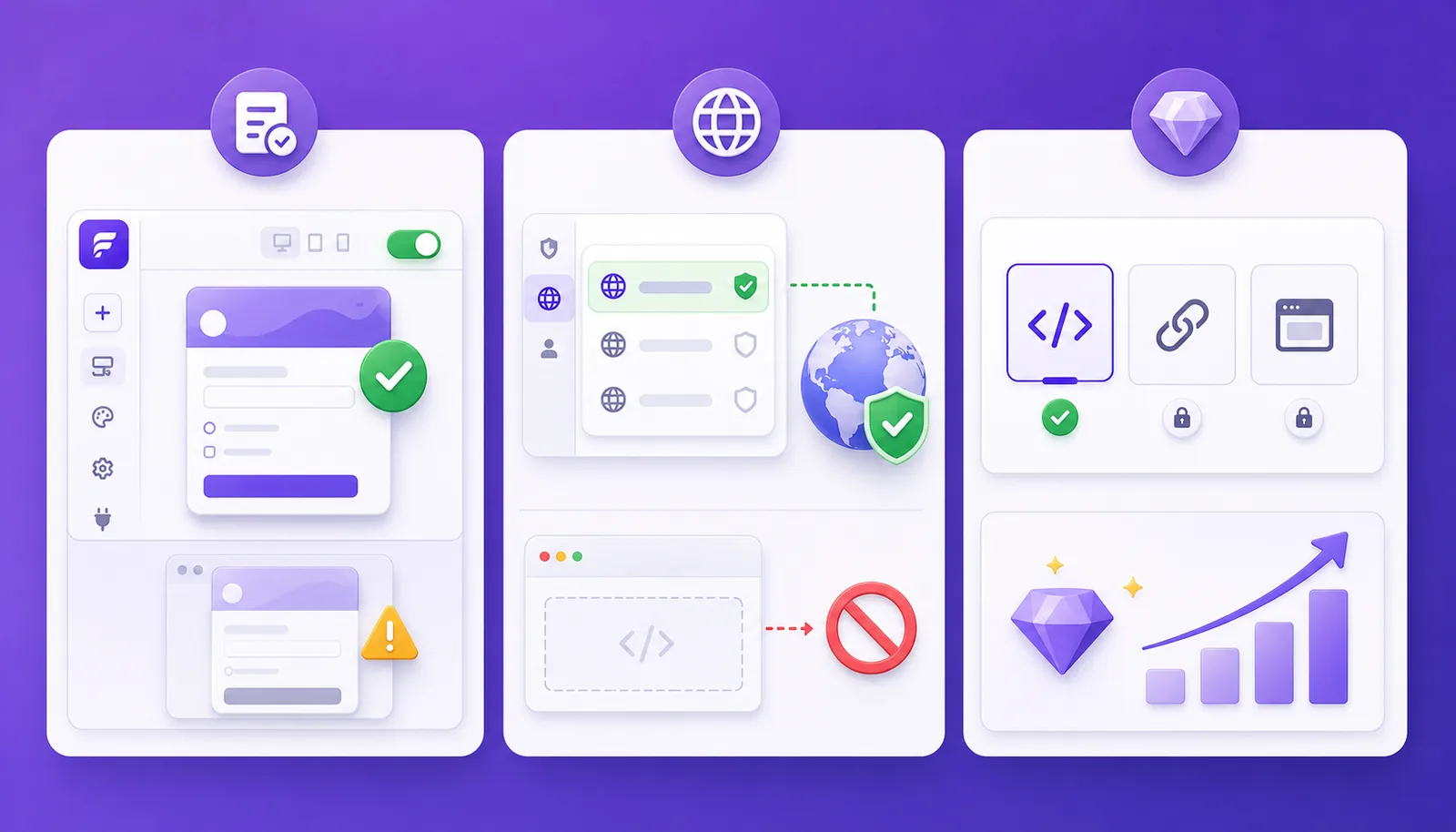
- The form is published: Only forms with status Published can be delivered live. If the form is still a draft, the embed tab shows a yellow warning.
- At least one domain is assigned: Mandatory for forms created on or after 26.01.2026. Without a whitelisted domain, the server-side security check returns
403 domain_mismatchand the embed stays empty. You assign domains in the form editor under Settings → Domain assignment. - Your plan covers the variant you want: If the desired tab is locked, upgrade first.
How the embed code works
Every variant produces a small code snippet made up of two parts: a <script> block that loads embed.js and registers the configuration (form ID, type, base URL) in the window object, plus an HTML container with data-* attributes. On load, the embed script replaces the container with an iFrame that shows your form. The iFrame sends the parent page URL back to Funnelforms – this powers the Entry URL in Analytics and the server-side domain validation.
Important: the script block only needs to appear once per page. Multiple containers of the same variant share that single script tag.
Security: domain whitelist
Funnelforms checks server-side on every embed request whether the embedding domain is whitelisted for the form. Without a whitelist entry, no form appears – just an error. This protects you from unintended third-party usage, lead theft via cloned sites and API abuse. Global admin whitelists maintained by the Funnelforms team can additionally allow specific domains across all forms.
Best practices
- Use a staging domain for tests and assign it in addition to the production domain – that way you never break the live embed while editing.
- Use only the embed type that fits the context on a given page – Popup + Widget on the same page can feel pushy fast.
- After each embed setup, check the Preview on the right of the tab – it mirrors the live delivery.
- To embed multiple forms, copy the embed code fresh for each form – the form ID is baked into the snippet and isn't interchangeable.
- Keep embed snippets unchanged in source: if you edit
data-form-idor the script URL manually, the form cannot be loaded.
Common pitfalls
"Form not available" or an empty area on my site? Check three root causes in order: (1) Is the form published? (2) Is the embedding domain whitelisted? (3) Does the script block actually sit in the page HTML (not just inside a JavaScript comment)? In your browser DevTools network tab you should see the request to embed.js and the subsequently loaded iFrame.
Multiple inline forms on one page – does it work? Yes. The script block is included once, after which you can add any number of <div> containers, each with its own data-form-id.
Can I save embed settings differently per form? Yes. Width, auto-resize, popup trigger, widget position and so on are stored per form in the database and reloaded when you reopen the embed tab.
Where do I create a custom URL for the Direct Link? In the Direct Link tab you can set a custom slug (format a-z, 0-9, -). The link then becomes your-domain.tld/l/<your-slug> instead of the UUID.
Practical tips
- Enable auto-resize for inline embeds – the form grows with its content and you avoid double scrollbars.
- Match the widget color to your brand instead of keeping the default purple – it creates an integrated look and feel.
- Pick realistic popup delays: 5–15 seconds for engagement popups, scroll trigger at 50–70 % for content pages.
- Generate QR codes for the Direct Link – ideal for print, trade shows, business cards.