Add Embed Code: Connect Webflow, Framer, and WordPress
This article shows how to place the Funnelforms embed code into the most common website builders: Webflow, Framer and WordPress. The code itself is identical everywhere — only the place where you paste it changes per platform.
Requirements
- The form is published.
- An active subscription or running trial.
- The domain on which the form is embedded is listed as an allowed domain on the form (mandatory since January 2026).
- Edit permission in the platform for custom code or embed elements.
Where to find it
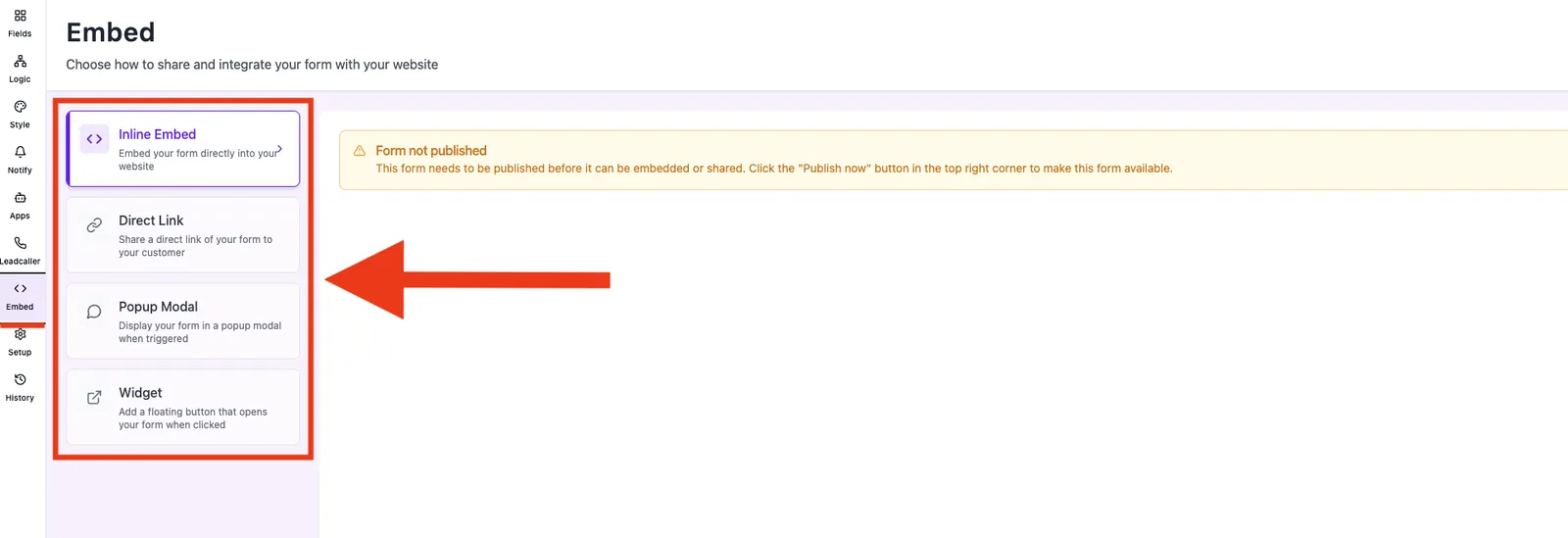
The embed code is generated in Form editor → Embed. The tabs Inline, Popup and Widget each provide the matching snippet — a script tag plus an HTML container.
Features
- Platform-independent code: The embed code is plain HTML and JavaScript and works in any builder that supports custom HTML blocks.
- Domain check: Before showing the form, the embed script performs a server-side domain validation. If the host domain is not allowed, a notice replaces the form.
- Lazy loading: The embedded iframe ships with
loading="lazy"— good for page speed in any builder. - Parent URL tracking: Works in all three platforms without extra configuration.
Step-by-step
Webflow
- Open the target page in the Webflow Designer.
- Drag an Embed element (Add Elements → Components → Embed) onto the page.
- Paste the embed code from the Funnelforms editor verbatim and save.
- Publish the page — the form is visible on the live domain as soon as that domain is allowed in Funnelforms.
Framer

- Open the target page in Framer.
- Insert an Embed element (Insert → Embed).
- Choose the HTML embed option and paste the code from the Funnelforms editor.
- Publish the project — the form is served on the live domain.
WordPress (block editor)
- Open the page or post in the block editor (Gutenberg).
- Add a Custom HTML block.
- Paste the embed code from the Funnelforms editor and save.
- Update the page and check the form on the frontend.
WordPress (classic editor)

- Open the post and switch to Text or Code mode.
- Paste the embed code at the desired position.
- Save and verify on the frontend.
Additional platform notes
- Webflow: The embed code must go into an Embed element (10,000 character limit) — the Funnelforms snippet is well below that. When auto-resize is on, keep the surrounding container at
overflow: visible, otherwise the growing iframe will be clipped. - Framer: In the Embed component use the HTML mode, not the URL mode. The URL mode renders the address inside an additional iframe and breaks auto-resizing.
- WordPress page builders (Elementor, Divi, etc.): Use the builder's dedicated HTML / Custom Code widget instead of the default block. Security plugins like Wordfence or iThemes may filter script tags or block them via Content Security Policy — in that case whitelist the embed code in the plugin.
- Auto-resize on animated pages: Builders that animate content after load (Framer page transitions, WordPress lazy-load) can report an incorrect initial height. Workaround: set a sensible
min-heighton the embed container. - HTTPS required: The embed snippet must be loaded on HTTPS pages — on plain HTTP pages browsers block the script as mixed content.
Best Practices
- Allow the domain under Domains in Funnelforms before embedding — otherwise the form is blocked.
- Load the script tag only once per page, even if multiple forms live on the same page.
- In Webflow and Framer, place inline embeds inside a container without a fixed pixel width so responsive scaling works.
- Place popup and widget embeds in the platform's global header or footer so they are available on every sub-page.
Common pitfalls
- "Domain Restricted" message instead of the form: The live domain is not allowed in Funnelforms. Add the domain — sub-domains and staging domains require separate entries.
- Webflow overrides the embed container: The embed element must not sit inside a container with a fixed pixel height when Auto-resize is on.
- WordPress strips the script tag: Some security plugins filter script tags from the HTML block. Temporarily disable the plugin or whitelist the script tag.
- Framer preview does not show the form: The embed preview in the editor is sandboxed. Only the published live page shows the real form.
Tips & notes
Tip: If you use the separate Funnelforms WordPress plugin, you do not need the HTML embed code there — the plugin ships its own shortcode mechanism. Mixing both approaches on the same page is not necessary.
Heads-up: Builder-specific caching layers can delay changes to embed code. Clear the platform cache after edits.
Frequently asked questions
Do I need a dedicated integration for Webflow or Framer?
No. The HTML embed code from the Funnelforms editor is enough.
Does the embed also work in Shopify or other builders?
Yes, in any system that supports custom HTML blocks. The code stays the same.
What happens if the staging domain is not allowed?
The embed script displays a "Domain Restricted" message. Allow staging and live domains separately.
Can I embed multiple forms on one page?
Yes. Add the container (<div data-form-id="...">) multiple times — but include the script tag only once per page.
Does the embed affect page speed?
The iframe loads lazily (loading="lazy"). The embed script is small and does not block rendering.