Manage Allowed Domains: Load Forms Only on Approved Websites
Funnelforms only loads your forms on domains you have approved in your account beforehand. This prevents embed codes from being misused on third-party sites and keeps you in control of where your forms appear.
Prerequisites
- Active Funnelforms account.
- You know the domain where the form will be embedded (e.g.
example.com). - Your plan still has a free domain slot. The Free tier allows 1 domain; higher plans allow more (see Profile → Plans).
Where to manage allowed domains
Profile → Domains
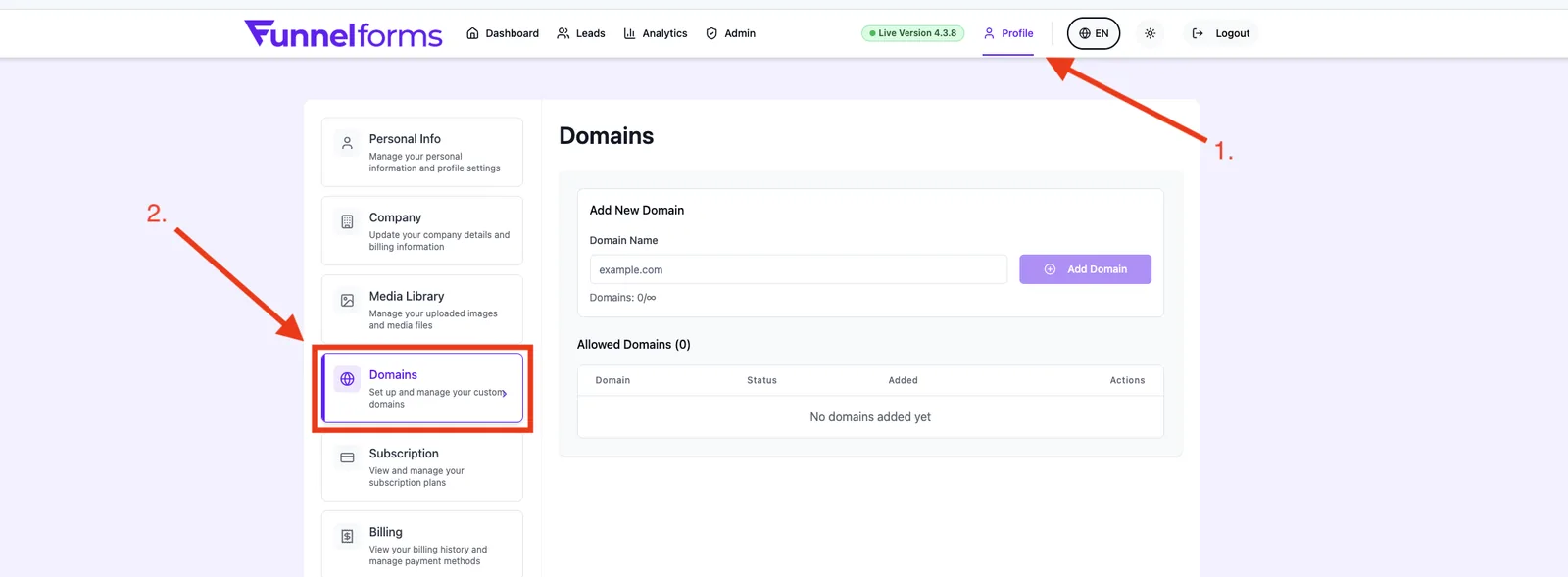
You'll see the list of approved domains, their status, and your current usage (e.g. 2/3).
Step-by-step: add a domain
- Open Profile → Domains.
- Enter the domain without
http://orhttps://, e.g.example.com. - Click Add.
- The domain appears in the list with status Active and can serve forms immediately.
Step-by-step: remove a domain
- Open Profile → Domains.
- Click the trash icon next to the relevant domain.
- The domain is removed instantly. Embedded forms on that domain will stop loading from this moment on.
Rules for valid domains
| Rule | Example |
|---|---|
| Domain only, no protocol | ✅ example.com ❌ https://example.com |
| Must include a top-level domain (a dot is required) | ✅ example.com ❌ example |
| Letters (a–z), digits, hyphen, dot only | ✅ shop-2026.example.com ❌ müller.de |
www. variant is normalized automatically | www.example.com = example.com |
| Paths, ports and query parameters are not allowed | ❌ example.com/landing |
Note on Unicode domains: Domains with umlauts or other non-ASCII characters (
müller.de, internationalized domain names / IDN) are currently not supported. Use the ASCII (Punycode) form of your domain instead.
Domains and sub-domains
Each sub-domain counts as a separate domain and must be approved individually – with the exception of the www. variant, which is covered automatically.
example.comalso coverswww.example.com.shop.example.comis not covered byexample.comand must be added separately.
Limits and what happens when you reach them
- Your domain limit is defined by your active plan. The remaining slots are shown directly in the domain list.
- Once the limit is reached, no further domain can be added – you'll see a notice with your current cap.
- To get more slots, upgrade in Profile → Plans, or remove a domain you no longer use.
Mandatory domain for forms
Since January 2026 every new form has to be linked to at least one approved domain before it can be served publicly. Existing forms were migrated to your existing domains; new forms without a domain assignment cannot be published.
Global whitelist (admin)
In addition to your own domains, the Funnelforms team maintains a global whitelist for system-wide allowed domains (e.g. internal test or preview domains). These global entries apply to all accounts and are checked before your own domain restrictions kick in. You don't have to configure anything for this — and global domains do not count against your plan limit.
How domain validation works under the hood
When an embedded form loads, an edge function validates the requesting domain server-side against the global whitelist and your allowed domains. The check runs with an 8 second timeout and is fail-closed: if validation fails or times out the form is blocked — never silently allowed. There is intentionally no client-only check.
Best practices
- Add every live domain where the embed should run – including staging or test domains if you preview there.
- Always enter domains without a protocol and without a path; otherwise the input is rejected.
- Remove domains you no longer use to free up slots and reduce the risk of misuse.
- Migrating to a new domain: first approve the new domain, then switch the embed code, and only afterwards remove the old domain.
Troubleshooting
- "Form Not Available" on the embedded page – the domain is not (or not correctly) approved in your account. Check the exact spelling (no
https://, no path). - "Domain already exists" – the domain is already active in your account. A domain cannot be added twice.
- "Please enter a valid domain name" – the input contains a protocol, a path, umlauts or other special characters. Enter it as
example.com. - Limit reached – remove an unused domain or upgrade your plan in Profile → Plans.
FAQ
Do I need to add www.example.com and example.com separately? No. Both variants are covered by a single entry.
Does one entry of example.com cover all sub-domains? No. Every sub-domain (other than www.) must be approved separately.
Can I add localhost or an IP address? No. Only real domain names with a top-level domain are accepted.
Will my existing leads be deleted if I remove a domain? No. Leads already collected stay untouched. Only future form loads from that domain are blocked.
Does removing a domain take effect immediately? Yes. As soon as it's removed, the form will no longer load on that domain.
Related articles
- Overview: Settings & Administration
- Inviting & managing your team
- Media Library: manage your images and files