Using the WordPress Import: Move Existing Funnelforms Forms to the SaaS
The WordPress import lets you move existing Funnelforms/AF2 forms from your WordPress site into your Funnelforms SaaS account – including questions, order, conditions (where compatible) and uploaded images. The import is a one-off operation per form; further changes are done in the SaaS editor.
Prerequisites
- Active Funnelforms SaaS account with login.
- Either a WordPress export ZIP that contains the file af2_export.txt, or credentials to your WordPress site (URL, username, application password) with the Funnelforms/AF2 plugin installed.
- Enough free form slots in your plan (Free tier: 1 form). See Understanding plan, limits & usage.
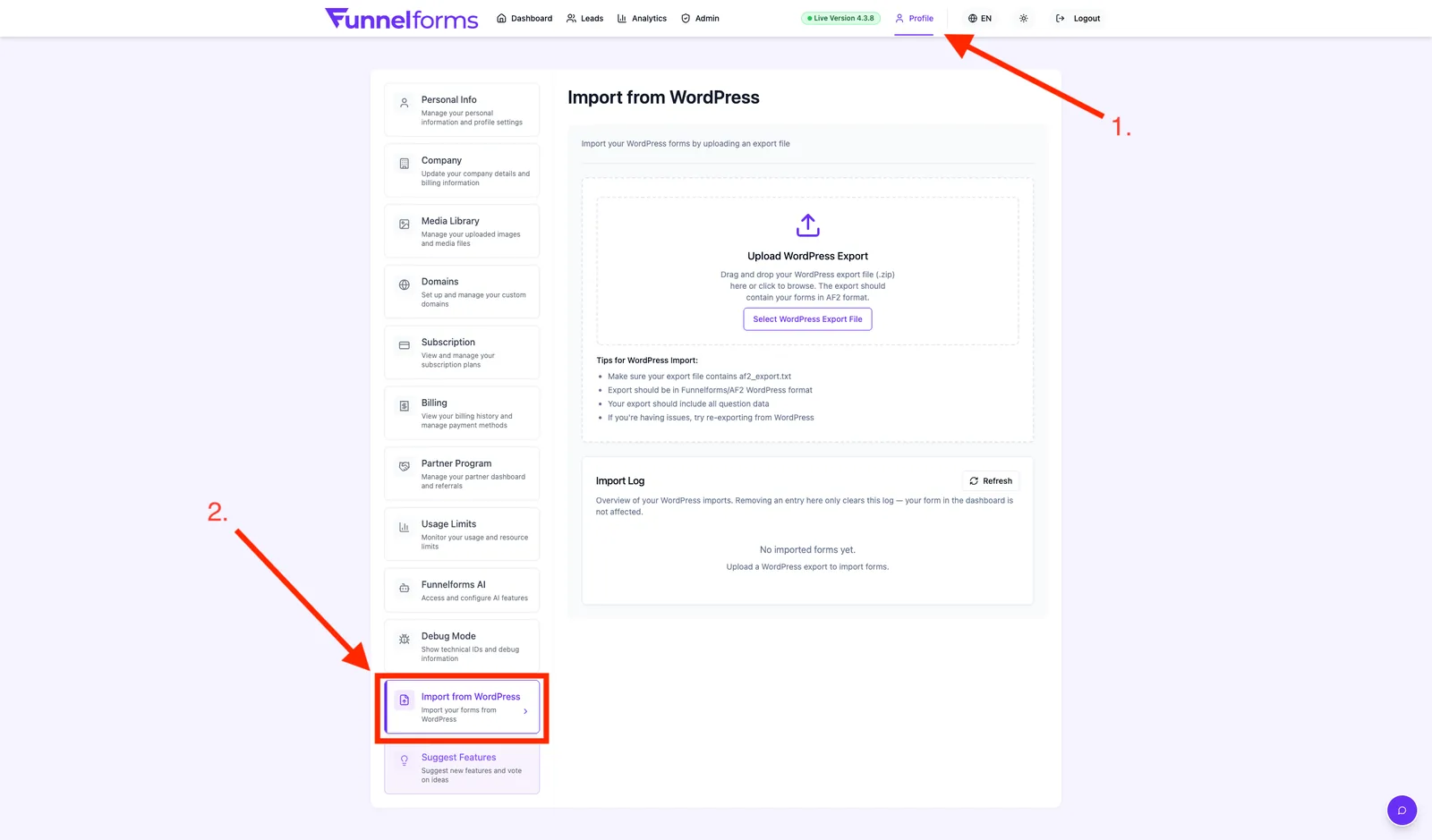
Where to find the import
Profile → WordPress Import
What gets imported
| Area | Imported |
|---|---|
| Form title and question order | Yes |
| Question types (choice, dropdown, text, address, date, upload, …) | Yes, where a SaaS equivalent exists |
| Answer options and labels | Yes |
| Embedded images from the export | Yes – added to your Media Library |
| Style data (colors, fonts) | Partly – as a starting point in the Style editor |
| Logic & branching | Best-effort – see "Known limits" for edge cases |
| Submissions / existing leads | No – only the form definition |
Step-by-step: Import via ZIP file
- In WordPress, open the Funnelforms/AF2 plugin and export your forms as a ZIP. The ZIP must contain af2_export.txt.
- In SaaS, go to Profile → WordPress Import.
- Drag the ZIP into the upload area or click Select WordPress export file.
- Wait for analysis to finish. You'll see a list of all forms in the file with their question count.
- Pick the forms to import via checkboxes (or use Select all).
- Click Import form(s). The import runs as a background job.
- When done, a result dialog shows statistics (imported forms, questions, images) and any import notes.
Step-by-step: Import via WordPress connection
- In WordPress, go to Users → Profile → Application Passwords and create a new application password named "Funnelforms Import".
- In SaaS, open Profile → WordPress Import and click Connect to WordPress.
- Enter the Site URL (including
https://), Username and the Application password you just created, then save. - Once connected, Funnelforms lists all forms found on your site.
- Pick the forms you want and start the import as with the ZIP flow.
Note: Funnelforms stores the application password encrypted. You can remove the link at any time via Disconnect.
Understanding import status
Every import is logged in your account. Each form gets one of the following statuses:
- Imported – the form was successfully transferred and is available in the editor.
- Imported with notes – the form is there, but the importer recorded items worth checking (see Import notes).
- Failed – an error message is available; no form was created. Use Upload another file to retry.
Working through import notes
In the result dialog and the imported-forms list you'll find Import notes. These highlight places where the importer had to make a decision or could not transfer something 1:1. Each note can be marked as Done or reverted via Undo. Resolved notes stay stored so you can trace the import history.
Known limits
- Reused question IDs: if the same WordPress question appears in multiple content slots inside one section, it currently becomes only one node in the Flow editor. Branches that rely on two separate instances of the same question must be rebuilt in the SaaS editor.
- Text-field validation: AF2 flags like letters only, numbers only, min/max length or required are not set automatically right now. Re-enter these in the field settings panel in SaaS.
- Submissions: existing WordPress leads are not migrated – only the form structure.
- Plugins / custom code: extensions that work outside the AF2 data structure (custom shortcodes, JS hooks, …) are not transferred.
Tips & Best Practices
- Export in WordPress just before importing so images and questions are current.
- Import one test form first, check it in the editor and preview, then import the rest.
- Assign sensible projects/folders after importing so larger WordPress libraries stay tidy.
- Before publishing an imported form, assign an allowed domain – otherwise the embed will show Form Not Available.
Troubleshooting
- "No forms found in the uploaded file" – the ZIP is missing af2_export.txt or contains no Funnelforms/AF2 forms. Re-export in WordPress.
- "The ZIP file does not contain a valid WordPress export" – wrong export format. Use the export from the Funnelforms/AF2 plugin, not the generic WordPress export.
- "Permission denied" on upload – you're not signed in or your session expired. Sign in again and retry.
- Connection fails – check the URL (including
https://), username and application password. The regular WordPress password will not work. - Form imported but logic is missing – see "Known limits". Rebuild branches based on reused questions manually in the Flow editor.
FAQ
Can I import the same export several times? Yes. Each import creates a new SaaS form; previously imported WordPress forms stay unchanged.
Are my images stored twice? No. Images from the export land in your Media Library and are referenced in the new form.
What happens if I disconnect WordPress? Forms that were already imported stay in your SaaS account. Only new imports via the live connection are no longer possible.
Are imported forms published automatically? No. They first land as drafts. Publish them via the editor as usual.
What file size is allowed? The ZIP is bound by your plan's upload limit (Free tier: 10 MB per file). Split very large exports and import them in steps.