Control Your Form in One Place: Setup, Privacy, Domains and Monitoring
Under Settings you manage your entire Funnelforms account: your personal data, your company, your plan and billing, your domains, your media library and more. This overview shows you what each area does, so you can find the right place quickly.
Requirements
- You are signed in to your Funnelforms account.
- Some areas have plan-based limits. On the Free tier (for example after your trial ends): 1 domain, 1 form, 1 team member, 10 MB file size.
Where to find it
Sidebar → Profile. Use the tab list inside the profile to switch between areas.
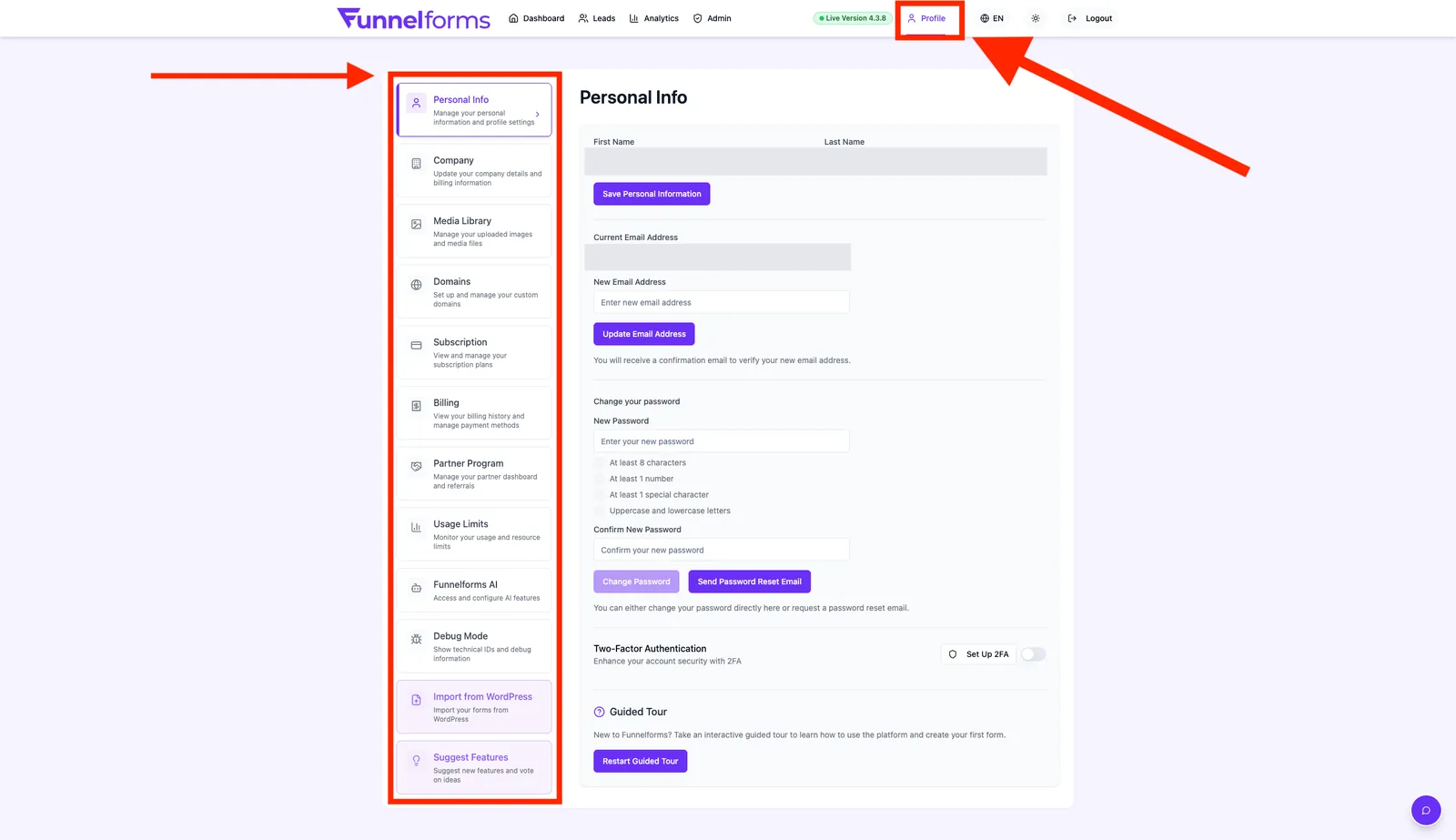
Which areas are there?
- Personal Info — name, email, password, two-factor authentication.
- Company — company name, address, tax ID for your invoices.
- Media Library — all images and files used in your forms.
- Domains — domains your forms are allowed to be embedded on.
- Plans — view your current plan, upgrade or downgrade.
- Billing — invoices, payment method, cancellation.
- Partner Program — recommend Funnelforms and earn commissions.
- Usage — current usage of your plan.
- Funnelforms AI — enable and configure AI features.
- Import from WordPress — bring forms over from your WordPress plugin.
- Suggest a Feature — submit ideas and vote on others.
- Debug — technical IDs and internal values for support requests. Only visible when
localStorage.setItem('ff:debug_mode','true')is set in the browser.
Note (admin area): The admin area at
/adminis not part of the profile settings and only shows up for accounts with an administrator role. Support tickets and live chat live outside the profile under the global Help/Support button.
Step by step: open settings
- Open the sidebar and click Profile.
- In the left tab list, pick the area you need, e.g. Account, Company or Billing.
- Make your changes and confirm with Save.
How do the areas connect?
Your company data appears on every invoice automatically. Your plan determines the values shown under Usage. Your domains decide which websites are allowed to embed your forms.
Best practices
- Complete your company data before your first purchase — all invoices will be correct right away.
- Enable two-factor authentication as soon as your account is used in production.
- Keep your domain list lean: only list domains that actually run forms.
Common pitfalls
- Tab missing: some areas depend on your plan or role (e.g. team management). Check your active plan under Plans.
- Changes not visible: reload the page if values don't update after saving.
Tips & notes
Note: On the Free tier, the limits are 1 domain, 1 form, 1 team member and 10 MB per file upload.
Tip: Right after your first login, do a quick "profile check" — Personal Info, Company, Domain. Things run smoother afterwards.
FAQ
Where do I change my email address?
Under Profile → Account. You will receive a confirmation email at the new address before the change takes effect.
Where do I see my current plan?
Under Profile → Plans. Usage is shown under Profile → Usage.
Where do I download invoices?
Under Profile → Billing in the transaction history.
Why don't I see certain areas?
Some areas depend on your plan. Free accounts have limited resources. If an area should be there, check your plan under Plans.
Related articles
- Personal profile: name, email, password & 2FA
- Manage subscription & invoices
- Inviting & managing your team