Manage Billing With Confidence: Keep Plans, Payment Methods, Invoices and Cancellation Under Control
Under Billing you see your current plan, your payment method and your transaction history. You change your payment method here, download invoices, or cancel your subscription.
Requirements
- You are signed in to your Funnelforms account.
- To see a plan and invoices you need an active or previously paid subscription. Free accounts that have never made a purchase will see a notice instead of an invoice list.
Where to find it
Sidebar → Profile → tab Billing.
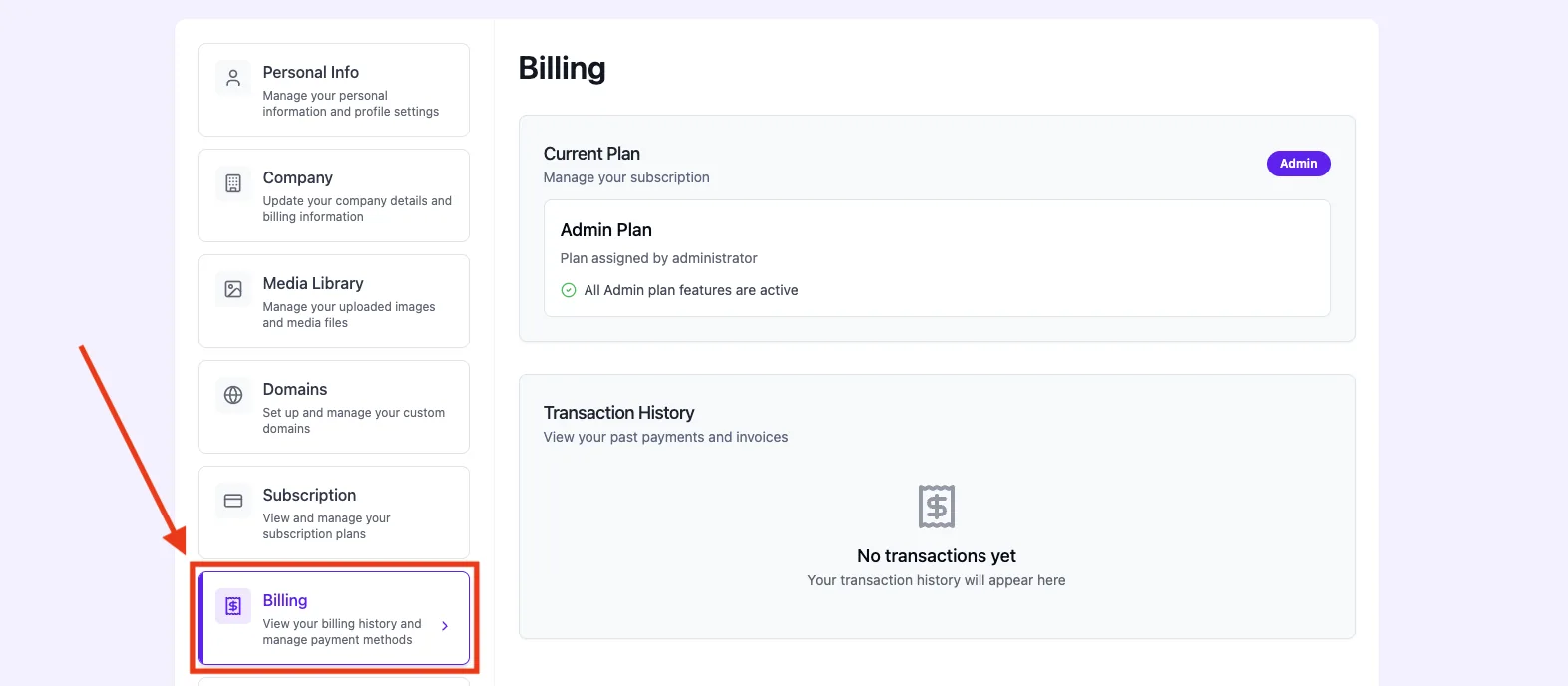
What you can do
- View your current plan and renewal date.
- Update your payment method (secure link to our payment provider).
- View transaction history and download invoices/receipts as PDF.
- Cancel your subscription, or resubscribe after cancellation.
Step by step
Change your payment method
- Open Profile → Billing.
- Click Update payment method.
- Follow the secure link to the payment provider and enter your new card or bank details there.
- Once updated, your new payment method appears automatically in your billing area.
Download an invoice or receipt
- Open Profile → Billing and scroll to Transaction history.
- Find the relevant payment by Date.
- Click View invoice or View receipt in the Receipt column.
- Save the PDF locally or print it.
Cancel your subscription
- Open Profile → Billing.
- Below the active plan click Cancel subscription.
- In the dialog pick a Reason for cancellation and optionally add Additional details.
- Confirm with Confirm cancellation. You receive a confirmation "Cancellation request submitted".
Resubscribe
- Open Profile → Billing.
- Click Resubscribe. You will be taken to the plan selection.
What happens after cancellation?
Your subscription stays active until the end of the paid period (shown as Active until 31.12.2026). Only after that your account is moved to the Free tier with the limits 1 domain, 1 form, 1 team member and 10 MB per file. Your forms and leads remain stored, but with restricted usage.
Best practices
- Fill in your company data under Profile → Company before your first purchase — the invoice at checkout will use those details.
- Download invoices right after each payment and archive them for your accounting.
- If you just want to pause, consider downgrading to a smaller plan before a full cancellation.
Common pitfalls
- "Update payment method" not available: the link is generated by our payment provider. Try again after a short wait.
- Invoice missing: for very recent payments it can take a few minutes for the invoice to appear.
- Cancellation doesn't seem active: after confirming the status is "Cancelled" but the subscription continues until the paid period ends.
Tips & notes
Payment provider: All payments, subscriptions and invoices run through Paddle (Merchant of Record). Invoice PDFs, payment-method updates and tax details are therefore handled via the Paddle customer portal — Funnelforms surfaces the relevant actions directly inside the Billing tab.
Upgrade / downgrade: An upgrade takes effect immediately; the difference to the current plan is calculated prorated by day. A downgrade only kicks in at the end of the running billing cycle; after that the limits of the new, lower plan apply (after a full cancellation without a follow-up subscription, the Free limits apply: 1 domain / 1 form / 1 team member / 10 MB).
Note: A cancellation always takes effect at the end of the paid billing period. There is no pro-rata refund for the running period.
Tip: When your plan is set to expire you'll see the note "Active until DD.MM.YYYY" at the top of the Billing tab — that tells you exactly when the Free tier kicks in.
FAQ
When am I billed?
At checkout you pay the full amount of the chosen period (monthly or annual). Renewal happens automatically on the same date each month or year.
Do I get a refund after cancelling?
By default no — you keep all features until the end of the paid period. For special cases please contact support.
Where do I see if my payment method is about to expire?
Under Profile → Billing. Funnelforms shows a notice before the card expires.
Are invoices sent automatically?
After every successful charge you get an invoice by email to the address on file. You can always find them in the transaction history as well.
Related articles
- Understanding plan, limits & usage
- Managing company data
- Overview: Settings & Administration