Manage Your Account Securely: Set Up Personal Details, Password and 2FA Properly
In the Account area you manage all personal data of your Funnelforms login: your name, email, password and two-factor authentication (2FA) for extra protection. Changes take effect immediately across your whole account.
Requirements
- You are signed in to your Funnelforms account.
- To enable 2FA you need an authenticator app (e.g. Google Authenticator, Microsoft Authenticator, 1Password, Authy).
Where to find it
Sidebar → Profile → tab Account.
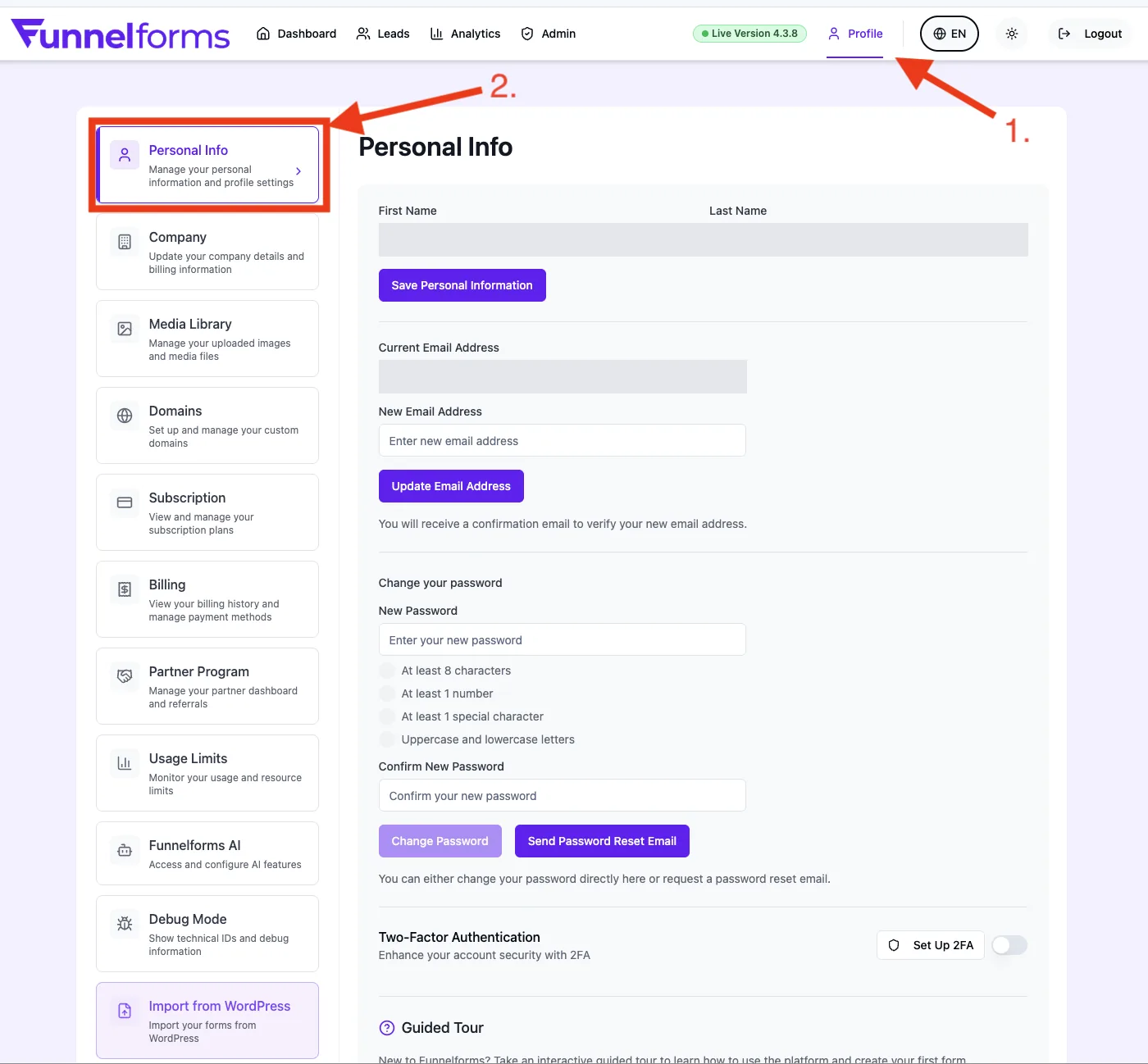
What you can do
- Change first and last name.
- Change email address (double-confirmation flow).
- Set a new password directly or request a password reset email.
- Enable or disable two-factor authentication.
Step by step
Change your name
- Open Profile → Account.
- Fill in First Name and Last Name.
- Click Save personal info.
Change your email address
- Open Profile → Account.
- Enter your new address in the New email address field.
- Click Update email address.
- Confirm the link in the email sent to the new address. If your account has the additional "Secure email change" protection enabled, you'll also receive a second link at your old address — confirm both in that case; otherwise the link to the new address is enough.
Change your password
You have two options:
- Set directly: enter New Password and Confirm New Password, click Change password.
- Reset by email: click Send password reset email. You receive a reset link at your registered address.
Enable two-factor authentication (2FA)
- Open Profile → Account and scroll to Two-factor authentication.
- Click Set up 2FA.
- Scan the QR code with your authenticator app.
- Enter the 6-digit code from the app to confirm.
Disable 2FA
- In the Two-factor authentication section click Deactivate 2FA.
- Confirm with a current code from your authenticator app.
How does the email double-confirmation work?
By default, confirming the link sent to the new address is enough. If your account has the additional "Secure email change" protection enabled, you also receive a link at your old address — both must then be confirmed before the change takes effect.
Best practices
- Enable 2FA as soon as your account is used in production — especially if you collect leads from customers.
- Use a long, unique password — ideally at least 12 characters from a password manager.
Common pitfalls
- Confirmation email didn't arrive: check spam folder, wait up to 10 minutes, request again if needed.
- 2FA code rejected: check the time on your phone (authenticator codes are time-based — wrong time means wrong code).
- Lost authenticator device: contact support — we verify your identity and reset 2FA for your account. (Funnelforms does not issue separate 2FA recovery codes.)
Tips & notes
Note: By default the email change takes effect via the link sent to the new address. If your account has the additional "Secure email change" protection enabled, the link sent to the old address must also be confirmed.
Tip: Set up 2FA on a device you use long-term. Funnelforms does not show a separate recovery code after setup — instead, keep reliable access to your authenticator app (cloud backup, second device).
FAQ
Can I have multiple email addresses?
No. A Funnelforms account is always bound to exactly one email address.
Is 2FA mandatory?
No, but strongly recommended. Without 2FA, a stolen password is enough to access your account.
What happens if I forget my password?
Click Forgot password on the login page. You receive a reset email at your registered address.
Can I change my name any time?
Yes. The name is only used for the account display — it does not appear on invoices (your company data is used there).
Related articles
- Overview: Settings & Administration
- Managing company data
- Inviting & managing your team