Using Projects: Organize Forms and Pages Clearly
Projects are color-coded folders that group forms and pages inside your Funnelforms account. They help you keep large libraries (multiple clients, brands or campaigns) organized – without duplicating or moving the forms themselves.
Prerequisites
- Active Funnelforms account with login.
- At least one form or page you want to assign.
Where to find projects
Dashboard → Projects bar (on the left or above the form list) and Pages → Projects bar.
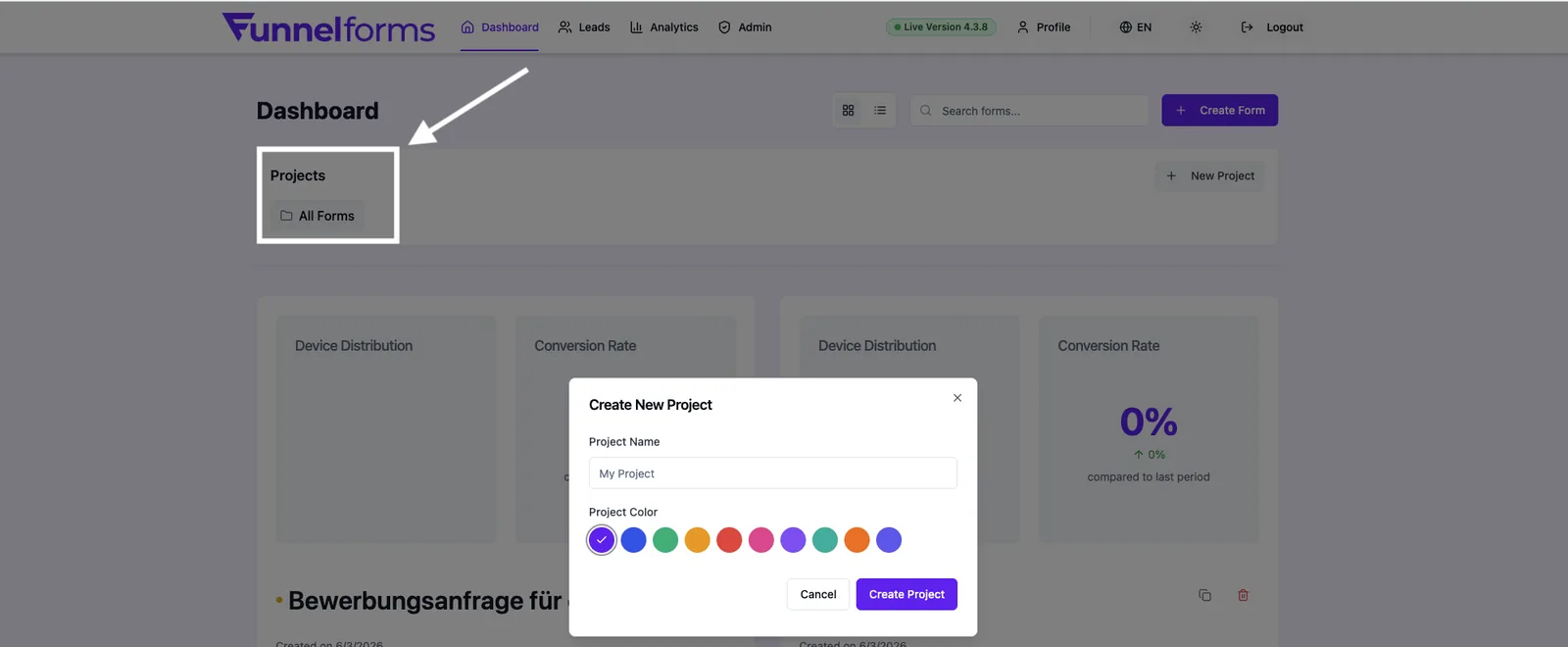
What a project consists of
| Property | Description |
|---|---|
| Name | Free text, shown in Dashboard and Pages. |
| Color | One of ten preset colors (e.g. brand purple #6A30F5, blue, green, pink …) for quick visual distinction. |
| Assigned items | Forms and pages via their project_id field. An item belongs to at most one project. |
| Visibility | Per-account – only you and team members with access see your projects. |
Step-by-step: Create a project
- Open Dashboard or Pages.
- Click New project (plus icon) in the Projects bar.
- Enter a Name and pick a Color.
- Confirm with Save. The new project appears in the bar immediately.
Step-by-step: Assign a form to a project
- Open the form card in the Dashboard.
- Click Folder icon → Assign to project.
- Pick the target project from the list – or No project to remove the assignment.
- The change is applied instantly.
Step-by-step: Assign a page to a project
- Open Pages.
- Click the project menu next to the page and pick the target project.
- The page then appears under the selected project filter.
Filter by project
Click a project in the Projects bar to show only its forms or pages. Click All to clear the filter.
Edit or delete a project
- Hover the project in the Projects bar and click Edit (pencil icon) to change name or color.
- Use Delete (trash icon) to remove the project. Important: the contained forms and pages are kept; their assignment is cleared and they show up unassigned again.
Note: Deleting a project does not delete any forms or leads. Only the "folder" itself goes away.
Best Practices
- Create projects along the lines you actually filter by – clients, campaigns, years or status.
- Use consistent colors (e.g. green = live, yellow = test, red = paused) so you grasp the state at a glance.
- Keep the number of projects manageable (a good rule of thumb: ten to fifteen active). Too many projects make things harder to find.
- Assign new forms to a project right when you create them so nothing stays unassigned.
Troubleshooting
- Project does not appear in the list – reload the page. If still empty, check whether a filter is active (click All).
- Form not visible after assignment – an active filter may hide it. Make sure you're not on a different project.
- "Failed to update form" – session expired or network issue. Sign in again and retry.
- Deleting a project fails – make sure you're the owner; team members may not be allowed to delete projects depending on their role.
FAQ
Can a form belong to several projects? No. A form or page has exactly one project assigned at a time.
Do team members see my projects? Yes, if they have account access – projects are account-wide.
What happens to forms when I delete a project? They stay in your account; only the project assignment is cleared.
Can I change the color later? Yes, at any time via Edit in the Projects bar.
Is there a hard limit on the number of projects? There is no hard limit. For a clean UI we recommend a small number of clearly scoped projects.
Related articles
- Overview: Settings & Administration
- Media Library: manage your images and files
- Inviting & managing your team