Using the Media Library: Upload, Reuse, and Manage Images
The Media Library is your central place for images used in Funnelforms: logos, backgrounds, images inside answer options, avatars, and more. Once uploaded, every file can be reused across any number of forms – no re-upload, no duplicate storage usage.
This article shows you how to use the Media Library efficiently, what the limits are, and how to prevent your plan storage from quietly filling up.
Prerequisites
- An active Funnelforms account (Free or paid plan).
- The Free plan has 250 MB total storage and a 10 MB per-file upload limit – see the "Storage limits per plan" section.
- A browser with JavaScript enabled for upload and preview.
How to get there
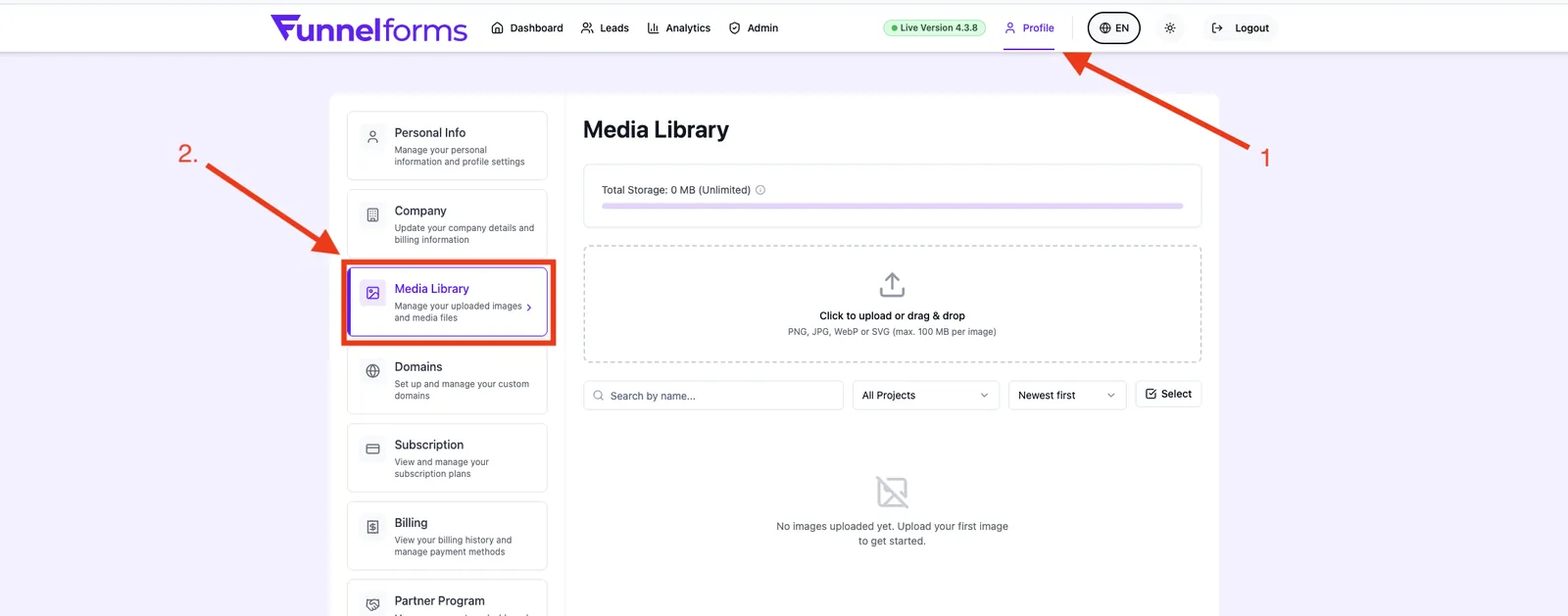
Where to find: profile menu (top right) → Profile → Media Library tab.
The library also opens automatically inside the form editor whenever you edit an image field, a logo slot, or a background. From there you can pick an existing file or upload a new one.
Supported files
- Allowed formats: PNG, JPEG, WebP, SVG.
- PDFs, videos, and other formats are not supported.
- Maximum file size per upload: plan-dependent. Free = 10 MB per file; paid plans allow larger files. The global storage quota of your plan applies in addition.
- SVGs are sanitized on the server (security scan) before being stored.
Storage limits per plan
Storage is counted globally per account, not per form. Multiple forms share the same storage pool. The per-file upload limit is separate from the total storage quota.
- Free: 250 MB total storage · 10 MB per file
- Basic: 500 MB total storage
- Advanced / Trial: 1 GB total storage
- Pro: 2 GB total storage
- Enterprise: 3 GB total storage
After a downgrade (e.g. trial ended without upgrade), the post-trial free limits apply: 250 MB storage, 10 MB per file.
Step by step: upload a file
- Open Profile → Media Library.
- Drag & drop your file onto the upload zone or click Choose file.
- The storage usage bar at the top updates automatically.
- The file appears in the gallery immediately and can be used anywhere.
Filter, search, and sort
- Search: matches against the file name.
- Project filter: show files of a specific project, all files, or only files without a project assignment.
- Sort: newest, oldest, by name, or by file size.
Multi-select and delete
- Click Select in the top right to enter selection mode.
- Pick individual files or click Select all.
- Click Delete. Funnelforms automatically checks whether the file is currently used in any form.
- If it is in use, a warning shows the affected forms – you can still confirm the deletion or cancel.
Heads up: if you delete a file that is in use, the affected forms will show a blank image until you replace it.
Detail view of a file
Clicking a file in the gallery opens the detail view. There you see:
- Preview in original resolution.
- File name, MIME type, size, upload date.
- Public URL ready to copy.
- List of all forms that currently use the file.
Best practices
- Compress images before upload – tools like TinyPNG or Squoosh often reduce size by 60–80 % with no visible quality loss.
- Prefer WebP over PNG/JPEG – significantly less storage, faster loading.
- Reuse files: upload logos once and reference them across all forms.
- Clean up regularly: use multi-select to remove old test uploads.
- Use SVG for logos: scales losslessly and usually weighs less than 50 KB.
Troubleshooting
- "File too large": reduce the file size (see best practices) or check your plan storage.
- "Storage full": delete unused files or upgrade your plan. See the related article on cleaning up storage.
- "Format not supported": only PNG, JPEG, WebP, and SVG are allowed. Convert PDFs to an image format first.
- SVG renders blank: the security scan may have modified it. Check the detail view or upload it as a PNG export.
- Image gone from a form: the file was deleted from the Media Library. Upload it again and re-attach it in the form editor.
FAQ
Does every upload count toward my storage, even if I reuse the file? No. Each file counts once, regardless of how many forms use it.
Can I upload PDFs? No, the Media Library accepts images only. PDFs must be hosted externally and linked.
What happens to my files on a downgrade? Existing files are kept, but new uploads are blocked as soon as you exceed the new limit. Clean up the library or upgrade again.
Are my images publicly accessible? Yes, every file has a public URL – required so the images load inside embedded forms. Do not upload confidential content.
Are files deleted automatically when a form is deleted? No. Files stay in the Media Library and have to be removed separately.