Embed Forms Securely: Assign Domains and Control Where Your Form Can Run
Domain assignment controls which websites are allowed to embed your form. Since January 2026, at least one assigned domain is mandatory to deliver a form — without it Funnelforms blocks delivery on the server side.
Prerequisites
- At least one registered domain in your profile.
- Mind your plan limit: free accounts may use 1 domain.
- Internationalized domain names (umlauts, IDN) are currently not supported.
Where to find
Form Editor → Setup → Domain Assignment
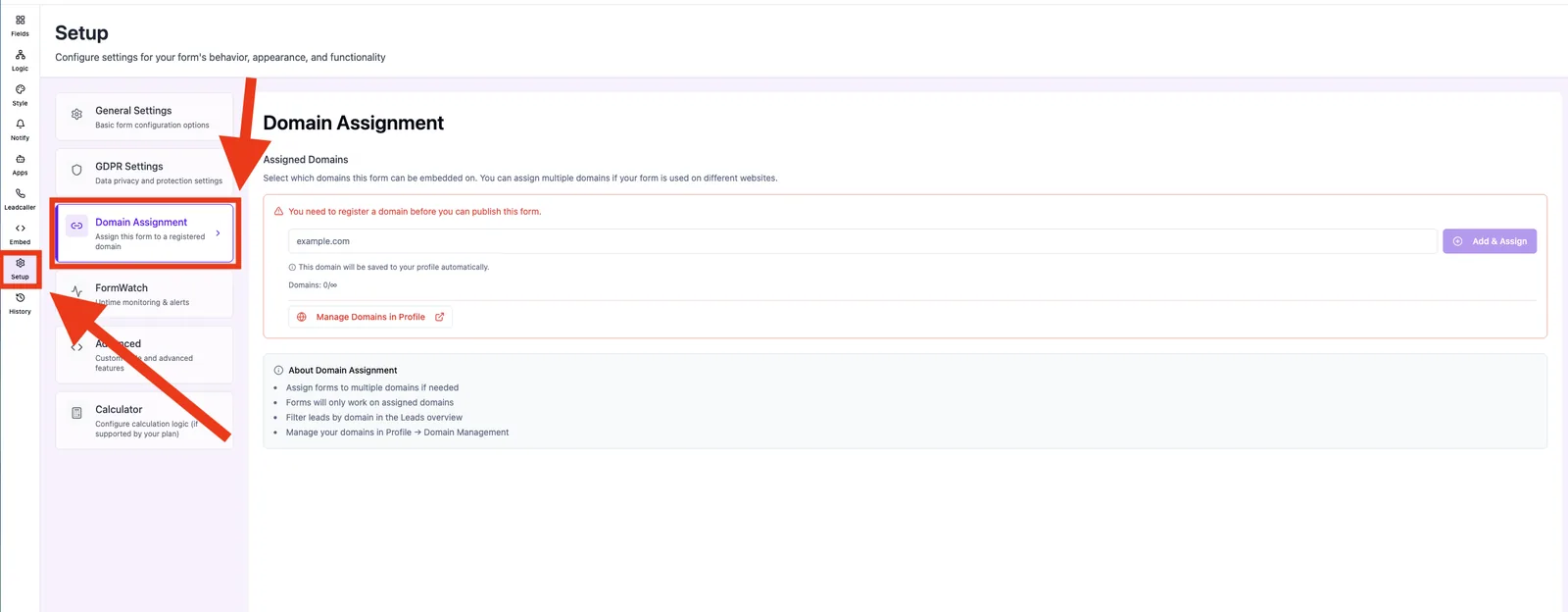
Capabilities
- Assign several registered domains per form.
- Add a domain directly from setup and assign it automatically.
- Live X / limit indicator for your plan.
- Quick link to Profile → Domain Management.
Step by step
- Open Setup → Domain Assignment.
- Activate existing domains by clicking Assigned.
- Or enter a domain under Add New Domain and click Add & Assign.
- Save — the assignment applies immediately across all delivery channels.
How does the domain check work?
When an embed or direct link is opened, Funnelforms validates server-side (fail-closed, 8 s timeout) whether the calling domain is allowed for the form. If not, a "Domain Restricted" notice is shown — also when the validation does not respond.
What happens without an assigned domain?
You cannot publish the form. The editor displays: "You need to register a domain before you can publish this form."
Best practices
- Per form, only assign domains where the form should actually run.
- Register subdomains separately (e.g. app.example.com and www.example.com).
- Handle local test URLs (localhost) centrally through an admin global whitelist — not per form.
Common pitfalls
- "Domain Restricted" despite correct domain: check spelling and the bare format (no https://, no trailing slash).
- Limit reached: upgrade the plan or remove an existing domain in your profile.
- Umlaut domain (e.g. müller.de): not supported — register the Punycode variant if possible, or use an alternative domain.
Tips & notes
Note: Manage domains globally under Profile → Domain Management; that is where you add and delete them.
Caution: Following the January 2026 enforcement rule, a form without an assigned domain is no longer accessible live.
Frequently asked questions
Can I run a form on multiple domains?
Yes, as long as your plan covers the count. Each domain must be registered and assigned in setup.
What about subdomains?
Subdomains count as separate domains and must be registered separately.
Does removal take effect immediately?
Yes. After a short cache time, the form is blocked on the removed domain.