Control Your Form in One Place: Setup, Privacy, Domains and Monitoring
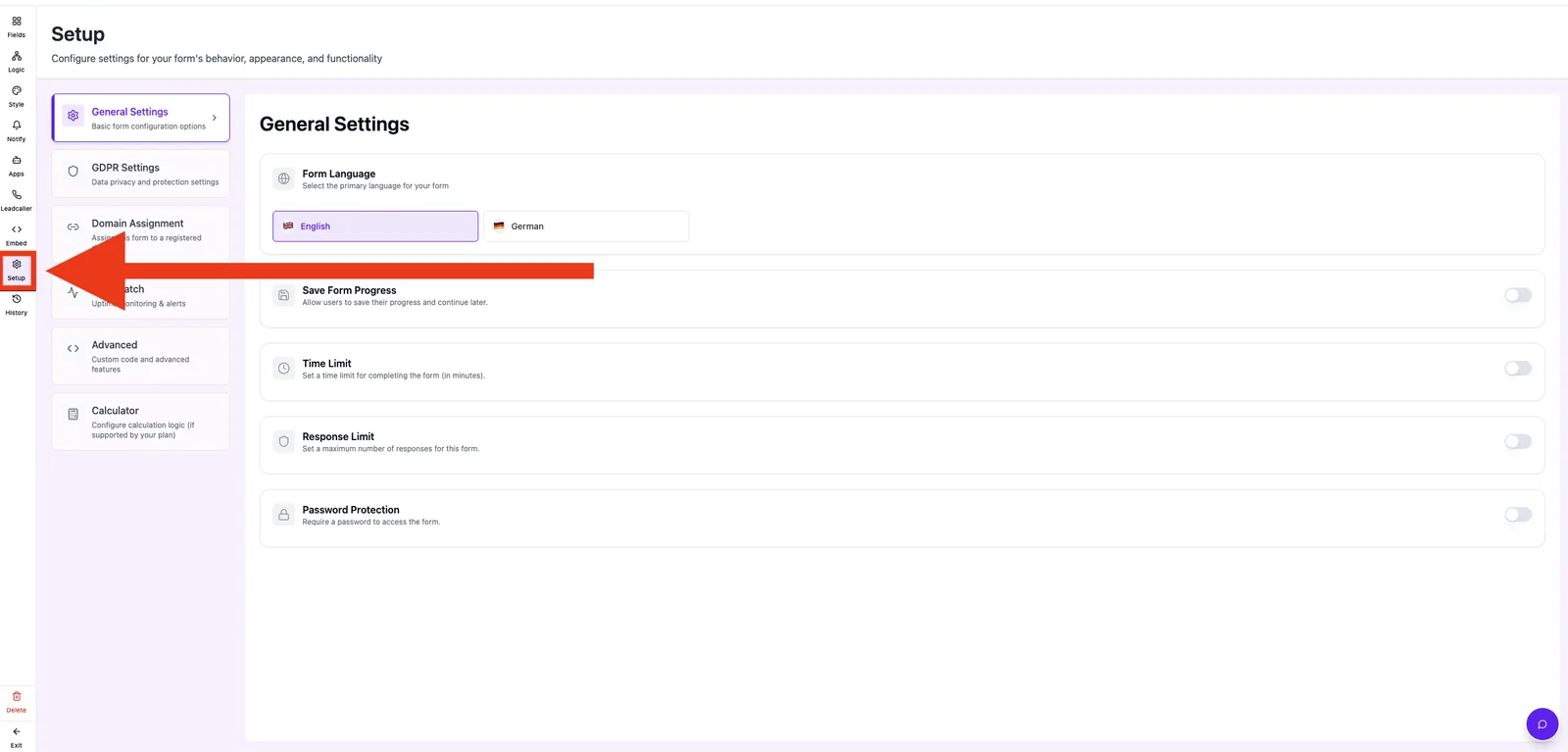
The Setup area is the central control panel for your form: language, GDPR, domain assignment, FormWatch monitoring, custom CSS/JavaScript and the calculator tab are configured here. This article explains what each tab does and when to use it.
Prerequisites
- An existing form in the Form Editor.
- An active plan or trial — individual features (e.g. password protection, custom code) are plan-dependent.
Where to find
Form Editor → Setup
Capabilities
- General Settings — form language, save progress, time and response limits, password protection.
- GDPR Settings — retention period, auto-save, pre-fill, cookie duration, IP storage.
- Domain Assignment — controls which domains may embed the form.
- FormWatch — uptime monitoring with email and SMS alerts.
- Advanced — custom CSS and JavaScript for the form.
- Calculator — calculation logic for calculator fields (plan-dependent).
Step by step
- Open your form in the Form Editor.
- Click Setup in the left navigation.
- Pick the tab you need on the left (e.g. General Settings).
How the Setup area works
All settings are stored in the form_settings record of your form. On first open, defaults are created. Changes take effect immediately across all delivery channels (direct link, embed, popup, widget).
Best practices
- Define language and GDPR behavior before publishing the form.
- Assign at least one domain — otherwise the form cannot be embedded.
- Enable FormWatch on production forms to catch outages early.
Common pitfalls
- Settings appear inactive: reload the preview — embedded forms cache briefly.
- A tab is locked: the feature is not part of your current plan; a tooltip with an upgrade hint appears.
Tips & notes
Note: Setup settings apply per form. Global settings such as domains or team members are managed in your profile.
Frequently asked questions
Are changes saved instantly?
Yes. Every change is written to the database immediately and confirmed with a toast.
Can I hide individual tabs?
No. Which tabs are usable is controlled entirely by your plan.
Do setup changes affect existing leads?
No. Existing leads stay untouched; setup changes only affect new submissions.