Form Not Showing: Quickly Find and Fix Embed Issues
If your Funnelforms form does not appear on your website, the cause is almost always one of four things: domain whitelist, embed code, plan status, or form visibility. This article walks you through a structured diagnosis so you can isolate and fix the issue in minutes. Relevant for everyone who embeds a form inline on a website.
Prerequisites
- Active Funnelforms account with a published form
- Access to the HTML source of the target page
- The target domain is registered for the form (see Where to find)
Where to find
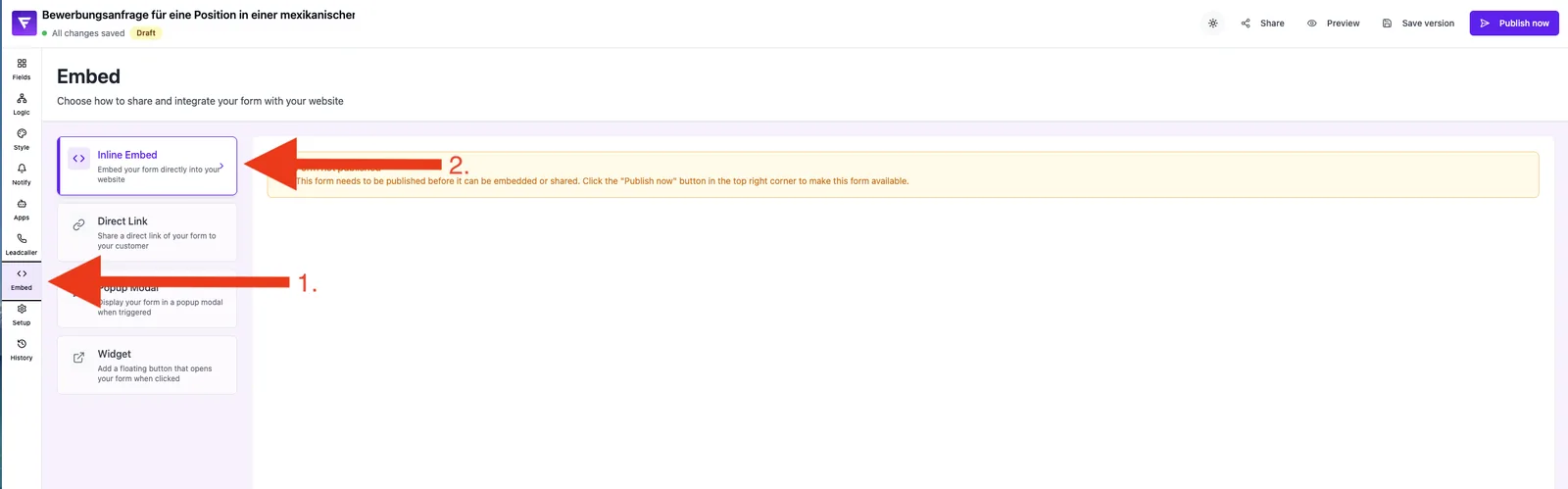
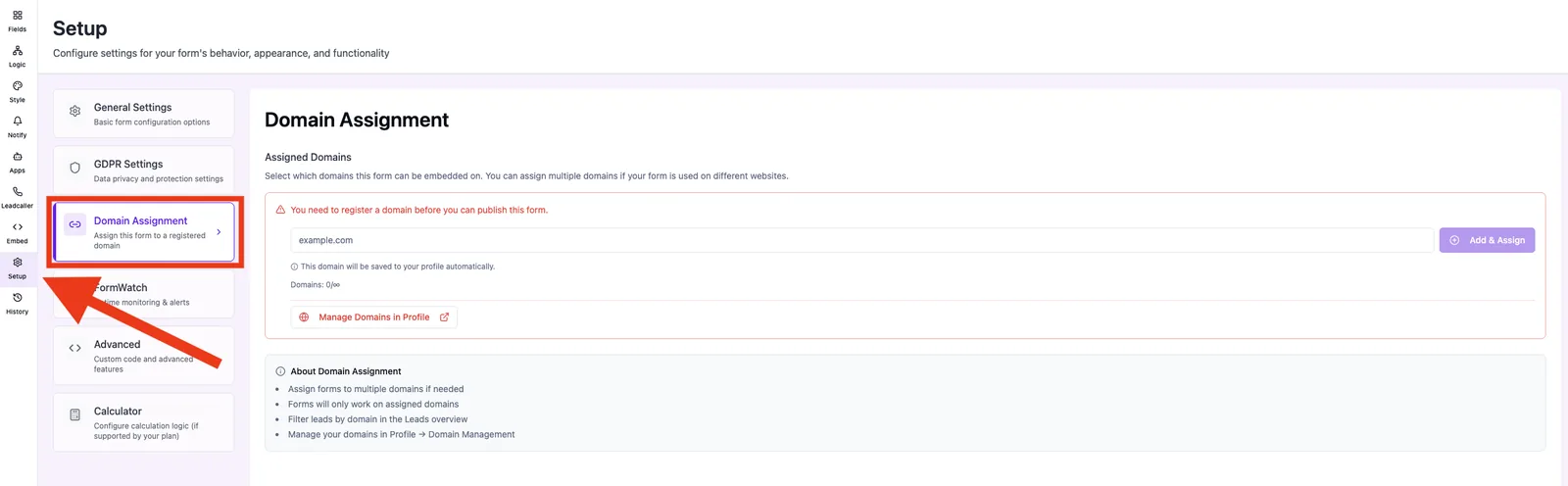
Dashboard → Forms → [select form] → Embed provides the current embed code. Manage your domains under Settings → Allowed Domains.
Functions / What you get
- Current embed code with a unique form ID
- Per-account domain whitelist
- Live preview of the embed inside the editor
- Status indicator for active/inactive forms
Step-by-step
- Open the page in your browser and press F12 to open DevTools.
- Switch to the Console tab and look for red errors mentioning „funnelforms".
- Switch to the Network tab, reload the page, and filter by „funnelforms".
- In Dashboard → Settings → Allowed Domains, confirm that the exact domain (with or without www) is listed.
- Copy the fresh embed code from Dashboard → Forms → [form] → Embed and replace the old code 1:1 on the target page.
- Clear the browser cache (Ctrl+Shift+R or Cmd+Shift+R) and reload.
How does the embed work?
The embed code loads a small JavaScript file that creates an iframe with your form. Before rendering, this file asks the Funnelforms servers whether the calling domain is allowed to load this form. If that check fails, nothing is shown.
What happens when the domain is not whitelisted?
Instead of the form you will see either „Form Not Available" or an empty area. The console usually shows a 403 or 404 status for the form lookup.
Best practices
- Always enter domains without a protocol (no https://) and without a path.
- For staging and production, add both domains.
- Place the embed code right before the closing </body> tag.
Common pitfalls / Troubleshooting
- „Form Not Available" is shown: domain is not whitelisted or the form was deleted. Add the domain in Allowed Domains.
- Empty area, no error: the embed code was copied incompletely. Grab a fresh copy from the dashboard.
- Works in the editor but not live: caching plugin or CDN. Clear cache or test in incognito mode.
Extended diagnostic checklist
If the steps above don't help, work through this list — ordered by frequency:
- Form published & license active? Forms on inactive or expired accounts are blocked server-side and never render — regardless of the embed code.
- Domain assigned to the form? Since January 2026 every form must have an explicitly assigned allowed domain. Check Form → Settings → Domain as well as your account-wide Allowed Domains. Admins can additionally maintain a global whitelist that overrides owner restrictions.
- Server-side domain check (fail-closed, 8 s timeout). The domain check runs server-side. If it doesn't answer within 8 seconds or the domain is unknown, the form is deliberately not delivered. Very slow hosts or firewalls blocking Funnelforms domains therefore lead to "Form Not Available".
- IDN/umlaut domains. Domains containing umlauts or special characters are blocked. Switch to the ASCII/Punycode variant.
- HTTPS required — no mixed content. The embed only loads over HTTPS. On HTTP pages or with mixed content the browser silently blocks the iframe.
- CSP or X-Frame-Options blocks the iframe. Security plugins such as Wordfence, iThemes Security or your own
Content-Security-Policy/X-Frame-Optionsheaders can prevent third-party iframes. Allow the Funnelforms domain inframe-srcor loosen the headers. - Initial size mismatch with animations. With incoming load animations the first height measurement can be wrong. Funnelforms re-syncs with double-rAF after the animation ends — if an external animation changes size later, make sure auto-resize is on.
- Full-width vs. container max-width. Builders like Elementor, Divi or Wix often enforce a maximum container width. If the embed is visible but cropped, place it outside the limiting container or enable full-width inside the embed.
- Scrollbar inside the iframe with
auto-resize=true. With auto-resize active the internal scrollbar is intentionally suppressed — if you still see a scrollbar, auto-resize is off or the embed script is outdated; grab a fresh code from the dashboard. - Browser console: postMessage or CORS errors. Errors mentioning
postMessage,CORSorblocked by CSPpoint directly to the items above (domain, HTTPS, CSP). Send the exact wording to support.
Tips & notes
Note: Domains with umlauts or other special characters (IDN) are not supported. Use ASCII domains only.
Tip: Test the embed first on a plain HTML test page. That rules out conflicts with your CMS.
FAQ
Why does the embed work locally but not on the live domain?
The live domain is missing from Allowed Domains. Add it and reload.
Do I have to whitelist subdomains separately?
Yes. www.example.com and app.example.com are different hosts for the domain check.
How many domains can I add on the Free plan?
Free accounts can register exactly one domain. Paid plans support multiple domains.
Why are there no console errors but the form is still missing?
A cookie banner or consent manager is often blocking the iframe. Check your consent tool.