Emails Not Arriving: Quickly Check Notifications and Ensure Reliable Delivery
If an expected email notification — to you as admin or to the customer — never arrives, there are four typical causes: disabled email service, spam/quarantine filters, wrong recipient address, or a conflict with your own SMTP setup. This article shows you how to find and fix the issue in under ten minutes. Relevant for everyone who has notifications set up per form.
Prerequisites
- An active notification on the form (admin or customer)
- Access to the inbox of the expected recipient (incl. spam folder)
- Access to Form → Notifications
Where to find
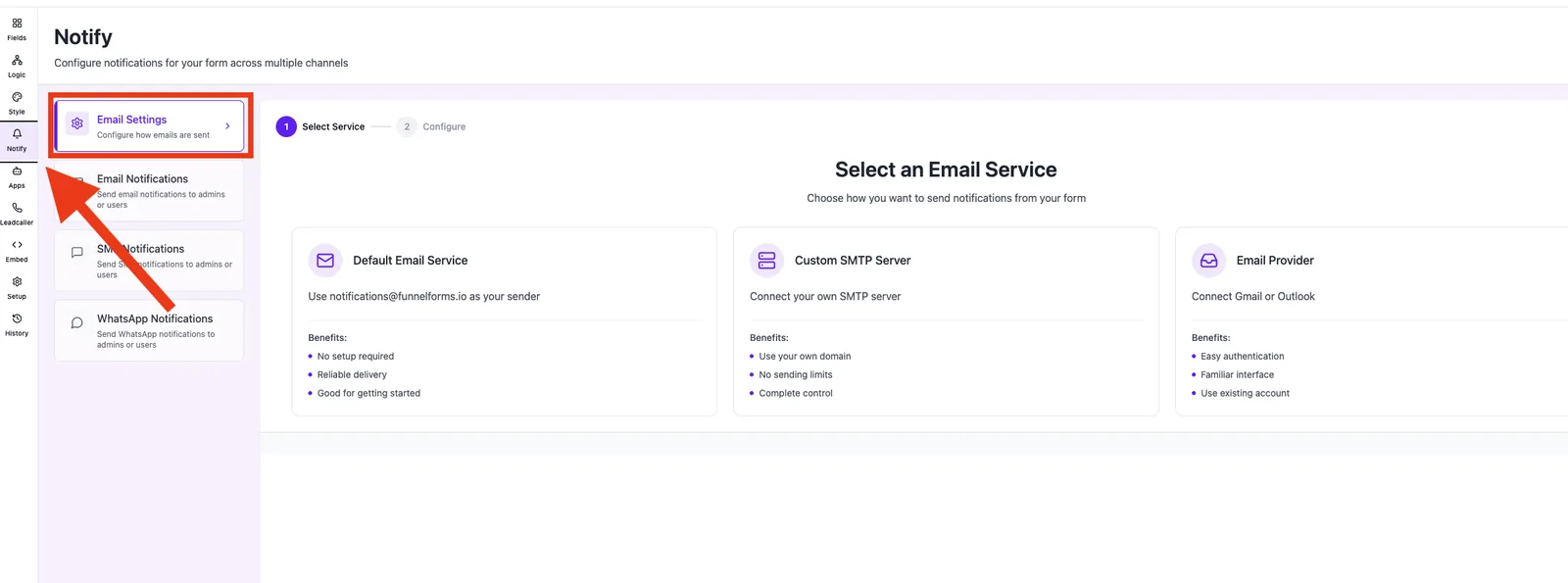
Forms → [form] → Notifications. Check the status of the email service in Forms → [form] → Integrations → Email service.
Functions / What you get
- Admin notifications to you
- Customer notifications with form variables
- WYSIWYG editor for email templates
- Optional custom SMTP delivery
Step-by-step
- Open Forms → [form] → Notifications and confirm the notification is active.
- Check the recipient address (admin) or the field the customer email is taken from (user).
- Look in the recipient's spam / junk folder.
- Send a test submission and wait 1–2 minutes.
- If you use your own SMTP: verify credentials and your provider's daily limits.
How does delivery work?
After every submission Funnelforms assembles the notifications and sends them via the configured email service. For new forms the default email service is disabled for safety — you must either enable the Funnelforms service or configure your own SMTP.
Why does the admin email use the customer address as Reply-To?
So that you can reply directly to the lead from your inbox, Funnelforms automatically sets the customer's email from the form as the Reply-To on the admin notification.
Best practices
- Run one test submission per form to confirm delivery.
- Whitelist the recipient address as an alias if your provider allows it.
- Use your own domain for emails to improve deliverability.
Common pitfalls / Troubleshooting
- Email service disabled (new form): enable it in Integrations → Email service or configure SMTP.
- Empty customer email: the email field on the form is not required. Mark it as required.
- Spam filter: ask the recipient to allowlist the Funnelforms sending domain.
Extended diagnostic checklist
If the standard steps don't fix it, work through these in order:
- Email provider token expired. Custom SMTP/API providers (e.g. Microsoft 365, Gmail OAuth, SendGrid) display a status under Integrations → Email service. On "expired" or "invalid credentials" reconnect the provider — the submission was processed but the email send failed.
- Submission still completes successfully. If the mail send fails, it is logged internally as an integration alert, but the end customer still sees the success page. Incoming leads remain fully visible in the lead overview — no data is lost.
- Bounce & complaint suppression list. If the recipient address previously hard-bounced or was marked as spam, it is on the suppression list and is automatically skipped. Ask support to unsuppress it or switch to an alternative address.
- SES delivery tracking (Funnelforms default). With the default service mail goes through Amazon SES. Status per email (sent, bounced, complained, suppressed) is recorded and can be inspected by support — give them the exact recipient and timestamp and they can confirm in minutes whether the send succeeded or the recipient's system blocked it.
- Check multiple recipients individually. With a comma-separated recipient list, every address must be checked separately — one blocked address does not stop the others but can create the impression "the email never arrives".
- Own sender domain. Are SPF/DKIM/DMARC of your own domain set up correctly? Misconfigured records lead to silent quarantine on strict recipients (Microsoft 365, Google Workspace).
Tips & notes
Note: The Reply-To of the admin email is always the customer email from the submission. Replies go straight to the lead.
Tip: Custom SMTP (e.g. SendGrid, Postmark) gives you detailed delivery logs and better spam scores.
FAQ
Why do I receive nothing although the notification is „active"?
On new forms the default email service is disabled. Enable it under Integrations → Email service or set up your own SMTP.
Can I send to multiple admin addresses?
Yes. Add multiple addresses comma-separated in the recipient field.
Why does the customer email go to the wrong address?
The address is pulled from the selected form field. Check the notification settings for the configured source field.
How fast is delivery?
Usually a few seconds up to two minutes, depending on the sending backend.