Email Service Setup: Choose How Form Emails Are Sent
The email service controls how your admin and user notifications are actually delivered. Funnelforms offers three options: the built-in default service, your own email provider via OAuth (Gmail or Outlook), or a fully custom SMTP server. This article shows you when each option makes sense and how to set it up.
Prerequisites
- You are inside the Funnelforms editor for the target form.
- For an own provider: an active Gmail or Microsoft account you can sign in with via OAuth.
- For a custom SMTP server: host, port, username, password and the desired encryption type (TLS or SSL).
- Plan requirement: Own provider (Gmail/Outlook) and Custom SMTP server are only available in plans that include these features. The Default service is available in all plans.
Where to find it
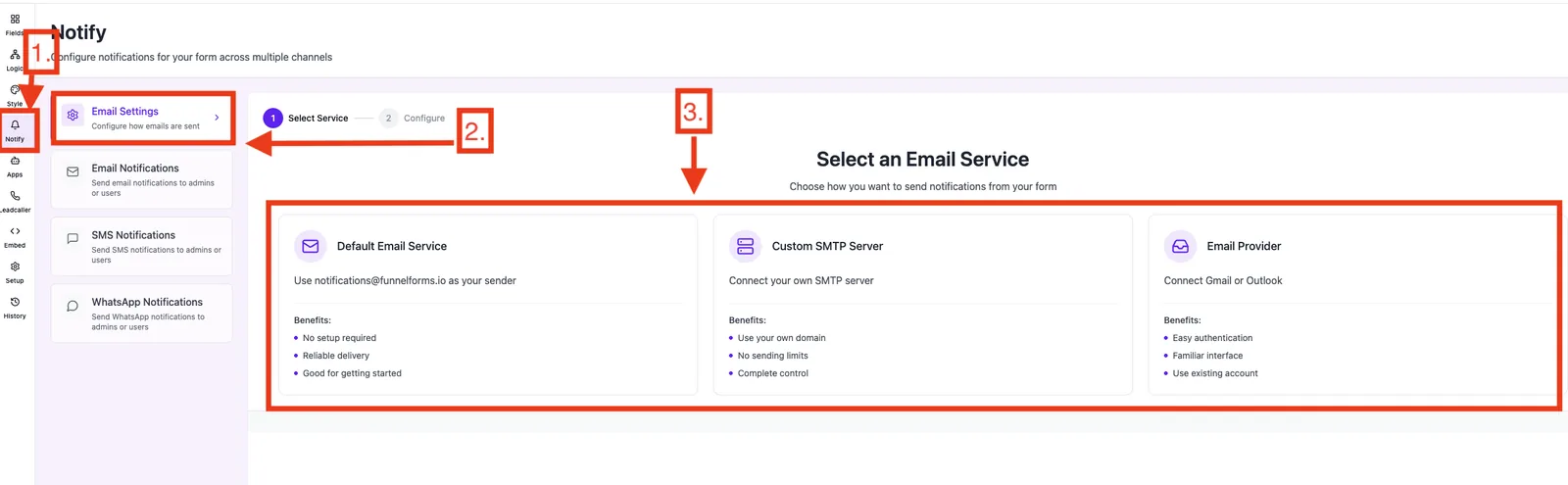
Form Editor → left sidebar → Notifications → tab Select Email Service.
You will see three cards: Default service, Own provider and Custom SMTP server.
Features
- Three transports: default service (no setup), own provider via OAuth, custom SMTP.
- Sender name and sender address are configurable per form.
- Connection test for SMTP returns the exact error text when something is misconfigured.
- Reply-To header is automatically set to the customer email when a Reply-To field is configured in the notification template (see the admin notifications article).
- One transport is active per form — combinations are not supported on purpose to keep send behavior transparent.
Step by step: pick a transport
- Inside the form editor, click Notifications in the left sidebar.
- Switch to the Select Email Service tab at the top.
- Pick one of the three cards (Default service, Own provider, Custom SMTP server).
- Fill in the assistant (see detail sections below) and click Save.
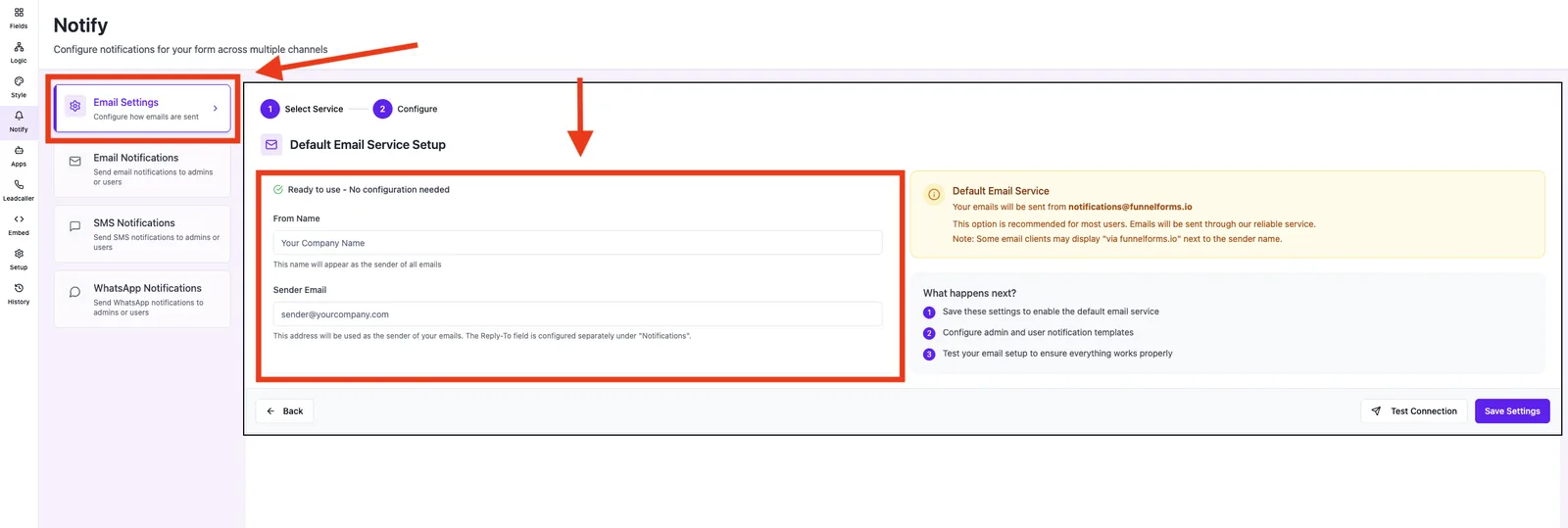
Enable the Default service
- Select the Default service card. The default transport sends in your brand's name, but the technical sender address is
notifications@funnelforms.io(shown as "via funnelforms.io" in the recipient's inbox). - Enter the Sender name (for example your company name).
- Enter the Sender email — this is the address your customer will see in their inbox.
- Click Save. All enabled email notifications are now sent through the default service.
Note: For newly created forms the default service is intentionally off. You must actively pick a service before any emails are sent.
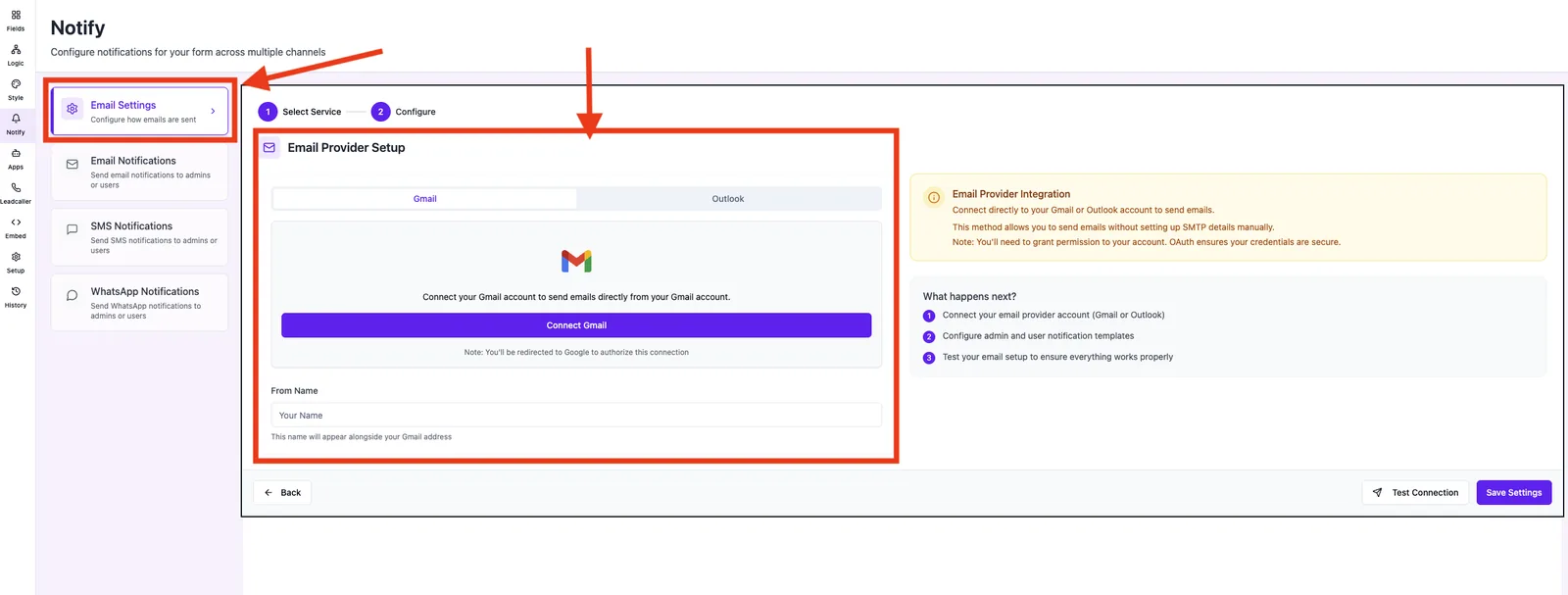
Connect Gmail or Outlook
- Select the Own provider card.
- Click Connect Gmail or Connect Outlook depending on your account.
- You will be redirected to Google or Microsoft to sign in. Confirm the requested permissions — Funnelforms only requires the right to send emails on your behalf.
- After a successful login you return to the editor; the connected address shows up as a verified sender.
- Enter a matching Sender name and click Save.
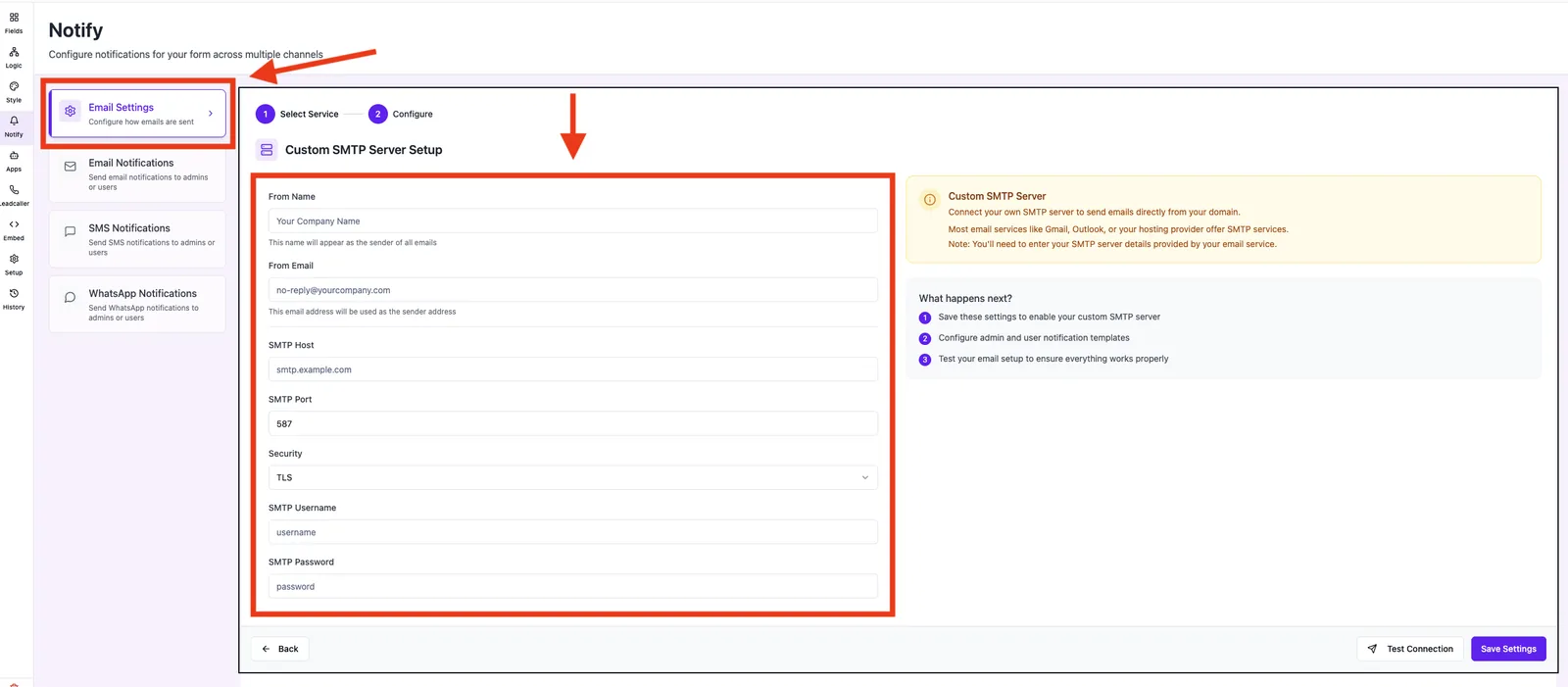
Connect a custom SMTP server
- Select the Custom SMTP server card.
- Fill in the fields: - SMTP host — e.g.
smtp.sendgrid.net- Port — typically587(TLS) or465(SSL) - Username — as provided by your service - Password — the SMTP password or app password issued by your service - Encryption — TLS, SSL or none - Sender name and Sender email - Click Test connection. An actual test email is sent to your configured sender address — check your inbox. On failure the exact error message is displayed (e.g. "Authentication failed").
- Once the test passes, click Save.
How sending works
On form submit Funnelforms first fills your email templates with the form responses. The rendered message is then handed to the configured transport:
- Default service — delivered via the managed Funnelforms infrastructure.
- Own provider — delivered via the Gmail or Outlook API using your stored OAuth token.
- Custom SMTP — delivered directly over SMTP to your configured host.
When a Reply-To field (e.g. the form's email field) is configured in the notification template, the Reply-To header is set to that customer email automatically — regardless of the transport. Your team can reply straight from the inbox.
Best practices
- Switch to your own domain early: brand trust and spam scores improve significantly once emails come from your domain.
- Configure SPF and DKIM — primarily relevant for Custom SMTP server with your own domain. With Gmail/Outlook these records are managed by the provider.
- Send a test submission after every configuration change — verify sender, Reply-To and variables.
- App passwords for Gmail/Outlook only when 2FA is active and OAuth is not an option.
Common pitfalls
- Email is not being sent: make sure a service is selected AND saved. New forms intentionally start with the default service off.
- SMTP test fails: usually a wrong password, wrong port or wrong encryption type. The error text shown (for example "Authentication failed") is the fastest hint.
- OAuth token expired: reconnect the provider when Google or Microsoft has revoked the token.
- Mails land in spam: use a sender with correct SPF/DKIM records or switch to an own provider.
Tips & notes
- The transport choice is per form. You can use the default service on an internal form and your Gmail account on a sales form — without conflict.
- Dates inside outgoing emails are rendered as DD.MM.YYYY.
- The Reply-To header points to the customer email even when you use custom SMTP.
FAQ
Can I use two transports on the same form? No. Exactly one transport is active per form, so send behavior stays transparent.
Do I need an own domain for the Default service? No. The default service runs out of the box. An own domain is recommended once you send to customers regularly.
What happens when the connection test fails? The settings are not activated. Fix the error reported in the message and re-run the test before saving.
Where do I see delivery errors after going live? Failed deliveries appear in your workspace integration alerts — the form submission itself still completes.