Admin Notifications: Get New Leads by Email Instantly
Admin email notifications send you (or your team) an automatic email every time a new lead is submitted through your form. You never miss an inquiry and can react immediately – with all submitted form fields right inside the email.
Prerequisites
- A published form in the form editor.
- A configured email service (Standard service, Gmail/Outlook, or your own SMTP).
- At least one valid recipient address for the admin email.
- A plan that includes admin email notifications (not available on Free plans).
Where do I find this setting?
Form editor → tab Notify → tab Email Notifications → sub-tab Admin.
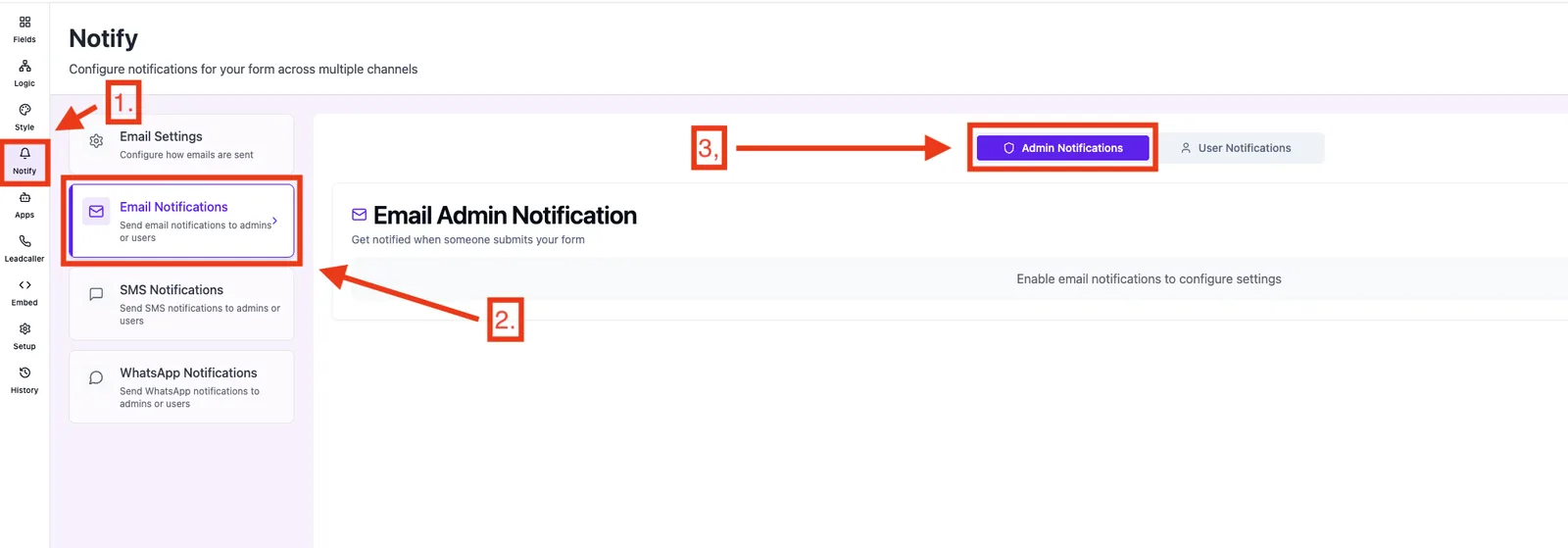
Feature overview
- On/off toggle per form.
- Multiple recipients with type To, CC, or BCC.
- Reply-To field: pick an email form field – replies to the admin email go straight to the customer.
- Subject with variable support (e.g. form name, date, field values).
- WYSIWYG editor for the mail layout (HTML) incl. images, buttons, and variables.
Step-by-step: Set up the admin email
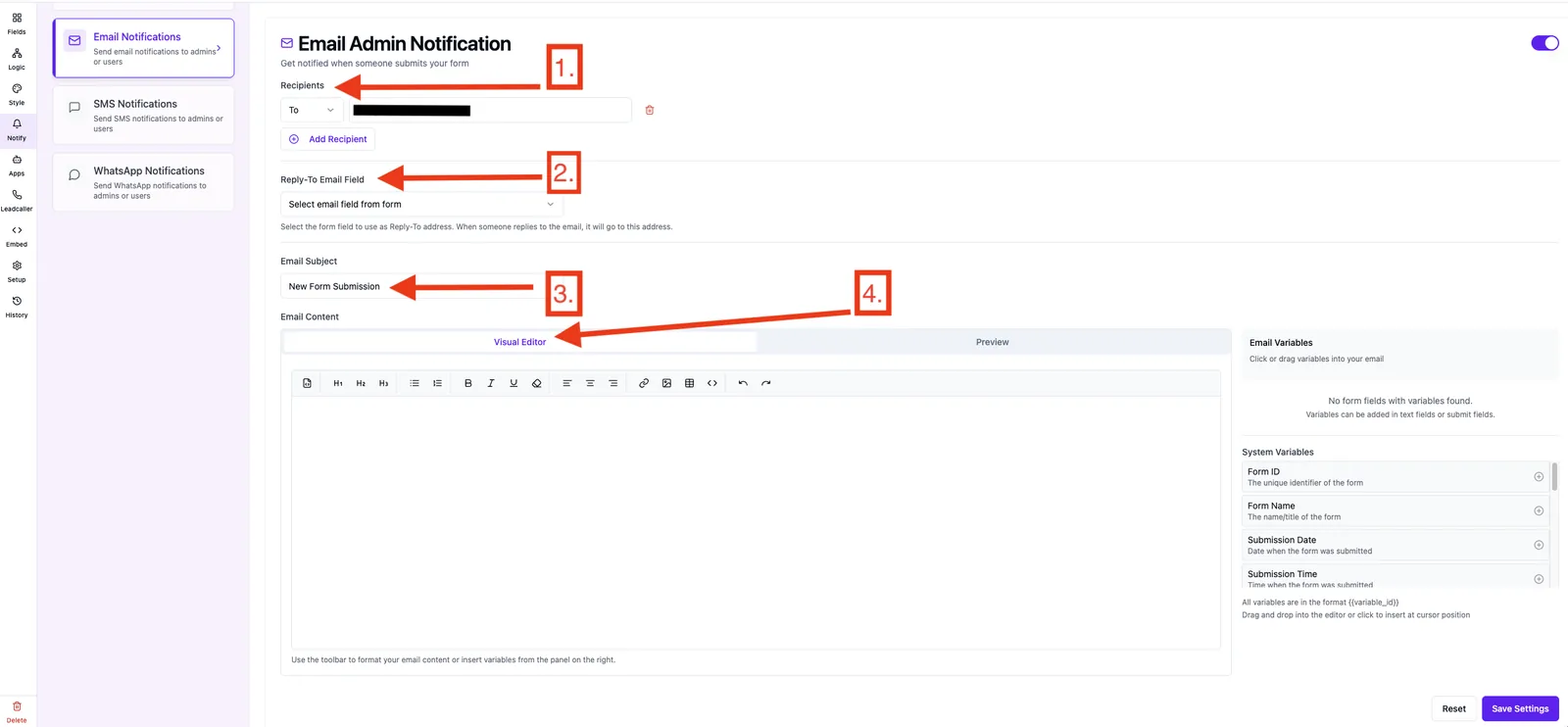
- Open the form → Notify → Email Notifications → Admin.
- Enable the toggle "Email notifications to admin".
- Under Recipients, choose a type (To/CC/BCC) and enter an address. Use + Add recipient for more.
- Under Reply-To field, select an email field from the form so replies go directly to the customer. Leave it on Select email field from form to keep the default sender address.
- Enter a meaningful subject, optionally with variables like
{{form_name}}. - Design the email in the content editor (text, images, variables).
- Click Save. The settings apply to this form only.
Best practices
- Only add recipients who really need the mail – every recipient gets the full email.
- Use BCC for silent internal readers so the main recipients don't see each other.
- Always set Reply-To to the customer's email field – one "Reply" in the mail client is enough to reach the lead.
- Make the form clear in the subject (e.g.
New inquiry – {{form_name}}).
Troubleshooting
- No email arrives: check that the toggle is on, at least one recipient exists, and the email service is configured.
- Email lands in spam: use your own SMTP or Gmail/Outlook service with a verified domain.
- "Reply" goes to Funnelforms instead of the customer: Reply-To field is unset, or the chosen field has no valid email value in the lead.
- Recipient already added: the same address can't be added twice – change the type (To/CC/BCC) instead of adding it again.
FAQ
Can I send different emails to different recipients? No – each form has one admin email template. It goes to all configured recipients (To/CC/BCC) at the same time.
Is the setting global or per form? Strictly per form. Each form has its own recipients, subject, and content.
Are file uploads from the form automatically attached? Uploaded files are not sent as email attachments; they are available in the lead detail inside your Funnelforms account. You can use a variable in the mail to insert a link or note.
Can I use form variables in the subject? Yes. Use {{form_name}} or the variable of any field – see the article about form field variables.