User Notifications: Send Confirmation Emails Automatically
With user email notifications, the lead automatically receives a confirmation or thank-you email the moment they submit your form. It looks professional, builds trust, and immediately tells the lead what happens next.
Prerequisites
- A published form with at least one email field (field type "Email").
- A configured email service (Standard service, Gmail/Outlook, or your own SMTP).
Where do I find this setting?
Form editor → tab Notify → tab Email Notifications → sub-tab User.
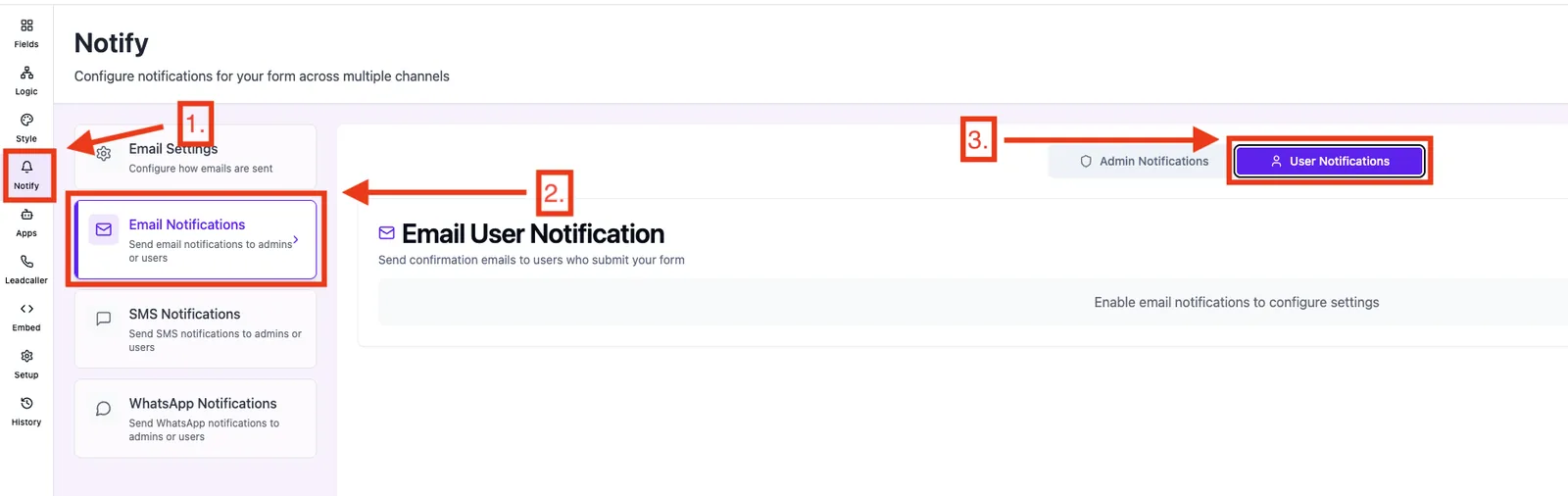
Feature overview
- On/off toggle per form (off by default).
- Email field selector: defines which form field provides the recipient address.
- Subject with variable support.
- WYSIWYG editor for the mail layout (HTML) incl. images, buttons, and variables.
Step-by-step: Set up the user email
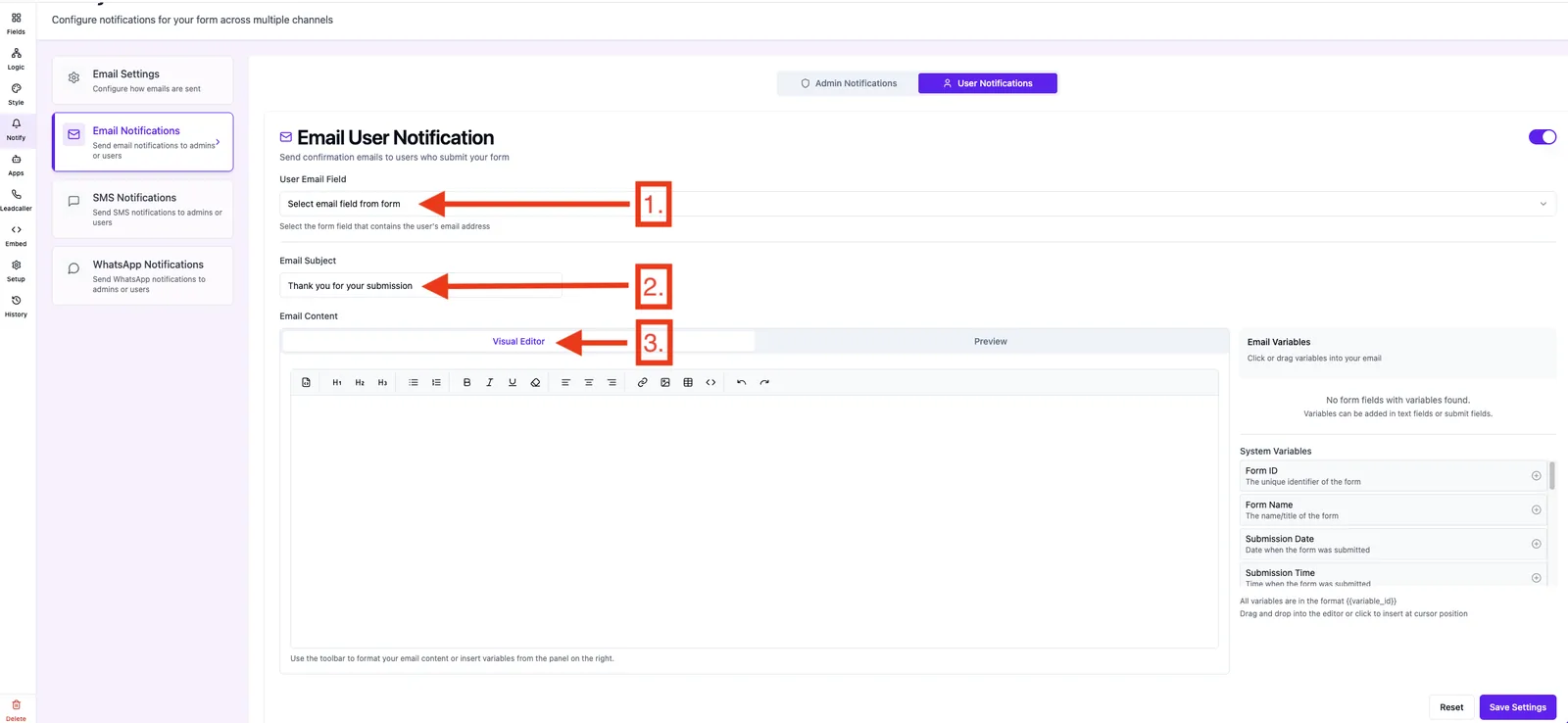
- Make sure your form contains a field of type Email.
- Open the form → Notify → Email Notifications → User.
- Enable the toggle "Email notification to user".
- Under Email field, select the form field where the customer enters their address.
- Enter a friendly subject (e.g.
Thanks for your inquiry). - Design the confirmation mail in the content editor. You can insert field values via variables (e.g. first name).
- Click Save. The settings apply to this form only.
Best practices
- Start the email with a personal greeting (
Hi {{first_name}}). - Confirm in one sentence what the customer just did ("We've received your inquiry").
- State the next steps clearly (response time, phone contact, booking link).
- Keep the layout clean: one logo, short text, one clear call-to-action.
Troubleshooting
- Dropdown is empty: your form has no field of type Email yet. Create one in the form editor first.
- Customer receives no mail: check that the toggle is on, a valid email field is selected, and the email service is configured.
- Email lands in spam: use your own SMTP or Gmail/Outlook service with a verified domain.
- Variables show as placeholders instead of values: check spelling and existence of the field – see the article about form field variables.
FAQ
Does the customer get the mail if they leave the email field empty? No. Without a valid email address in the selected field, no user mail is sent – admin notifications are independent of this.
Can I use multiple email fields as recipients? No – each form uses exactly one email field as the recipient source.
Can I use first name and other data in the mail? Yes, via variables like {{first_name}} or the respective field variable.
Is the setting global or per form? Strictly per form. Each form has its own recipient source, subject, and content.