Email Template Editor: Design Notification Emails Visually
The Funnelforms email template editor is a WYSIWYG editor (what you see is what you got) for composing notification emails to you (admin) or to the responding customer (user). You can set headings, lists and formatting visually, insert form field variables, embed images and links, and switch into an HTML mode when needed. This article walks you through every feature step by step.
Prerequisites
- You are inside the Funnelforms form editor.
- A transport is selected and saved under Settings → Email Service. Without an active transport no email goes out on live submit.
Where to find it
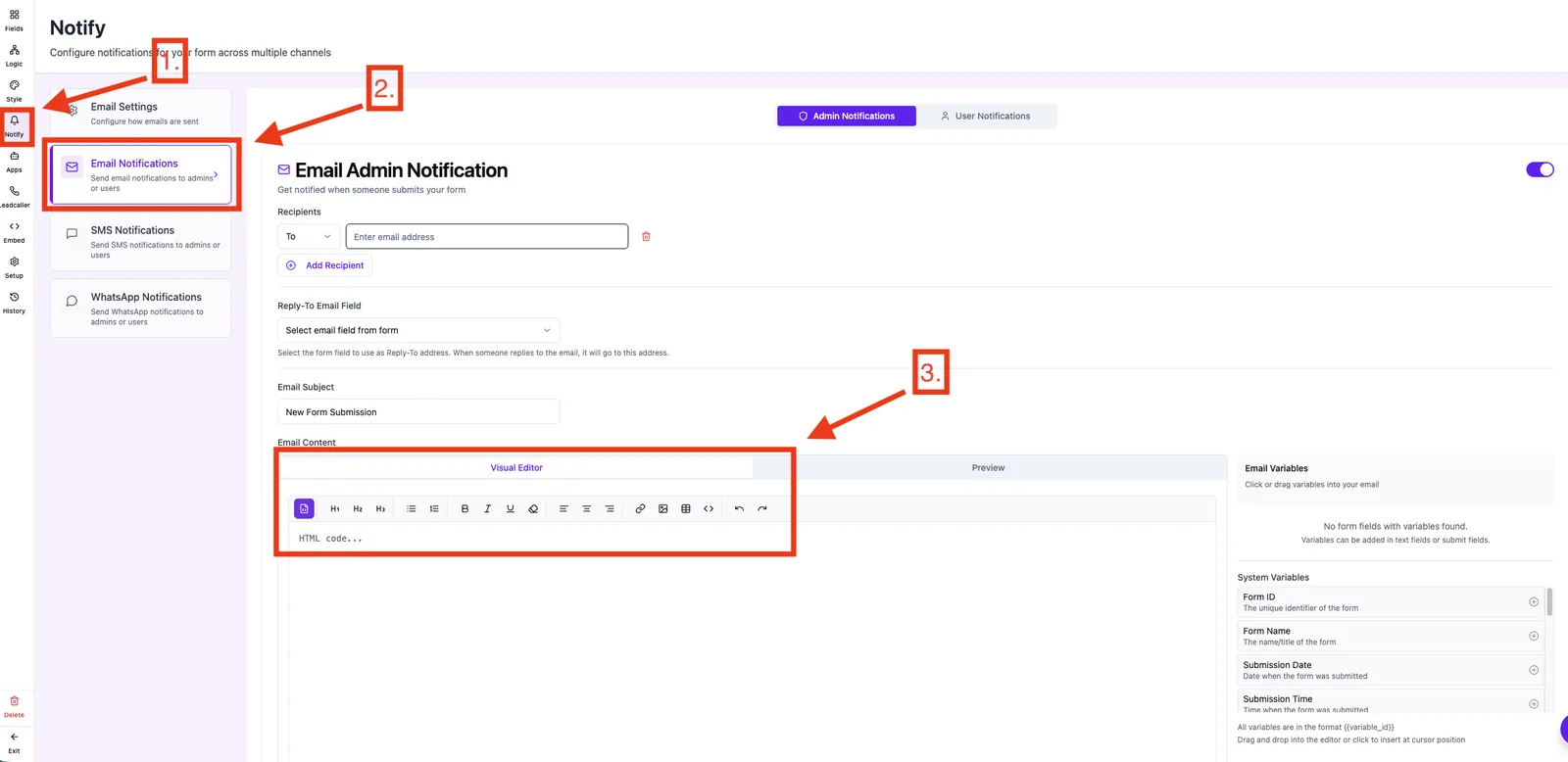
Form Editor → Notifications → tab Email Notifications → activate and open an admin or user email. The editor area appears right below the subject and recipient configuration.
Features
- Visual editing with toolbar: headings H1, H2, H3, H4, paragraphs, ordered and unordered lists, bold, italic, underline.
- Alignment: left, center, right.
- Form field variables: use the Form field variables panel to the right of the editor — clicking a variable inserts it at the current cursor position.
- Links and images via a dialog — either by URL or directly from file upload.
- Tables with adjustable row and column count.
- Text color via hex code.
- HTML mode to edit the markup directly when the visual editor isn't enough.
- Active block (e.g. H2) is highlighted in the toolbar so you can see where you are in the document.
- Undo and Redo from the toolbar.
Step by step: compose an email template
- In the Email Notifications tab, activate the email you want (admin or user).
- Set subject and recipient.
- Click into the editor body and start typing.
- Use the toolbar for headings, lists or emphasis.
- In the Form field variables panel to the right of the editor, click the desired variable — it is inserted as a placeholder at the current cursor position.
- Open the link or image dialog when you need either.
- For custom layouts switch into HTML mode and edit the markup directly.
- Save and run a test submission to see the result in a real inbox.
When to use visual mode vs HTML mode
The visual editor covers 90% of cases: greeting, response summary, short CTA. Switch into HTML mode only when you need a precise layout (e.g. two-column tables, custom inline styles). HTML pasted from third-party tools like newsletter builders is often only partially usable because many email clients drop advanced CSS.
Best practices
- One topic per email: shorter emails get read more reliably than wall-of-text messages.
- Insert variables first, then format: place
{{name}}and{{email}}first, then apply bold or italic — avoids stray formatting. - Host images externally: stable URLs (your own domain or an established host) instead of temporary links.
- Inline styles instead of external CSS files: many email clients ignore external styles entirely.
- Use HTML mode only when needed: the visual editor stays easier to maintain over time.
Common pitfalls
- A variable is not replaced: the variable name must exactly match the form field name (case-sensitive). Using the Form field variables panel to the right of the editor inserts the correct name automatically.
- Formatting looks different in Outlook than in Gmail: a known effect — Outlook interprets CSS much more strictly. When in doubt, use inline styles and simple tables.
- Date variable shows as ISO string: dates in Funnelforms render as DD.MM.YYYY by default. If an ISO string appears, check the relevant form field for custom logic.
- HTML mode strips my formatting: only switch into HTML mode when you actually want to edit the markup. When switching back, non-standard inline styles can be removed.
Tips & notes
- Run a real test submission after every change. A preview inside the editor cannot match how a real inbox renders the layout.
- Keep images under ~600 px wide — most mail clients render messages at a 600 px width.
- The
{{all_responses}}variable automatically renders every form answer as a clean table (in HTML body) or list (in plain text body).
FAQ
Can I share the same template across forms? Templates are managed per form today. You can still copy & paste content into other forms.
Which HTML tags does the editor support? All common email-safe tags: h1–h4, p, strong, em, u, ul/ol/li, a, img, table/tr/td, blockquote. Exotic tags are dropped at render time.
Do inline styles render in every mail client? Most do. Outlook (especially the Windows app) ignores some properties — test in your target clients before going live.
Where do I find the list of variables? To the right of the editor, the Form field variables panel lists every available variable from the current form's fields. Click one to insert it at the cursor position.