Notifications: Send Form Submission Alerts Reliably
Notifications make sure you and your customers know the moment a form is submitted. You decide per form which channels are active, who receives which message and which service delivers your emails. This article walks you through the layout of the notifications area and the recommended order in which to set things up.
Prerequisites
- You have a form created in the Funnelforms editor.
- You own the form or hold the Editor role for that workspace.
- Each channel has its own additional requirements covered in the dedicated articles (email service, SMS, WhatsApp).
Where to find it
Form Editor → left sidebar → Notifications. The notifications area opens with four tabs:
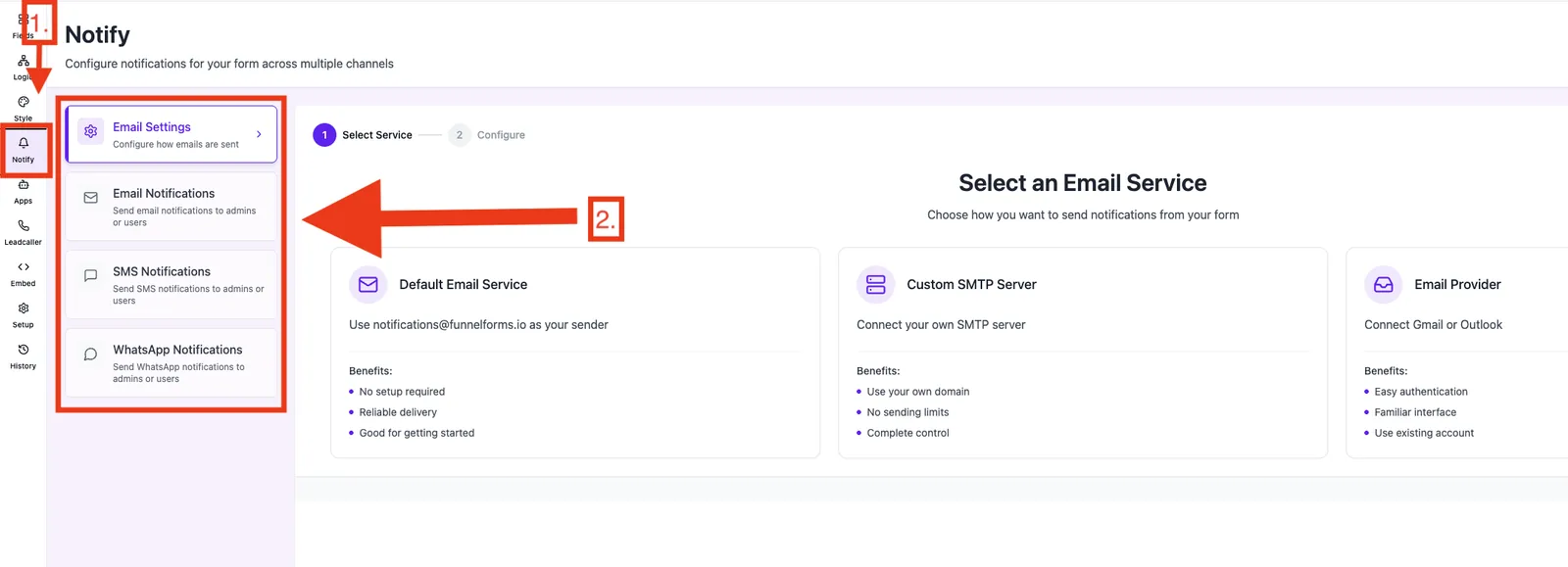
- Email Settings — pick the transport (default service, own provider, custom SMTP) and configure the sender.
- Email Notifications — activate admin and user emails separately, with subject, body and variables.
- SMS Notifications — SMS to admin and/or user, including variable support.
- WhatsApp Notifications — WhatsApp messages via the Meta Cloud API using pre-approved templates.
Note: All settings are form-specific. Changes on form A do not affect form B.
Features
- Three notification channels (email, SMS, WhatsApp), each split into admin and user.
- Three email transports: Funnelforms default service, your own provider via OAuth (Gmail/Outlook), or a custom SMTP server.
- Variables from form answers can be embedded anywhere in the body.
- The Reply-To header on the admin email is automatically set to the customer email captured in the form.
- Failed notifications are logged but never block the form submission.
Step by step: recommended setup order
- Inside the form editor, click Notifications in the left sidebar.
- Open the Email Settings tab and pick a transport, then save. For newly created forms the default service is intentionally off.
- Switch to Email Notifications and enable the admin email. Add recipient(s), subject and body.
- Right below it, enable the user email. Select the email field from your form as the recipient source and write a short confirmation message.
- Optionally configure SMS Notifications or WhatsApp Notifications when they fit the customer journey.
- Use the editor's Response preview & live test to submit a test response and verify that every active channel fires.
How does delivery work?
On form submit Funnelforms checks the active notifications and hands them off to the respective send functions. Emails go through the transport selected in Email Settings; SMS and WhatsApp use their provider integrations.
If a single notification fails, the error is logged in your integration alerts. The form submission itself is not affected and the customer still sees the thank-you page.
What happens if a channel is not part of my plan?
Channels that are not included in your current plan remain visible inside the notifications area but cannot be sent actively. You can review the configuration in advance; actual delivery starts once you upgrade to a matching plan.
Best practices
- Keep the admin email short: a compact list of the key fields plus the note that Reply goes straight to the customer is usually enough.
- Always confirm customers by email: even if you add SMS or WhatsApp, email remains the most reliable record for your customer.
- One responsibility per recipient address: dedicated addresses like sales@ and support@ beat one shared inbox nobody owns exclusively.
- Test before going live: a real test submission immediately exposes typos, empty variables and wrong Reply-To addresses.
Common pitfalls
- No email arrives: in Email Settings, verify that a transport is selected and saved. New forms intentionally start with the default service off.
- The user email never sends: the user email configuration needs an explicit email field from the form as recipient source. Without a source field Funnelforms has no recipient.
- Replies to the admin email land back in your own inbox: they don't — the Reply-To header points to the customer email. Click Reply in your mail client and the message goes straight to the customer.
- SMS doesn't work: the recipient number must be in international format (e.g.
+491701234567). Local notations like0170…are rejected.
Tips & notes
- Variable placeholders like
{{name}}map to the variable names of your form fields. See the form field variables article for an overview. - Dates in notifications are rendered as DD.MM.YYYY (for example 05.01.2026) rather than an ISO string.
- Send failures show up in your workspace integration alerts — without blocking the form submission.
FAQ
Do my notification settings apply to every form? No. Every setting applies only to the form where you configured it. You can copy & paste content into other forms when needed.
Is the customer notified when my admin email fails? Channels run independently. A failed admin send has no effect on the user email, SMS or WhatsApp.
Can I see whether a notification actually went out? Yes. Failed deliveries appear in your workspace integration alerts. Successful email sends are additionally visible in the email logs of your account.
Can I set up Slack notifications here? Slack notifications are configured separately in the Apps area. See the dedicated Slack article in this category for details.