Use Debug Mode: Show Technical IDs for Webhooks, Support and Integrations
Debug Mode shows technical IDs in the Funnelforms interface — useful for webhook mapping, support tickets and API integrations. This article explains how to enable it and where the extra IDs appear.
Prerequisites
- You are signed in as account owner or team member.
- A browser with localStorage enabled (default).
Where to find it
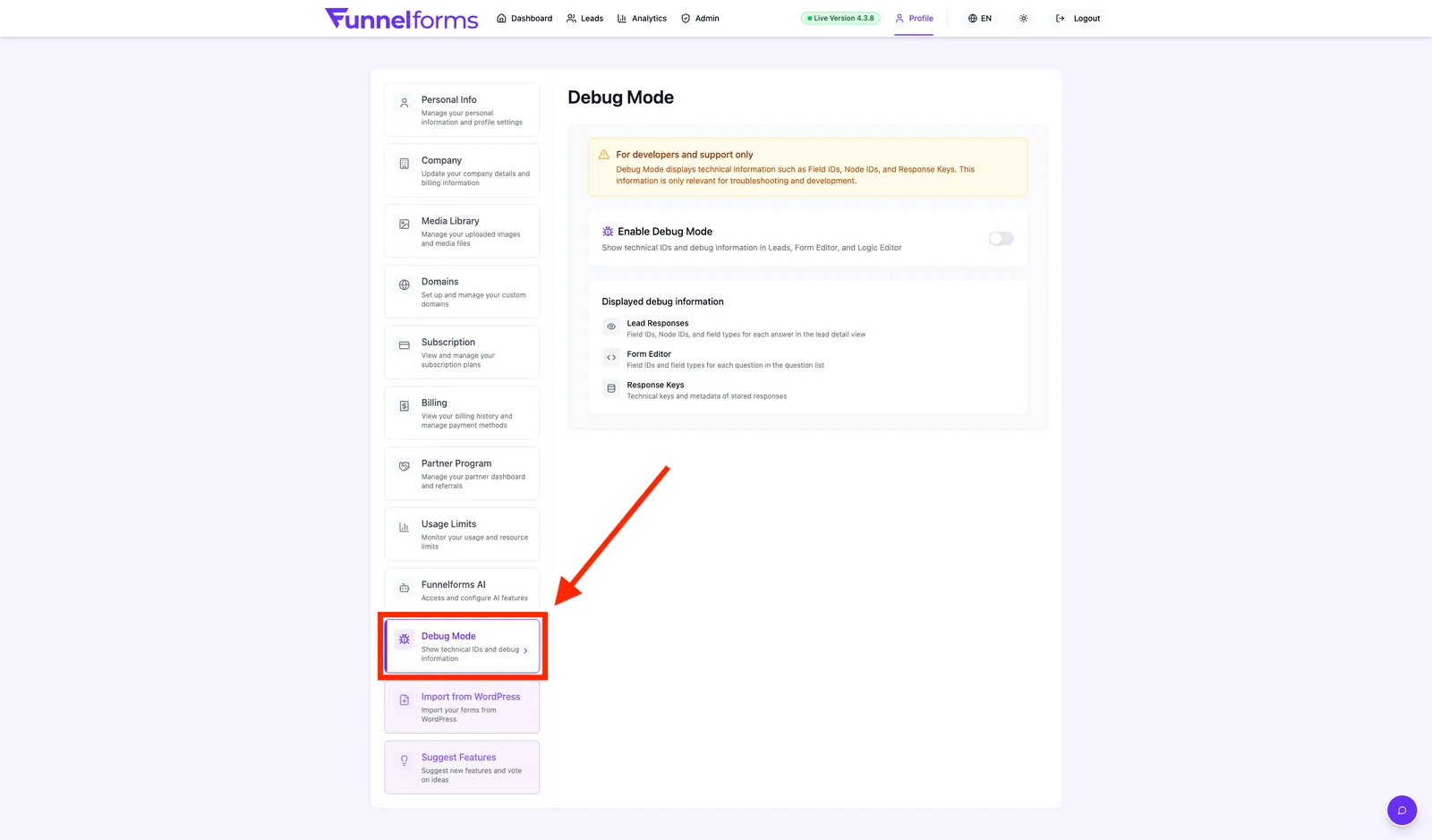
Open Profile → Debug Mode and look for the Debug Mode switch.
Features
- On/off switch per browser (localStorage key
ff:debug_mode). - Reveals field_id, node_id, action_id, form_id, response_id and field types as mono badges.
- Visible on form cards, lead cards, in the Logic Editor, in the question list and in lead details.
Step by step: enable Debug Mode
- Open Profile → Debug Mode.
- Toggle Debug Mode on.
- Reload the view — IDs appear as grey badges next to fields and nodes.
- To disable: toggle the same switch off.
Explanation
Debug Mode is stored only locally in your browser. Other devices, other browsers or incognito tabs are not affected. The IDs already exist in the data — Debug Mode only makes them visible. It is read-only display only; it does not grant admin access, change permissions, or relate to the admin impersonation system.
Caution: Do not enable Debug Mode in sessions where end customers are watching. The yellow warning banner in settings points to exactly that.
Best practices
- Enable Debug Mode before mapping a webhook in Zapier or Make.
- Turn it off when you are done.
- Screenshots of logic nodes with IDs make support tickets faster.
Troubleshooting
- No badges visible: reload the page. Strict privacy modes may block localStorage.
- Invisible on another device: Debug Mode is per browser. Enable it again there.
- Incognito tab: the toggle is not persisted. Re-enable or use a normal tab.
Tips
- Field IDs map 1:1 to the
field-XXXXkeys in webhook payloads. - Response IDs help reference a single lead unambiguously in support chats.
FAQ
Does Debug Mode persist across logins? Yes, as long as you use the same browser and have not cleared localStorage.
Do end customers also see the IDs? No. IDs are shown only inside the admin area, never in the published form.
Does Debug Mode affect performance? No. Only extra labels are rendered.