Customize style
The Style sidebar in the form editor controls the entire visual appearance of your form: colors, typography, spacing, border radius, buttons and the progress indicator. This article shows where to find it, which settings are available, how to apply changes step by step and which pitfalls to avoid so that the embedded form looks exactly like the preview.
Prerequisites
- An open form in the editor
- Your brand colors as HEX values (e.g. #6A30F5)
- Optional: a background image with enough resolution for desktop and mobile
Where do I find the style settings?
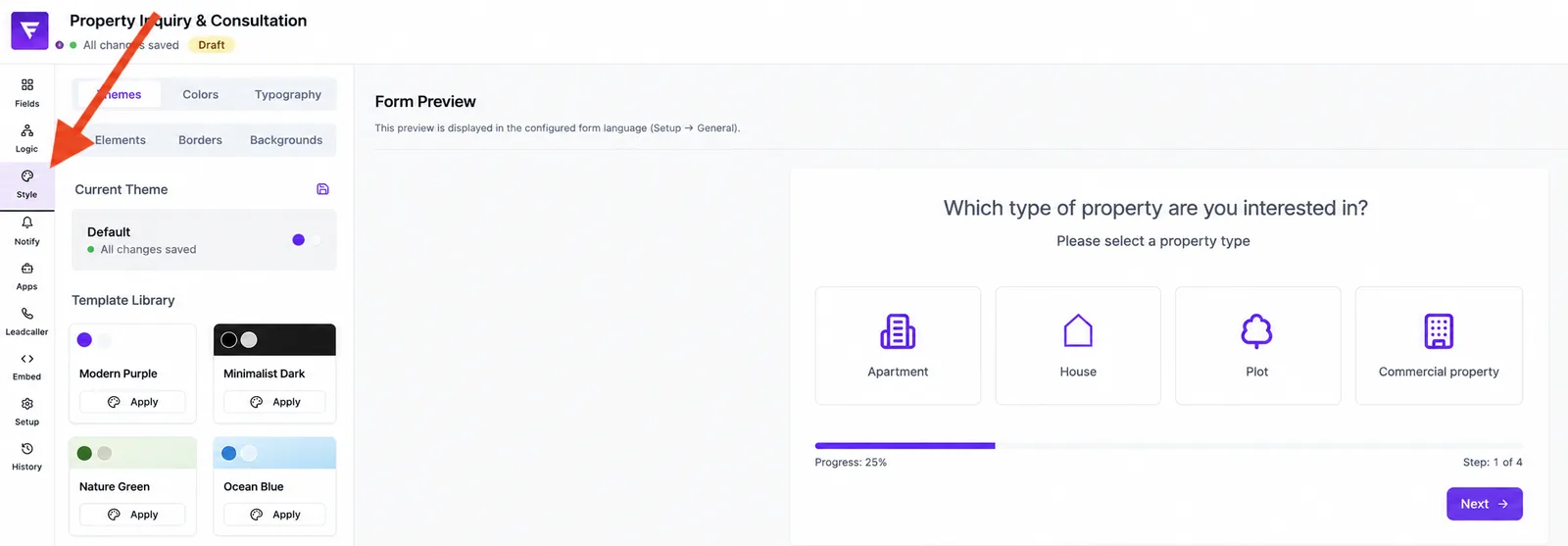
Open a form in the editor and switch to Style in the left sidebar. Every change is reflected immediately in the live preview on the right — both in desktop and mobile view. Form versions are stored in the History tab.
Available settings
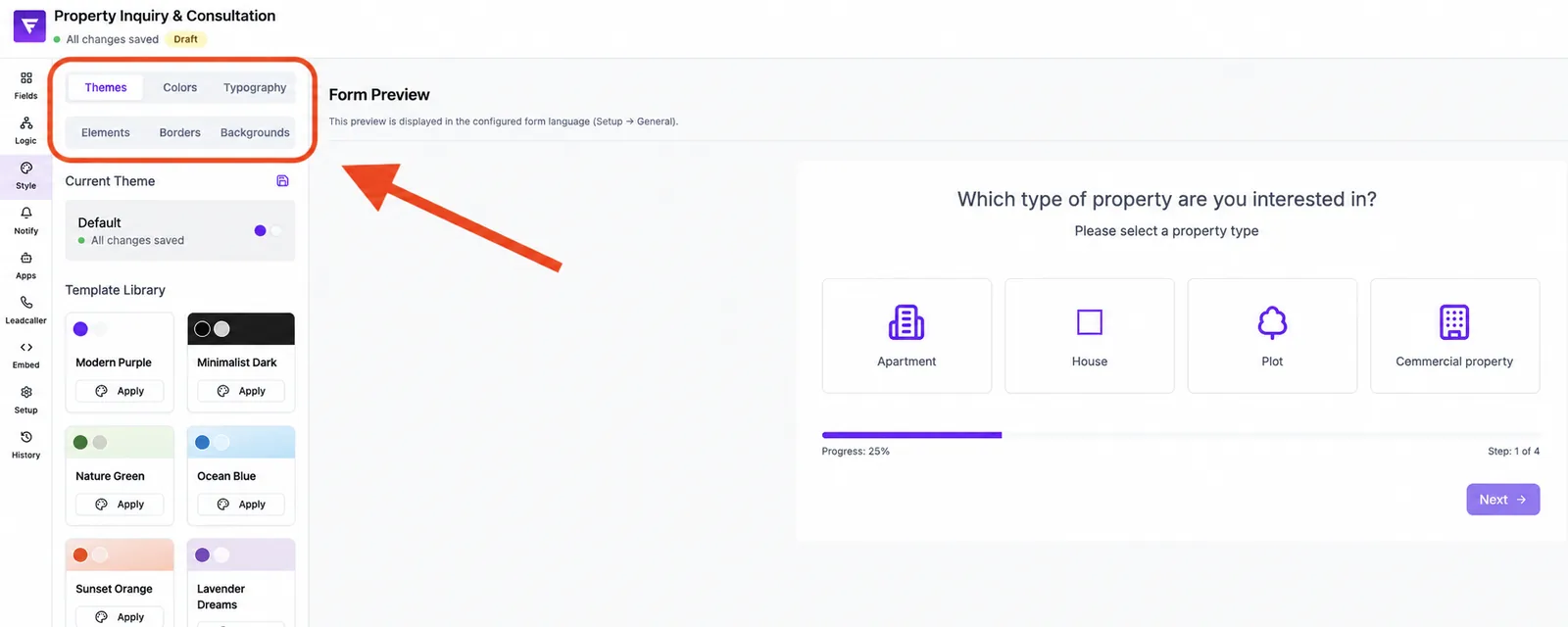
- Primary color — used for buttons, focus rings, selection states and accents.
- Background — solid color, gradient or image; applies to the entire form stage.
- Typography — font family, base size and font weight.
- Border radius — from sharp corners to fully rounded for inputs, cards and buttons.
- Spacing — compact, default or comfortable; affects padding, line heights and card spacing.
- Buttons — filled or outline, label text editable per step (e.g. "Next", "Submit").
- Progress indicator — bar, dots or hidden, depending on funnel length.
Step by step: build the style
- Open Style in the sidebar and start with the Primary color — it sets the brand character.
- Set the Background: solid for clean SaaS funnels, gradient for marketing pages, image for emotional brands.
- Pick a Font family from the library. Stick to one font per form to keep the look consistent.
- Adjust Border radius and Spacing to match your website (e.g. strong rounding fits modern SaaS brands).
- Pick the Button variant and edit the label per step if you want to vary the tone.
- Show or hide the Progress indicator depending on how many steps the form has.
- Validate the Live preview in desktop and mobile, then save.
Best practices
- Use the exact HEX values from your brand guide — this prevents drift between site and form.
- Keep the contrast between primary color and background above the WCAG minimum for readable text.
- Always test the style in the actual embed, not only in the editor preview.
- Use compact spacing only for short forms — for long funnels, comfort reduces drop-off.
Common pitfalls
- Contrast too low: primary on background must remain readable. Check the contrast yourself; there is no automatic warning.
- Embed looks different from preview: the host page CSS may override styles — keep the Funnelforms-generated embed snippet unchanged.
- Background image looks blurry: use a source with sufficient resolution and the right format; for large files check load time.
Tips
Define the style once cleanly at the beginning and reuse it as a template for all further forms — this saves time and ensures a consistent brand experience across all funnels.
FAQ
Can I add custom CSS? No. Embeds are intentionally isolated to prevent conflicts with host CSS.
Are style changes versioned? Form versions are stored in the History tab; restores happen at form level.
Can different forms have different styles? Yes. Style is per form and independent of other forms in the account.
Does dark mode work? The form adapts to the configured background — users see the style you defined, not their OS preference.