Embed your form and test it live
This article shows the embed types Funnelforms offers, how to assign a domain, copy the snippet, install it on your site and verify the result cleanly. By the end you will know which variant fits your use case and what to watch out for at go-live.
Prerequisites
- An active, published form (not a draft)
- A domain assigned to the form (required since 01.2026)
- Access to your website's HTML or CMS area
Where do I find the embed settings?
Open your form in the editor. Domain assignment happens in the Setup tab; the embed snippet and embed types live in the Embed tab.
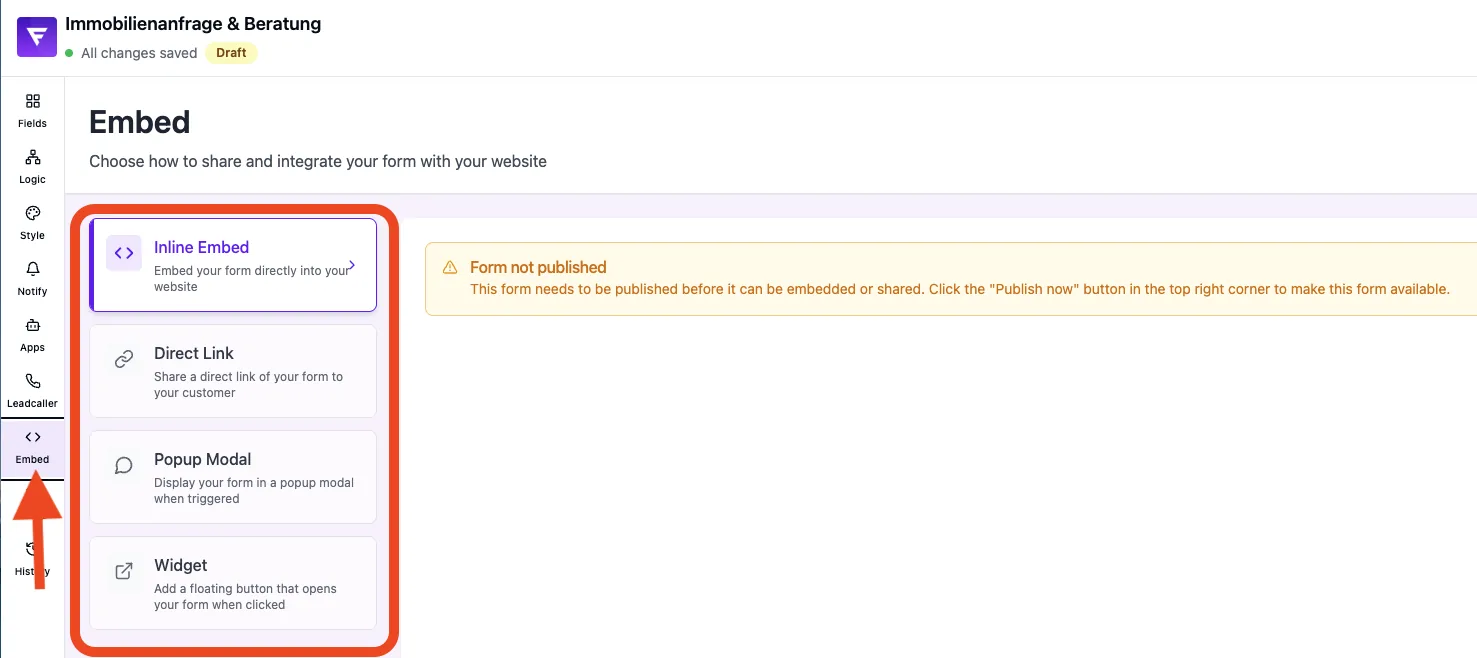
Available embed types
- Inline — the form is rendered directly inside your page; optional full width mode. When auto-resize is on, no scrollbar appears inside the iframe.
- Popup — the form opens as a modal triggered by a button or event on your page.
- Widget — a floating button in a page corner opens the form on click.
Step 1: Assign a domain
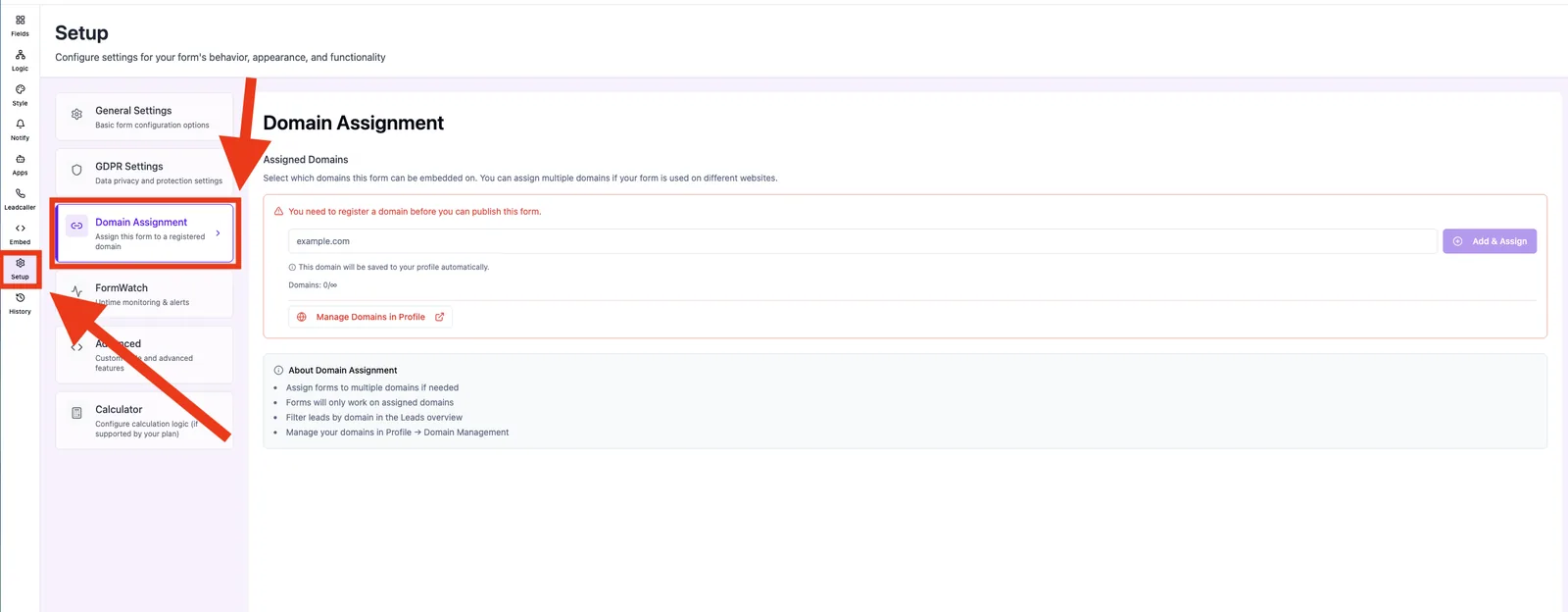
- Open the form and switch to the Setup tab.
- Under Domain select an existing domain or add a new one. Custom domains are managed under your Profile → Domains.
- Custom domains require DNS verification via CNAME — status is shown under Profile → Domains.
Step 2: Copy the embed snippet
- Choose the right embed type (Inline, Popup or Widget).
- Click Copy snippet.
- Paste the snippet unchanged into your website — into a CMS HTML block, theme template or page builder.
Step 3: Publish and verify
- Publish the page with the embedded snippet.
- Open the page in an incognito tab to exclude browser cache and cookies.
- Submit a full test lead and check that it appears in the dashboard under Leads.
- Check the rendering on both desktop and mobile.
Best practices
- Pick the embed type that fits the goal: Inline for landing pages and funnels, Popup for campaign buttons, Widget for global lead capture across all pages.
- Use a custom domain for higher trust and consistent branding.
- Keep the snippet unchanged — manual edits break auto-resize and tracking.
- Always test a full submit before the marketing launch.
Common pitfalls
- "Form not available": the domain is not assigned, or DNS has not propagated yet.
- Form too tall / scrollbar inside iframe: make sure auto-resize is on and keep the snippet unchanged, without a custom scrolling attribute.
- Popup does not open: the trigger element's ID on your page does not match the snippet configuration.
- Custom domain with umlauts: internationalized domain names (IDN) are not supported.
- Embed content appears blocked: check the host site's Content Security Policy or same-origin restrictions.
Tips
Create a hidden test page with the finished embed before placing the snippet on your live landing page. This way you catch tracking, layout and CSP issues without losing real visitors.
FAQ
Do I need a custom domain? A custom domain is not required — you can use the Funnelforms subdomain. The free plan allows up to 1 custom domain, higher plans allow more.
Can I embed the same form on multiple websites? Yes, as long as each website's domain is assigned to the form / whitelisted.
Is the parent page URL tracked? Yes, the parent URL is captured as Entry URL for analytics.
Does the form work on mobile? Yes, all embed types are fully responsive.
Can I preview the embed without publishing? Use the Preview button in the editor.