Create and publish your first form
This article walks you through creating your first form in Funnelforms — from clicking New form to your first published link. You will get to know the editor tabs and set the most important basics. After this article you have a working form that you can share or embed.
Requirements
- A verified Funnelforms account.
- An active plan (trial, free or paid) with free form capacity.
- Optional: your own domain if the form should run under your address.
Where to find it
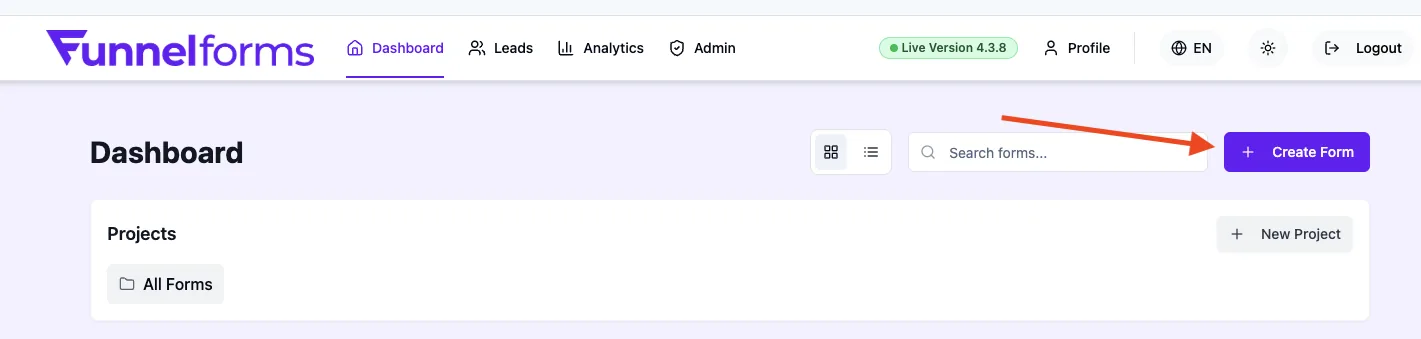
Create a new form via Forms → New form. Existing forms live in the same list and open in the Form editor on click.
Features at a glance
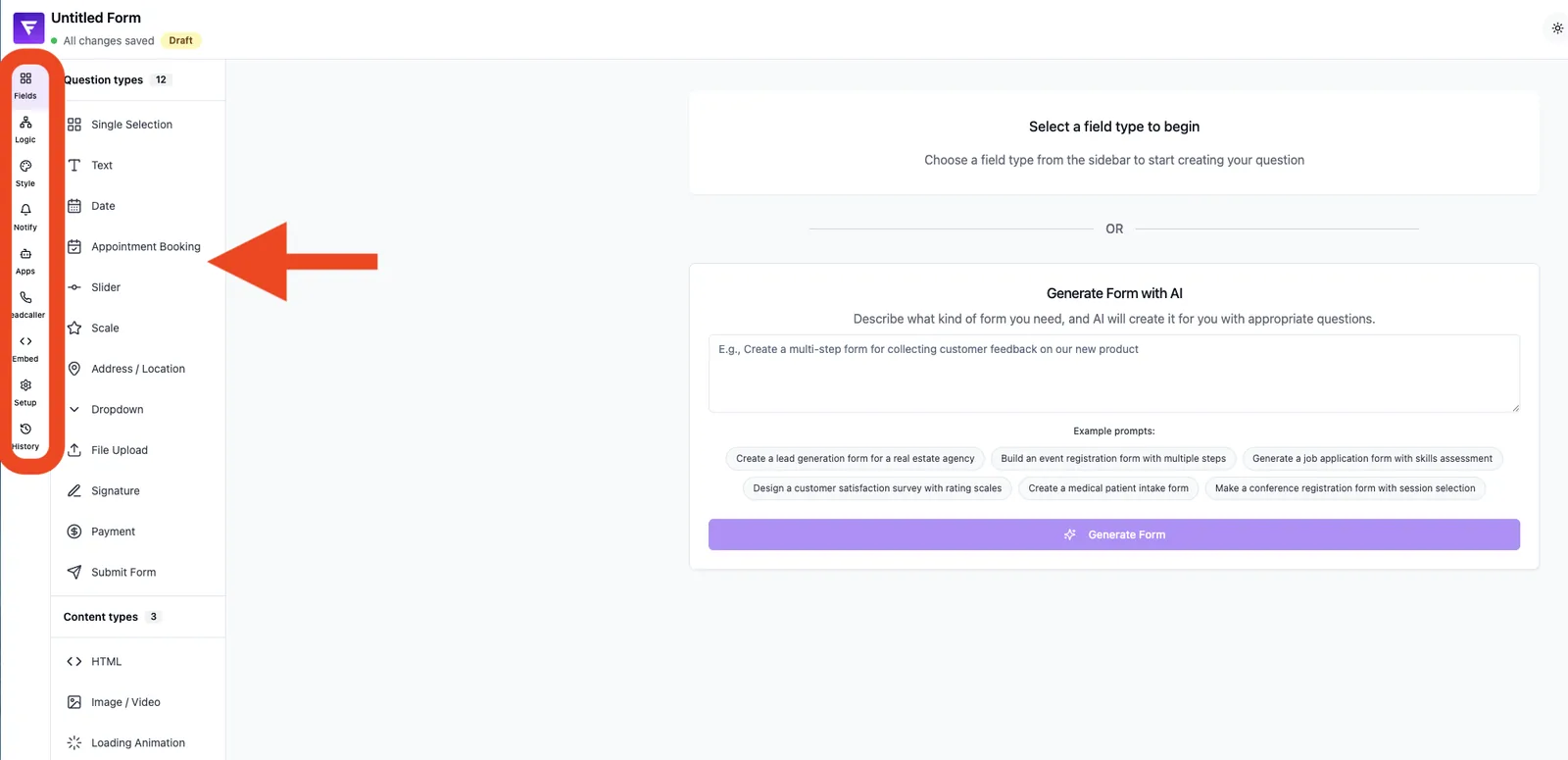
- Setup tab: basics such as name, language and domain assignment.
- Fields tab: add, reorder and duplicate input fields.
- Logic tab: conditional branches and actions.
- Style tab: colors, fonts, backgrounds and device preview.
- Notifications tab: admin and lead emails.
- Embed tab: embed code and direct link.
Step by step: create your first form
- Open Forms and click New form.
- Set a name and choose the language.
- Confirm with Create — you land directly in the editor.
- Add first inputs in the Fields tab, e.g. name, email, choice.
- Adjust colors and fonts in the Style tab to match your brand.
- Enable at least one admin email in the Notifications tab.
- Assign a domain in the Setup tab and save.
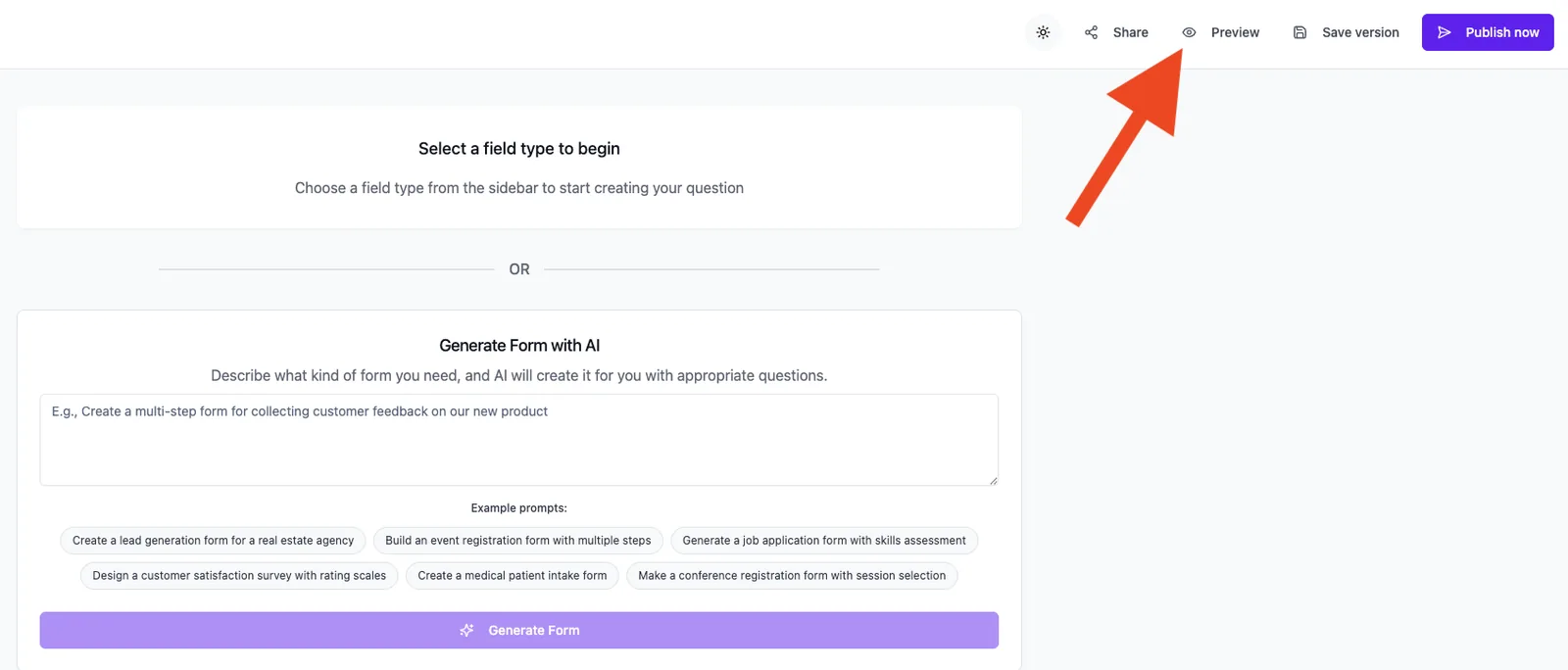
- Publish the form via the toggle in the editor header.
How does the live preview work?
The preview on the right of the editor reflects your changes in real time. It mirrors the later live view as closely as possible without creating leads or sending emails. In the Style tab you can switch between desktop and mobile to check both viewports.
What happens on publish?
Only published forms are reachable via link or embed. While the form is in draft, it is not publicly reachable. Publishing requires an active plan and an assigned domain.
Best practices
- Start with few required fields — each extra field lowers conversion.
- Use clear field labels instead of relying on placeholders only.
- Plan logic and branches before adding dozens of fields.
- Test the published form with a real test email before sharing it.
Common pitfalls
- Form "not available": plan inactive or no domain assigned.
- Changes not visible: save in the editor and reload the live page.
- No lead email received: notification active? Recipient correct? Check the spam folder.
- Limit reached: the free plan publishes only 1 form — additional forms stay unpublished.
Tips & notes
Tip: Create a dedicated "test" form to safely check logic, mails and webhooks without touching your live forms.
Note: Since January 2026 every published form must be assigned to a domain — otherwise publishing is blocked.
Caution: Domains with umlauts (IDN) are not supported. Use an ASCII variant.
Frequently asked questions
Can I rename a form later?
Yes. Change the name in the editor header at any time. The public link is unaffected.
How do I duplicate a form?
Open Forms, click the three-dot menu next to the entry and choose Duplicate.
Can I unpublish a form?
Yes. In the editor header you can switch the status back to draft any time. The public link then shows "not available".
How do I delete a form?
From a form entry menu select Delete. The action is permanent and also removes the related leads.
Can several people work on the form at the same time?
Yes. Coordinate changes to avoid overwriting each other.