Understand logic and build your first branch
Logic lets you route users through different paths in your form based on their answers. This article is your entry point into the logic editor: what it is for, how nodes and connections interact and how to build your first branch. Deeper topics like every action type, condition operators or advanced variables live in the Logic & Automation category.
Requirements
- A form with at least two fields a condition can reference.
- An active plan (trial, free or paid). Logic is available in every plan.
- A clear idea of which path should apply for which answer.
Where to find it
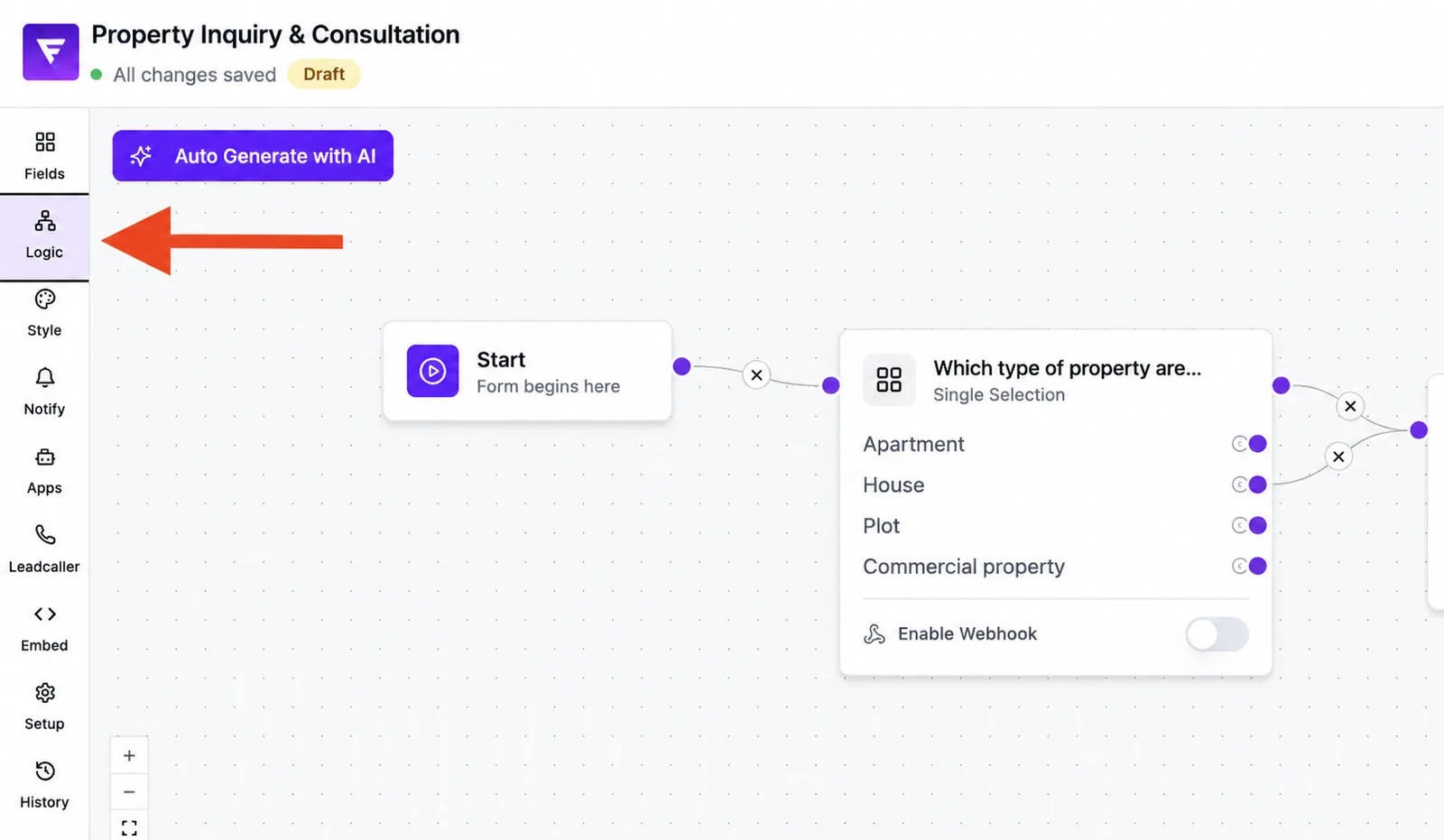
Open your form and switch to the Logic tab in the editor. You land on a canvas where you can work with mouse, trackpad or the zoom buttons at the bottom right.
Features at a glance
- Nodes per question/field of your form.
- Connections between nodes that define the default path.
- Conditions per connection — e.g. "equals", "contains", "starts with", "ends with", "contains option", plus date and period comparisons.
- Actions per connection, e.g. redirect or webhook trigger.
- Default behavior: without conditions the form runs in linear order.
Step by step: build your first branch
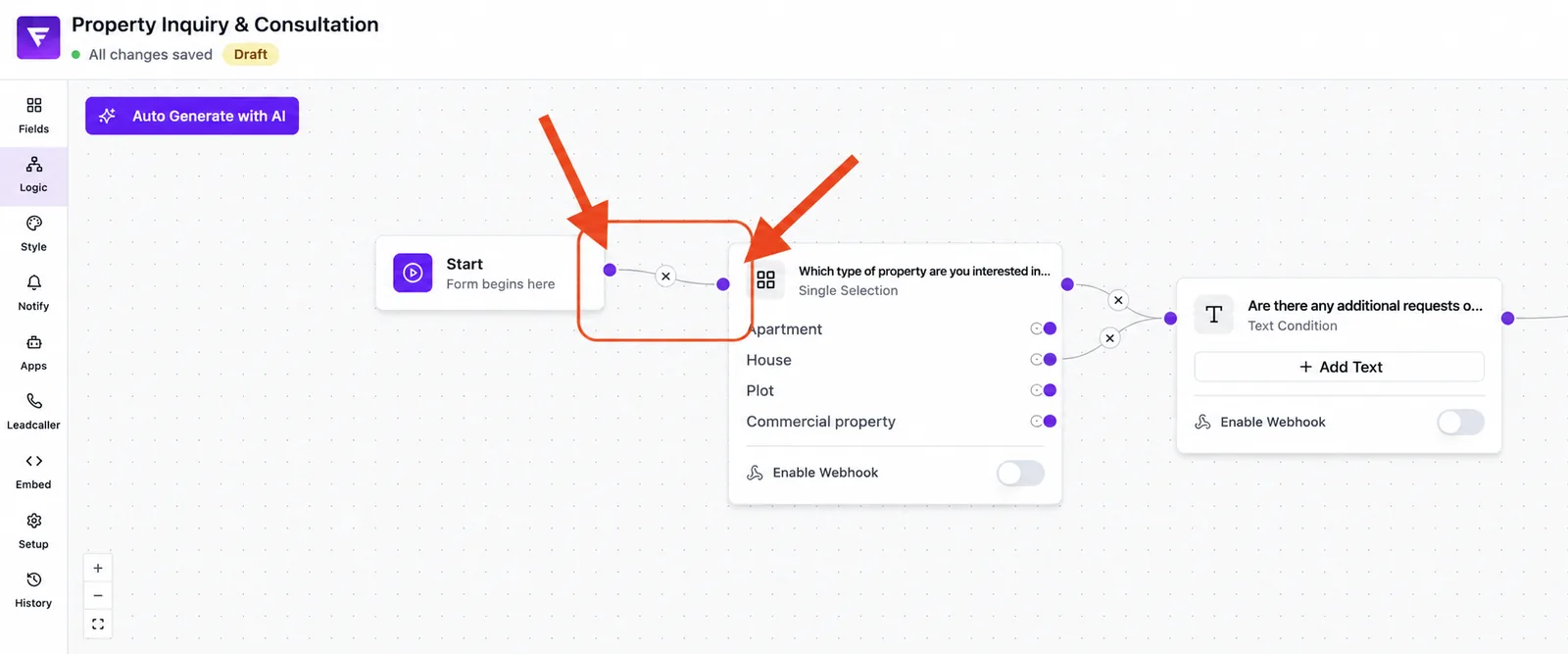
- Open the Logic tab inside your form.
- Locate the node with your key question (e.g. a choice field).
- Drag a connection from that node to the next node for the default path.
- Click the connection and define a condition, e.g. "answer equals option A".
- Drag a second connection to the alternative node and set the opposite condition.
- Switch to the Fields tab or preview to test the path.
- Repeat the pattern for further decision points.
What happens without logic?
Without conditions the form runs linearly: step 1 leads to step 2, then step 3 and so on. Logic kicks in only once you attach conditions to connections or assign actions.
How are conditions evaluated?
Conditions are checked in the given order. The first connection whose condition matches is taken. If no condition matches the form falls back to the default connection.
Best practices
- Start with few clearly separable paths and extend step by step.
- Name nodes and conditions descriptively — large flows get confusing otherwise.
- Test every new path in the live preview before publishing.
- Keep parallel paths similar in length so drop-offs are comparable.
Common pitfalls
- No connection possible: you are dragging from the wrong point — use the handles at the node edge.
- Wrong path runs: check the order of conditions; the first match wins.
- Variable has no effect: make sure it is set in an earlier step and evaluated later.
- Action does not fire: the condition on the path is missing, or the path is never reached.
Tips & notes
Tip: Use the canvas zoom and pan controls to keep an overview of complex flows without scrolling chaos.
Note: Logic does not retroactively affect leads already stored. It only applies to answers coming in after publication.
Caution: Webhook actions in the logic editor fire in addition to classic submit webhooks. Plan your endpoints accordingly.
Frequently asked questions
Can I combine multiple conditions?
Yes. Each connection can combine several conditions.
What are variables?
Variables are named values you set during the flow and use later for conditions — for example a chosen category.
Can I change the flow afterwards?
Yes, any time. Changes apply from the next visit of the published form onwards.
Does logic also work with multi-step forms?
Yes. Every step separator shows up as its own node in the logic editor and can be branched.
Where do I see how often a path is used?
Under Analytics you find drop-off and conversion per step.