Add fields and structure your form
Fields are the building blocks of your forms. This article shows how to add, sort, duplicate, group and remove fields in the editor. It is written for everyone who is building their first form and needs a clear entry point. Deeper topics like individual field types or validation live in the Form Editor & Fields category.
Requirements
- A verified Funnelforms account with at least one form.
- An active plan (trial, free or paid).
- No special roles are required; every team member with access to the form can edit fields.
Where to find it
Open Forms, pick your form and switch to the Fields tab in the editor. On the left you find the Field library, in the middle the field list of your form, on the right the live preview.
Features at a glance
- Add a field by clicking it in the field library.
- Sort via drag-and-drop in the field list.
- Duplicate from the three-dot menu of a field.
- Edit label, placeholder, required state and validation in the detail area.
- Insert step separators for multi-step forms.
- Delete single fields from the menu.
Step by step: create and order fields
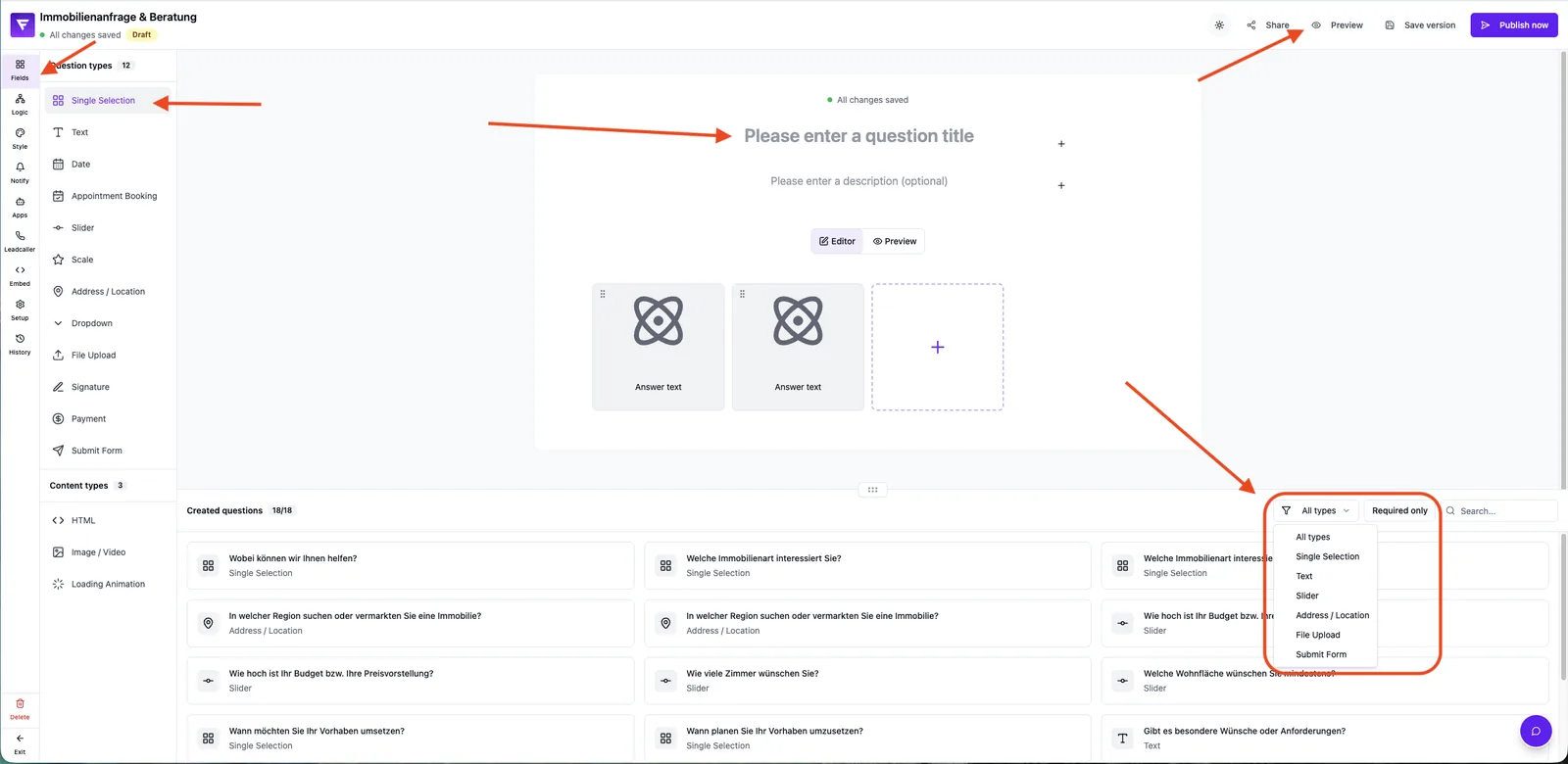
- Open the Fields tab in your form.
- In the field library click the type you need (e.g. Text, Email, Choice).
- The field appears at the end of the list and opens the detail area.
- Set the label, optional placeholder and toggle required if needed.
- Drag-and-drop fields into the order you want.
- Use a Step element to split fields across multiple pages.
- Check the result in the live preview on the right.
- Saving happens automatically — a header note confirms the last save.
How does the live preview work?
The preview reflects every change instantly. It does not send emails or create leads but behaves like the later live form. That way you can test order, required fields and validation safely.
What are steps and when do I need them?
Steps split a form into multiple pages. They reduce perceived complexity and let logic run between steps. Insert a step whenever a new topic starts or the field count per page gets too high.
Best practices
- Keep the number of required fields per step low — each field reduces conversion.
- Write clear labels instead of relying on placeholders only.
- Group related inputs in the same step.
- Insert step separators explicitly — do not rely on visual pauses.
Common pitfalls
- Field missing in the preview: switch tabs or reload the page if the preview gets stuck.
- Order does not change: use the drag handle on the left edge of the field, not the label itself.
- Required toggle does not apply: changes save automatically — reload the live page.
- Accidentally deleted: recreate the field — there is no undo menu.
Tips & notes
Tip: Duplicating saves time when you need similar fields with the same validation (e.g. address lines).
Note: Fields belong to a form.
Caution: Active changes to required fields after publishing affect the live page immediately — plan bigger reworks in a duplicate.
Note: On the free plan the file-upload size is capped at 10 MB.
Frequently asked questions
How many fields can a form contain?
For performance and conversion we recommend 10–30 fields per form, depending on the use case.
Can I copy fields between forms?
Direct copying between forms is not supported. Duplicate the whole form instead and remove what you do not need.
Which field types are available?
Available types include text, email, phone, single and multiple choice, date and file upload. The full overview of all field types lives in the Form Editor & Fields category.
Are test entries stored?
The live preview inside the editor does not store leads. Only entries through the published form appear under Leads.
How do I reorder options in a choice field?
In the detail area of the choice field drag the options into the order you want.