Understanding the dashboard: Your Funnelforms control center
The dashboard is your control center in Funnelforms. From here you start every important action: create and edit forms, review leads, look at analytics and manage settings. This article explains each area concisely.
Prerequisites
- A verified Funnelforms account.
- A signed-in browser.
Where to find it
The dashboard opens automatically after you sign in. The main areas live in the top navigation: Dashboard, Leads, Analytics. Your forms are listed inside the Dashboard. Account, domain and plan settings live in your Profile. The profile menu also contains Sign out.
Areas in detail
Forms

Overview of all your forms including status (Draft / Published), domain, project assignment and performance metrics such as Total responses, Completed and Completion rate. Row actions take you to Edit, Show leads and Show analytics.
Leads
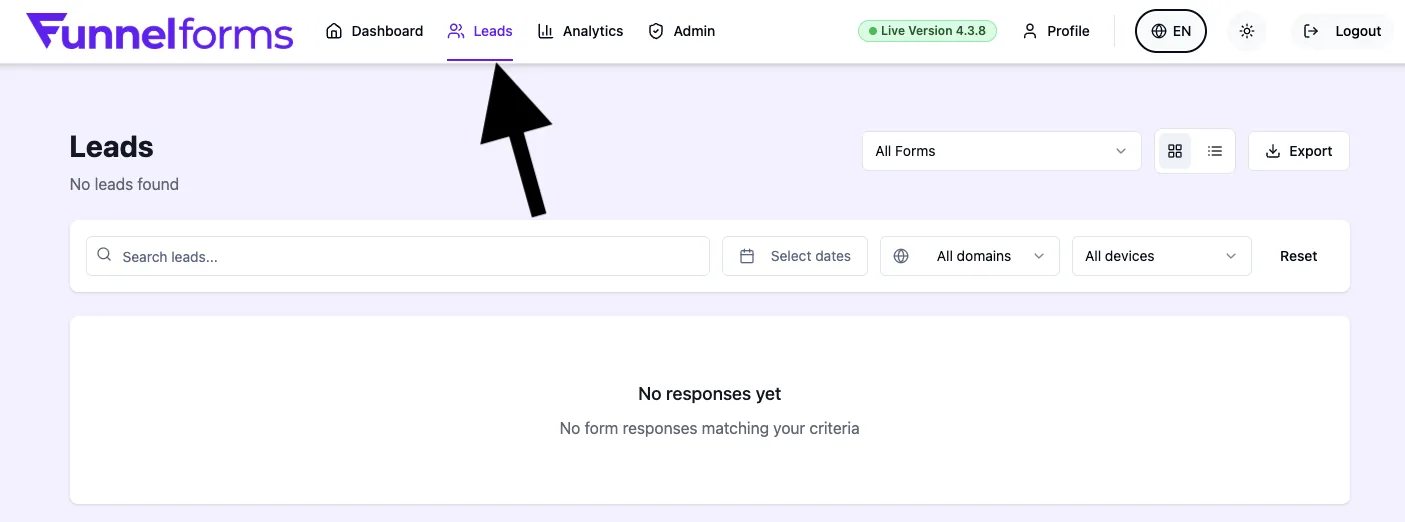
Collection of every incoming response. Filterable by form, time range, status and domain. Individual leads can be opened, annotated and exported.
Analytics
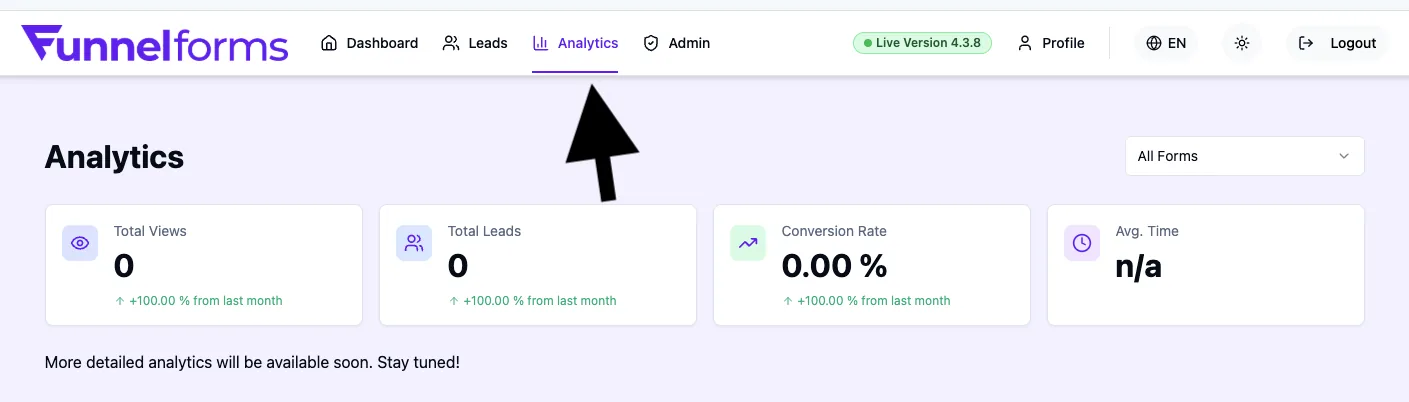
Aggregated insights per form: conversion rate, drop-off per field, traffic sources and traffic replay for a visual walk-through of user behaviour. Individual analytics features depend on your plan.
Profile
The Profile is where you manage personal data, password & 2FA, company data, team members, domains, media library, billing and API access.
Step by step: first orientation
- Sign in — you land in the dashboard.
- Click Create form to start a new form right away.
- Switch between Dashboard, Leads and Analytics via the top navigation.
- Switch language in the profile menu if needed.
Why this layout helps
Separating Forms, Leads and Analytics decouples three typical jobs: building, reviewing and understanding. Each area stays focused and teams can work in parallel without blocking each other.
Best practices
- Create projects as soon as you run more than three forms — it keeps the overview clean.
- Use the search and filter bar in the Dashboard to switch quickly between domains.
- Schedule fixed days for reviewing Analytics instead of only reacting to single leads.
Troubleshooting
- Dashboard shows "No forms yet": click Create your first form.
- Leads table is empty: review active filters and the selected time range.
- Analytics shows no data: at least one published form with traffic is required.
Tips
Tip: The search bar under Forms matches both the form title and assigned domains — useful when you manage many forms.
FAQ
Can I change the order of forms?
The table can be sorted by Created, Status and Performance.
How do I switch between German and English?
Use the language switcher in the profile menu.
Where do I see my current plan level?
In your Profile under the Billing tab.