Using Webhooks: Send Form Submissions as JSON to External Systems
A webhook is the most direct way to push a form submission to any system on the internet. On submit Funnelforms builds a structured JSON payload with all answers, field metadata and analytics, and delivers it to the URL you choose. If an endpoint can receive an HTTPS POST you can integrate it — no third-party automation platform required.
Requirements
- A signed-in Funnelforms account with access to the form editor.
- A reachable target URL, ideally over
https://. - Your receiver answers within 15 seconds with a 2xx status.
Note: Webhooks are available on every active plan. On a downgraded Free account the general limits apply (1 form, 1 domain, 1 team member, 10 MB per file) — the webhook feature itself stays usable.
Where to configure a webhook
- Editor → Notifications → Webhook — fires once per completed submission. The standard "send every lead" case.
- Editor → Logic → Webhook action — fires when a specific logic node is reached. Use this when only certain answer paths should trigger the call.
- Editor → Apps — if an automation tool (Zapier, Make) is connected to your Funnelforms account, its webhook runs automatically without you maintaining a URL.
Features
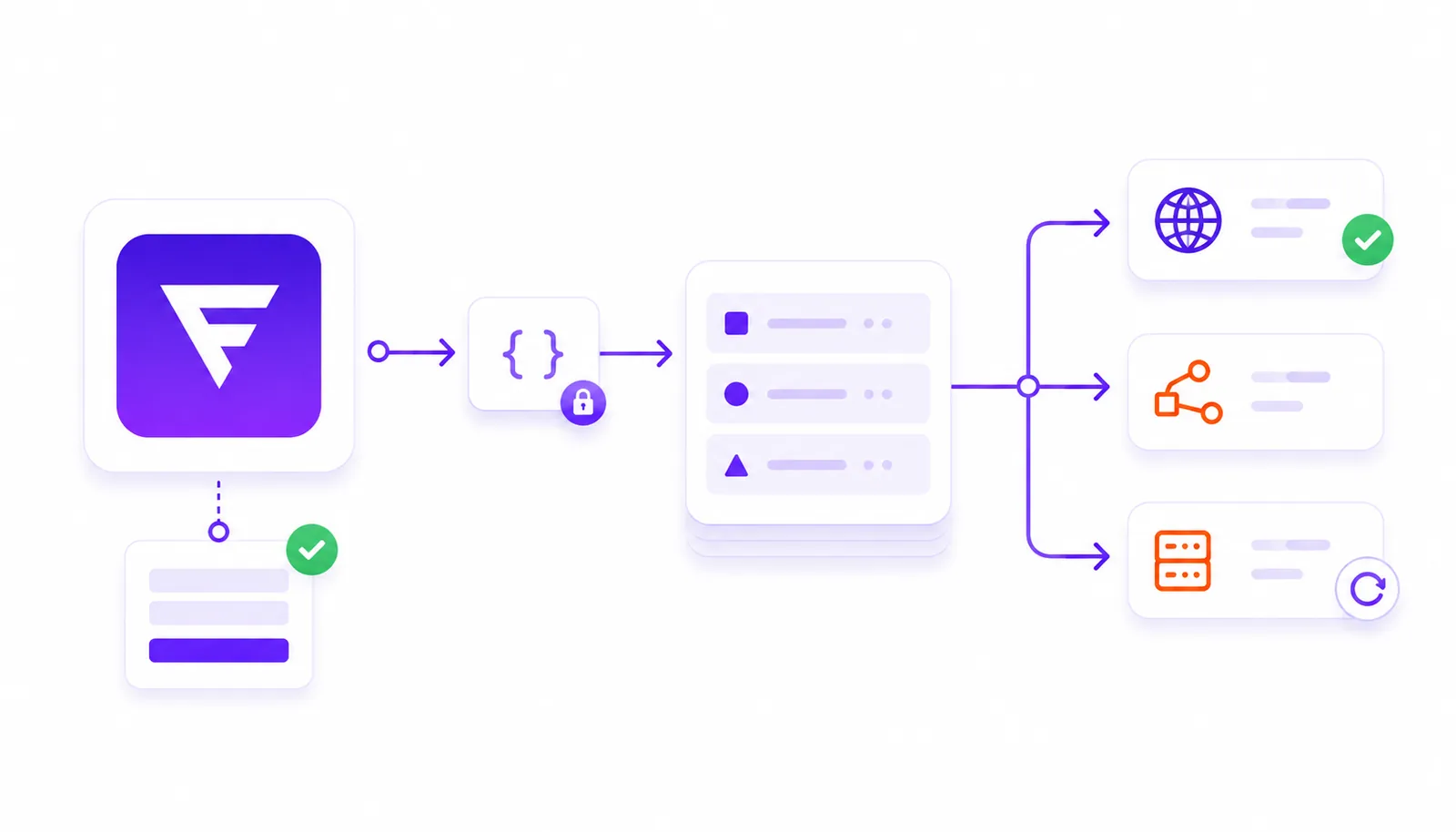
- HTTPS POST with
Content-Type: application/json. - Asynchronous delivery via an internal queue — the submission is never blocked.
- Automatic retries on transient failures.
- Multiple receivers per form (submit webhook, logic webhooks and automation webhooks in parallel).
Step by step: Submit webhook
- Open the form in the editor.
- Switch to the Notifications tab.
- Enable Webhook.
- Paste the target URL into Webhook URL.
- Save.
Step by step: Logic webhook
- Open the Logic tab and add a Webhook action to the desired node.
- Enter the target URL. The HTTP method for logic webhooks is fixed to POST.
- Save.
What Funnelforms sends
The payload is a JSON object with these top-level fields:
timestamp— delivery timestamp (ISO string).id— submission UUID, suitable for deduplication.form—id,title,projectId,customSlug.formFields— definition of every field active in the flow.formResponsesByFieldId— answers keyed by the internal field UUID.formResponsesByWebhookFieldId— answers keyed by the Webhook field ID you set per field (e.g.email,first_name).formResponseId— submission UUID.analytics— browser, device, UTM parameters, entry/exit URL when available.allQuestionData— human-readable text of all question-answer pairs.
Note: Submit fields with sub-fields are delivered both top-level as
field-XXXXkeys and inside thesubmitarray — this is intentional and part of the public webhook contract. Existing integrations should rely on both locations.
Note (logic flow with multiple question nodes): If the same form field is shown in multiple logic nodes, answers are additionally stored per node under a
node_idkey. That keeps it traceable which answer came from which logic path.
How delivery works
- Method: POST.
- Timeout: 15 seconds. If your endpoint doesn't answer in time the call is marked as failed.
- Size limit: 5 MB per payload. Larger payloads are marked failed.
- Non-blocking: a failing webhook does not break the submission — the user always sees the thank-you screen.
Best practices
- Assign a Webhook field ID to every field you actually use downstream — your backend stays stable when the form changes.
- Reply with 2xx fast and continue processing asynchronously.
- Validate all incoming data server-side (lengths, types, required fields).
- Send a test lead before going live to see the exact payload shape inside your system.
- Process webhooks idempotently — retries must never create duplicates.
Common pitfalls
- HTTP instead of HTTPS. HTTP is accepted but transmits lead data unencrypted. Not recommended.
- Slow receiver. Anything above 15 seconds counts as failure.
- Payload over 5 MB. Very large file attachments or extremely large field sets can exceed the limit — the call fails.
- Empty answers. Appear as
nullor are omitted — never as empty strings. - Custom headers or auth headers. Currently not supported — Funnelforms sends only
Content-Type: application/json. Authenticate via a query parameter or a secret path token in the URL instead.
Tips
- Prefer
formResponsesByWebhookFieldIdover the UUID variant for stable integrations. - Store the submission
idon your side to detect retries safely.
FAQ
Can I use multiple webhook URLs at the same time? Yes. Submit webhook, logic webhooks and connected automation tools deliver independently.
Are file uploads transferred? Public URLs to uploaded files are delivered — not raw binary data.
What happens if my endpoint is briefly unreachable? Funnelforms retries delivery in the background automatically. After permanent failure the delivery is marked failed.
Do I see webhook errors in the backend? Yes. Failed deliveries are logged and shown in the integration hints — without blocking the user flow.
Can I use webhooks without Zapier or Make? Yes. Webhooks are a native feature — you only need your own URL that accepts an HTTPS POST.