Connect Funnelforms With Make: Send Leads Automatically to Apps and Workflows
With the Funnelforms webhook feature, every form submission is pushed automatically to Make.com (formerly Integromat) — and from there to Google Sheets, Slack, Mailchimp, HubSpot, Notion, or hundreds of other apps. This guide walks you through every step, from creating the webhook in Make to a fully working scenario.
Note: Webhooks are available on every Funnelforms plan, including Free. Make.com has a free plan with 1,000 operations/month — enough for most use cases.
Two ways to connect Make: This guide covers the custom-webhook path (copy URL from Make, paste into Funnelforms). Alternatively you can use the native Funnelforms app in Make — it connects via OAuth, loads your forms automatically and pulls sample data straight from your account. The native app is the recommended path for new setups; the custom-webhook path remains valid for existing scenarios and special cases (e.g. per-node logic webhooks).
Prerequisites
- Active Funnelforms account with at least one form.
- Free or paid account on make.com.
- Basic understanding of webhooks (optional: see Webhooks: Send Form Data to Any URL).
Where do I find this?
Webhook activation lives inside the Form Editor on the Submit field. The webhook itself is created in Make under Scenarios → Create a new scenario. The only thing that ties both worlds together is one webhook URL Make generates and you paste into Funnelforms.
What this integration delivers
- Real-time push: Each submission is pushed immediately — no polling intervals.
- Full payload: Answers, field definitions, analytics, and UTM parameters all flow through.
- Webhook field IDs: Speakable field names instead of internal UUIDs for clean mapping in Make.
- Three formats in parallel: Answers by webhook ID, by internal field ID, and as a combined text blob.
Step 1 — Create the webhook URL in Make
- Sign in to make.com.
- Click "Create a new scenario".
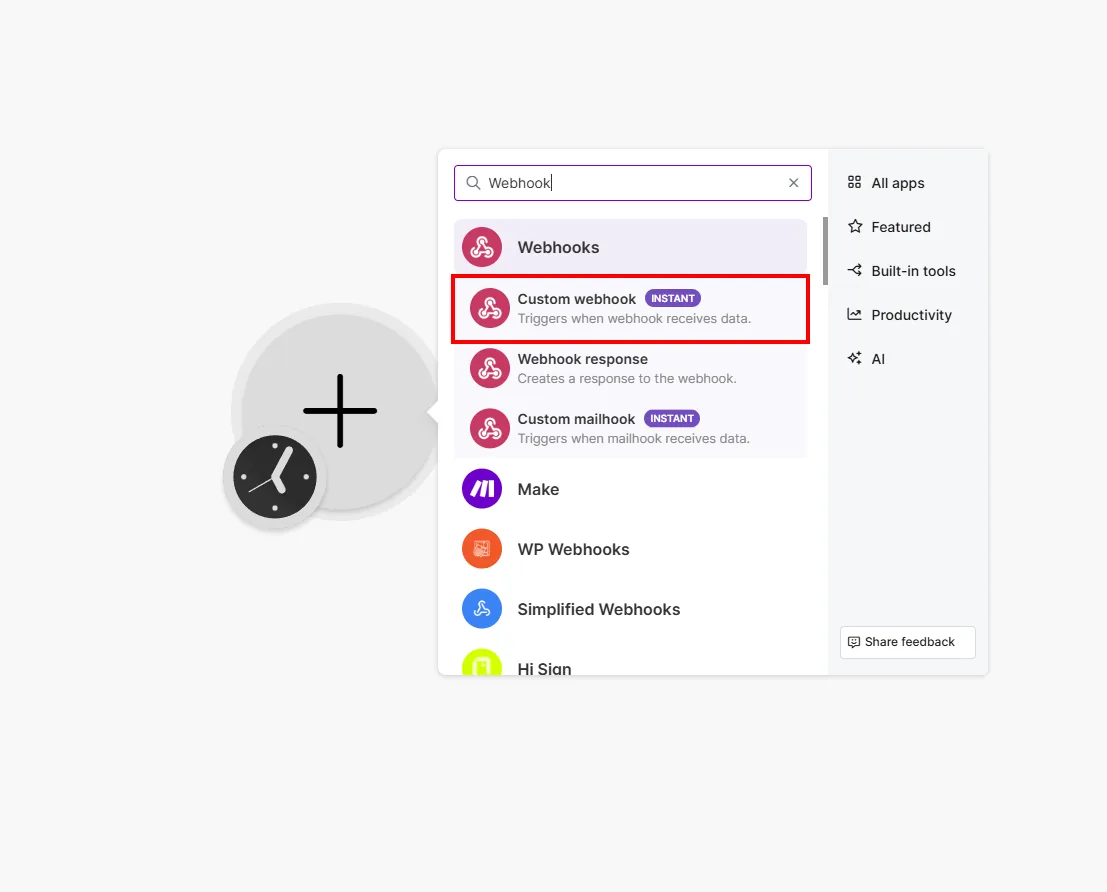
- Click the "+" symbol and search for "Webhooks".
- Select "Custom webhook".
- Click "Add" and give it a meaningful name, e.g. "Funnelforms Contact Form".
- Make generates a webhook URL — copy it.
The URL looks like this:
https://hook.eu2.make.com/abc123xyz…
Step 2 — Activate the webhook in Funnelforms
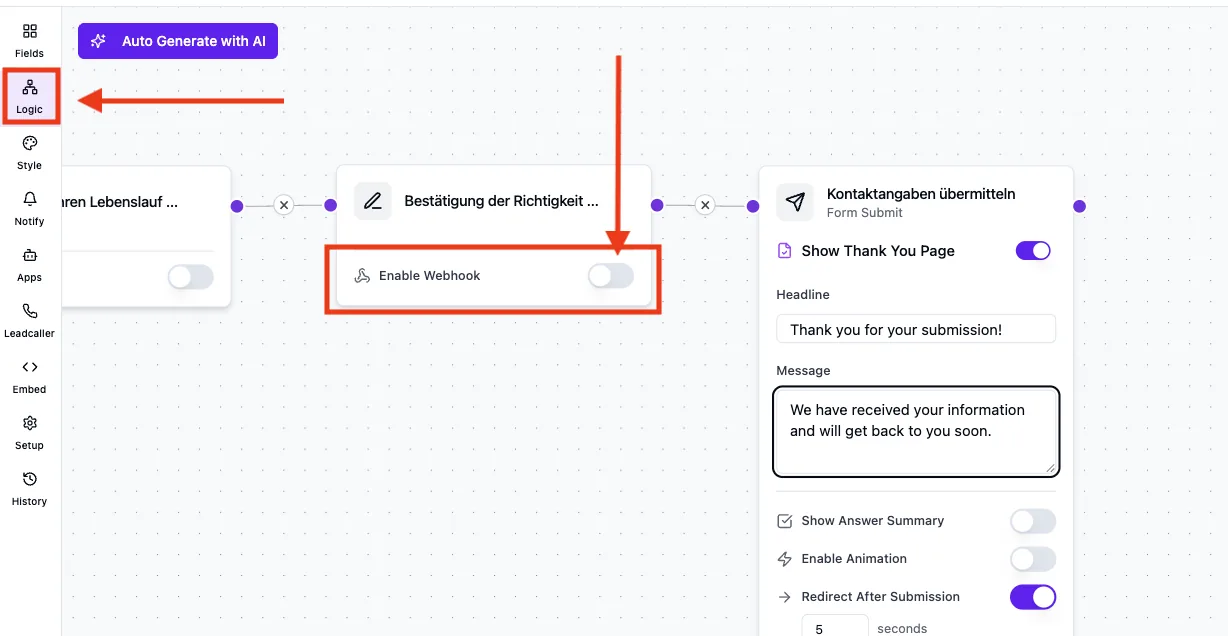
- Open the form in the Form Editor.
- Click the Submit field (the submit button of your form).
- Turn on the "Enable Webhook" toggle.
- Paste the webhook URL into the "Webhook URL" field and save.
From now on, every form submission is sent to Make automatically.
Step 3 — Let Make detect the data structure
So Make knows which fields your form delivers, you need to run one test submission:
- Go back to the webhook module in Make.
- Click "Re-determine data structure" — Make now waits for incoming data.
- Fill in your Funnelforms form once as a test and submit it.
- Make detects the structure automatically — all fields appear in the module.
You can now use these fields in every downstream module of your scenario.
Step 4 — Map fields inside Make
Funnelforms delivers answers in three parallel formats — pick the one that fits your use case:
- formResponsesByWebhookFieldId — answers keyed by webhook field ID (e.g.
firstname,email). Recommended if you've assigned webhook field IDs (see Step 5). - formResponsesByFieldId — answers keyed by internal field ID. Fallback when no webhook field IDs are set.
- allQuestionData — all questions and answers as a formatted text blob. Perfect for email notifications or Slack messages.
Example — Google Sheets
- Add the Google Sheets → Add a Row module after the webhook module.
- Map columns to form fields: - Column "Name" →
formResponsesByWebhookFieldId > firstname > value- Column "Email" →formResponsesByWebhookFieldId > email > value- Column "Message" →formResponsesByWebhookFieldId > message > value
Step 5 — Assign webhook field IDs (strongly recommended)
By default Funnelforms uses internal UUIDs for form fields. Webhook field IDs let you assign your own meaningful names — making the mapping in Make more robust and resilient to later label changes.
- Open the form in the Form Editor.
- Click a question (e.g. the name field).
- In the "Webhook Field ID" field, enter a unique name, e.g.
firstname,email,message. - Repeat for every field you want to use in Make.
Tip: Use simple, unique identifiers — no spaces, no special characters, ideally lowercase.
What data is transmitted?
- Form data: title, ID, and slug of the form
- Answers: every field the user filled in, with question and answer
- Field definitions: type and label of every form field
- Analytics (if available): device type, browser, referrer, UTM parameters, completion time
Important (webhook contract): Field keys (
field-XXXX) are delivered both top-level and inside thesubmitarray and stay permanently stable. Existing Make scenarios are never broken by renames or removals — new fields may only be added additively. If the same field is shown in multiple logic nodes, answers are additionally stored pernode_id.
Best practices
- Assign webhook field IDs first: Set them up before building the Make scenario — saves painful re-mapping later.
- One scenario per form: Easier to debug and version.
- Turn the Make scenario on: The green switch in the bottom-left must be active, otherwise Make silently drops incoming webhooks.
- Re-detect the data structure regularly: Whenever you add new form fields, click "Re-determine data structure" once.
Common pitfalls
Make receives no data
- Is the webhook toggle on the Submit field active?
- Is the webhook URL pasted cleanly (no leading/trailing spaces)?
- Is the Make scenario turned on (green switch bottom-left)?
Fields don't show up in Make
- In the webhook module, click "Re-determine data structure" and submit the form again.
- Newly added fields require re-detection.
Webhook field IDs are missing
- Check that you've actually entered a webhook field ID on the relevant question.
- Fields without a webhook field ID only show up under
formResponsesByFieldIdwith their internal ID.
Tips
- For straightforward lead forwarding to a few standard apps, Zapier is often quicker — see Connect Zapier.
- Make shines when you need complex branching, filters, or multi-step workflows.
- Use
allQuestionDatafor email bodies — no manual concatenation required.
FAQ
Does the integration cost extra? No. Webhooks are included in every Funnelforms plan. Make.com offers a Free plan with 1,000 operations/month.
How fast does the submission arrive in Make? Usually within 1–2 seconds. Funnelforms sends the webhook non-blockingly — the user sees the success screen immediately.
Are failed webhooks retried? Yes. Funnelforms has built-in retry logic (see Webhooks: Send Form Data to Any URL).
Can I attach multiple Make scenarios to the same form? Yes — you can configure multiple webhook URLs per form. Alternatively, a single Make scenario can route to multiple targets via the Router module.
What happens if the Make scenario is off? Make silently drops the incoming webhook. Funnelforms does not log this — only turn off scenarios intentionally.