App Connections: Connect and Manage Third-Party Services Securely
Through App connections you authorize Funnelforms once with a third-party provider — for example Google, Microsoft, Apple or Meta. This article shows where the status lives, how to connect, manage and cleanly disconnect.
Requirements
- An active Funnelforms account.
- An account with the respective provider with the needed permissions (e.g. calendar access, WhatsApp Business account, Slack workspace).
- A modern browser with popups allowed for the OAuth dialog.
Where to find it
Main menu → Apps. Each app shows its current status (Connected or Not connected) and an action button (Connect or Manage).
Available app connections
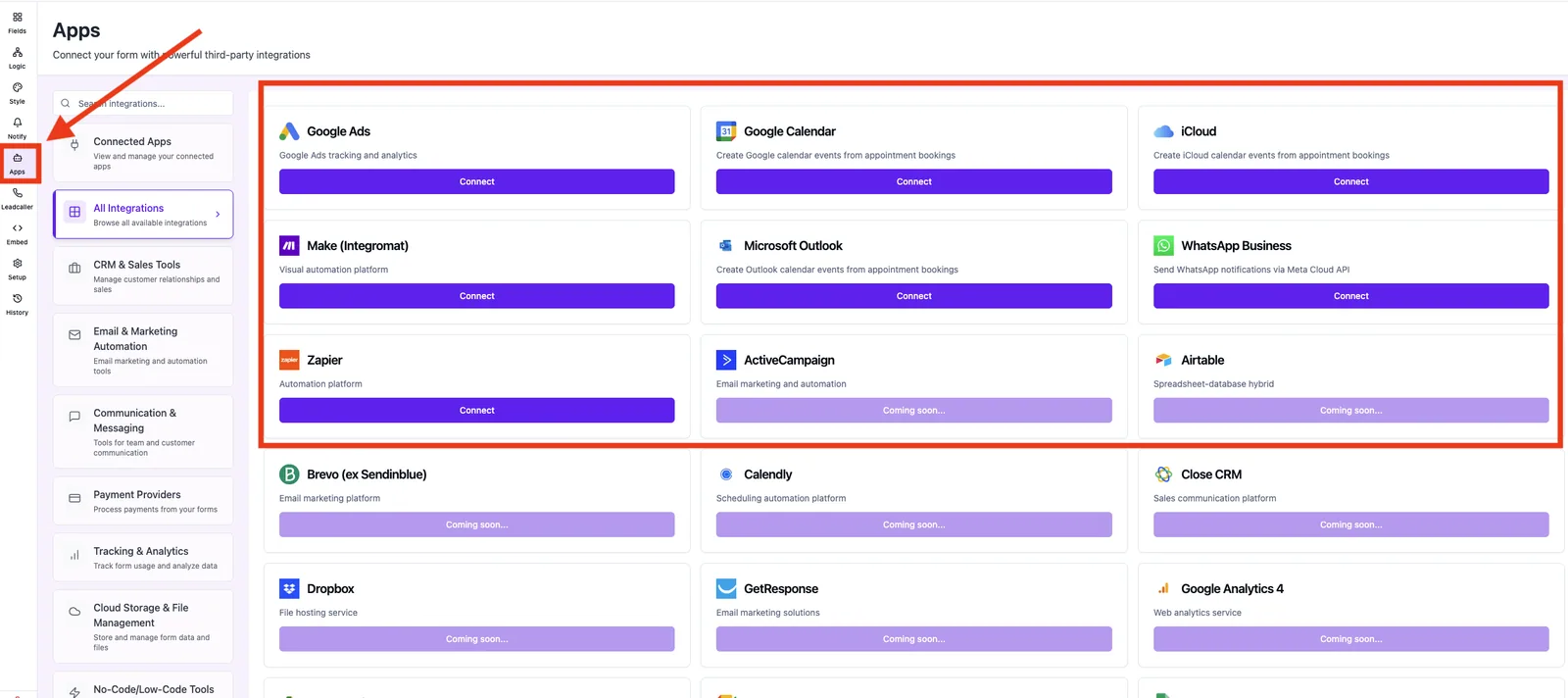
- WhatsApp Business — Meta Embedded Signup for admin and user notifications.
- Google Calendar — OAuth, appointment sync for bookings.
- Microsoft Outlook — OAuth, appointment sync for bookings.
- iCloud Calendar — app-specific password, appointment sync for bookings.
- Zapier — OAuth happens inside Zapier; Funnelforms lists active connections in the Apps area.
- Make.com — connection is created inside Make; Funnelforms lists active connections in the Apps area.
- Google Ads — tracking configuration, no OAuth session.
Connect an app
- Open Apps.
- Click Connect on the desired app.
- Follow the provider's OAuth or setup dialog.
- After successful authorization the app shows the status Connected in Funnelforms.
Manage an app
- Open Apps.
- Click Manage on the connected app.
- Review the account name, permissions and — where available — the list of connected calendars or channels.
Disconnect an app
- Open Apps and click Manage on the app.
- Choose Disconnect and confirm.
- Funnelforms removes the stored tokens immediately, which stops all ongoing deliveries through this connection.
What happens after disconnecting?
- Data that has already been transferred (e.g. calendar entries, Slack messages, WhatsApp templates) stays with the provider.
- New deliveries through this app stop instantly.
- Forms that rely on this app will report delivery errors — either reconnect or disable the app inside the form.
Best practices
- After switching the provider account: disconnect first, then reconnect with the new account.
- Before disconnecting a calendar app: check which forms rely on the sync.
- Diagnose token issues via Manage first — a re-authorization usually fixes it without a full disconnect step.
Common pitfalls
- Popup blockers. OAuth dialogs open in a popup; if blocked the status stays at Not connected.
- Wrong provider account signed in. Before clicking Connect, make sure the right account is logged in in the browser.
- Microsoft time zones. Microsoft expects IANA time zones (e.g. Europe/Berlin). A legacy label like W. Europe Standard Time causes shifted appointments.
- WhatsApp connection lost. Meta requires a fresh authorization when Business Manager access has changed.
Tips & notes
- One active connection per app per workspace is currently supported.
- Tokens are stored encrypted and refreshed automatically as long as the provider permission persists.
- Disconnecting is final regarding the token — a re-authorization creates a new session.
FAQ
Is already synced data deleted when I disconnect? No. Data that has already reached the provider stays there unchanged.
Can I connect multiple accounts of the same app? Currently one active connection per app and workspace is supported.
Why does the status stay "Not connected" after connecting? Usually a blocked popup or a cancelled OAuth dialog. Check the popup blocker and retry.
Do I need to refresh tokens manually? No. As long as the provider permission persists, token refresh runs automatically.