Connect Zapier: Send New Leads to Your Apps Automatically
Zapier is the most widely used no-code automation platform with 6,000+ supported apps. Funnelforms is available there as a trigger app — when a new lead arrives in your form, your Zap runs within seconds, with no polling delay.
Requirements
- A Funnelforms account with at least one published form.
- A Zapier account (the free plan is enough for a simple single-step Zap).
- At least one test lead in the target form so Zapier can pull sample data.
Where the connection is created
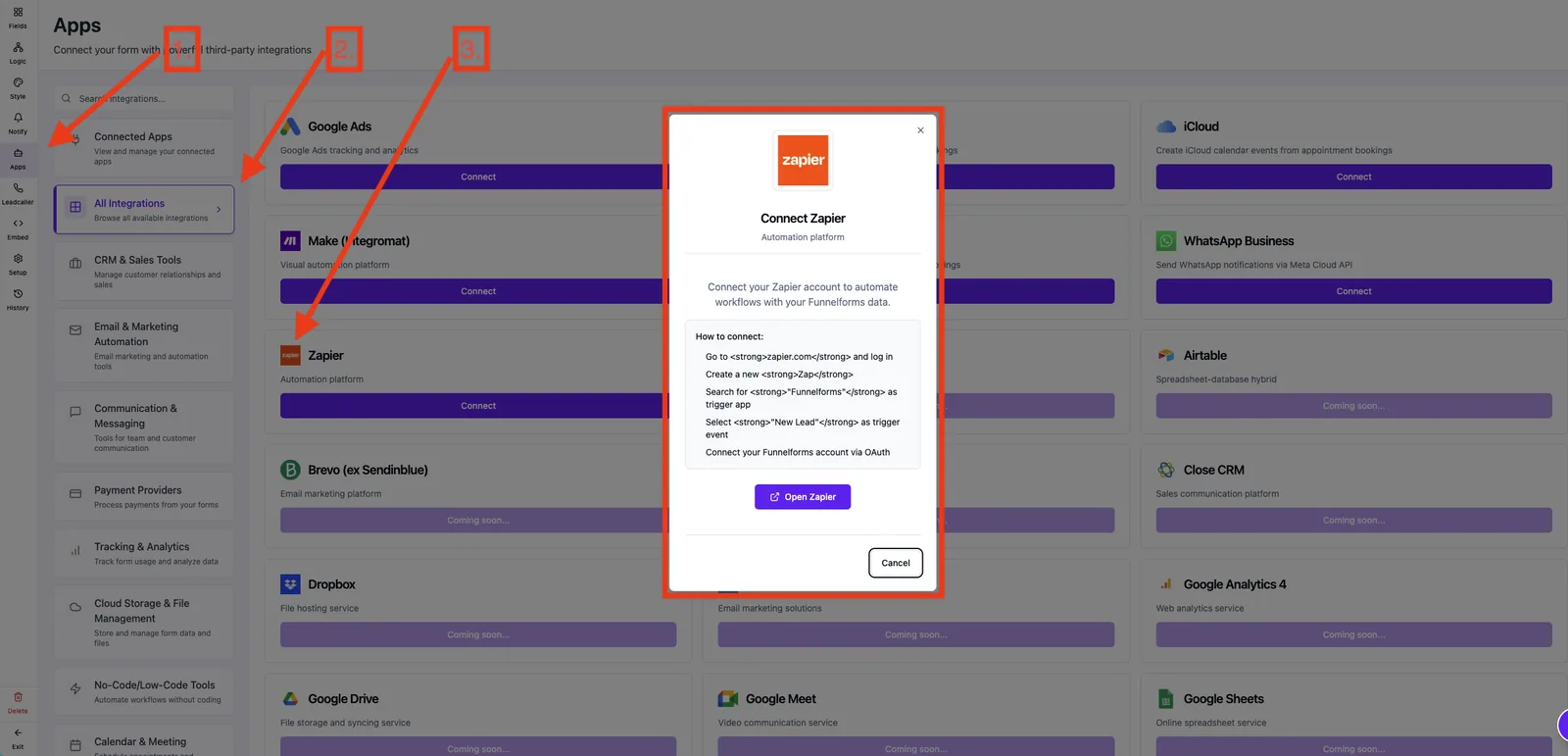
The connection lives inside Zapier, not inside Funnelforms. The "Zapier" entry on the Funnelforms Apps page only opens a help dialog with the steps below. No extra configuration in the Funnelforms editor is required — once the authorization succeeds, delivery runs automatically.
Features
- OAuth 2.0 login directly from Zapier — no API key, no manual token handling.
- REST Hooks: Funnelforms pushes every submission to your Zap instantly.
- Dynamic form picker in Zapier — all forms in your account are loaded live.
- Sample data: Zapier pulls the three most recent leads of the selected form for testing.
- Multiple Zaps per form are supported — each Zap gets its own webhook subscription.
Step by step
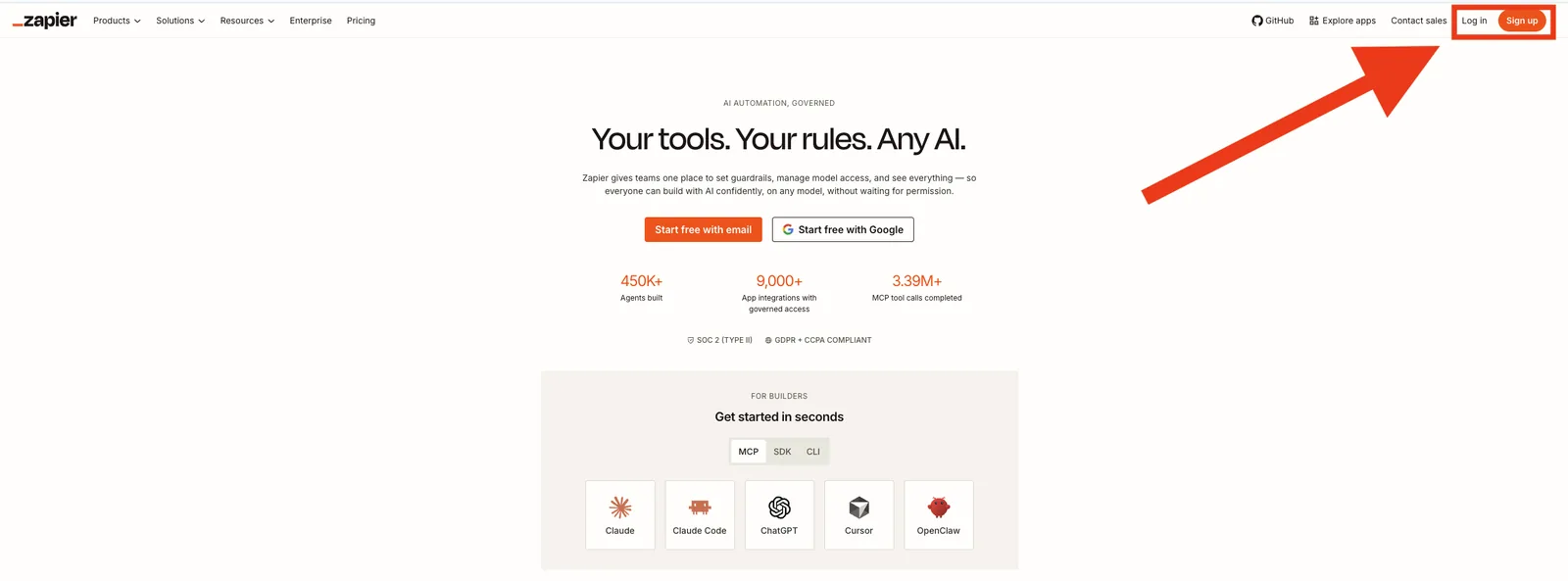
- Go to zapier.com and log in.
- Click Create Zap.
- As trigger app, search for "Funnelforms".
- Select "New Lead" as the trigger event.
- On the Account step click "Sign in" — a popup opens with the Funnelforms login.
- Log in (if needed) and confirm the requested permissions: forms:read and webhooks:write.
- The popup closes; the connection appears in Zapier labelled with your email address.
- Pick the form whose leads should trigger this Zap.
- Test the trigger — Zapier pulls the three most recent leads from that form as a sample.
- Add your action step(s) (e.g. add row to Google Sheets, create HubSpot contact, send Slack message) and publish the Zap.
What happens at sign-in
If you are not yet logged into Funnelforms, the popup first redirects you to the login page. Funnelforms remembers the original Zapier authorization URL and automatically returns you to the authorization screen after a successful login — you do not need to restart the flow.
How delivery works
Funnelforms uses Zapier's REST Hooks: on every successful submission a JSON payload is pushed to your Zap within seconds. There is no polling delay and no per-poll cost on your Zapier task quota beyond the actual run. Delivery runs through the same webhook engine as custom webhooks, including automatic retries on transient failures.
Available data per lead
- id — unique submission UUID, suitable for deduplication inside Zapier.
- timestamp — submission time (ISO string).
- form.id and form.title — source form.
- One field per question — accessible by Webhook field ID if set, otherwise by field UUID.
- analytics — UTM parameters, device, referrer, entry/exit URL, completion time.
If you see ugly UUIDs in the action mappings, set a descriptive Webhook field ID per field in the Funnelforms editor (e.g. email, first_name) and reload the sample in Zapier.
Best practices
- One Zap per outcome, not one mega-Zap per form — much easier to debug.
- Use Filter steps to only run the Zap for relevant leads — saves tasks on paid plans.
- Enable Zapier error notifications — Zaps that fail silently cost you leads.
- Map fields by Webhook field ID, never by raw UUID — your Zap survives form edits.
- Handle submissions on the Zap side idempotently (e.g. using
idas dedup key) — retries must not create duplicates.
Common pitfalls
- Sign-in popup blocked. Allow popups for
app.funnelforms.appand start sign-in again. - "No sample data found". Submit at least one test lead in the chosen form — Zapier fetches the three most recent.
- Zap stays on "Test successful" but doesn't fire later. Make sure you turned the Zap on after testing and the form is published.
- Field names look random. Without Webhook field IDs Zapier shows UUIDs — set readable IDs in the editor.
- Working with Funnelforms WordPress? The Funnelforms WordPress connector in Zapier is a separate app, unrelated to your SaaS account — pick the SaaS connector for
app.funnelforms.app.
Tips
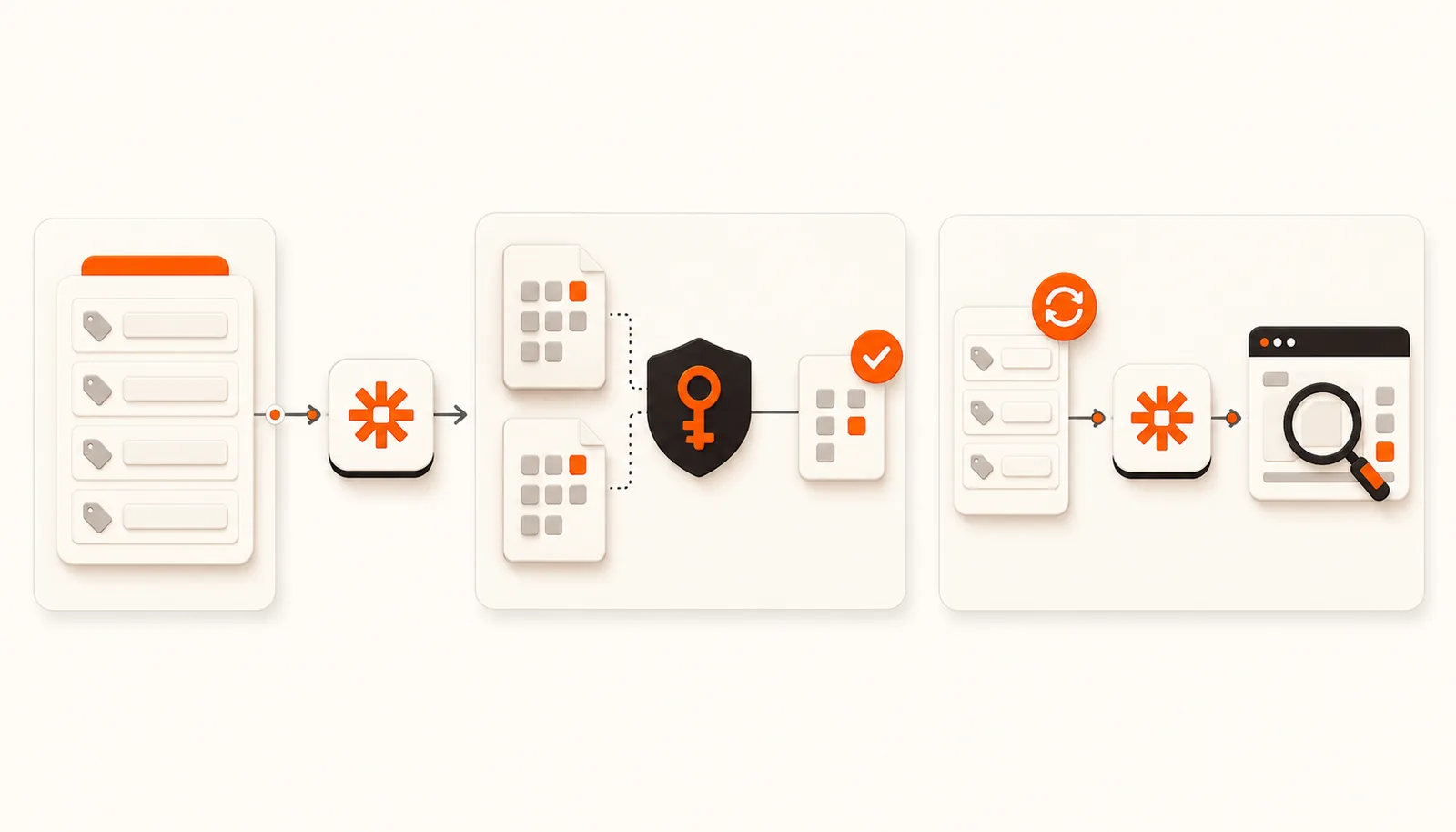
- Assign Webhook field IDs before the first Zap test — otherwise you'll have to rebuild the mapping later.
- Use the payload's
idfield as the idempotency key in downstream systems. - After larger changes to a form, send a test lead and reload the Zap sample to verify the mapping.
FAQ
Do I need an additional webhook in the Funnelforms editor? No. After authorization, Zapier creates the webhook automatically via the Funnelforms API — nothing to set up in the editor.
Can I connect multiple Zapier accounts? Yes. In Zapier you can register several Funnelforms accounts; each connection is labelled with its email address.
How long does the authorization stay valid? Until you revoke it (either from Funnelforms or inside Zapier). On revoke, delivery stops immediately. Connections can be revoked any time under Manage & disconnect app connections inside Funnelforms.
Will Zapier see older leads too? No. Zapier only receives submissions that arrive after the Zap is turned on — there is no backfill. Only the test step pulls the three most recent existing leads as a sample.
What happens if Zapier is briefly unreachable? Funnelforms retries delivery automatically — see "Understand webhook logs and retries" for the schedule.