Understand the Zapier API: OAuth, REST Hooks and Lead Data at a Glance
This article explains how the Funnelforms Zapier integration works technically. It is relevant for developers, integration partners and anyone who wants to understand which endpoints Zapier uses internally to receive new leads from Funnelforms.
You do not need these details for regular Zap setup. Use the article Connect Zapier for that.
Note: The Zapier endpoints are intended for the official Zapier integration. For custom scripts or individual integrations, use native webhooks.
Requirements
- An active Funnelforms account with at least one published form.
- Access to Zapier to create a Zap with the Funnelforms app.
- Basic understanding of OAuth 2.0, REST hooks and JSON payloads if you want to review the technical behavior.
Where to find it
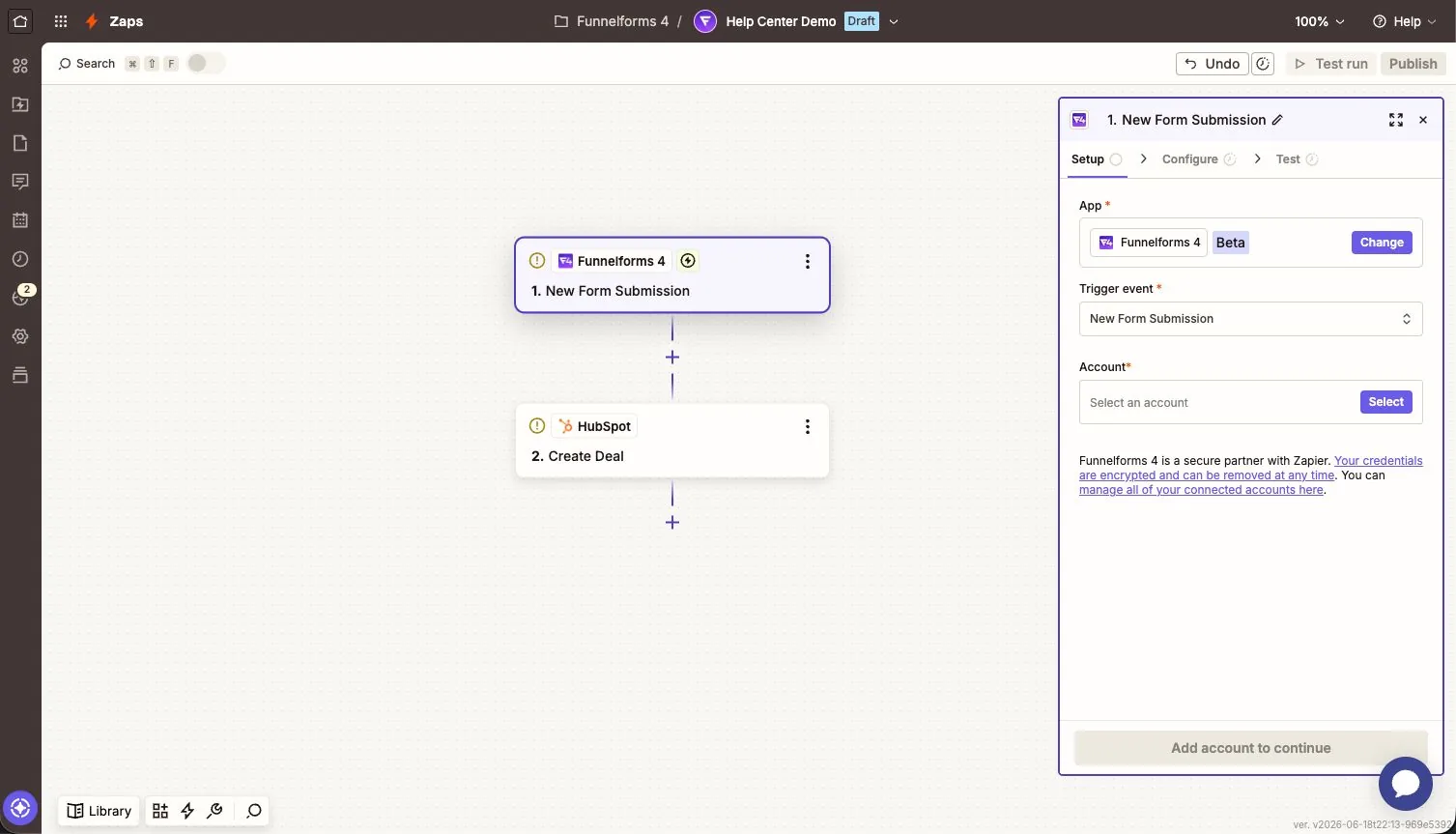
Zapier → Create Zap → Funnelforms → New Form Submission
The OAuth connection is handled internally through app.funnelforms.app/zapier/authorize.
Features / What it does
- OAuth login between Zapier and Funnelforms.
- Form selection inside Zapier.
- REST hook trigger for new leads in real time.
- Sample data for Zap setup.
- Webhook payload with form fields, responses, metadata and analytics data.
Step-by-step guide
- Open Zapier and click Create Zap.
- Select Funnelforms as the trigger app.
- Select New Form Submission as the trigger event.
- Click Connect new account.
- Log in to Funnelforms and authorize Zapier.
- Select the required form in the form dropdown.
- Click Test trigger to load sample leads.
- Set up the Zapier action, for example Google Sheets, CRM or email.
- Turn on the Zap.
How does the Zapier connection work?
OAuth 2.0
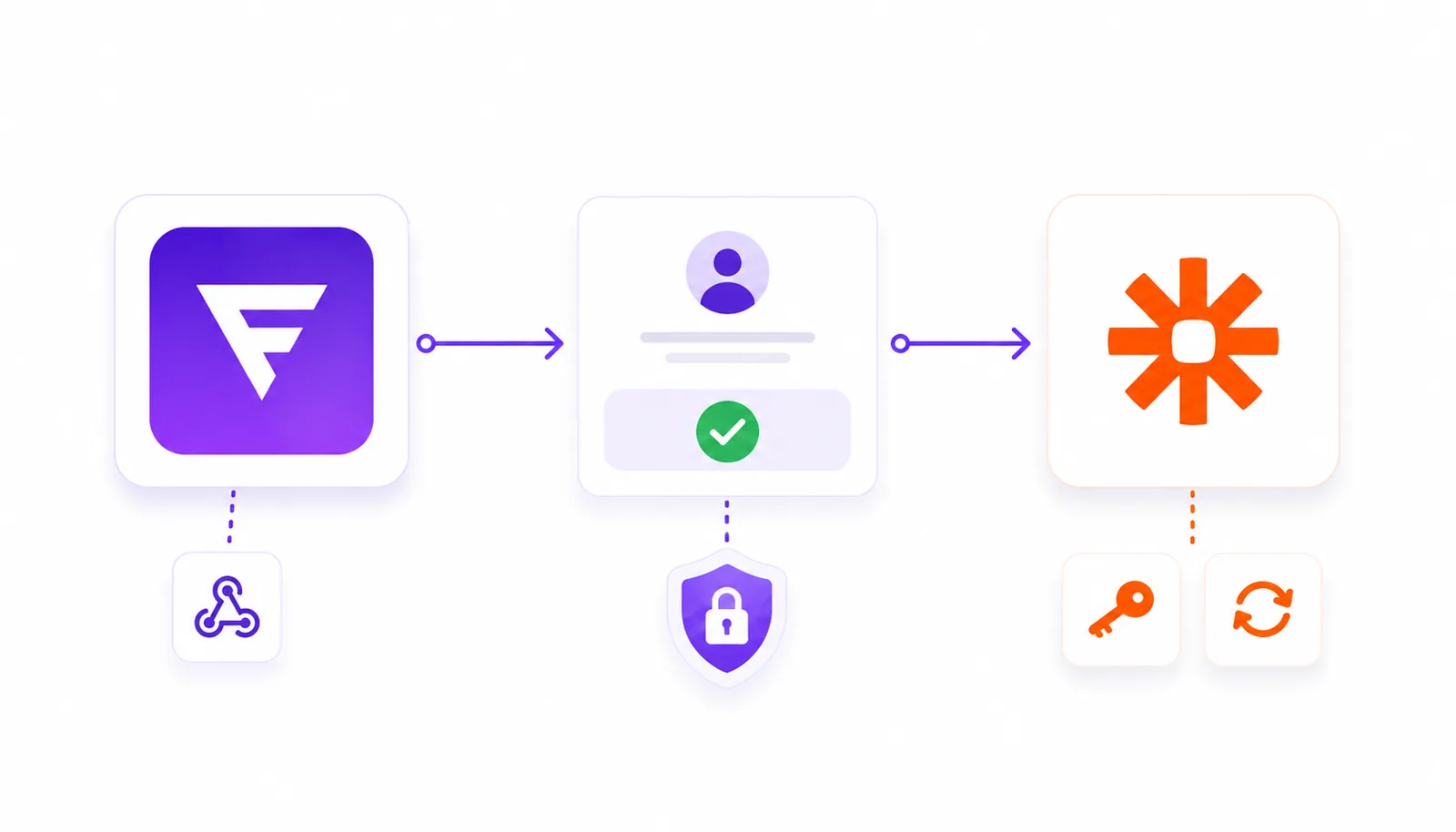
Zapier connects to Funnelforms through the OAuth 2.0 authorization code flow. Zapier receives an access token and refresh token to read forms and manage REST hooks.
REST hooks
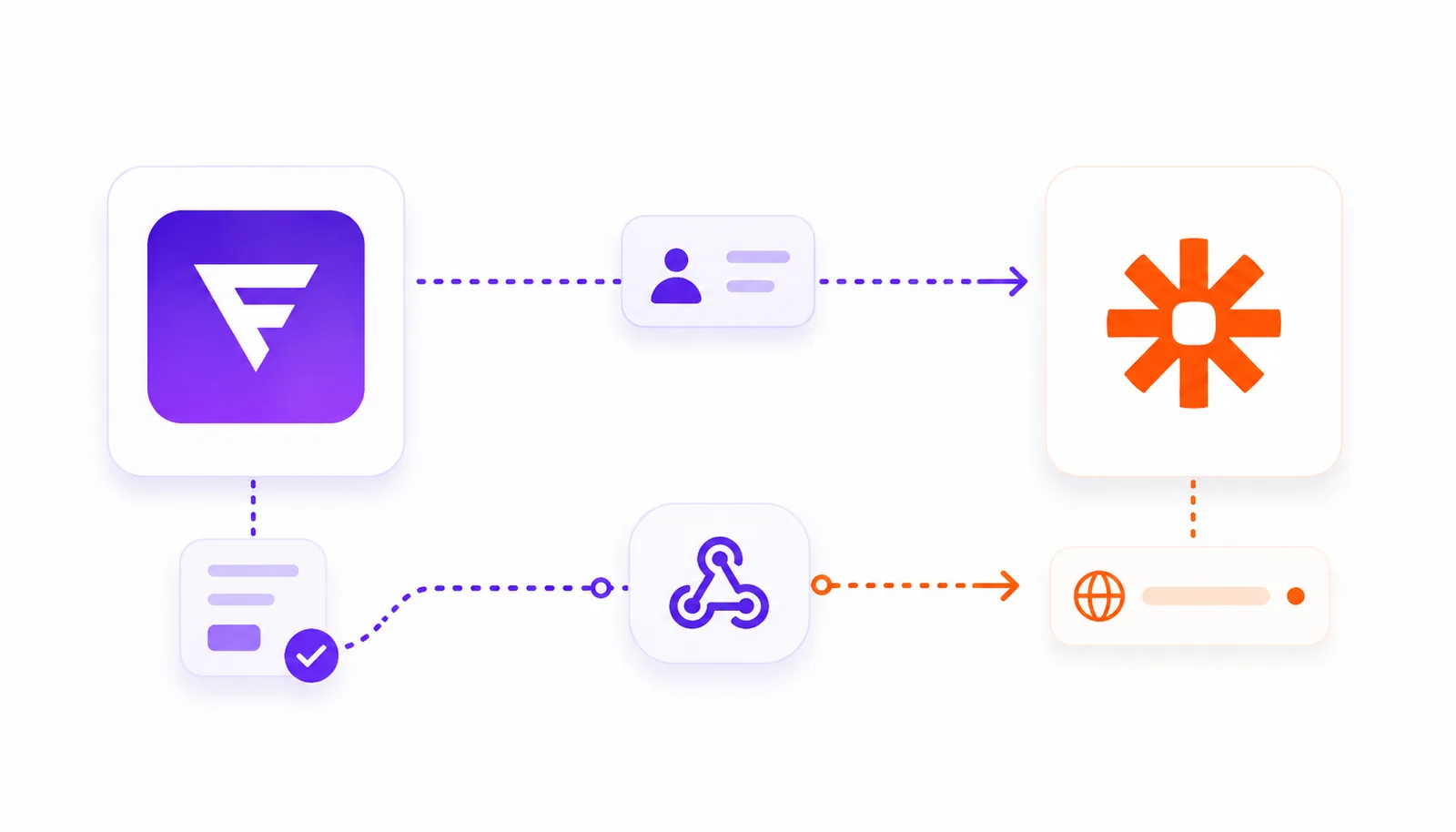
When a form is selected, Zapier registers a hook URL with Funnelforms. As soon as a new lead is submitted, Funnelforms sends the lead data directly to that Zapier URL.
Webhook payload
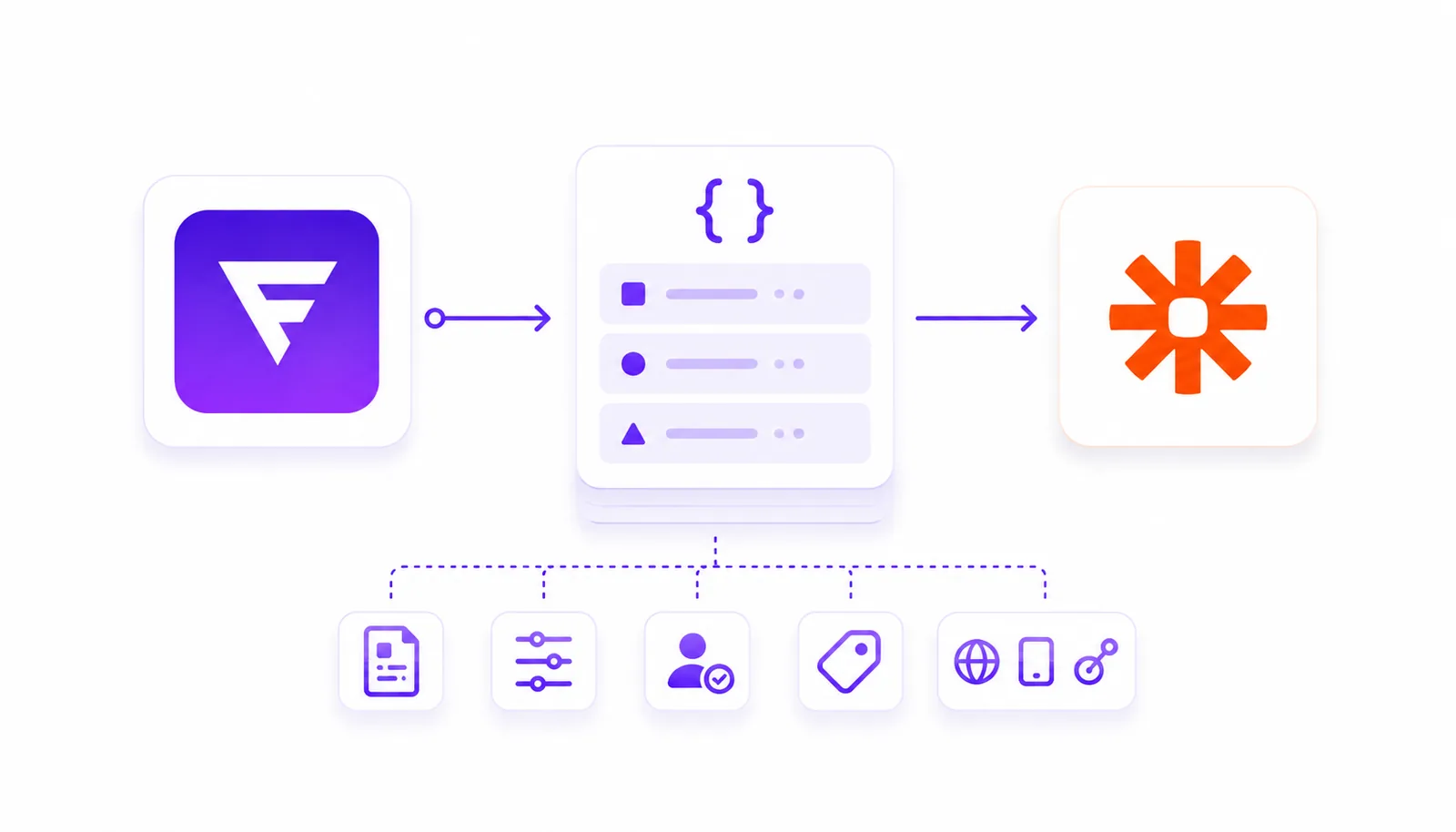
The payload includes form information, field definitions, responses, Webhook Field IDs, response ID and optional analytics data such as referrer, device type and UTM parameters.
Top-level id field: Every payload contains a top-level id field with the unique response ID. Zapier uses this field to deduplicate new leads — it must be present and stable in every delivery. Sample data from zapier-list-recent-leads has the same structure as the live payload so the mapping built during setup matches production 1:1.
Important endpoints
- GET /zapier-oauth-test — tests authentication.
- GET /zapier-list-forms — returns available forms.
- POST /zapier-webhook-subscribe — registers a Zapier hook URL.
- POST /zapier-webhook-unsubscribe — removes an existing hook subscription.
- GET /zapier-list-recent-leads — returns sample leads for Zap setup.
What happens when a new lead is submitted?
Funnelforms sends the lead immediately to the hook URL registered by Zapier. Zapier then processes the data in the active Zap and passes it to the configured target app.
Note: The payload structure generally matches native Funnelforms webhooks. Webhook Field IDs help keep field mappings stable, even if visible field labels change later.
Best practices
- Use one Zap per form whenever possible to make troubleshooting easier.
- Add Webhook Field IDs before finalizing the Zap.
- Test the Zap with real sample leads from Funnelforms.
- Avoid multiple active Zaps with the same destination if duplicate runs would cause issues.
Common issues / Troubleshooting
- Zap receives no leads: Check whether the Zap is active and the correct form is selected.
- Connection expired: Reconnect Funnelforms in Zapier.
- Fields are missing in mapping: Submit a new test lead and reload the sample data in Zapier.
- Webhook Field IDs are empty: Add the IDs to the relevant fields in the form editor.
- Duplicate triggers: Check whether multiple Zaps are active for the same form.
- OAuth connection fails / redirected to login: If you are not yet signed into Funnelforms when authorizing Zapier, you are redirected to the login page. Funnelforms preserves the original Zapier redirect and resumes the OAuth flow automatically after sign-in. If that fails, sign into Funnelforms in a separate tab and restart the Zapier connect.
Tips & notes
Tip: Zapier is fast to set up for simple automations. For complex filters, routers and multi-step workflows, Make is often a better fit.
Warning: The Zapier endpoints are not intended for custom API scripts. Use native webhooks for custom integrations.
Frequently asked questions (FAQ)
Can I use the Zapier API directly for my own scripts?
No. The endpoints are tied to the official Zapier integration. For custom systems, use the Funnelforms webhook feature.
How fast are new leads sent?
New leads are sent to Zapier immediately through REST hooks.
Why do I not see field names in Zapier mapping?
Check whether Webhook Field IDs have been added to the form. Without these IDs, fields may only appear through technical field IDs.
What happens if Zapier is not reachable?
Zapier expects a direct response to the webhook. Also check failed runs inside Zapier.
Can I see which Zaps are connected?
You can currently see connected apps inside Zapier.