Extend Your Forms Flexibly: Add Custom CSS and JavaScript Safely
The "Advanced" tab is where you add custom CSS and JavaScript per form. Use it to fine-tune styling or integrate third-party scripts (e.g. tracking, chat widgets) — without touching the core form logic.
Prerequisites
- Custom code is a plan-dependent feature — on unsupported plans the fields are locked.
- JavaScript is validated before saving; invalid scripts are rejected.
Where to find
Form Editor → Setup → Advanced
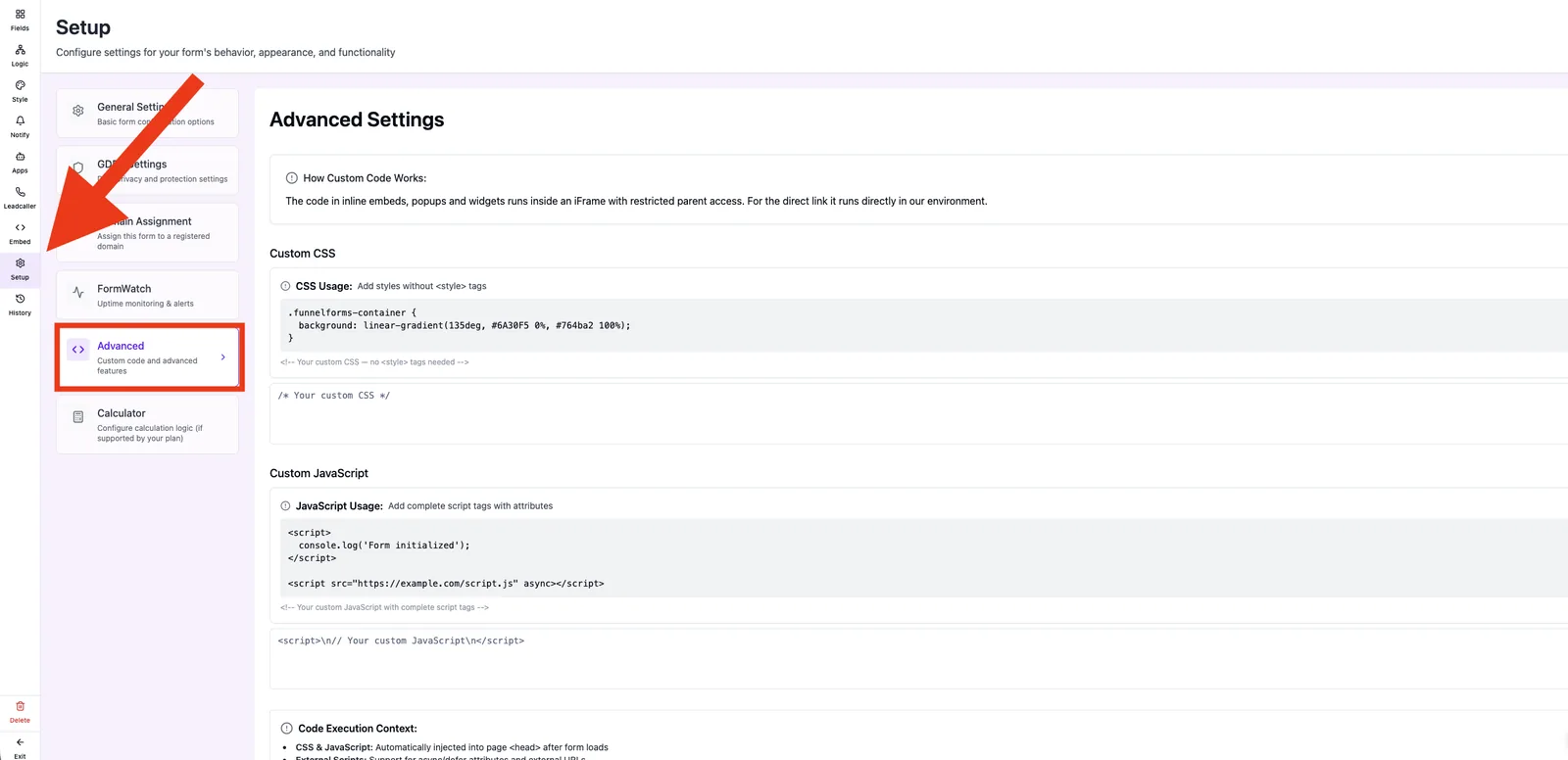
Capabilities
- Custom CSS — no
<style>tags, raw CSS rules only. - Custom JavaScript — full
<script>tags including attributes (async, defer, src). - Auto-injection into
<head>after the form loads. - External-script support (URL plus async/defer).
Step by step
- Open Setup → Advanced.
- Add your rules under Custom CSS (no
<style>). - Add full
<script>blocks under Custom JavaScript. - Save — invalid JS prevents saving.
- Verify the result in the preview and on the live domain.
How is the code executed?
In inline embeds, popups and widgets your code runs inside an iframe with restricted access to the parent window. With the direct link it runs directly in our environment. CSS and JS are auto-injected into <head> as soon as the form loads.
What is Custom CSS good for?
- Fine-tuning spacing, colors, font sizes.
- Custom hover/focus effects or responsive tweaks.
What is Custom JavaScript good for?
- Tracking pixels, conversion snippets, external analytics.
- Chat widgets and third-party helpers.
Best practices
- Only include trusted scripts from reputable sources.
- Use async or defer for external scripts to avoid blocking load time.
- In iframe contexts (popup/widget), avoid features that require direct parent-window access.
Common pitfalls
- CSS has no effect: did you strip the
<style>tags? Only raw rules go here. - JS does not save: validation detected a syntax error.
- Script blocks the page: add async/defer, or move the script to the end.
Tips & notes
Caution: You are responsible for the legal evaluation of external scripts (e.g. cookies, cross-border data transfer).
Frequently asked questions
Can I include CSS or JS files by URL?
Yes — via a <script src="…"> tag in the JavaScript field.
Does custom code work in popup embeds?
Yes, in the iframe context with the usual restrictions on parent-window access.
Is execution different for the direct link?
Yes — with the direct link, code runs directly in our environment, not inside an iframe.