Roll Back With Confidence: Save, Review and Restore Form Versions
This article explains how version history works in Funnelforms: what a snapshot stores, when automatic backups are created, how to restore a version and which retention rules apply.
Prerequisites
- Form exists and is open in the editor.
- Active subscription or running trial.
- Role with write access on the form (owner or team member with edit permission).
Where to find it
Open a form in the editor and switch to the History tab in the left sidebar. You will see every existing version with date, number of fields, number of logic nodes and – if set – a manual label.
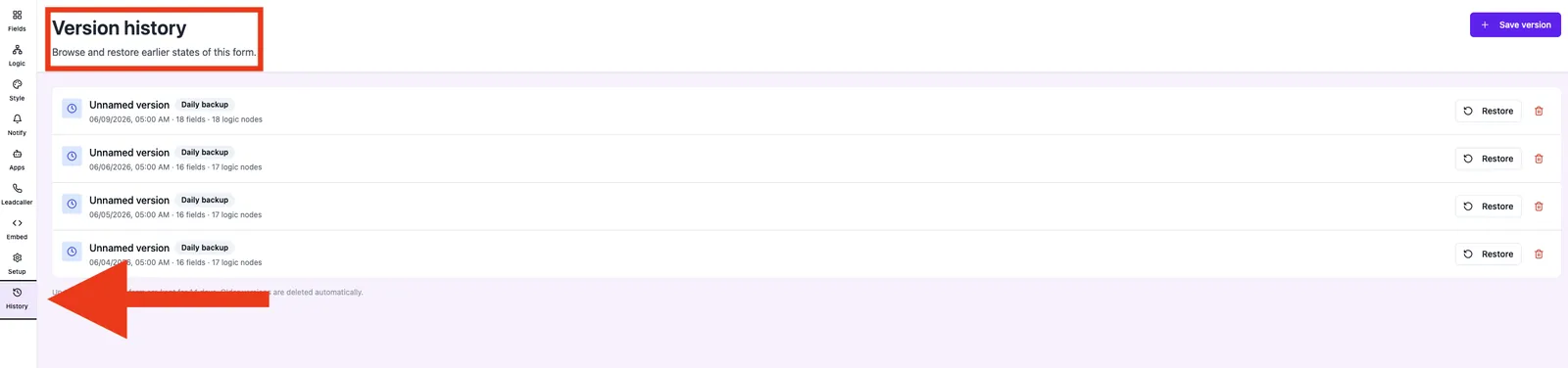
Features
- Full snapshots: each version contains fields, logic nodes, setup settings and styles as an independent restore point.
- Three trigger types:
manual(you save manually),auto_daily(automatically while editing) andpre_restore(automatic backup before every restore). - Optional label for manual snapshots, e.g. Before relaunch or QA approved state.
- Restore overwrites the current state completely — the previous state is saved as a
pre_restoresnapshot first. - Retention: automatic daily snapshots (
auto_daily) are capped at 14 versions / 14 days per form. Manual andpre_restoresnapshots are kept indefinitely until you delete them yourself.
Step-by-step
Create a snapshot manually
- Open the History tab in the left sidebar.
- Click Save version in the top right corner.
- Add an optional label and confirm.
Restore a version
- Select the version you want to restore from the list.
- Click Restore and confirm the dialog.
- Funnelforms automatically creates a
pre_restoresnapshot, overwrites fields, logic, settings and styles, and reloads the editor.
Delete a version
- Select the version in the list.
- Click the trash icon and confirm.
- This action is final and cannot be undone.
Best practices
- Save manually with a meaningful label before any larger change (new logic, relaunch, A/B variant).
- Do not use the history as a long-term archive — document important states externally as well (screenshots, notes, tickets).
- Save the current state manually before handovers or demos so the state you show stays reproducible.
Common pitfalls
- Automatic daily snapshot no longer visible:
auto_dailysnapshots are capped at 14 versions / 14 days per form — older ones are removed automatically. Manual andpre_restoresnapshots are kept. - Restore does not appear to apply: the editor reloads after a restore; refresh the page if fields or logic still look outdated.
- Lead answers look mismatched after restore: snapshots only cover form configuration. Lead data is untouched but may differ from the restored field structure.
Tips & notes
Tip: Set a manual snapshot before every go-live with the label Live state YYYY-MM-DD. You always have a clearly named rollback point.
Caution: Restoring overwrites the current state completely. Check whether an additional manual snapshot of the current state makes sense first.
FAQ
Are responses/leads backed up as well?
No. Version history only stores form configuration (fields, logic, settings, styles). Lead data is managed separately and is never overwritten.
How many versions are kept?
Automatic daily snapshots (auto_daily) are capped at 14 versions / 14 days per form. Manual snapshots and automatic pre_restore backups are never auto-deleted and remain until you remove them yourself.
Can I export or download a version?
Not at the moment. Versions are managed and restored exclusively inside the editor.
Can I restore single fields from an old version?
Selective restore of individual fields is not supported — a restore always resets the entire form to the snapshot state.
Why don't I see daily snapshots?
Automatic daily snapshots are only created when the form is actually edited. Without changes no additional version is created.