Make Every Submission Count: Set Up Thank You Pages, Tracking and Redirects
This article describes how to configure the thank-you page in Funnelforms after a form is submitted: texts, animations, answer summary, file downloads, tracking code and automatic redirect.
Prerequisites
- Form exists and contains a submit step.
- Active subscription or running trial.
- For redirects: a valid target URL including
https://.
Where to find it
Open the form in the editor and switch to the Logic area. Select the thank-you node — every available option will appear in the inspector on the right.
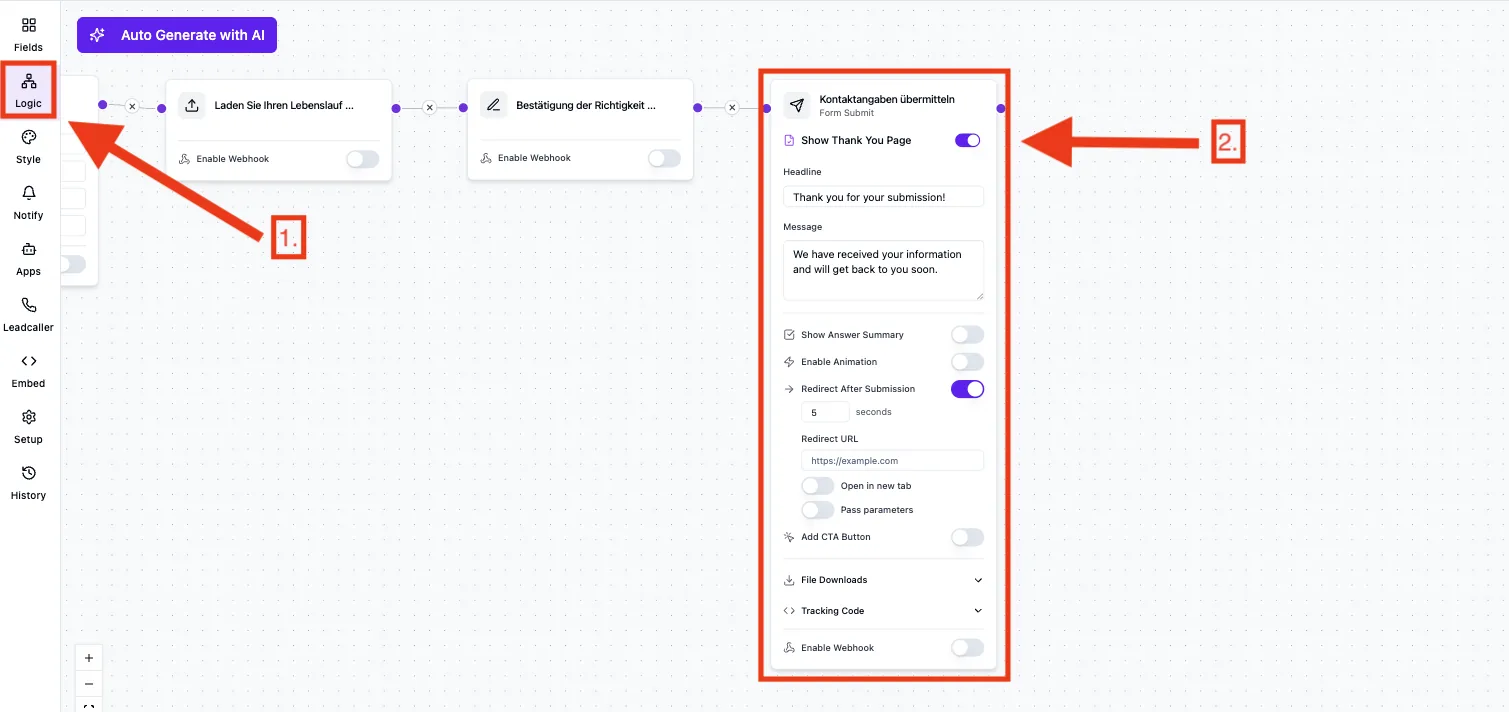
Features
- Headline and Message with personalisation via the variable picker (values from the form).
- Answer summary of the submitted answers below the message.
- Animations: Confetti or Checkmark, triggered when the thank-you page appears.
- Redirect with configurable delay in seconds (
0= immediate). - CTA button with button text, target URL and "open in new tab" option.
- File downloads: any number of resources with display name and public URL.
- Tracking code (HTML/JavaScript) executed when the thank-you page loads — e.g. for Google Ads or Meta Pixel.
Step-by-step
Set up the thank-you page with texts and animation
- In the logic area, select the thank-you node.
- Fill in Headline and Message. Use the variable picker to insert answers such as the first name.
- Optionally enable Show answer summary.
- Pick Confetti or Checkmark under Animations.
Configure the redirect
- Enter the full target URL under Redirect.
- Set Redirect after (seconds).
0redirects immediately; larger values show the thank-you page first. - Test the flow with a test submission.
Add tracking code
- Paste your HTML/JavaScript snippet (pixel, conversion tag) into Tracking code.
- If a redirect is active: plan at least 2–3 seconds of delay so the tracking can fire reliably.
- Publish the form and verify the tracking in your browser dev tools or platform (e.g. Google Ads Tag Assistant).
Best practices
- Use personalisation sparingly and precisely (first name, selected option) — avoid an overloaded block layout.
- With a hard redirect (
0seconds), do not plan on visible conversion animations — they will not be seen. - Give the CTA button a clear follow-up action (book a meeting, download, back to website) instead of a generic "Continue".
- Use descriptive display names for downloads ("Lead-gen whitepaper 2026" instead of "Download.pdf").
Common pitfalls
- Tracking does not fire: the redirect is set to
0seconds — increase the delay to at least 2–3 seconds. - Variables show empty: the referenced field was not filled in the current path — insert the variable again via the picker.
- Redirect appears stuck: URL is missing
https://or has a typo — verify the full URL including protocol. - Download link leads nowhere: the stored URL is not publicly reachable or is time-limited (e.g. signed URL).
Tips & notes
Tip: Combine a short thank-you page (2–3 seconds) with a redirect. Conversion tracking fires reliably and the lead still lands on the follow-up page.
Caution: The redirect happens in the same tab. External scripts and pixels must fire before the redirect, otherwise they will not be executed.
FAQ
Can I show a different thank-you page per logic path?
Yes. Create multiple thank-you nodes and connect them to the respective path in the logic editor.
Are variables also replaced in the redirect URL?
Yes. In the thank-you node, use the Redirect parameters section to map form fields to query parameters (e.g. ?email={{email}}). UTM parameters from the original URL are also forwarded to the target URL automatically.
Can confetti and checkmark be shown at the same time?
No. Exactly one animation is active at a time.
Can I disable the animation on mobile devices?
The animation currently runs on every device. Switch it off in the thank-you node if you do not want it at all.
How many file downloads can I add?
There is no hard limit. Keep the list focused and prioritise the most important resources.