When you connect your website to your Funnelforms account, it gets updates and support through your account. You sign in at Funnelforms in your browser or activate with a code. If the website had a license key of Funnelforms 3, it connects with it by itself or in one click. Your forms, entries and appointments never depend on this connection.
Requirements
- Funnelforms Pro. This feature is not included in Funnelforms Free.
- You are an administrator of the website.
- Your Funnelforms account has a license for Funnelforms Pro with a free website. If no place is left, disconnect another website or choose a larger plan.
- The website can reach Funnelforms over the internet.
- The PHP extension Sodium is active on the server. It checks the signature of the license.
Where to find it
Funnelforms → Account
You also get there:
- through the step Your account in the setup assistant,
- through the item Connect your Funnelforms account in the checklist on the overview,
- through the notice Please connect with Funnelforms on the dashboard, in the plugin list and on the Funnelforms pages.
Features at a glance
- Connect with Funnelforms: sign in in the browser, pick the license, no key to copy.
- Connect with my Funnelforms 3 key: one click if the website has a license key of Funnelforms 3. After the update, the website also tries this by itself in the background.
- Card Activation code: activate with a code from your Funnelforms account, without signing in in the browser. The license key of Funnelforms 3 works as well.
- Once connected, the page shows your plan, the websites in use, the renewal, the state of updates and services, and the connection.
- Disconnect this website frees the place in your plan.
- If your plan is full, the card These websites use your plan shows which websites use it.
Step by step
Connect in the browser
- Open Funnelforms → Account.
- Click Connect with Funnelforms. If the website has a key of Funnelforms 3, the button is called Sign in with Funnelforms instead.
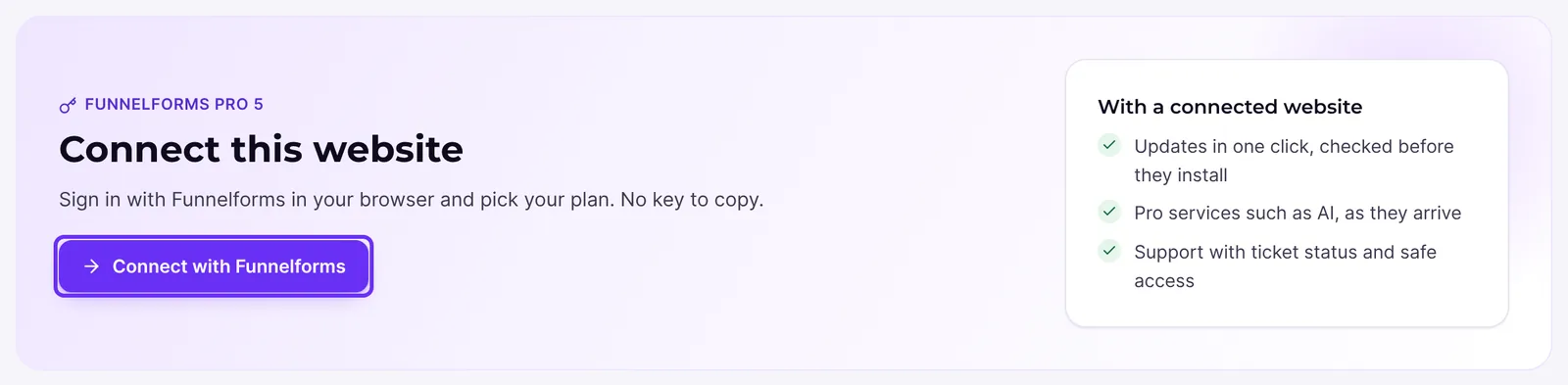
- Sign in to your Funnelforms account. You get a code by e-mail for this.
- Under Which license?, pick the license for this website and click Connect.
- You come back to the account page. It says "This website is connected to your Funnelforms account."
Connect with the key of Funnelforms 3
- Open Funnelforms → Account. Under Connect this website you see "Funnelforms 3 license key ending in …" with the last four characters of your key.
- Click Connect with my Funnelforms 3 key.
- "Done: this website is connected with your Funnelforms 3 license." appears.
Connect with an activation code
- In your Funnelforms account, create an activation code at the license and copy it.
- Open Funnelforms → Account and go to the card Activation code.
- Paste the code. If the website used a license key in Funnelforms 3, it is already in the field.
- Click Activate.
Disconnect the website
- Open Funnelforms → Account.
- In the card Connection, click Disconnect this website.
- Confirm the question "Disconnect this website from your Funnelforms account? Your forms keep working."
Move the license to another website
- Disconnect the current website with Disconnect this website. You can also disconnect it in your Funnelforms account.
- Open Funnelforms → Account on the new website.
- Connect it in the browser or with an activation code.
Connect again after an address change
- Open Funnelforms → Account. It says "The address of this website has changed. Connect again to move the license to the new address."
- Click Connect again.
How it works
What happens when I connect in the browser?
Funnelforms opens your Funnelforms account. The website passes on its address, the name of the website and the versions of Funnelforms, WordPress and PHP. In the account you pick the license; licenses without a free website are marked as full. The website gets back a signed license token and a secret and stores both encrypted. The process is valid for 15 minutes; if it takes longer, start again. Once a day WordPress renews the token in the background (WP-Cron). Check now does it right away.
How does a website from Funnelforms 3 connect by itself?
After the update to Funnelforms Pro 5.0, the website tries once in the background to connect with the stored license key of Funnelforms 3. This runs by WP-Cron, never while a visitor waits. If Funnelforms cannot be reached, it tries again later. If Funnelforms does not know the key yet, it tries once a day for a week. If it does not work, the account page names the reason:
- "Funnelforms does not know this key yet."
- "The license behind this key is not active any more."
- "All websites of this license are in use."
- "Funnelforms could not be reached."
While another try is planned, the page says when. You can connect right away at any time with Connect with my Funnelforms 3 key. If the website stops trying, sign in with Sign in with Funnelforms instead and pick another license.
What does the notice "Please connect with Funnelforms" mean?
If the website is not connected, administrators see this notice with the buttons to connect on the dashboard, in the plugin list and on the Funnelforms pages. Not now hides it for you for 14 days. It does not appear on the account page or in the setup assistant. If a connected license needs a look, the notice names the reason and has the link Open the account.
What does the account page show once connected?
- Your plan: the name of the plan, a badge with the status and a sentence about it. Below are the buttons Plan, payment and invoices, More websites and Check now, and Connect again when needed.
- Websites: how many websites are in use, for example "2 of 5" or "2 in use · no limit", with a progress bar and a list. The current website carries This website, staging websites carry Staging. Below: "Staging and local websites do not count." or "This is a staging website and does not count."
- Four figures: Plan, Websites (for example "3 websites free"), Renewal and Updates and services with Confirmed until ….
- Connection: the account (e-mail address), the website, Last confirmed and the link Open my Funnelforms account.
- If a plan ends or Funnelforms is offline: what keeps running in that case.
The article on the plan status explains what the badges and sentences mean.
What happens when my plan is full?
Then "Your plan has no free website left. …" appears, with the card These websites use your plan below it, listing every website in use. Disconnect one of them on its page Funnelforms → Account or in your Funnelforms account, or pick a plan with more websites with Choose a larger plan. Then connect this website again.
What happens when I disconnect?
The website tells Funnelforms and forgets token and secret, even if Funnelforms cannot be reached right now. Afterwards it shows Connect this website again. One exception: if the license was disconnected from websites too often in the last 30 days, Funnelforms refuses to disconnect. The website then stays connected. If Funnelforms no longer knows the website, for example because you disconnected it in your account, it disconnects itself at the next daily check.
What happens when the address of my website changes?
The license token is valid for one address. If it changes, the account page shows the message about the address change, and the website must connect again. Whether the address starts with http or https and with or without www does not matter.
What happens without a connection?
Forms, entries, e-mails and appointments keep working. Without a connection, Funnelforms Pro gets no updates.
Best Practices
- Connect the website with the Funnelforms account that owns the license.
- Use the activation code if signing in in the browser is not possible or you set up many websites.
- Disconnect a website before you delete it or use its license elsewhere, so that the place in your plan becomes free.
Troubleshooting
| Problem | Cause | Solution |
|---|---|---|
| "Connecting was cancelled." | You cancelled the sign-in at Funnelforms. | Click Connect with Funnelforms again. |
| "Your plan has no free website left. …" | All websites of your plan are in use. | Disconnect a website or choose a larger plan. |
| "This account has no Funnelforms Pro plan." | The account you signed in with has no license. | Sign in with the right account or buy a license. |
| "This activation code is not valid." | The code is wrong. | Copy the code from your account again or create a new one. |
| "The license of this plan is not active. …" | The plan is not running. | Renew the plan in your account, then connect again. |
| "Too many attempts. …" | There were too many requests in a short time. | Wait a few minutes and try again. |
| "Funnelforms could not be reached. …" | The website cannot reach Funnelforms. | Try again later. Your forms keep working. |
| "The sign-in took too long or was started elsewhere. …" | The process was open for more than 15 minutes or was started by another user. | Start connecting again and finish it quickly. |
| "Funnelforms could not start the sign-in for the address of this website. …" | Funnelforms does not accept the address for signing in in the browser. | Activate with a code or contact support. |
| "Funnelforms cannot connect the address of this website. …" | The address cannot be assigned to a license. | Contact support. |
| "This version of Funnelforms cannot connect yet. …" | This version lacks the verification keys for the license. The message appears with an activation code and right after you click Connect with Funnelforms, before the sign-in opens. | Install the next update. Your forms keep working. |
| "This license was disconnected from websites too often in the last 30 days. …" | The license was disconnected too often. | The website stays connected. Try again later or contact support. |
| "Connecting did not work. …" | Another answer from Funnelforms without a message of its own. | Try again or contact support. |
Tips
- The website sends its address and the versions of WordPress, PHP and Funnelforms to Funnelforms when it connects and once a day. When connecting, the name of the website is added.
- Funnelforms fetches the details on plan and websites at most every ten minutes. Check now fetches them right away.
- If Funnelforms cannot be reached right now, the account page shows "Funnelforms cannot be reached right now." at the top and the last known state. Try again asks once more.
FAQ
Do I need the connection for my forms to work? No. Forms, entries and appointments also work without a connection and when a plan ends.
Do I have to type in my license key of Funnelforms 3? No. After the update, the website tries to connect with it by itself. Otherwise one click on Connect with my Funnelforms 3 key is enough.
Does a staging website count against my website limit? No. Staging and local websites do not count.
Who may change the connection? Only administrators. The page Account is not visible to other roles.