Funnelforms Pro 5.0 sends entries straight to Brevo, CleverReach and Google Sheets, with no extra service such as Zapier in between. Brevo and CleverReach add the contact to a list, and Google Sheets writes each entry as a new row in a spreadsheet. This article shows you which credentials you need and what happens to the entries.
Requirements
- Funnelforms Pro. This feature is not included in Funnelforms Free. Free names CRM, newsletter and spreadsheet tools in the editor only in the note with the Pro badge.
- An account with Brevo, CleverReach or Google.
- For Google Sheets: your website is connected with your Funnelforms account under Funnelforms → Account. Signing in with Google goes through your Funnelforms account.
- To create the connection you need the right to change settings; for the action in the form, the right to edit forms and to see entries. Without the right to see entries you prepare the action; someone with the right publishes it.
Where to find it
- Create the connection: Funnelforms → Integrations.
- Action in the form: in the editor in the After sending tab of the contact step, under Actions in Add an action, the item CRM, newsletter or spreadsheet.
Features at a glance
| Provider | Access | What Funnelforms creates |
|---|---|---|
| Brevo | API key | Contact with e-mail, first name, last name and phone in a list, optionally with Brevo's double opt-in |
| CleverReach | Client ID and client secret of an OAuth app | Receiver with e-mail, first name and last name in a list (group), optionally with the activation mail of a CleverReach form |
| Google Sheets | Sign-in with your Google account | One row per entry with date, form, entry, page and one column per question and contact field |
Step by step
Brevo
- In Brevo, open SMTP & API → API keys in your profile menu and create an API key.
- Enter it in Funnelforms in the connection for Brevo.
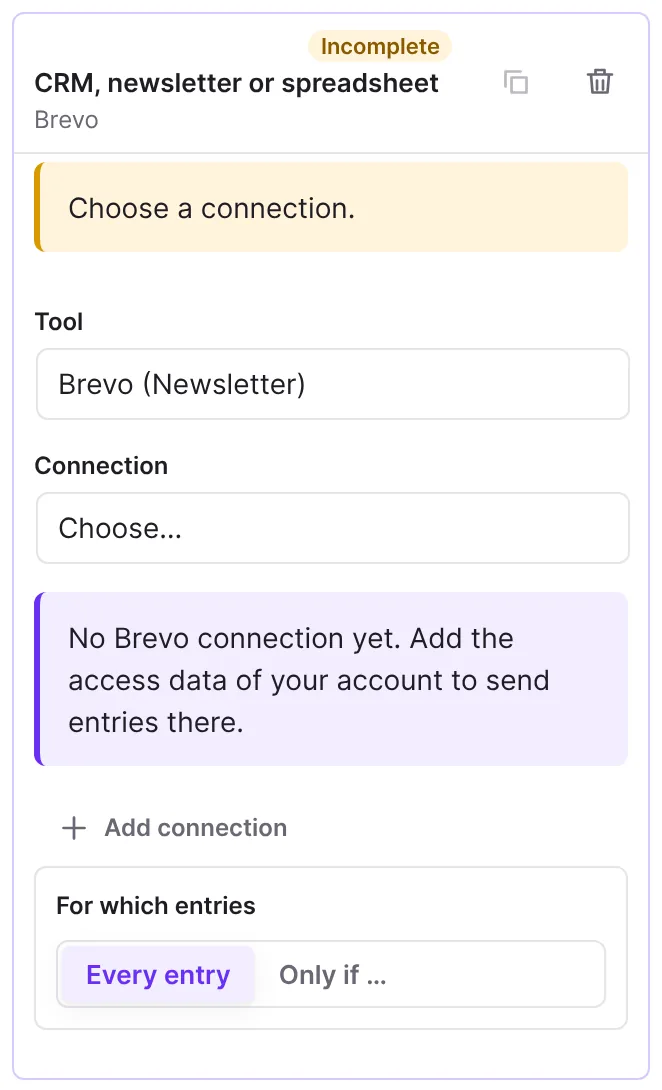
- Choose the list in the action. For Brevo's double opt-in, choose a template under Double opt-in template (optional) and, under Page after confirming (optional), the page visitors reach after the click.
You create a double opt-in template in Brevo as an e-mail template with the tag "optin" and the link {{ doubleoptin }}.
CleverReach
- In CleverReach, open My account → Extras → REST API and create an OAuth app for REST API version 3.
- Enter its Client ID and Client secret in Funnelforms.
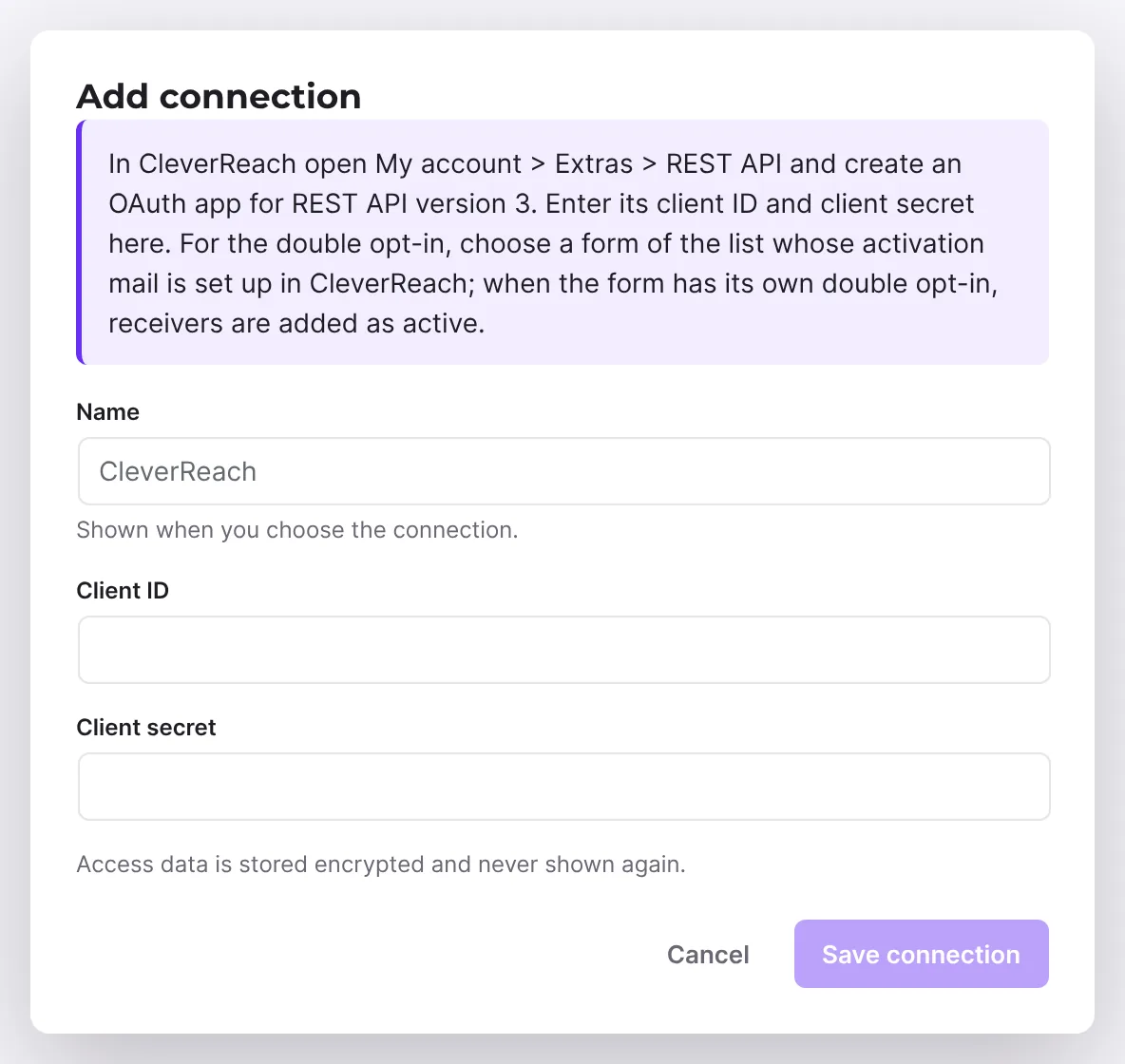
- Choose the list in the action. For the double opt-in, choose under Form for the double opt-in mail (optional) a form of the list whose activation mail is set up in CleverReach.
Google Sheets
- In the connection for Google Sheets, click Sign in with Google. A window opens.
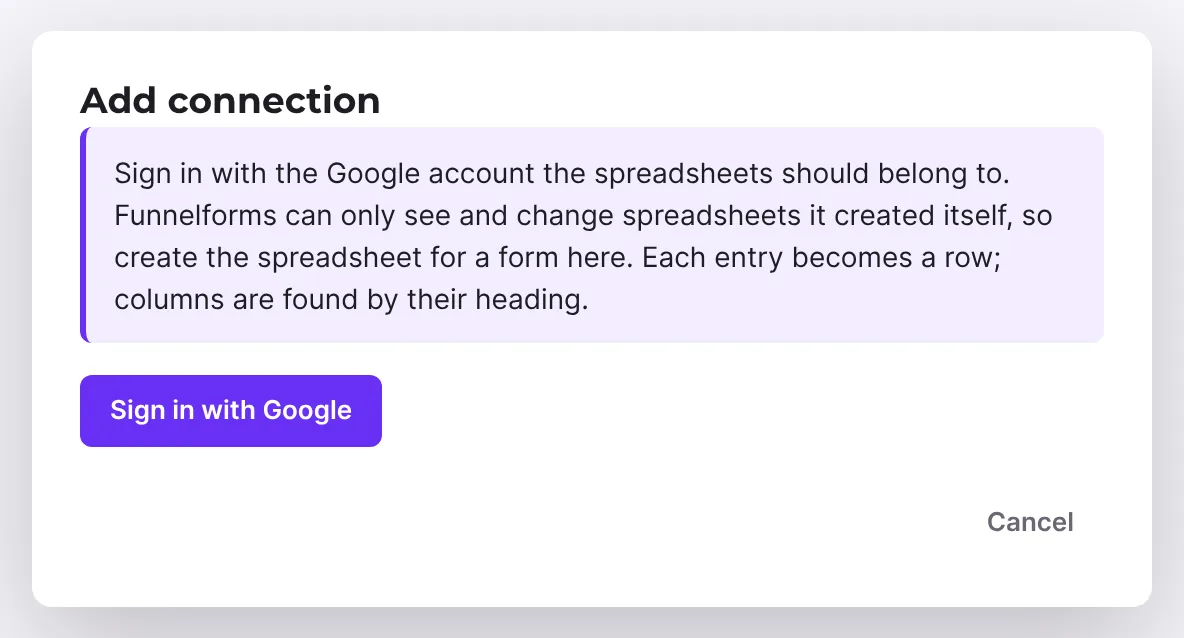
- Confirm on the Funnelforms page that you want to sign in. Then you go on to Google.
- Sign in with the Google account the spreadsheets should belong to and allow access. Afterwards you see "Google Sheets is connected. You can close this window."
- In the action, click New spreadsheet and choose it under Spreadsheet.
- Submit a test entry and check whether the row appears in the spreadsheet.
The sign-in starts only from a website connected with a Funnelforms account; a sign-in link someone sends you cannot be used. Whether Google Sheets can already be connected through Funnelforms depends on the service on the Funnelforms side. If it is not ready yet, Funnelforms reports "Google Sheets cannot be connected through Funnelforms yet. Try again later." This feature is currently in progress.
How it works
What happens with double opt-in?
If your form has its own double opt-in, the actions wait for the confirmation. Brevo and CleverReach then add the contact as confirmed and send no second mail. Only without a double opt-in in the form do you use the double opt-in of Brevo or CleverReach.
Which fields arrive in Brevo and CleverReach?
Funnelforms reads the field names from your account, for example FIRSTNAME or VORNAME in Brevo. That is why it works with German and English accounts. In Brevo, the phone number is only sent in international form such as +49…, and only if it does not belong to another contact yet. If the e-mail address already exists, Brevo updates the contact. If it is already in the CleverReach list, the entry counts as delivered.
What does Funnelforms see in my Google Drive?
Only the spreadsheets Funnelforms created itself. All other files in your Drive stay invisible to Funnelforms. That is why you create the spreadsheet for a form in Funnelforms and not in Google Sheets.
How does Funnelforms fill the spreadsheet?
Each entry becomes a new row in the first sheet. Funnelforms finds the columns by the heading in row 1. If a new question is added, Funnelforms appends a column at the end instead of shifting the others. Input that looks like a formula stays text.
Best Practices
- Create a separate spreadsheet for each form.
- Don't rename the columns in the spreadsheet, otherwise Funnelforms creates new ones.
- Use the double opt-in in the form when several actions should wait for the confirmation.
Troubleshooting
| Problem | Cause | Solution |
|---|---|---|
Brevo or CleverReach: code ends in http_401 | API key or client secret wrong or deleted. | Create new credentials and enter them in the connection. |
| Brevo: phone number missing in the contact | The number was not international (+49…) or already belongs to another contact. | Ask for the number with the country code. |
Google Sheets: code permanent:reconnect | Access was withdrawn in Google. | Sign in to the Google account again. |
| "Funnelforms needs access to the spreadsheets it creates." | Access was not allowed during sign-in. | Sign in again and allow access. |
| "Google Sheets signs in through your Funnelforms account. Connect this website (again) on the Account page …" | The website is not, or no longer, connected with your Funnelforms account, or its address changed since connecting. | Click Connect the website in the message. It takes you to Funnelforms → Account. Connect the website again there, then sign in to Google Sheets once more. |
| "Google Sheets cannot be connected through Funnelforms yet. …" | The Funnelforms service does not offer Google Sheets yet. | Try again later. |
| "The sign-in could not be started (…). Try again in a moment." | The Funnelforms service could not be reached or refused the request. The code is in brackets. | Try again in a moment; if the error stays, report the code to support. |
| "The sign-in was cancelled." | The sign-in was cancelled on the Funnelforms page or at Google. | Start the sign-in again. |
| The spreadsheet is missing from the choice | It was created in Google Sheets, not in Funnelforms. | Create the spreadsheet again in the action. |
Tips
- If you delete the Google connection in Funnelforms, Funnelforms also withdraws access at Google.
- You see failed transfers in the entry under Sent to and repeat them with Send again ….
FAQ
Do I need Zapier or Make for this? No. Funnelforms sends the entries directly.
Does the connection cost extra? Funnelforms uses no paid service in between. What your plan at Brevo, CleverReach or Google allows is up to the provider.
Can I use an existing Google spreadsheet? No. Funnelforms only sees spreadsheets it created itself.